



Visits Management
The AffiliatePress Visits page allows you to monitor every click on your affiliates’ referral links.
Every time someone visits your website via an affiliate link, AffiliatePress records the visit inhere. You can use this data for tracking affiliate traffic, and high performing affiliates as well as analyzing conversion rates.
Here is the quick overview of the Visits page in the AffiliatePress.
Understanding the Visits
You can view and manage all recorded visits from WordPress → AffiliatePress → Visits.
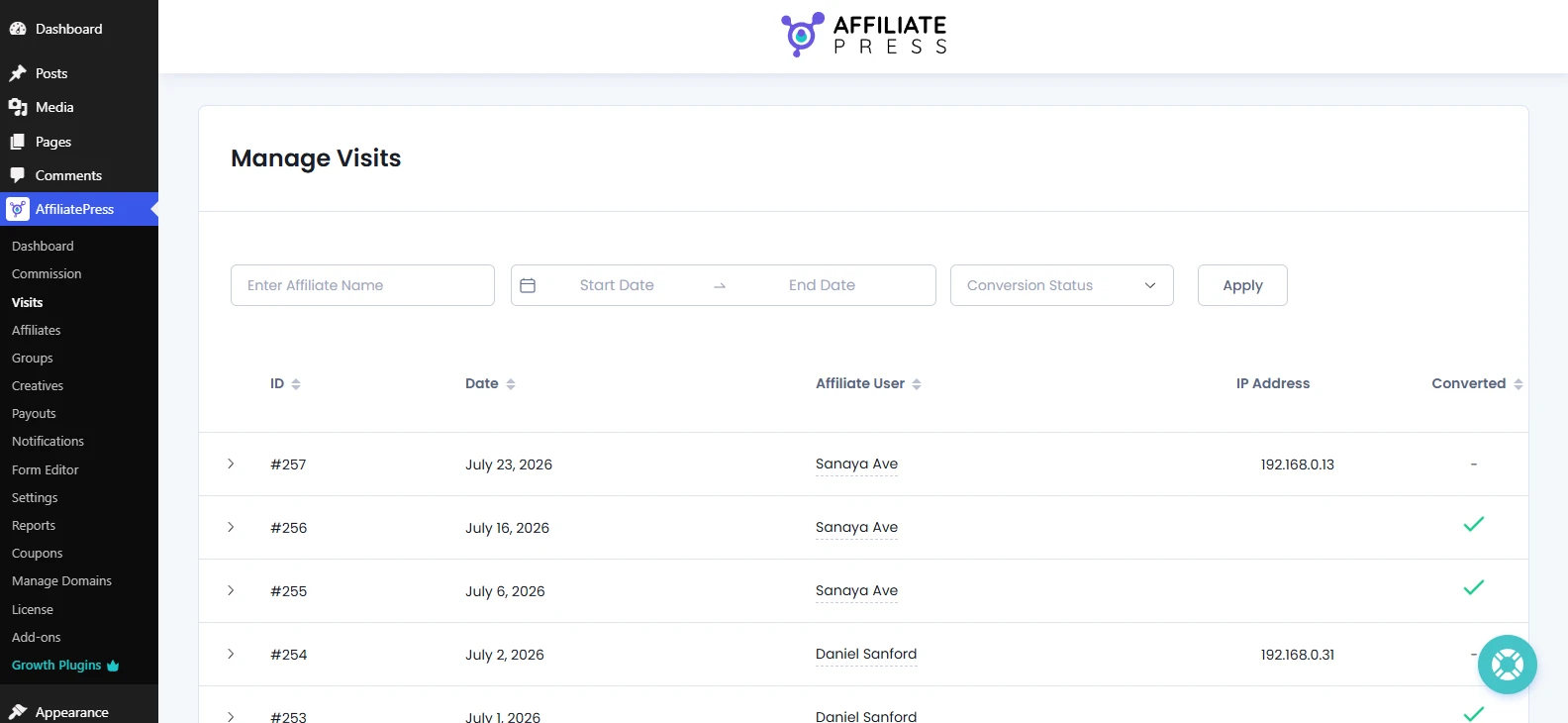
Here you can see all the data in a table like structure for each and every tracked visit, including the affiliate who referred the visitor, the visit date, IP address, conversion status and additional visit details.
- ID: Shows the ID of the visit that was tracked for a user
- Date: Shows the date when the user clicked the affiliate link
- Affiliate User: The affiliate who referred the visitor to your website
- IP Address: The IP address of the visitor who clicked the referral link
- Converted: Shows whether the recorded visit resulted in a successful conversion or not yet
- Landing URL: The page on your website where the visitor arrived after clicking the affiliate referral link
- Referrer URL: The webpage or source from which the visitor clicked the affiliate referral link
Moreover, you can also arrange these data into ascending or descending order by ID, Date, Affiliate User and Converted.
View Affiliate Details
From the Visits page, you can easily view information about the affiliate tied with a visit. Just click the Affiliate User name in the row to open that affiliate’s details in a popup.
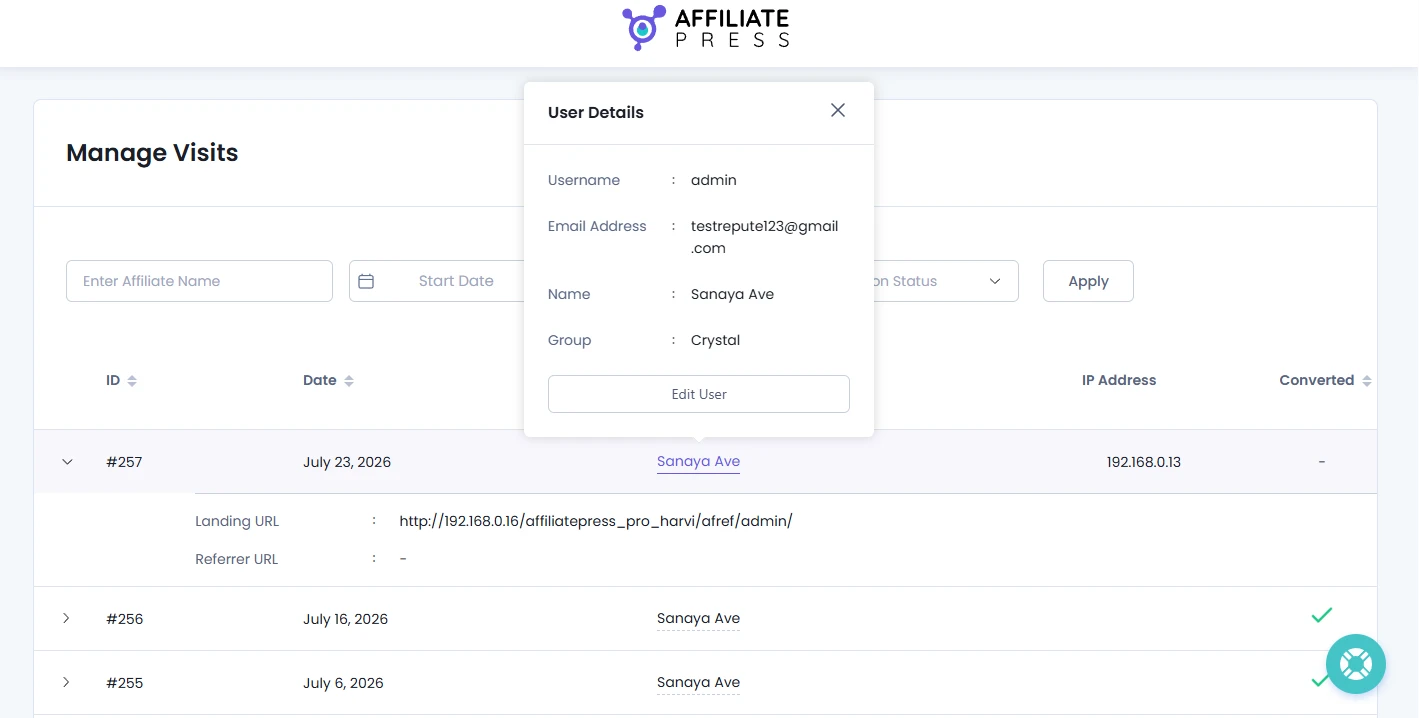
The popup shows you quick data about the affiliate such as:
- Username
- Email address
- Full Name
- Assigned group
From this popup, you can also click Edit User to open the affiliate’s user profile and manage their account.
Filter Visit Records
Use the available filters on the Visits page to quickly find specific visit records and analyze affiliate traffic.
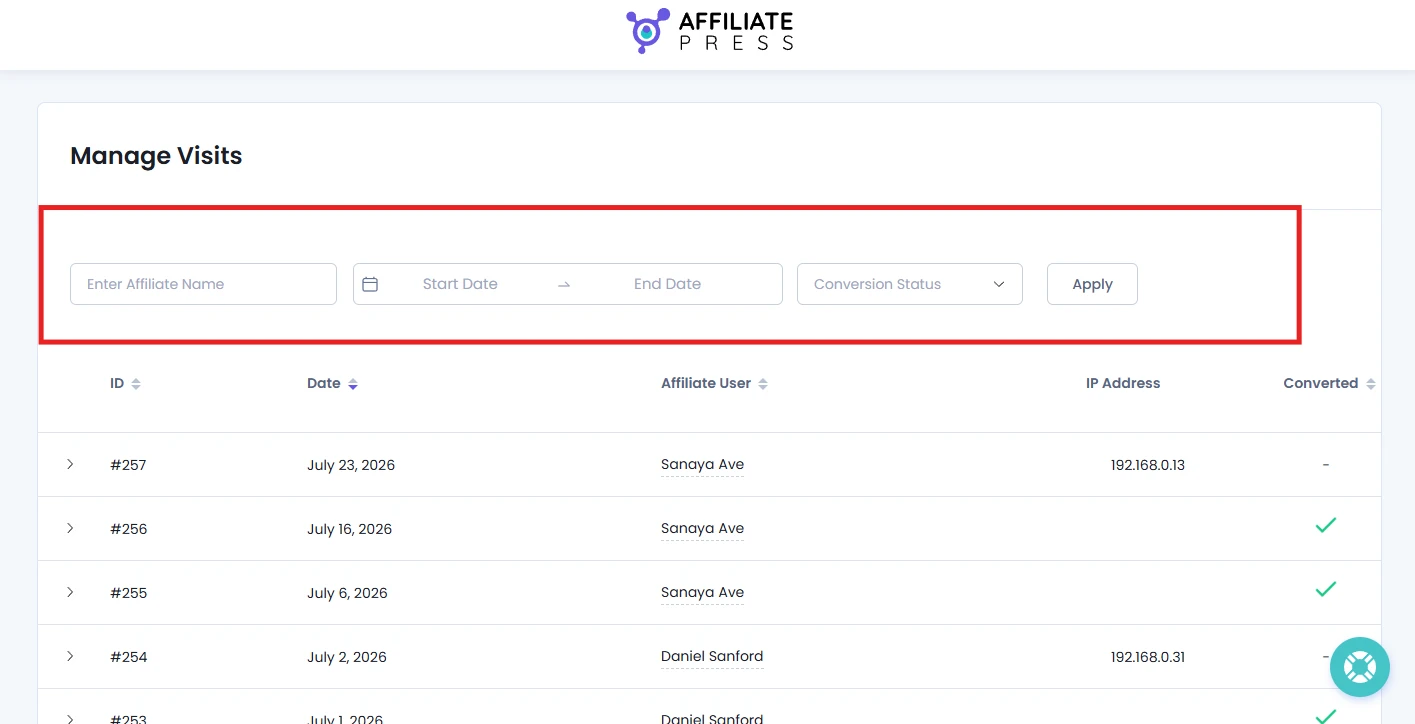
You can filter visits using the following options:
- Affiliate Name: Enter affiliate name, and once found, click on it from the dropdown suggested options.
- Visit Date Range: Pick the start date and end date to see all in-between visits.
- Conversion Status: Filter Visits data based on whether the visit is Converted or Not Converted.
After selecting the desired date range, affiliate name or conversion status, hit the Apply button to update Visits table with all matching records.
Finally, don’t forget to click on the Reset button next to Apply to remove all filters.
How Affiliate Visit Tracking Works
AffiliatePress automatically tracks all visits whenever someone clicks an affiliate’s referral link and lands on your website. As per your AffiliatePress setup, a visit can be recorded in multiple ways.
Tracking Visits Using Affiliate Referral Links
This is the standard tracking method.
- A visitor firstly clicks an affiliate’s unique referral link.
- Later the visitor is redirected to your website.
- AffiliatePress records the visit, stores the referral data and shows it on the Visits page.
For instance, if the visitor completes a qualifying action such as making a purchase or signup, then the visit is marked as “Converted”.
Tracking Visits Using Affiliate Coupon Codes
If you’re using the Coupon Code add-on, AffiliatePress can also track visits without an affiliate referral link. Click here to learn more about Coupon Code Addon.
Thus here’s how it works:
- A customer first visits your website directly or from any source.
- During checkout, the customer applies a coupon code assigned to an affiliate.
- AffiliatePress recognized the affiliate associated with the coupon and records a Visit.
- If the purchase qualifies, the affiliate also receives the corresponding referral and commission.
For example – In this case – a customer buys a Product ABC using an affiliate’s assigned coupon code without ever clicking an affiliate referral link. So if the purchase is successful, AffiliatePress will create a Visit record and attribute the commission to that affiliate.
Tracking Visits for Lifetime Customers
If the Lifetime Commissions add-on is enabled, AffiliatePress also tracks affiliate sales made by customers who have already been assigned to an affiliate. Click here to learn how to configure lifetime commissions addon.
Allow us to show you how it works:
- A customer makes their first qualifying purchase by using an affiliate referral link.
- Next, the AffiliatePress assigns that customer to the referring affiliate as a lifetime customer.
- When the same customer returns later and makes another qualifying purchase, even without using an affiliate referral link or coupon code, AffiliatePress automatically recognizes the lifetime affiliate relationship.
- A new Visit gets recorded, and the referral and commission are generated for the assigned affiliate.
Note: A recorded visit does not mean a conversion has happened. A visit is simply a tracked click on an affiliate referral link. The Converted status changes only after the visitor completes a qualifying conversion.