



Debug Log Settings
Debug Log settings allows you to track and troubleshoot issues related to email notifications, commission tracking, payouts, integrations and migrations in AffiliatePress.
You can enable logs for specific modules, then view, download, or clear the recorded activity right from the AffiliatePress → Settings → Debug Log panel.
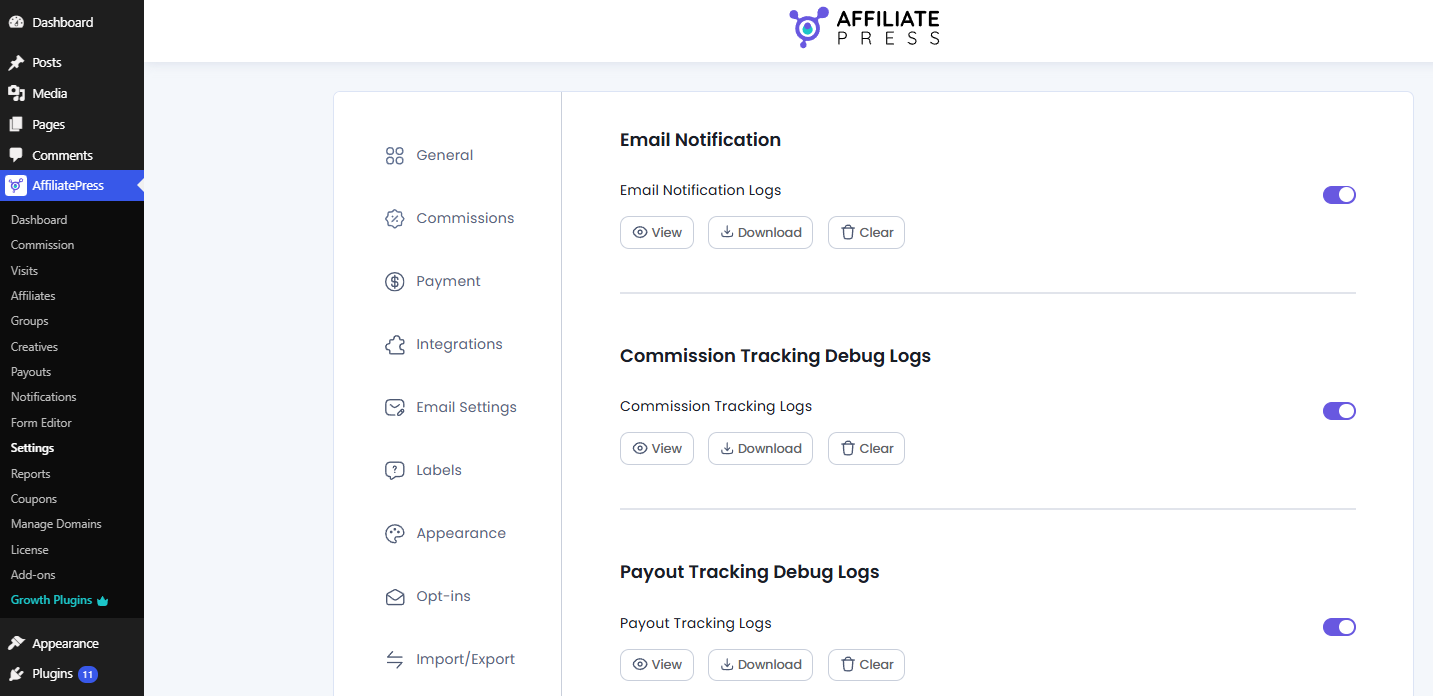
Understanding Debug Log Actions
When you enable any debug logs for a module, AffiliatePress offers the following actions to help you manage and troubleshoot recorded activity:
View Log
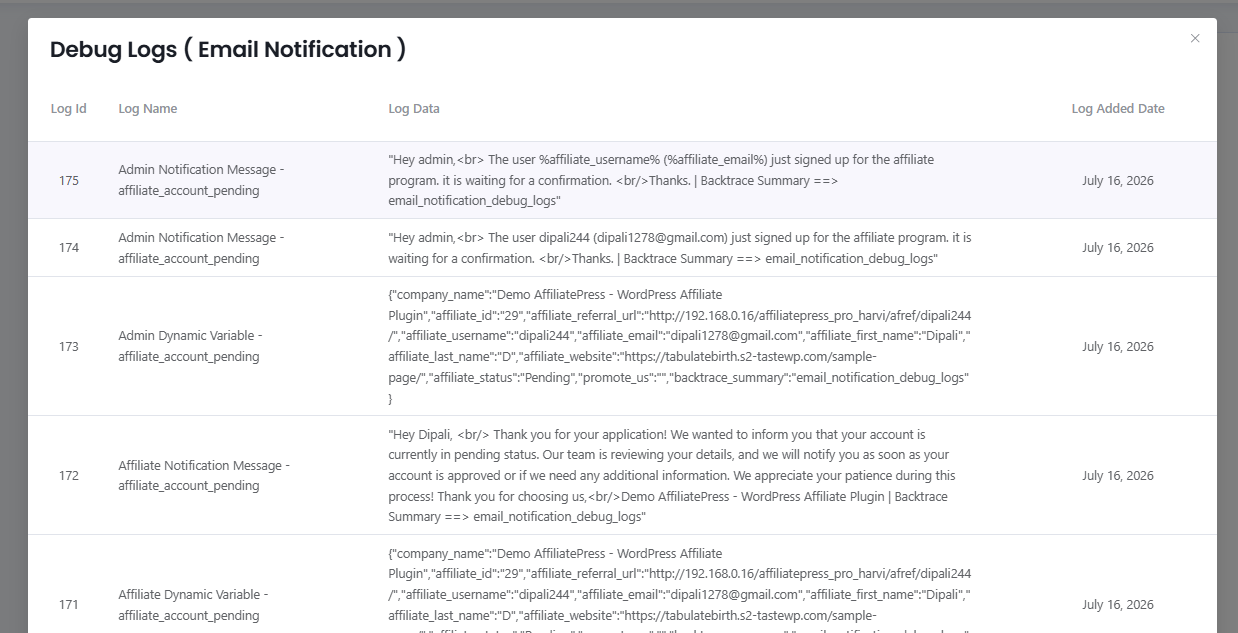
You can quickly check recorded activity inside a popup box without downloading the complete log file after clicking on the View icon.
Important: Debug Logs will appear only after you enable and save the Debug Log option and perform the related action.
This is useful for checking:
- Email delivery activity.
- Commission tracking events.
- Payout processing details.
- Integration related activities.
- Migration records.
Download Log
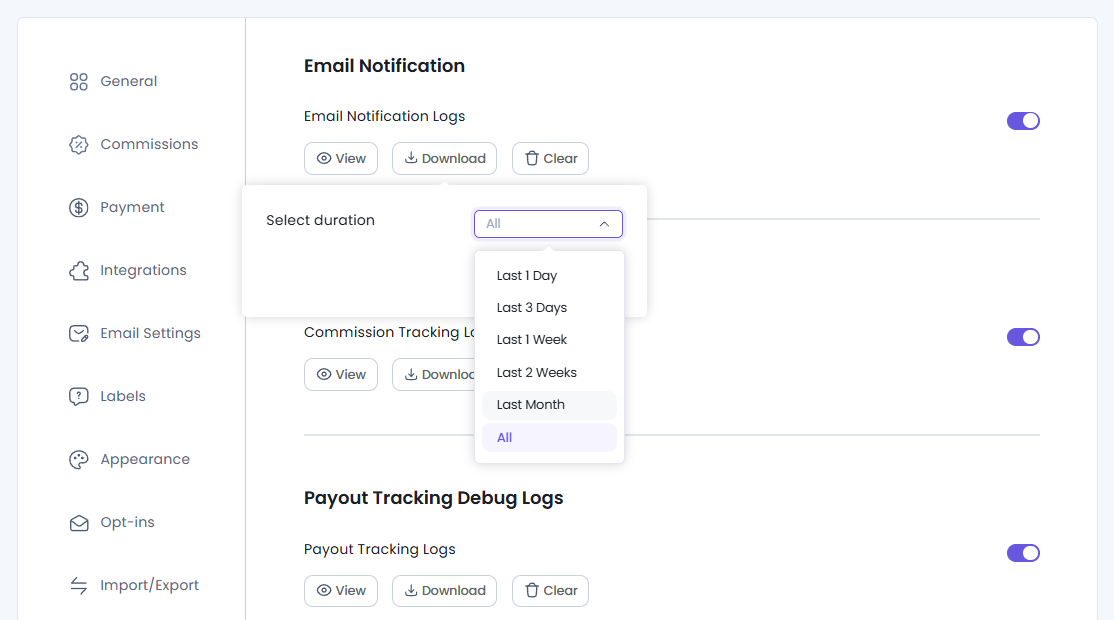
You can export the recorded debug log data as a log file right after clicking on the Download icon. These downloaded logs are useful for troubleshooting, record keeping or sharing them with the AffiliatePress support team.
You can download logs based on a specific duration:
- Last 1 Day
- Last 3 Days
- Last 1 Week
- Last 2 Weeks
- Last Month
- All
Downloading logs is helpful when you need to:
- Share detailed error information with support.
- Review historical activity outside WordPress.
- Keep a backup of important debug records.
Clear Log
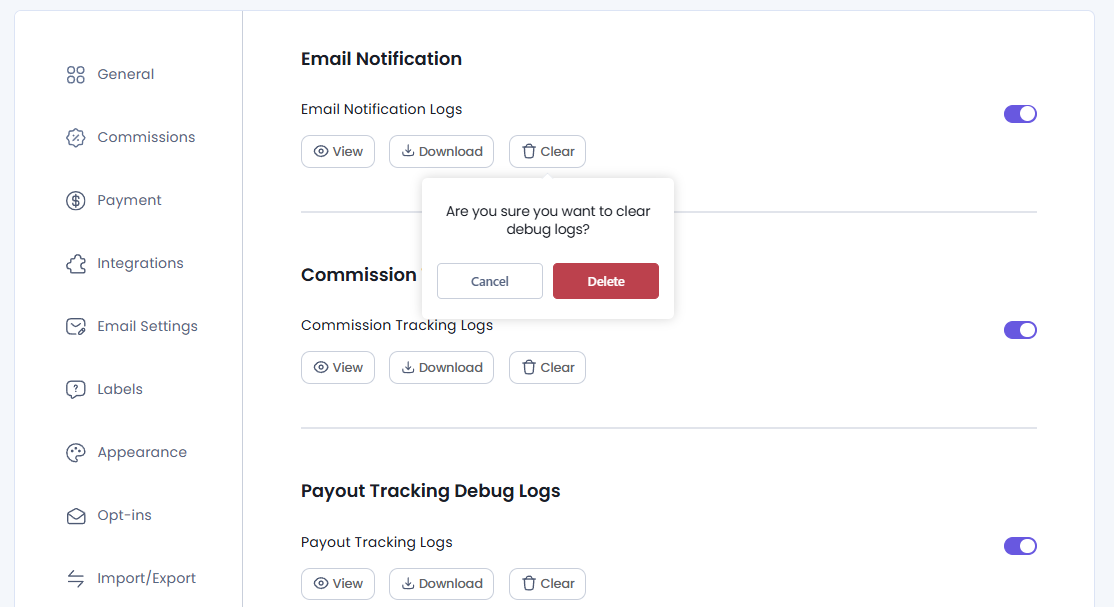
You can clear any stored debug logs of any setting or option. Just click on the Clear icon for permanently removing stored debug records for a selected module.
But before clearing logs, it is recommended to download them if you may need the information later for troubleshooting.
Note: Once cleared, the debug log data cannot be recovered.
Email Notification Debug Logs
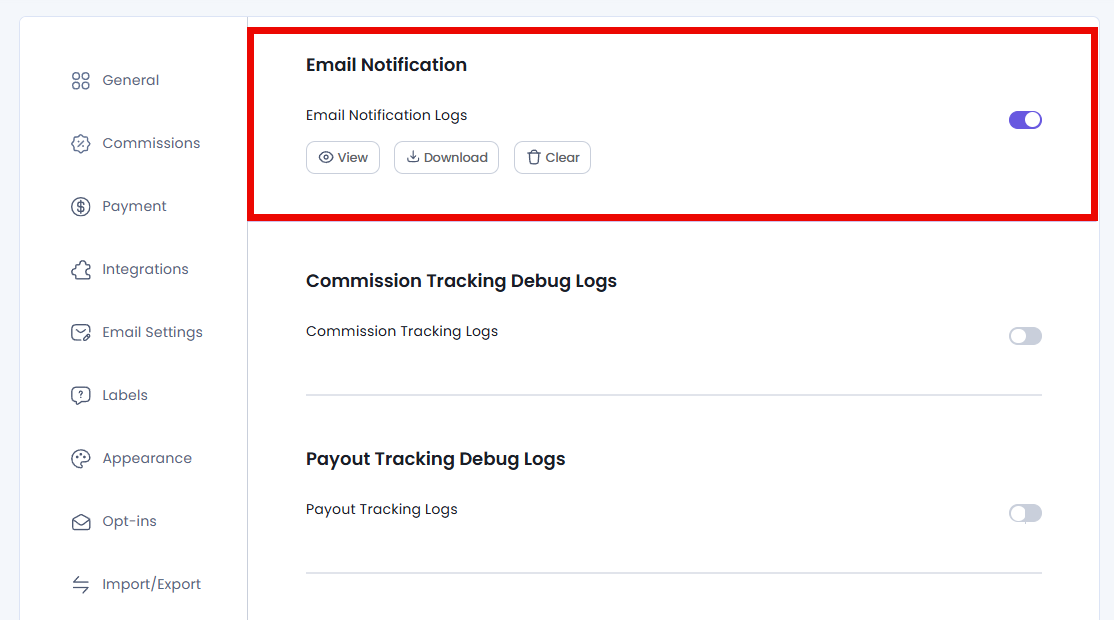
Email Notification Debug Logs help you monitor and troubleshoot email activities performed by AffiliatePress. These logs can help identify issues related to:
- Affiliate registration emails.
- Commission notification emails.
- Payout notification emails.
- Failed email deliveries.
- SMTP or email configuration problems.
You can view, download, or clear email notification logs whenever required.
Commission Tracking Debug Logs
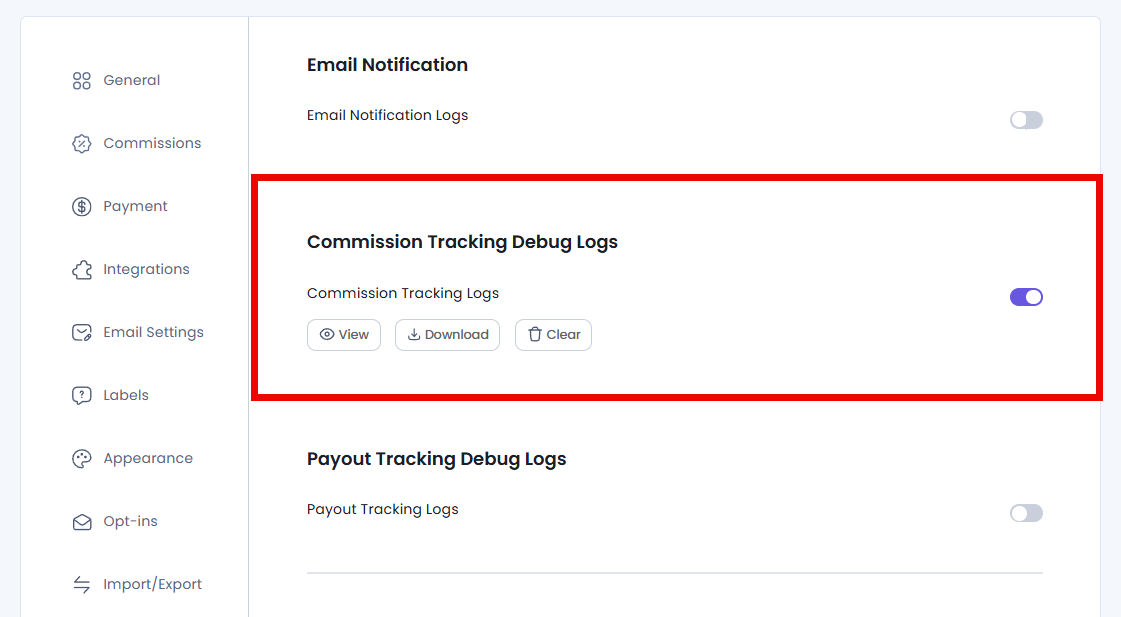
Commission Tracking Debug Logs allow you to track and troubleshoot commission related activities inside AffiliatePress. These logs help troubleshoot issues such as:
- Incorrect commission calculations.
- Missing commission records.
- Referral tracking problems.
- Commission status changes.
You can use these logs to review commission activity and identify where a tracking or calculation issue occurred.
Payout Tracking Debug Logs
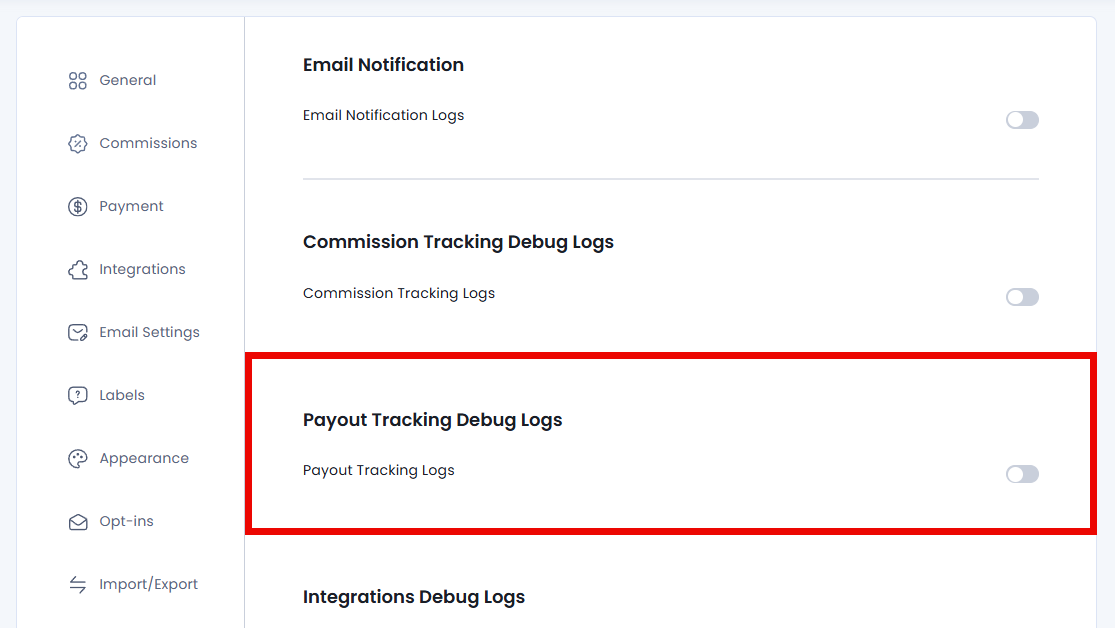
You can track affiliate payout related activities from Payout Tracking Debug Logs. These logs are useful for troubleshooting:
- Failed payout processing.
- Incorrect payout records.
- Payment status issues.
- Payment gateway related errors.
You can review payout activity, download logs for analysis or clear old records when they are no longer needed.
Integrations Debug Logs
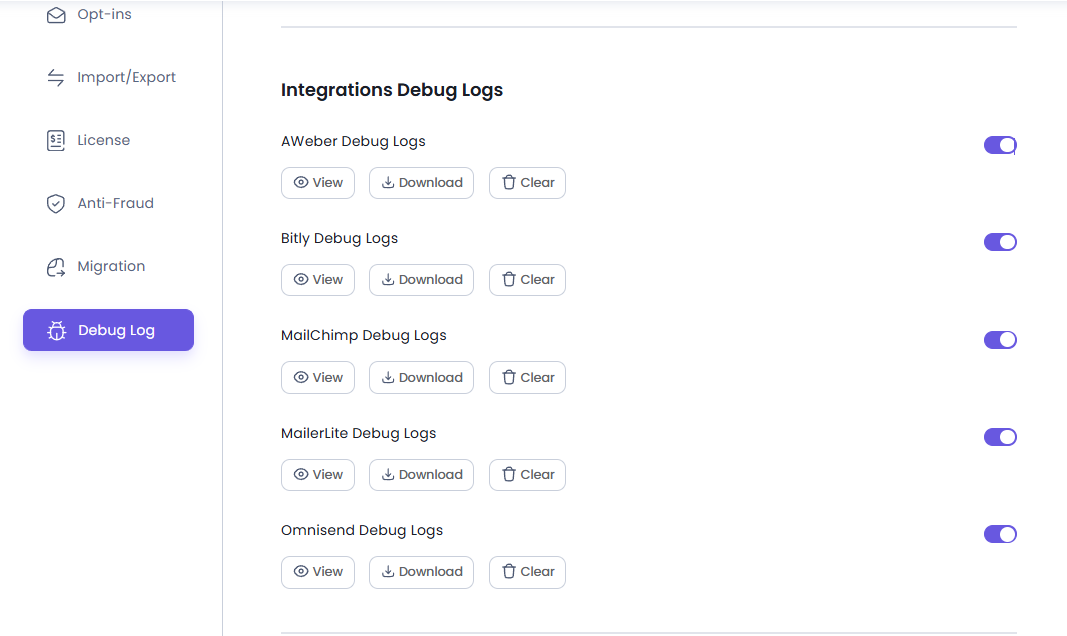
From here you can track communication between AffiliatePress and supported third party integrations. These logs become available based on the integrations or addons activated on your AffiliatePress.
AWeber Debug Logs
You can capture data pushed to AWeber and any API responses from here. These logs are useful for troubleshooting:
- Failed subscriber synchronization.
- Incorrect affiliate data transfer.
- API connection issues.
- AWeber integration errors.
You can review AWeber activity, download logs for analysis, or clear old records when they are no longer needed.
Bitly Debug Logs
You can track URL shortening activities between AffiliatePress and Bitly from Bitly Debug Logs. These logs are useful for troubleshooting:
- Failed URL shortening requests.
- API connection issues.
- Bitly synchronization errors.
- Invalid API responses.
You can review Bitly activity, download logs for analysis, or clear old records when they are no longer needed.
MailChimp Debug Logs
Tracking MailChimp synchronization activities is easy from MailChimp Debug Logs. These logs are useful for troubleshooting:
- Failed subscriber synchronization.
- Subscriber update issues.
- List activity problems.
- API communication errors.
You can use these logs to review Mailchimp activity and see where a tracking or calculation issue occurred.
MailerLite Debug Logsaa
You can track communication between AffiliatePress and MailerLite from MailerLite Debug Logs. These logs are useful for troubleshooting:
- Failed data synchronization.
- Subscriber-related issues.
- API response errors.
- Connection problems.
You can review MailerLite activity, download logs for analysis, or clear old records when they are no longer needed.
Omnisend Debug Logs
Logs communication between AffiliatePress and Omnisend to help identify automation sync issues and integration errors. Thus you can easily track marketing automation synchronization activities right from here.
These logs are useful for troubleshooting:
- Failed automation syncs.
- Data synchronization issues.
- Error states.
- API communication problems.
You can review Omnisend activity, download logs for analysis or clear old records anytime you want.
Migration Debug Logs
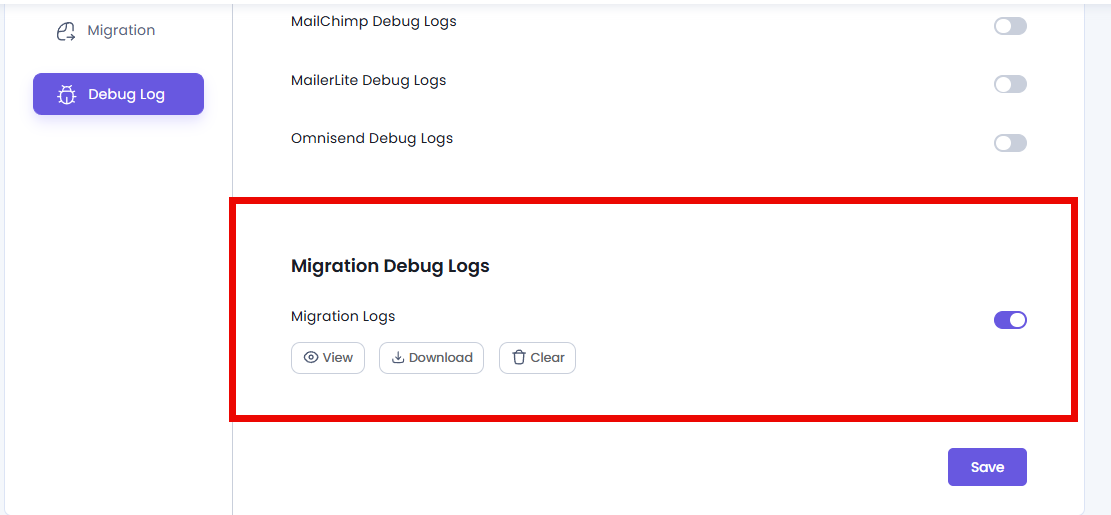
Migration Debug Logs help track data migration activities performed within AffiliatePress.
These logs are useful for troubleshooting:
- Failed migration processes.
- Missing imported records.
- Data transfer issues.
- Migration-related errors.
You can review migration logs to understand what data was processed and identify any problems during migration.
Important Notes:
- Enable Debug Logs only when troubleshooting specific issues.
- Download logs before clearing them if you need them for future reference.
- Integration related logs will appear only after the respective integration or addon is activated.
- Share downloaded logs with the AffiliatePress support team when requested only.