



Multi Domain Add-on

Want to manage affiliate tracking for multiple websites from one place? The Multi Domain Add-on allows you to use one parent site with AffiliatePress to manage affiliate activity across multiple child sites.
Each child site uses the Multi-Domain Connector to communicate with the parent site and send affiliate visit information securely through an API connection.
In this guide, we’ll show you how to install the Multi Domain Add-on, connect your child sites and set up affiliate tracking across multiple domains.
Install and Activate the Multi Domain Add-on
Before setting up multiple domains, make sure AffiliatePress is installed and activated alongside your license.
Next, install and activate the Multi Domain Add-on from your WordPress dashboard. Later when the add-on is activated, you can start connecting your child sites to the parent site.
Connect a Child Site to AffiliatePress
Connecting another website to your AffiliatePress installation is easy.
First you’ve to add it as a child site from the parent site’s AffiliatePress dashboard. Then, install and configure the Multi-Domain Connector on the child site.
After the connector is set and verified, the child site can communicate with the parent site, and send affiliate tracking info to AffiliatePress.
Let’s see how this all goes step by step.
Add the Child Site
First of all, from your parent site’s WordPress dashboard, go to AffiliatePress → Manage Domains. After this, you’ll see the Multi-Domain Affiliate Setup popup, by clicking here, you can Download the AffiliatePress Connector plugin which is available on GitHub.
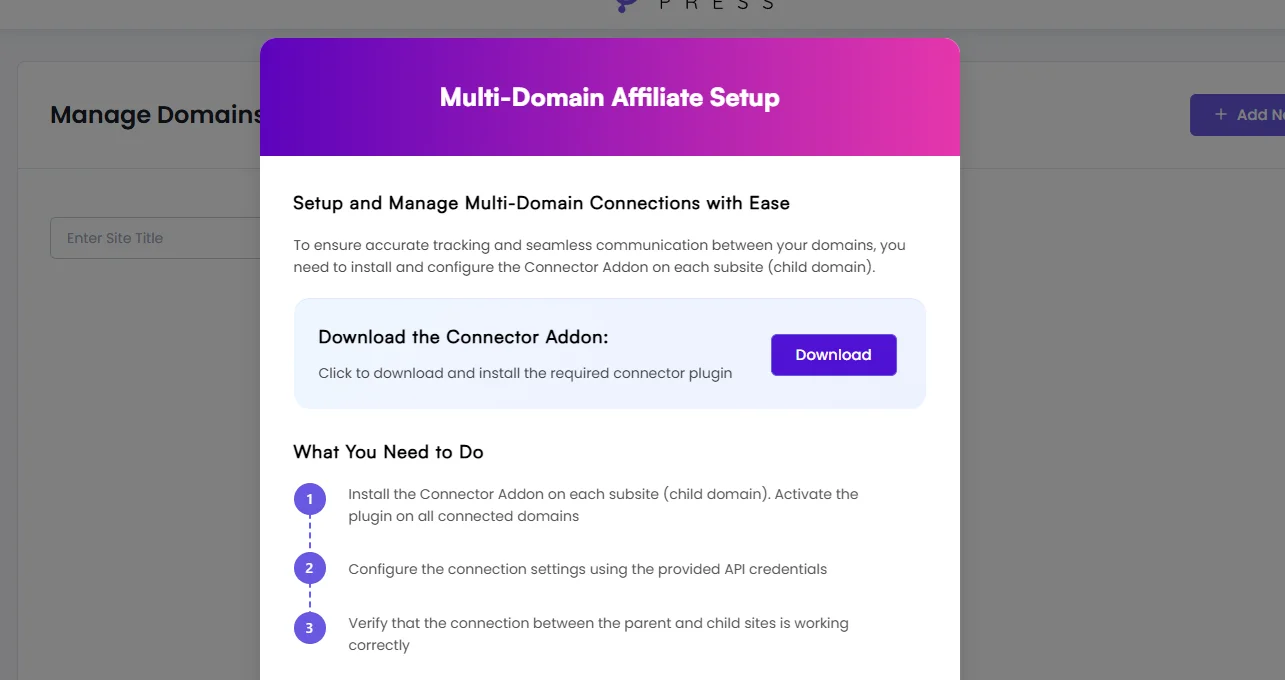
Note: This AffiliatePress Multi-Domain Connector plugin will be installed in your child’s system, not parents’ (Your main site on which AffiliatePress is first installed and setup is parents site).
We’ll discuss how to install that later in detail. For now, Close this popup.
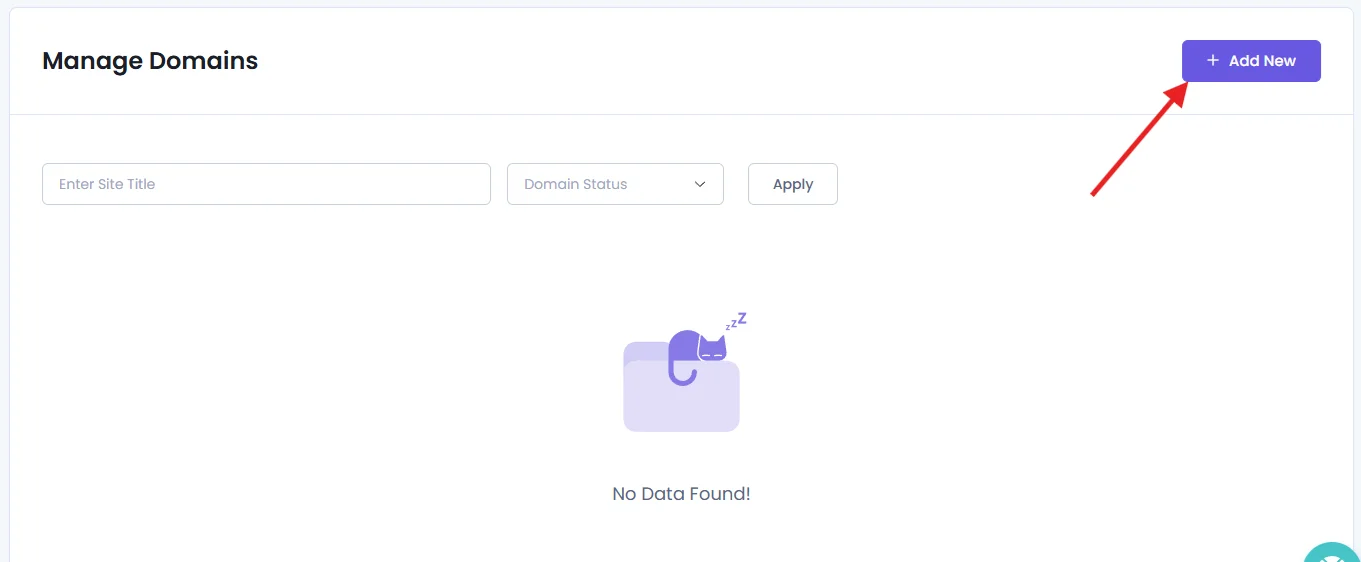
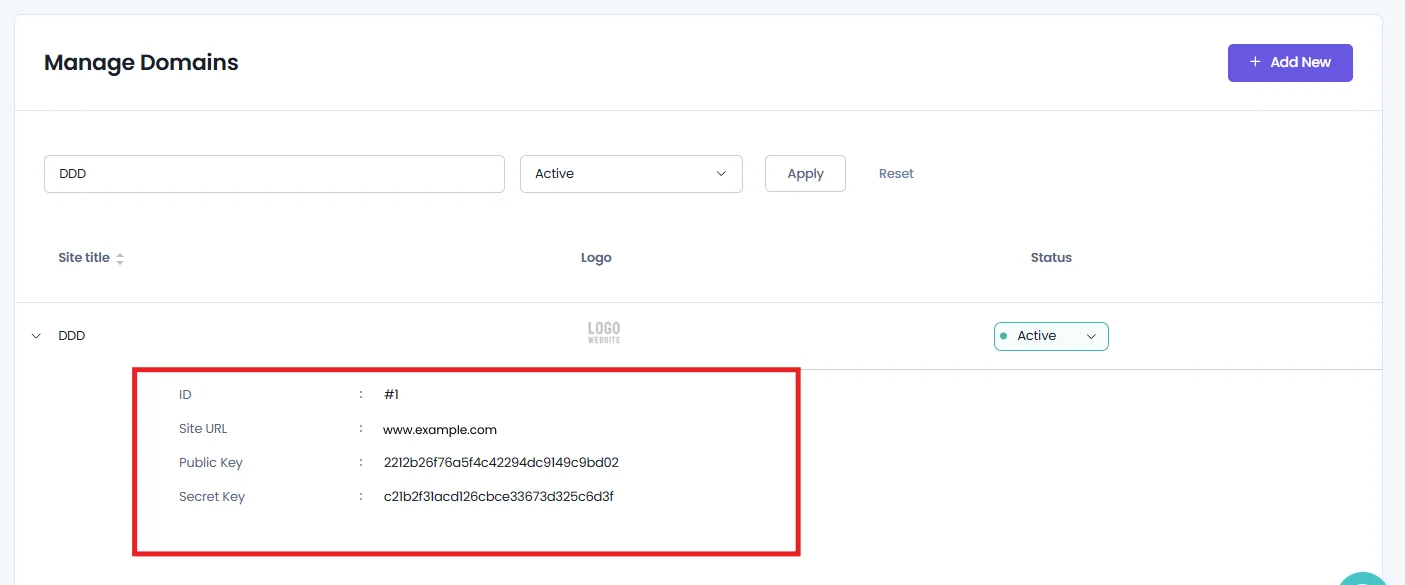
This will show you the Manage Domains page in the AffiliatePress admin panel which is used to view, manage and control multiple connected domains (websites).
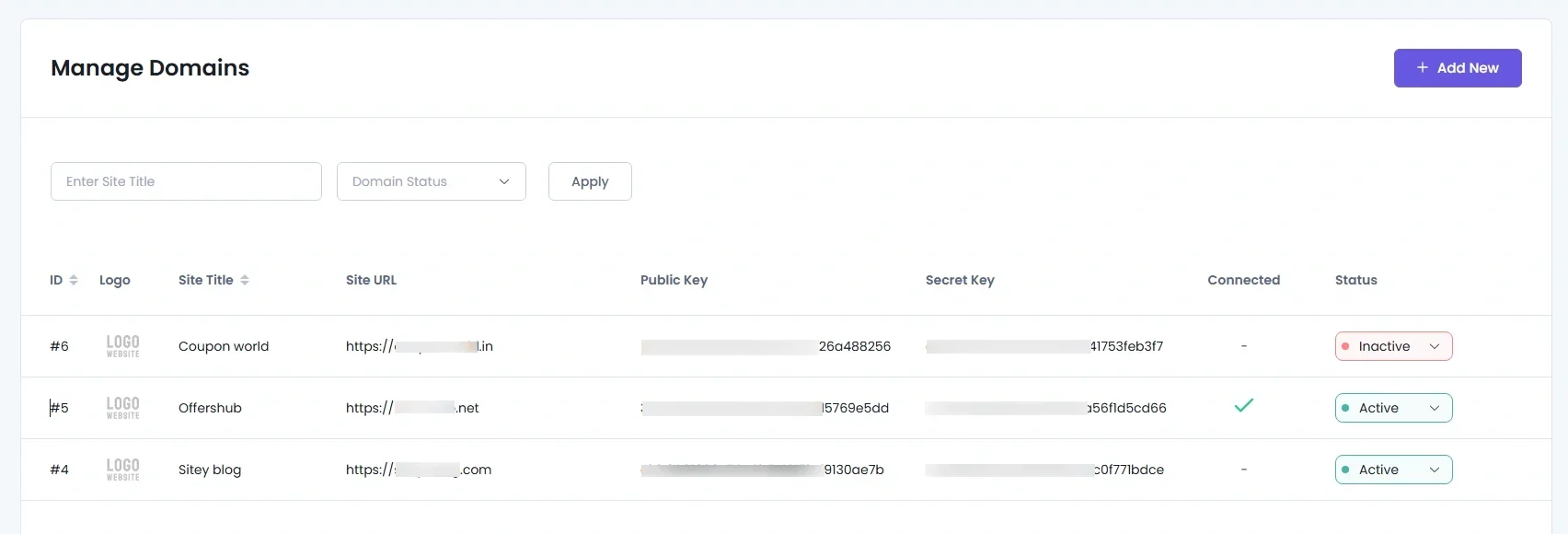
Click Add New in the top right corner to add the child site you want to connect.
Fill in the following details:
- Site Title: Enter the name of your child site
- Site URL: Enter the URL of the child site where you will install the Multi-Domain Connector
- Site Logo: Upload the logo of your child site
- Site Status: Select Active or Inactive..
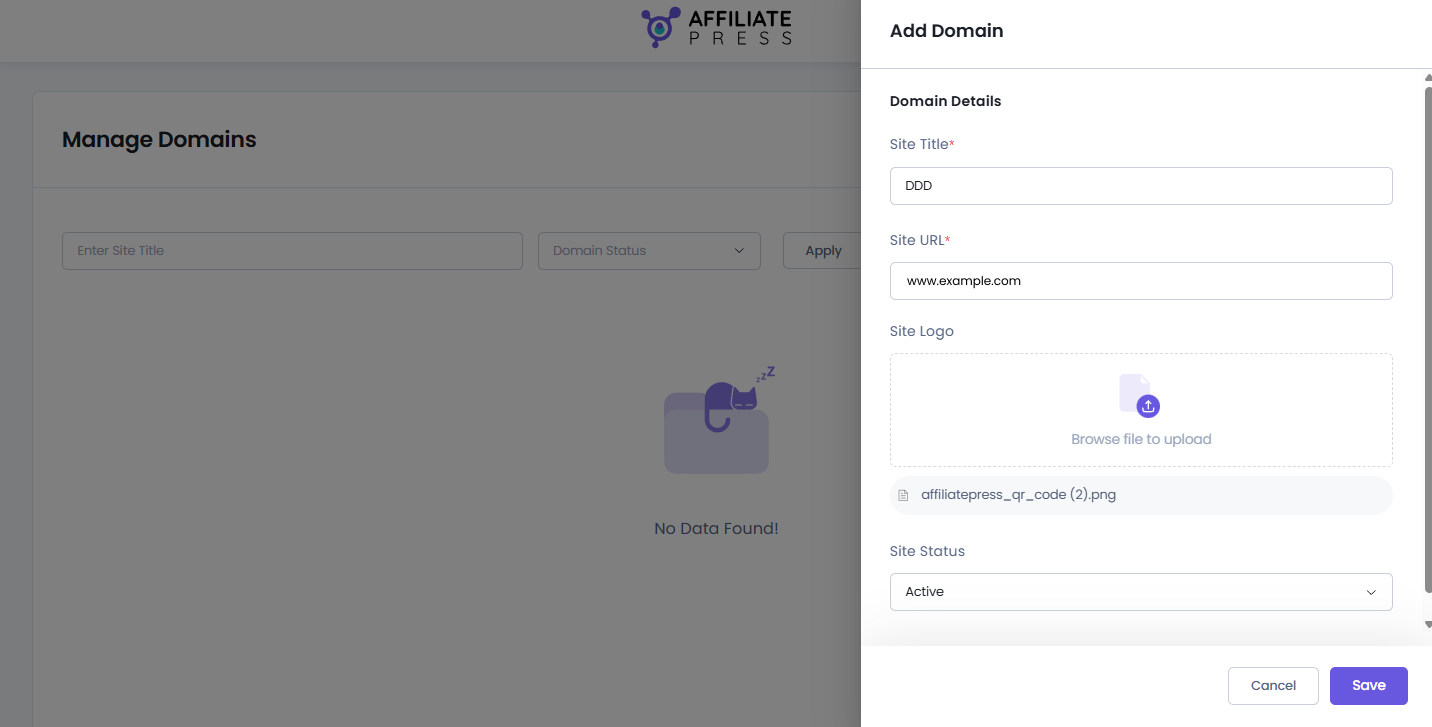
After entering the details, Save the site.
Once the child site is added, AffiliatePress will show the Public Key and Secret Key for that site. You will need these keys when configuring the Multi-Domain Connector on the child site.
Install the Multi-Domain Connector
Now that you have your child site, and generated the Public Key and Secret Key, you need to install the Multi-Domain Connector on your child site.
Remember, the Multi-Domain Connector is installed on the child site, not on the parent site where AffiliatePress is installed.
If you still haven’t downloaded the zip file of the Multi-Domain Connector of AffiliatePress, you can do it now.
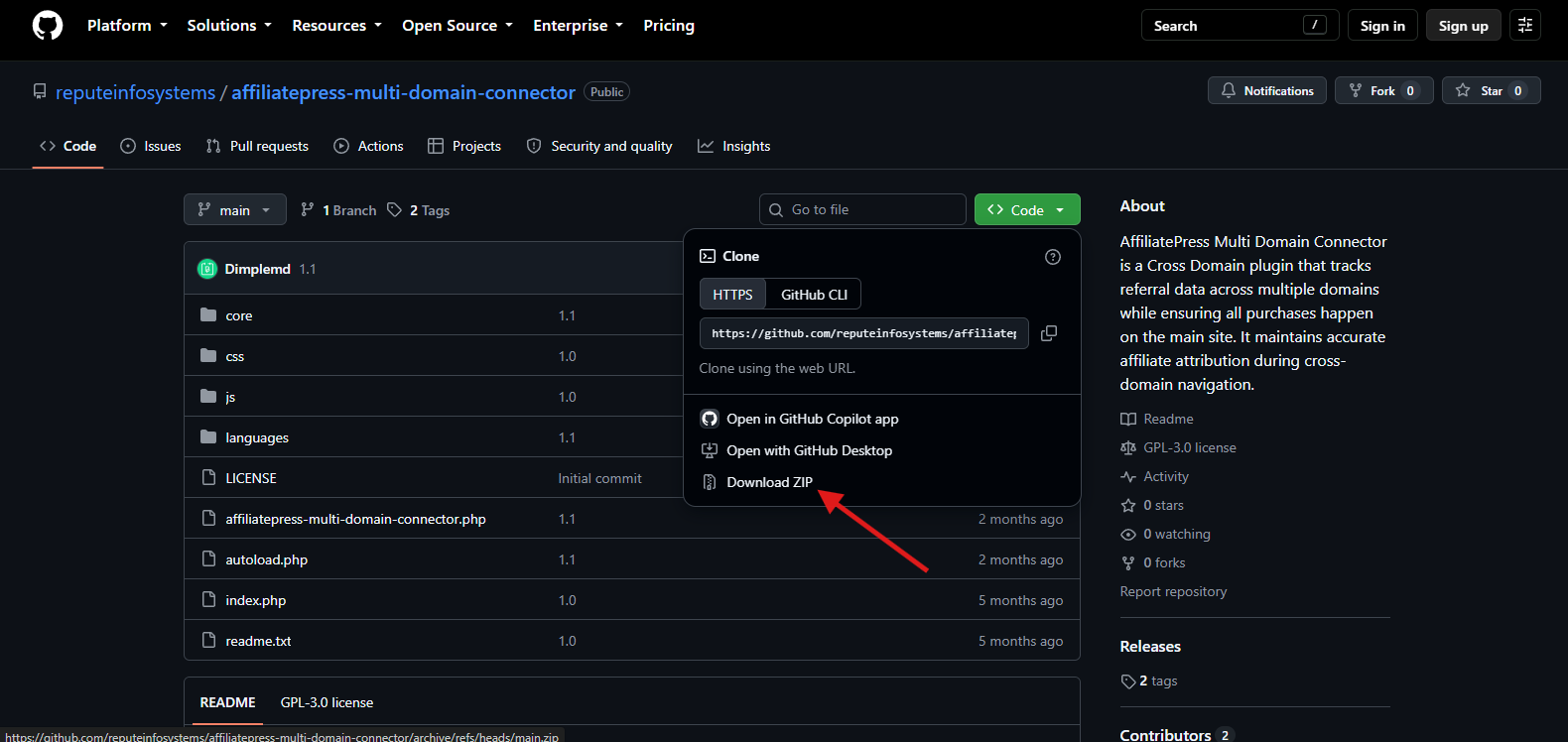
- Just go to the AffiliatePress Multi-Domain Connector plugin in Github.
- Click on the <>Code then Download Zip file. That’s it.
After downloading, next is to install the connector.
- Log in to the WordPress dashboard of your child site.
- Go to Plugins → Add New.
- Click Upload Plugin.
- Click Choose File and select the Multi-Domain Connector plugin package you downloaded earlier from Github.
- Click Install Now.
- Once the plugin is installed, click Activate Plugin.
After activating the plugin, you’ll see AffiliatePress Connector under your WordPress settings.
From here, you can configure the connector and connect your child site to the parent site’s AffiliatePress installation.
Configure the Multi-Domain Connector
After activating the Multi-Domain Connector on your child site, you need to connect it to the parent site where AffiliatePress is installed.
From your child site’s WordPress dashboard, go to Settings → AffiliatePress Connector.
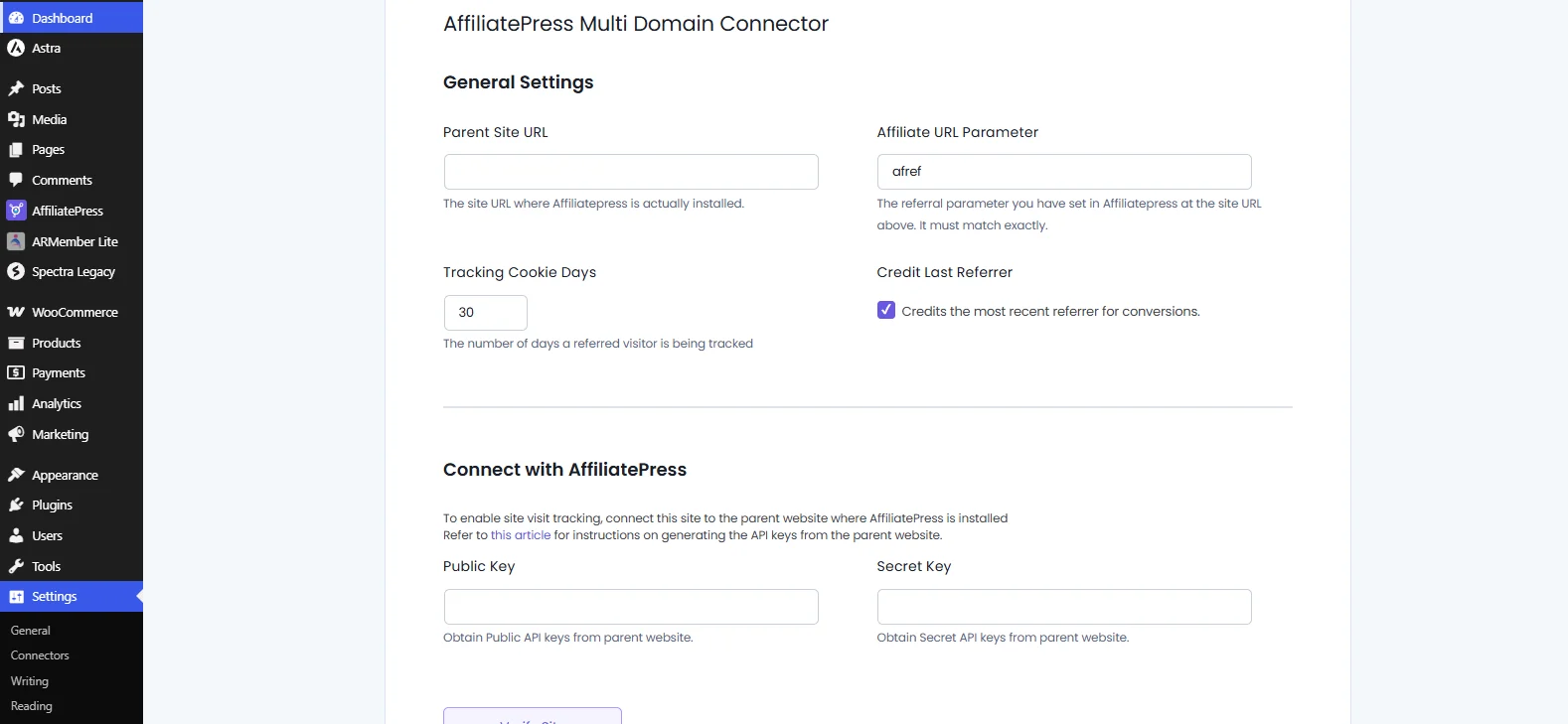
Here, you’ll find the settings required to connect the child site with your parent site.
- General Settings
- Connect with AffiliatePress
In the General Settings section, you can configure the following:
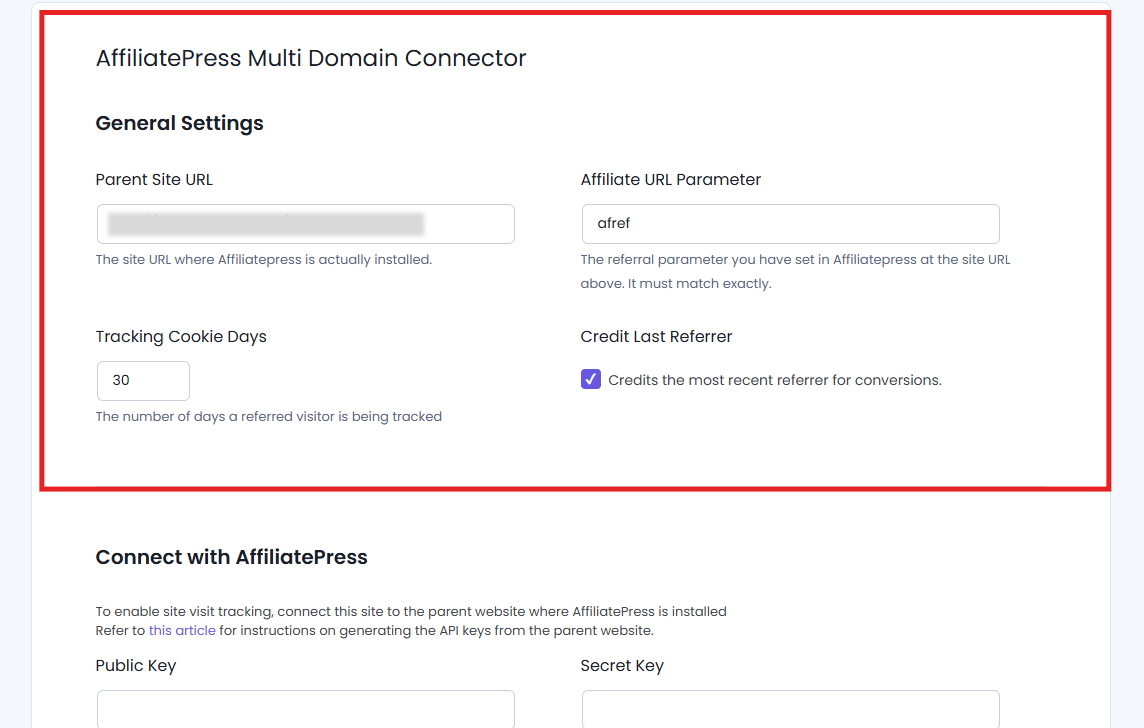
Parent Site URL
Enter the exact URL of the parent site where AffiliatePress is installed. Example: https://parent-site.com (no trailing slash is required; plugin trims it). This is where visit data will be sent.
Affiliate URL Parameter
Enter the same referral parameter that is configured in AffiliatePress on the parent site. Example: ref. If your URLs on the parent site look like https://parent-site.com/?ref=123, then set ref.
Tracking Cookie Days
Enter how many days a visit should be tracked after the first click. Example: 30 (default) – the affiliate will be credited for 30 days after the first visit.
Credit Last Referrer
- Checked: The most recent referrer (last click) gets credit for the conversion.
- Unchecked: First referrer or previous rules from your parent site may apply.
In the Connect with AffiliatePress section, you get to configure the following:
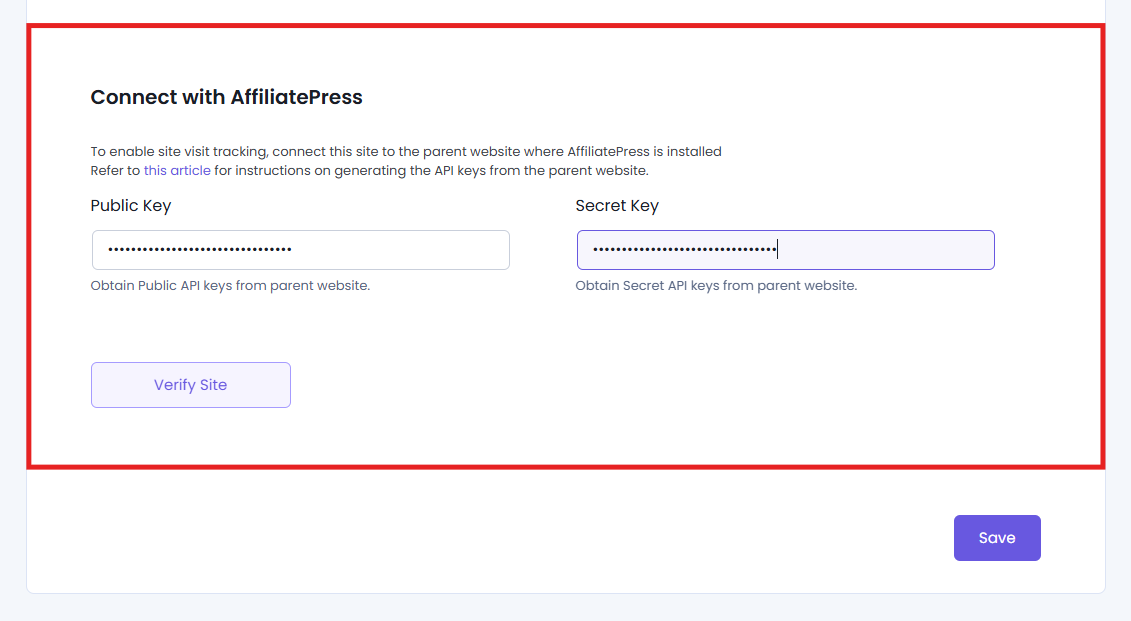
- Public Key: Paste the public API key generated on the parent site.
- Secret Key: Paste the secret API key generated on the parent site.
Next, click on the “Verify Site” button.
After saving the settings, verify the connection between the child site and the parent site by simply clicking on the Verify Site button.
If the site was already verified before, the button may show “Re-Verify Site” instead.
If successfully verified, then the parent site’s “Manage Domains” page child site record row column “Connected” in the right sign is displayed.
Manage Connected Sites
After the connection is established, you can manage your connected child sites from the AffiliatePress → Manage Domains page on your parent site.
From here, you can search for a connected site, change its status, edit its details, or remove it from your Multi Domain setup.
Search for a Connected Site
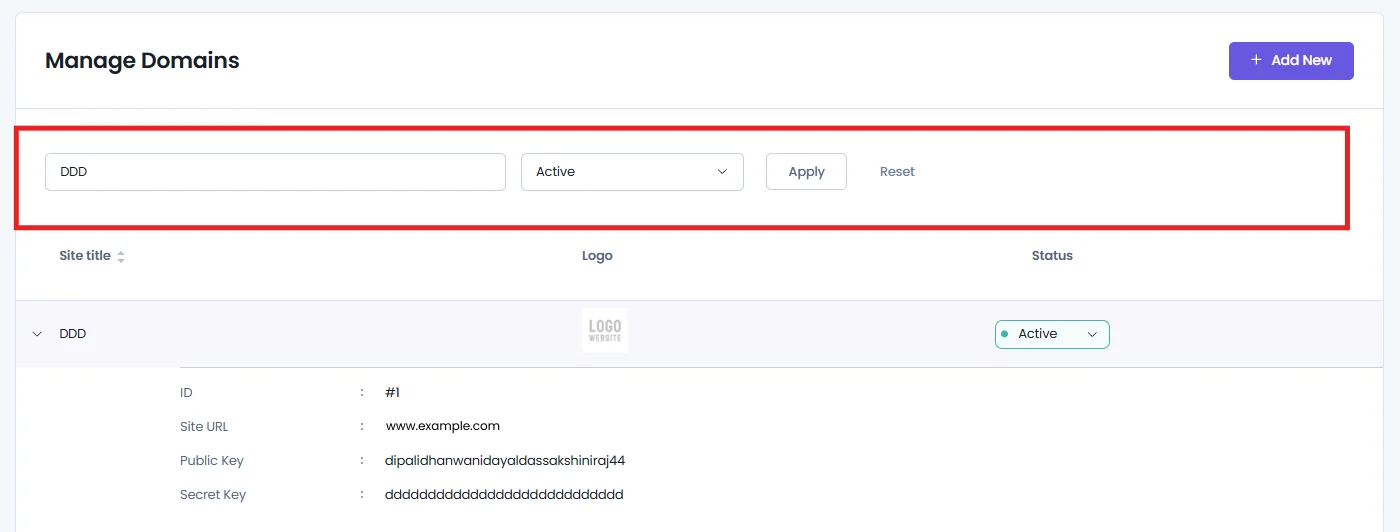
If you have connected multiple child sites, you can use the search and filter options on the Manage Domains page to quickly find a specific site.
- Site title: It searches the child site.
- Domain Status: Each site displays its current status, helping admins quickly identify which child site is active or inactive.
This makes it easier to find and manage a specific child site when you have multiple domains connected.
Activate or Deactivate a Connected Site
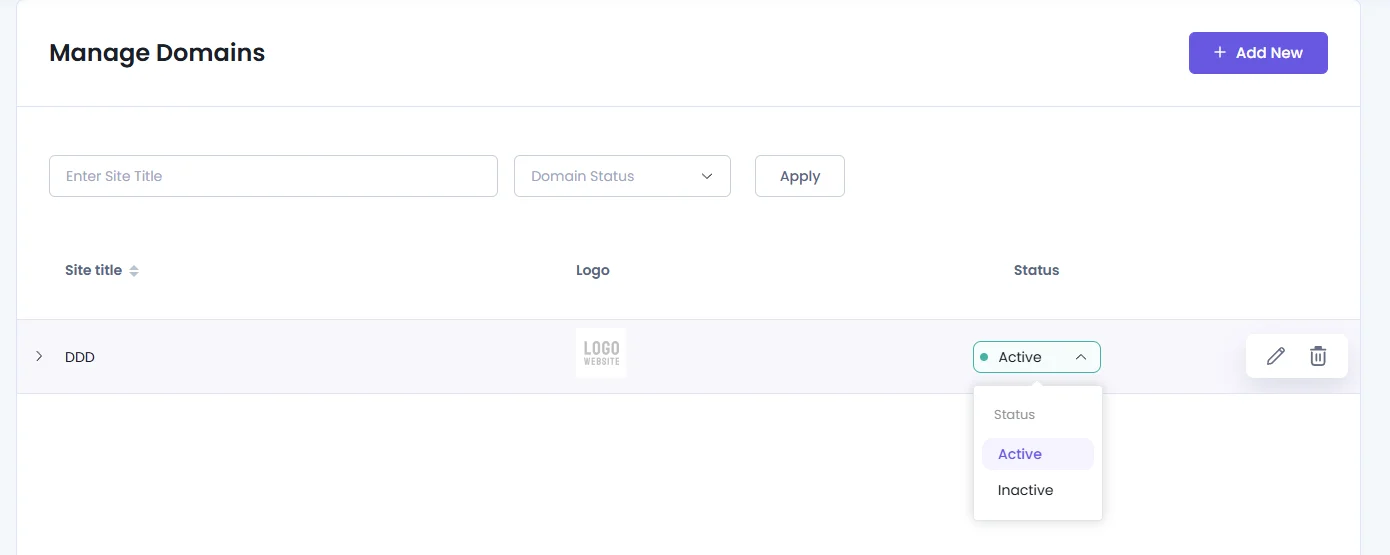
You can change the status of a connected child site directly from the Manage Domains page.
If you want to temporarily stop using a connected site, set its status to Inactive.
When you want to use the site again, change its status back to Active.
Changing the site status lets you control which connected domains are currently active in your Multi Domain setup without removing their details.
Edit a Connected Site
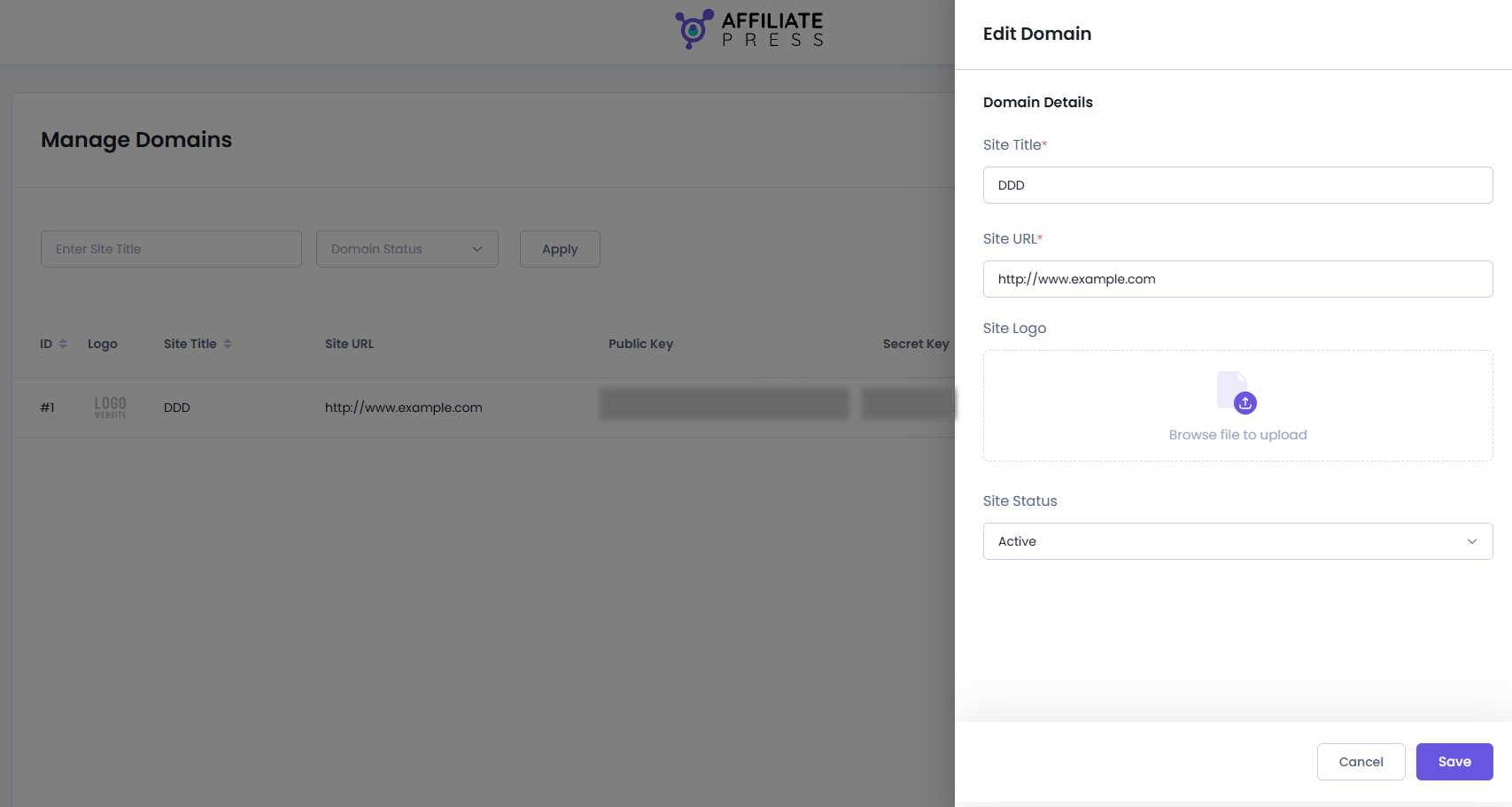
You can update the details of an existing child site from the Manage Domains page.
Find the site you want to update and click the Edit icon. You can then change the available site details such as the:
- Site Title
- Site URL
- Site Logo
- Site Status
After making your changes, don’t forget to save the site details.
Delete a Connected Site
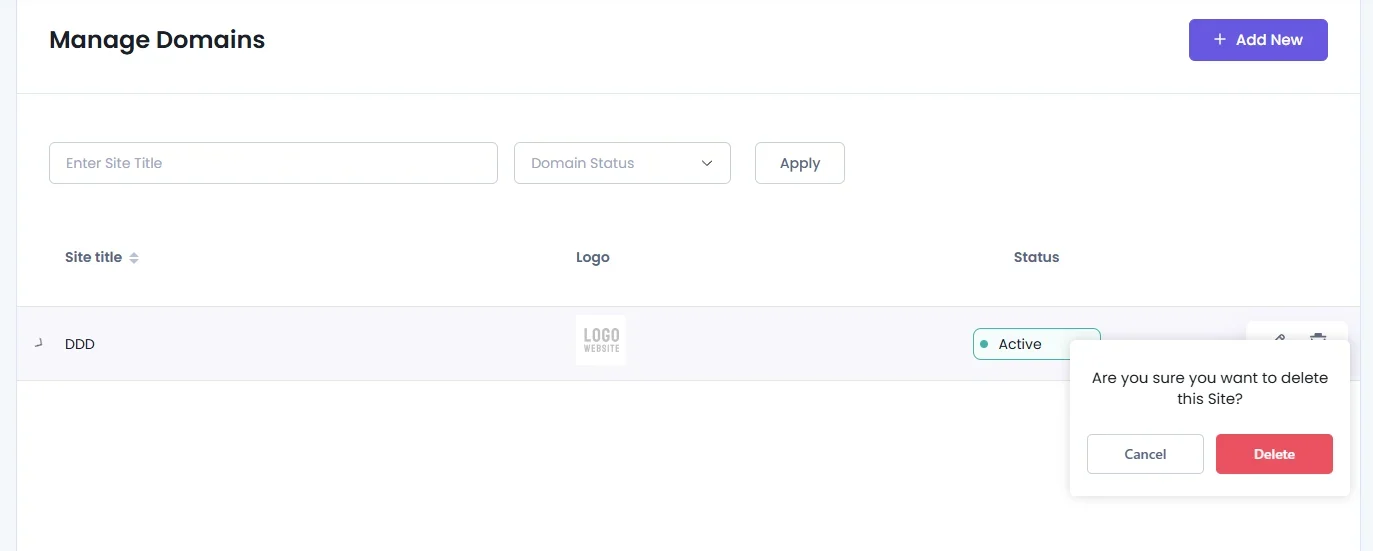
If you no longer want to connect a child site to your parent site, you can remove it from the Manage Domains page.
Simply look for the site you want to remove and click Delete. Confirm the deletion when the popup comes.
Deleting a site removes it from your connected domains list in the parent site’s AffiliatePress dashboard.
How Multi Domain Tracking Works
After your child site is connected and verified, the Multi-Domain Connector starts sending affiliate visit info from the child site to the parent site.
So when a visitor lands at your child site via an affiliate referral link, the connector reads the affiliate referral info from the URL and records the visit.
The connector then sends the tracking information to the parent site through the API connection. Lastly, AffiliatePress stores this info and associates the visit with the referring affiliate.
For example let’s say your:
- Parent Site →https://parent-site.com
- Child Site → https://child-site.com
- Affiliate URL Parameter → ref
- Affiliate ID →123
Thus your affiliate can share a referral URL such as…
This way whenever a visitor clicks this link, the Multi-Domain Connector recognizes the ref=123 parameter and records the referral information.
Moreover, if the visitor continues browsing the child site, the connector keeps the referral info available according to the Tracking Cookie Days setting.
This allows AffiliatePress to continue tracking the affiliate referral even though the visitor started their journey on a child site.
How Multi-Domain Referrals Lead to Commissions
Multi-domain tracking allows an affiliate referral to start on one website. Meanwhile, the customer completes the purchase on another connected website.
Let’s say an affiliate shares a referral link that sends a visitor to siteA.com. The visitor clicks the link and the Multi-Domain Connector records the affiliate referral on the child site.
Later when the visitor moves from siteA.com to siteMain.com and completes a purchase.
Thus AffiliatePress can use the referral data collected from the child site to recognize the affiliate who referred the customer and attribute the conversion as per it.
This allows you to manage affiliate referrals across multiple domains. Plus, it keeps your affiliate activity connected to one central AffiliatePress installation.