



Email Notifications

AffiliatePress allows you to send email notifications automatically whenever important affiliate events occur such as affiliate registrations, account approvals, commission updates and payouts.
Here we’ll show you how you can customize each email notification, choose who receives it and personalize the email content using placeholders.
How Automatic Email Notifications Work
AffiliatePress sends email notifications automatically based on different affiliate program related actions such as account pending, commission approved, payout failed and more. These notifications keep both affiliates and administrators updated on auto-pilot.
You can:
- Enable/disable notifications for affiliates.
- Enable/disable notification for administrators.
- Customize email content using the built-in email editor and placeholders.
Configure Email Notifications
AffiliatePress lets you configure automatic email notifications for different affiliate events from WordPress Dashboard → AffiliatePress → Notifications.
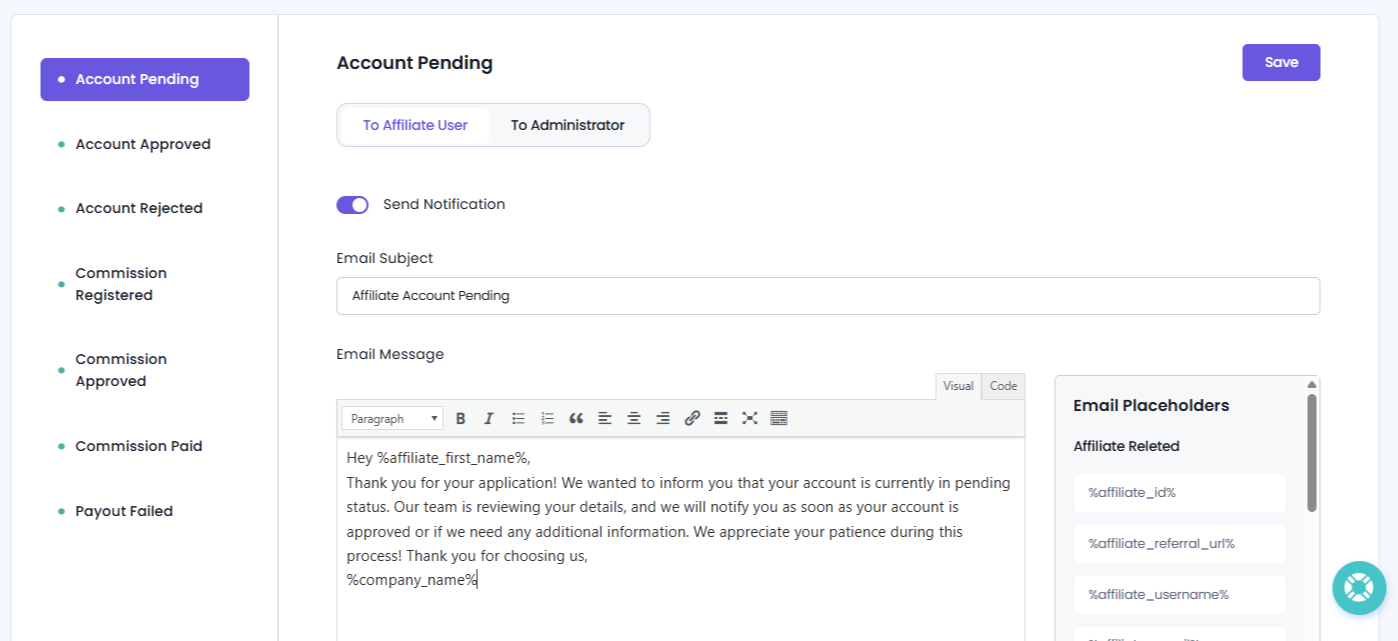
From this page, you can enable or disable individual notifications, customize the email subject and message and even use dynamic email placeholders to personalize each email message.
Important: Before AffiliatePress can send email notifications automatically, you need to configure an email server. Go to AffiliatePress → Settings → Email Settings to configure your preferred mail server. Here’s a quick beginner-friendly guide for setting up your mail server.
To configure an email notification:
1. Log in to your WordPress Admin Dashboard if you haven’t already and go to the AffiliatePress → Notifications.
2. Here, select the email notification event you want to configure from the left panel.
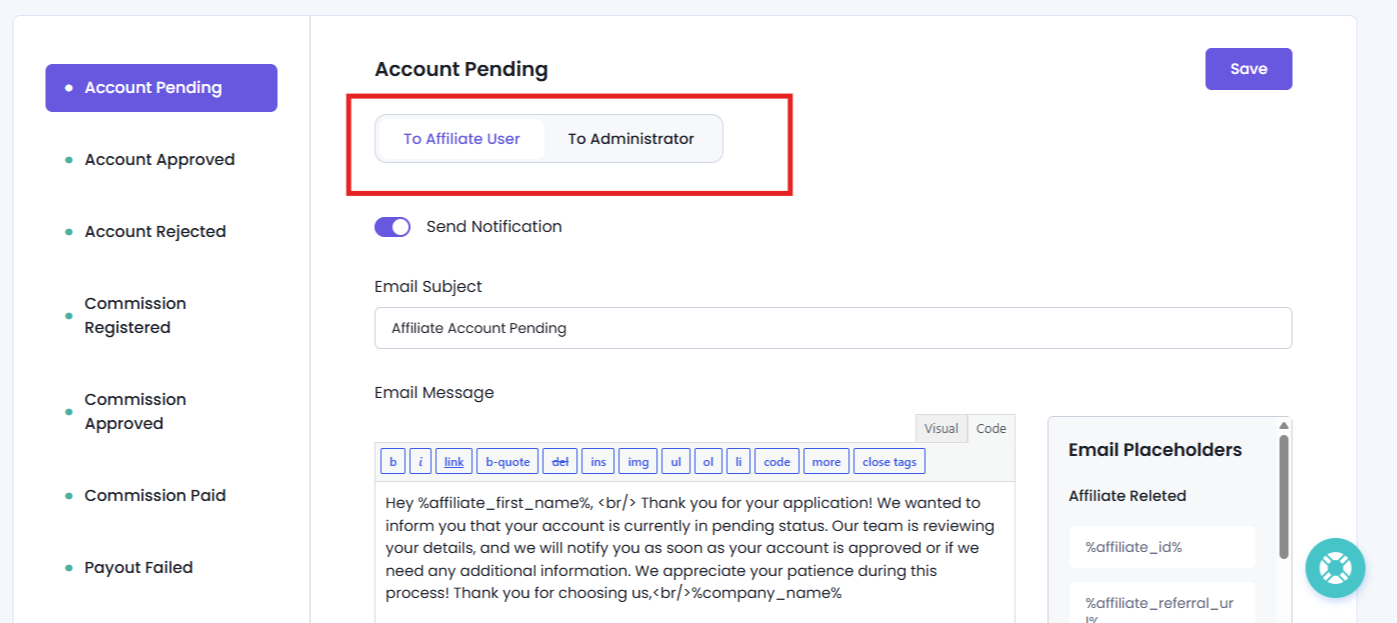
3. Pick whether you want to edit the notification message for To Affiliate Users or To Administrators.
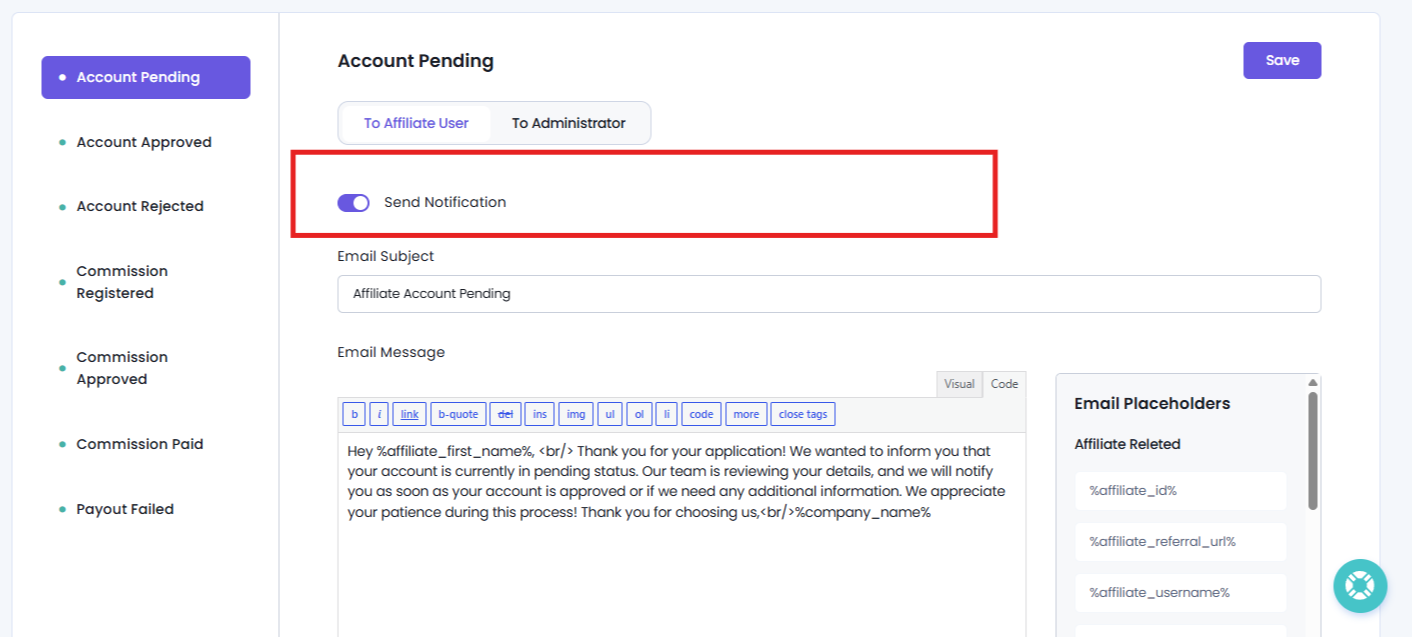
4. Make sure to Enable or disable the notification using the Send Notification toggle under each.
5. Edit the Email Subject and Email Message as needed.
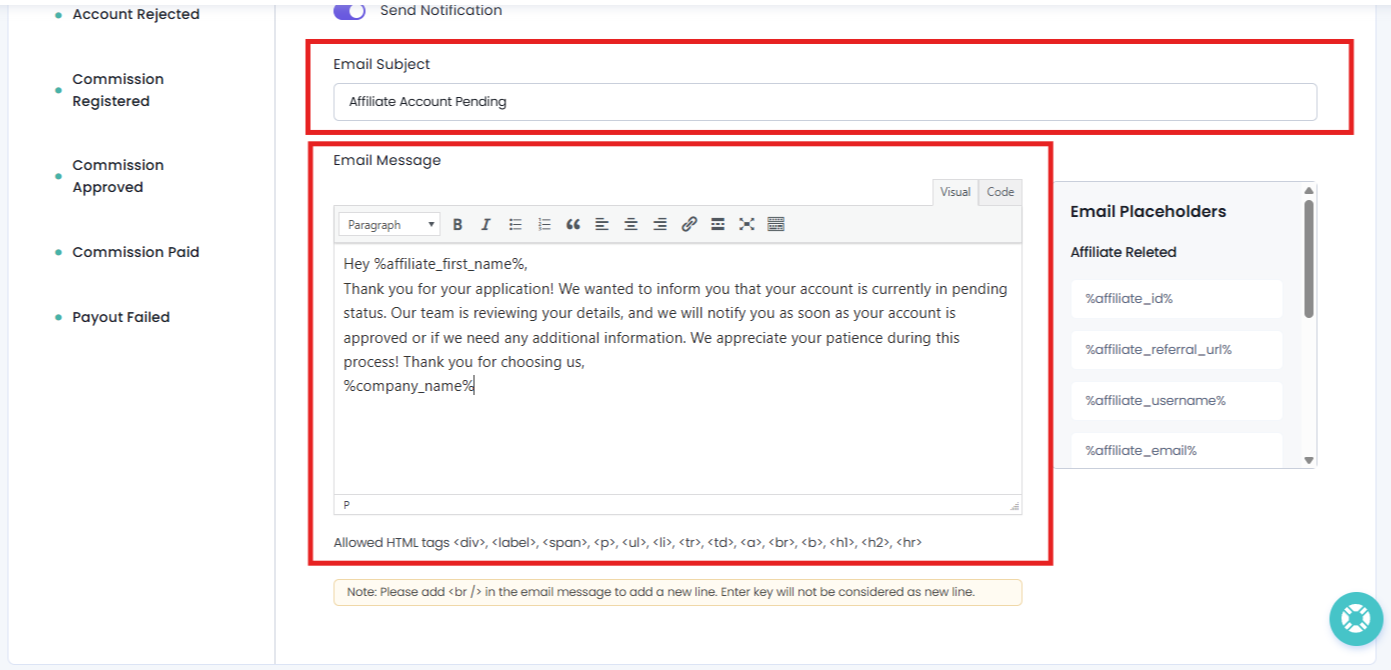
You can use the Visual/Code text editor for editing email messages. Here you can also write HTML formatted emails using the Code editor or switch to Visual mode to edit the text directly.
Also, you can insert email placeholders to automatically include affiliate, commission or payment information in the message.
Note: Email placeholders are supported only in the Email Message field and cannot be used in the Email Subject.
6. At last, Click Save in the top right corner to save all changes.
Tip: All email templates support dynamic placeholders which allows you to automatically insert affiliate details, commission information and payment data into your email messages.
Affiliate Email Notifications
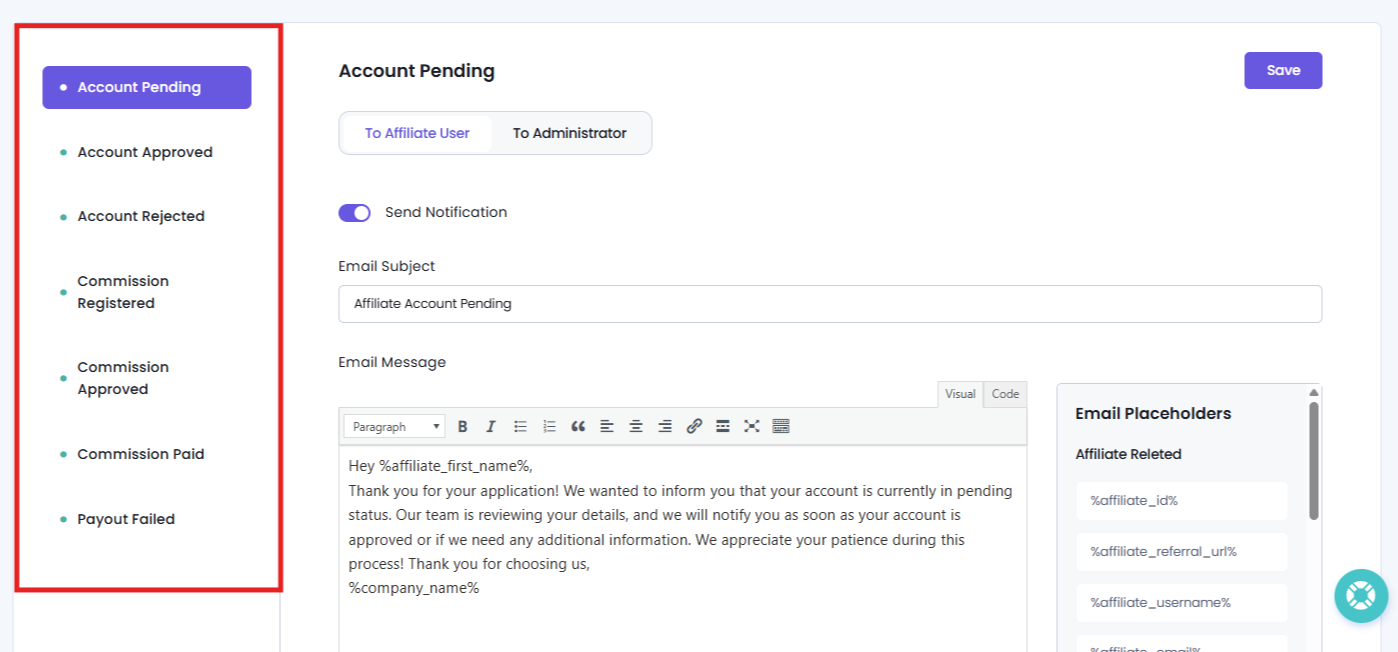
AffiliatePress allows you to send automatic email notifications to affiliates whenever important affiliate events occur.
Each notification can be enabled or disabled individually and you can customize its subject and message using the built in email editor and dynamic placeholders.
Available Notification Events
Here are all the email notification events for affiliates:
| Notification | Description |
| Affiliate Account Pending | Sent when a new affiliate registers and their account is set to Pending status. |
| Affiliate Account Approved | Sent when an affiliate account is approved. |
| Affiliate Account Rejected | Sent when an affiliate account is rejected. |
| Commission Registered | Sent when a new commission is successfully registered for an affiliate. |
| Commission Approved | Sent when a commission is approved. |
| Affiliate Payment Paid | Sent after an affiliate payout has been completed successfully. |
| Affiliate Payment Failed | Sent when an affiliate payout fails. |
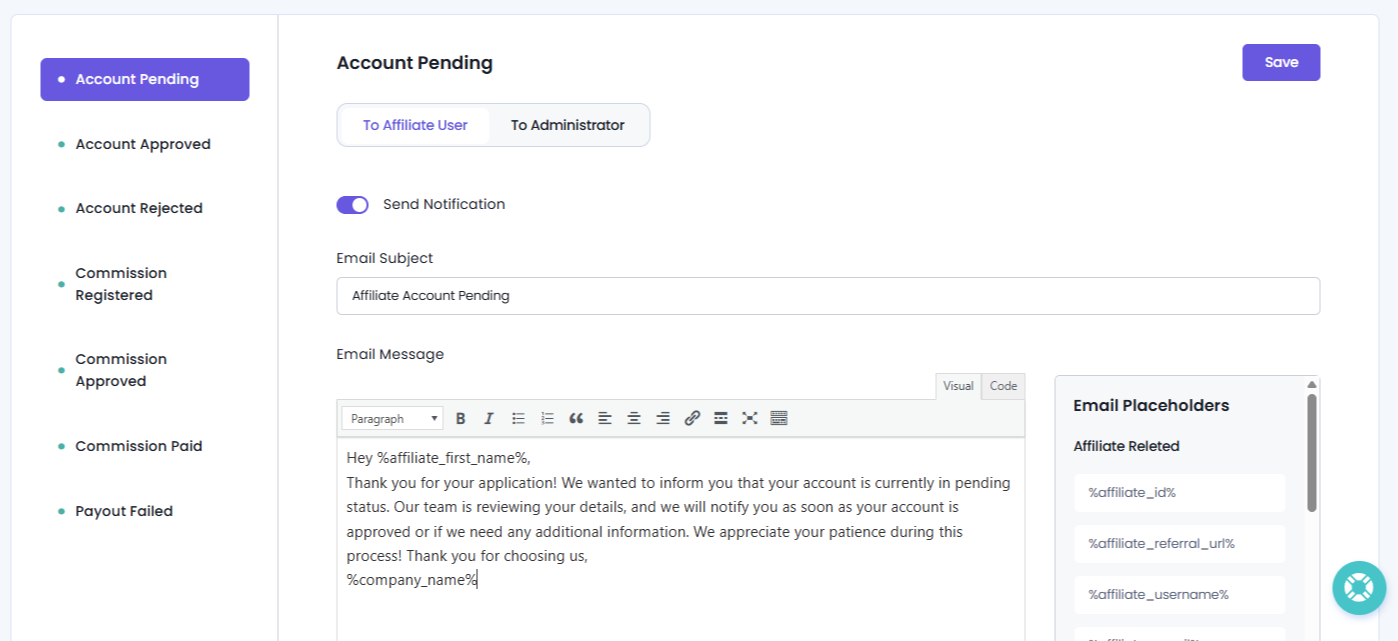
1. Account Pending
The Account Pending email is automatically sent when a new affiliate registers and their account is placed in Pending status. If you have not enabled “Auto Approve & Activate New User Registration” from General Settings, all new affiliates who signed in will have their status pending.
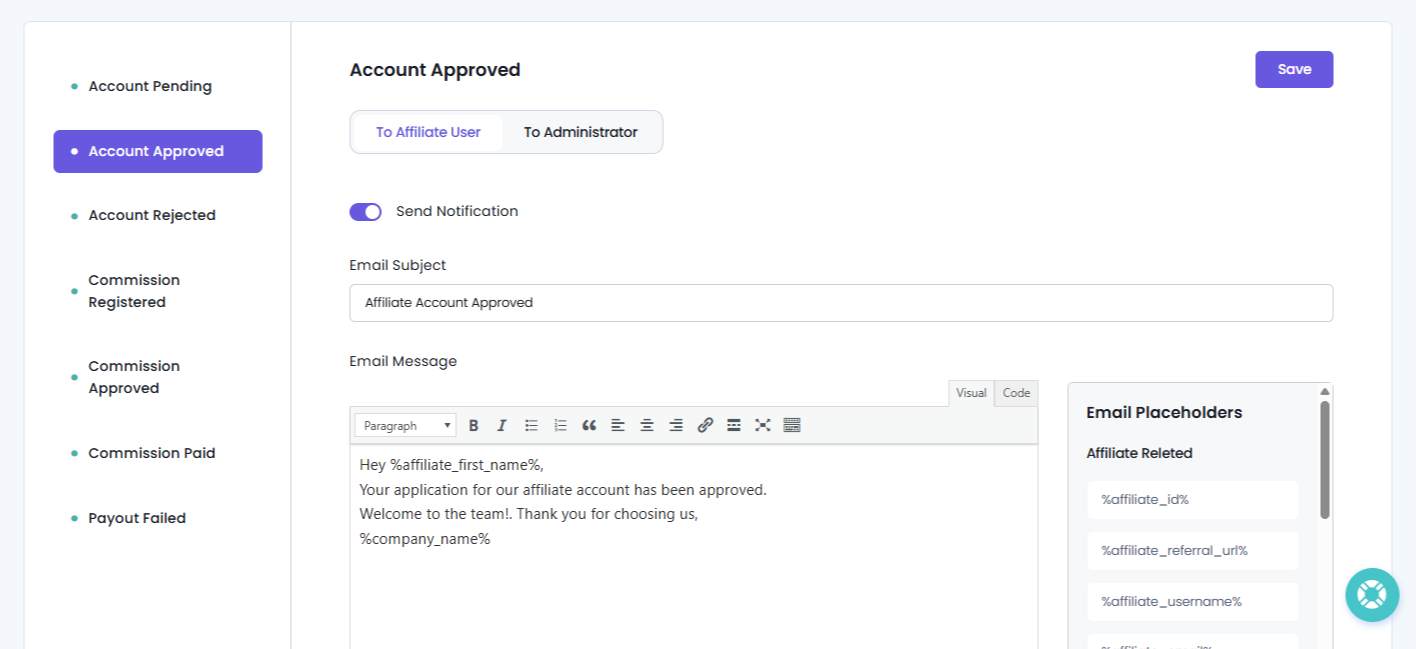
2. Account Approved
The Account Approved email is automatically sent when an affiliate account is approved. After you manually approve the affiliate user with pending status, this email will notify them.
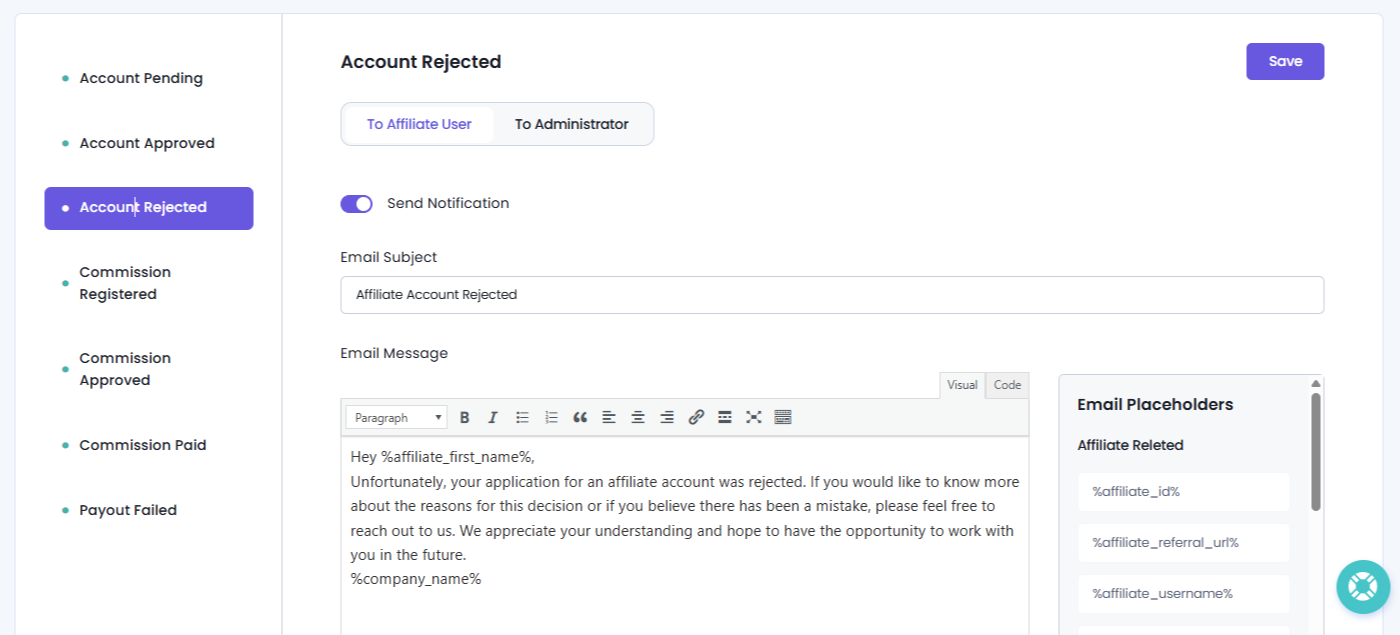
3. Account Rejected
The Account Rejected email is automatically sent when an affiliate account is rejected. You can reject an affiliate application from the Affiliates panel.
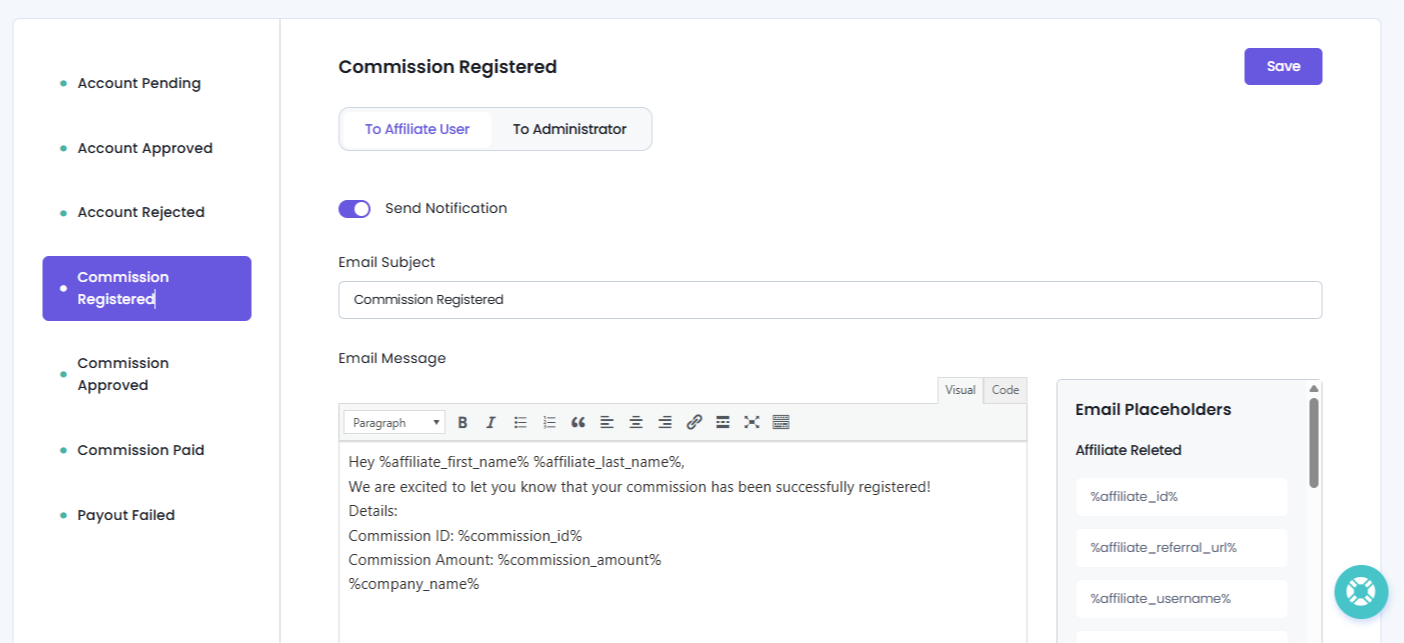
4. Commission Registered
The Commission Registered email is automatically sent whenever a new commission is successfully recorded for an affiliate.
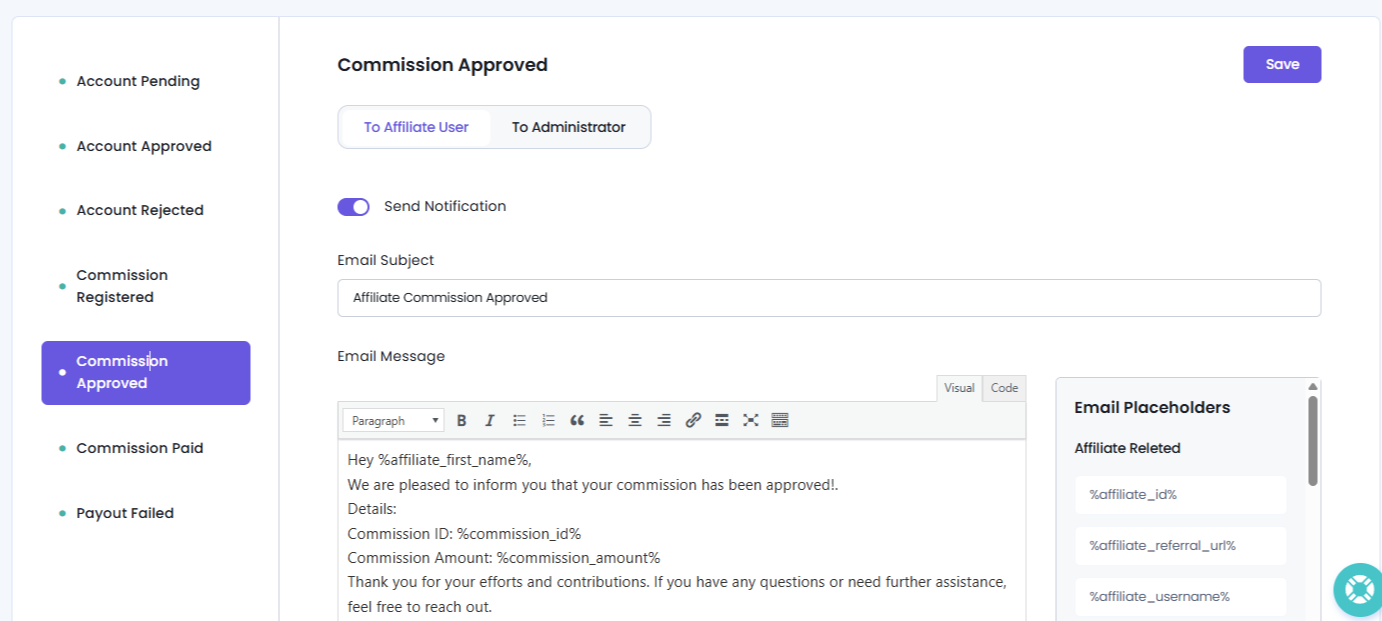
5. Commission Approved Self
The Commission Approved (Self) email is automatically sent when an affiliate’s own commission is approved.
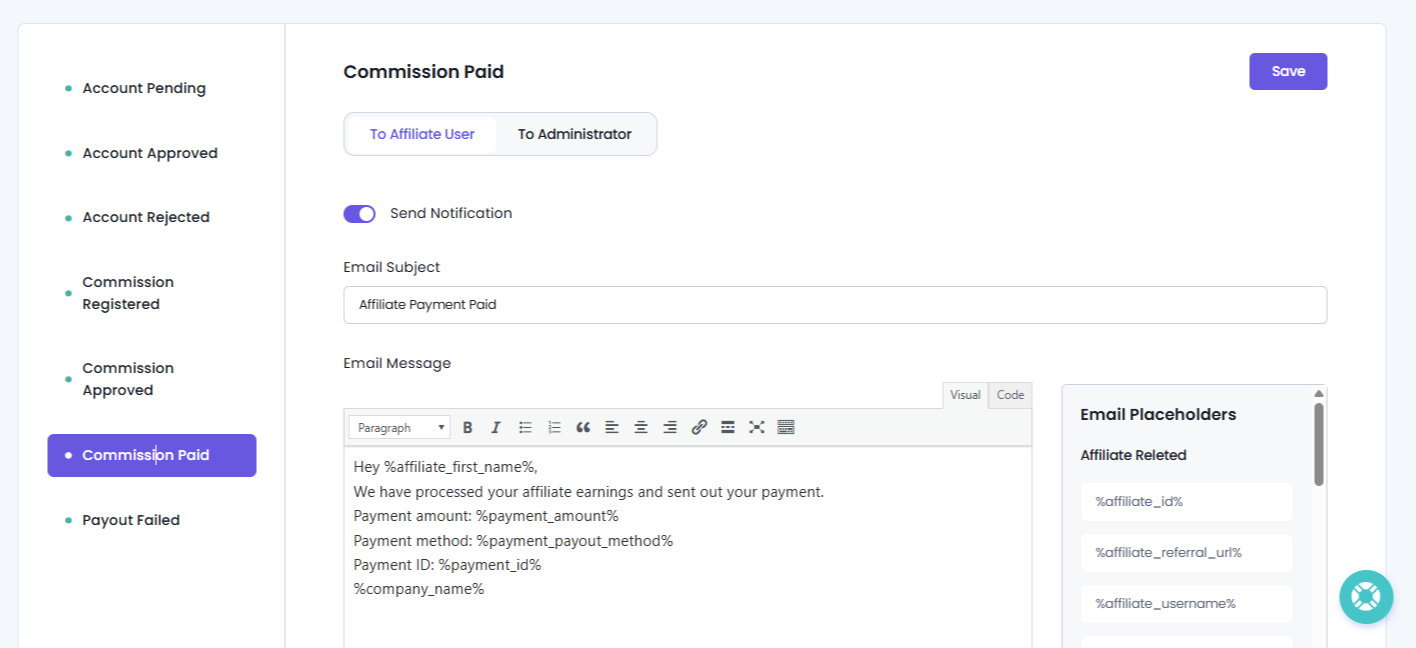
6. Commission Paid
The Commission Paid email is automatically sent after an affiliate payout has been completed successfully.
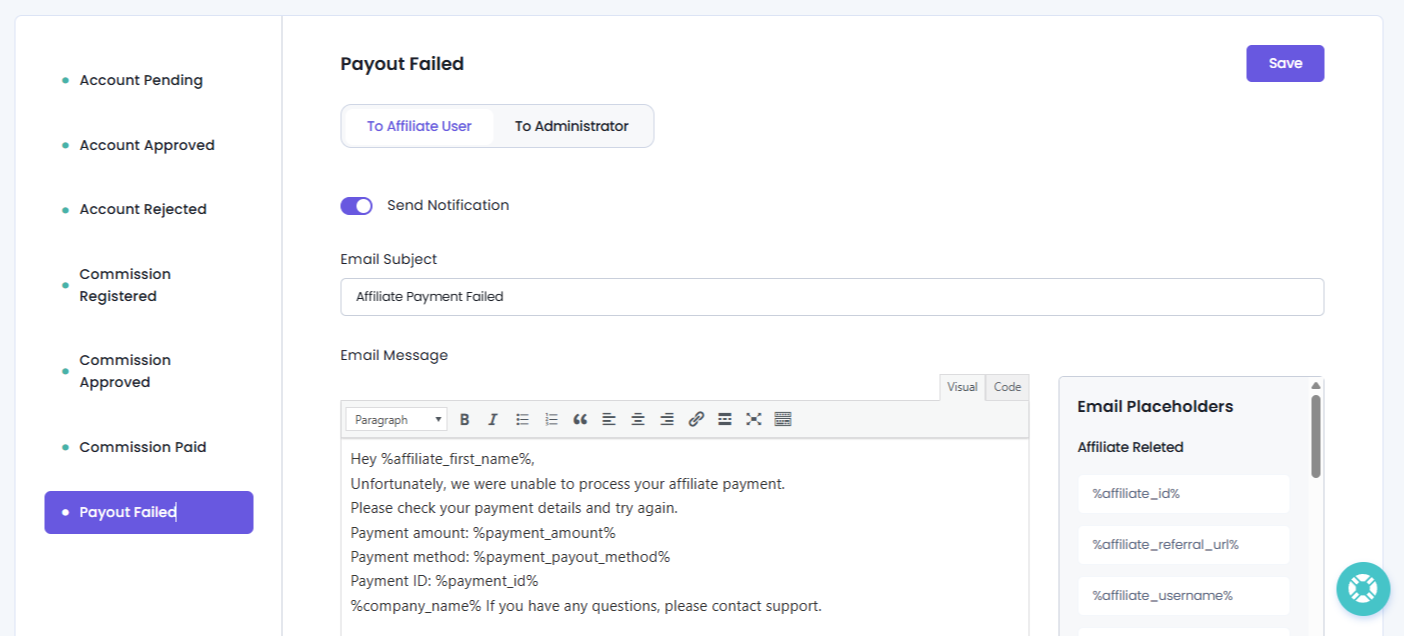
7. Payout Failed
The Payout Failed email is automatically sent when an affiliate payout cannot be completed.
Administrator Email Notifications
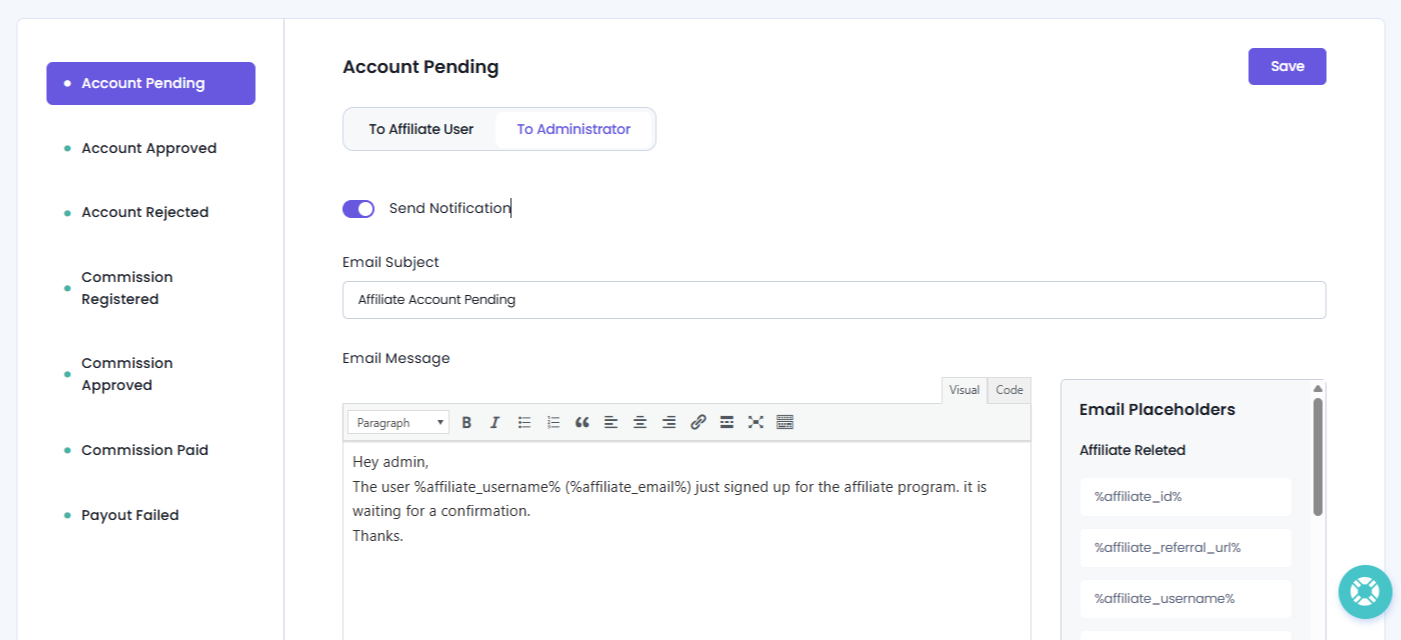
AffiliatePress also allows you to send automatic email notifications to administrators for important affiliate events.
This makes you stay informed about every new affiliate registrations, account status changes, commissions and payouts.
To configure administrator notifications, switch to the To Administrator tab on the Notifications page. You can enable or disable individual notifications, customize the Email Subject and Email Message, and use dynamic placeholders to personalize each email.
The available notification events are the same as affiliates. It’s just the message and subject which is different.
Email Placeholders
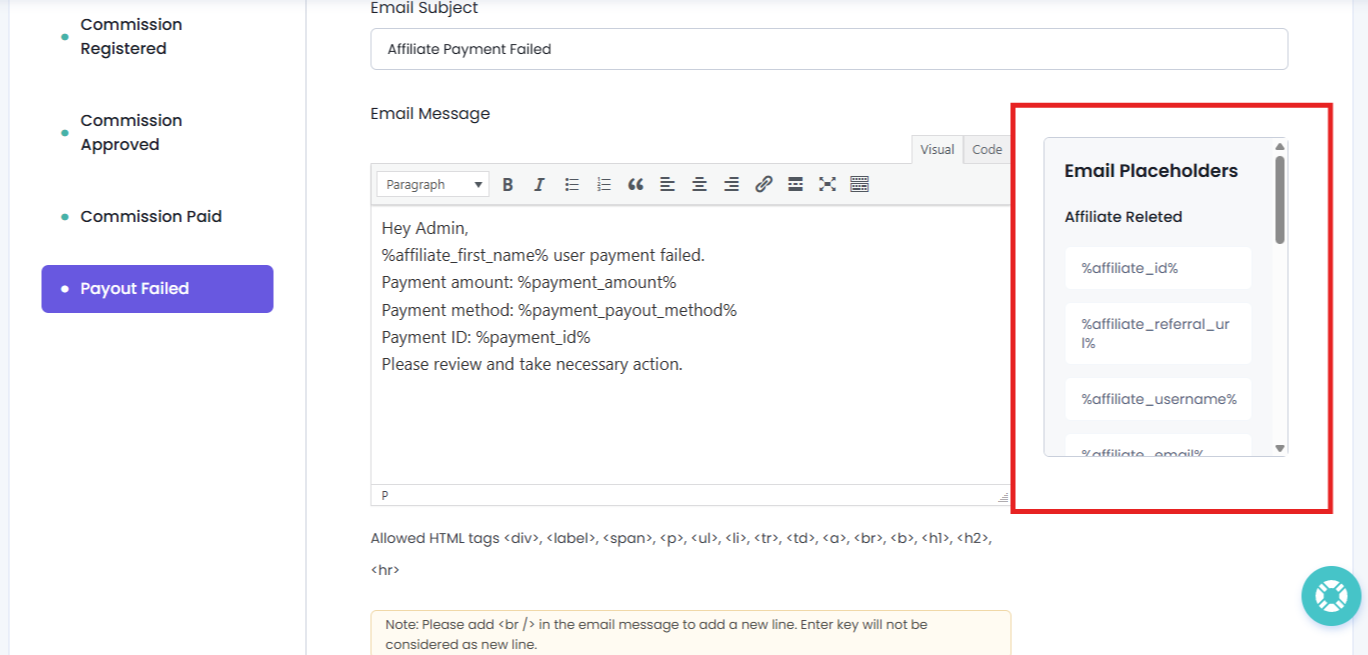
These are the email placeholders that let you add dynamic data to make your email personalised. When the email is sent, the placeholder is replaced automatically with real, personalised data.
Note: The available placeholders depend on the notification type you’re editing.
Affiliate Related Placeholders
Use these placeholders to automatically insert affiliate information into your email templates.
| Placeholder | Description |
| %affiliate_id% | Shows the unique ID of the affiliate. |
| %affiliate_referral_url% | Shows the affiliate’s referral URL for sharing and tracking. |
| %affiliate_username% | Shows the affiliate’s username. |
| %affiliate_email% | Shows the affiliate’s email address. |
| %affiliate_first_name% | Shows the affiliate’s first name. |
| %affiliate_last_name% | Shows the affiliate’s last name. |
| %affiliate_website% | Shows the affiliate’s website URL. |
| %affiliate_status% | Shows the current status of the affiliate account. |
| %promote_us% | Shows promotional content encouraging affiliates to promote your platform. |
| %company_name% | Shows your company or website name. |
Commission Related Placeholders
Use these placeholders to automatically add commission details to each affiliate into email notifications.
| Placeholder | Description |
| %commission_id% | Shows the unique commission ID. |
| %commission_amount% | Shows the commission amount. |
| %commission_reference% | Shows the reference or source of the commission. |
Payment Related Placeholders
Use these placeholders to automatically insert real-time and personalized payment details into payout notifications.
| Placeholder | Description |
| %payment_id% | Shows the unique payment ID. |
| %payment_amount% | Shows the total payout amount. |
| %payment_payout_method% | Shows the payout method used for the payment. |
| %payment_upto_date% | Shows the date up to which earnings are included in the payout. |
Tip: You can monitor email delivery from AffiliatePress → Settings → Debug Log. Enable Email Notification Logs to track outgoing email notifications and help troubleshoot delivery issues.