



Omnisend Integration
Omnisend Integration allows you to automatically send affiliate sign-up data to your Omnisend account without having to manually configure lists or field mappings.
Here we’ll show you how to integrate AffiliatePress with Omnisend integration.

Before You Begin
Omnisend is an email marketing and automation platform where you can manage your subscribers and send targeted email campaigns. By connecting AffiliatePress with Omnisend, your new affiliate registrations will be automatically synced with your Omnisend account.
Now before you start setting up the Omnisend integration, here are a few things to check for a smooth configuration:
- An Omnisend account
- The AffiliatePress Omnisend Add-on (included with all AffiliatePress Premium plans)
- Permission to create API keys in your Omnisend account
- An Affiliate Registration page
If everything above is set, you’re ready to integrate Omnisend with your AffiliatePress system. Just follow the steps below.
How to Integrate the Omnisend Add-on in AffiliatePress
1. Activate the Omnisend Add-on
To activate the Omnisend Add-on, simply head over to AffiliatePress → Add-ons. Now scroll down until you find the Omnisend Integration add-on and hit the Activate.
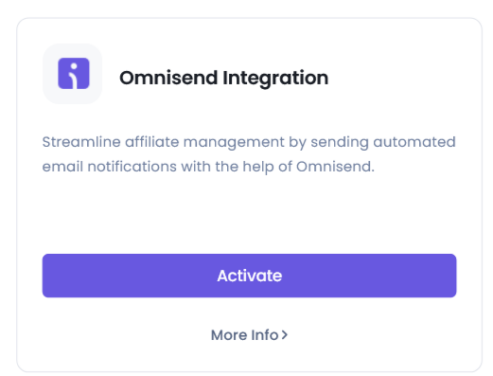
After activating the add-on, click Configure. This will take you to AffiliatePress → Settings → Opt-ins. If you have multiple opt-in integrations activated, select the Omnisend tab from the top bar.
2. Connect Omnisend with AffiliatePress
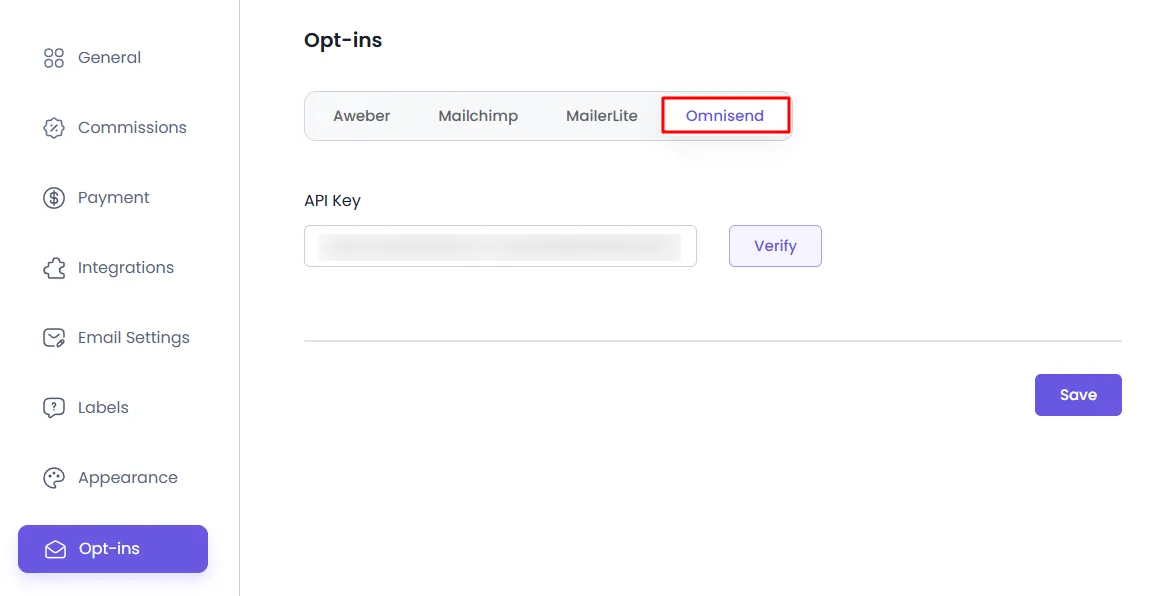
Inside the Omnisend panel, you have to add the Omnisend API Key to connect to your Omnisend account.
If you don’t already have an Omnisend account, create one right away from here.
Getting Your Omnisend API Key
- Log in to your Omnisend account.
- From the left sidebar, click Store Settings.
- Open the API Keys section.
- Click Create API Key.
- Enter a name for your API key (for example, AffiliatePress Integration).
- Under Permissions, enable only the Orders permission and leave the remaining permissions unchecked.
- Click Save to generate the API key.
- Once you’ve copied the key, keep it handy as we are going to paste it.
Now head back to AffiliatePress → Settings → Opt-ins, paste the API key into the API Key field. Just Verify and you’ll be connected.
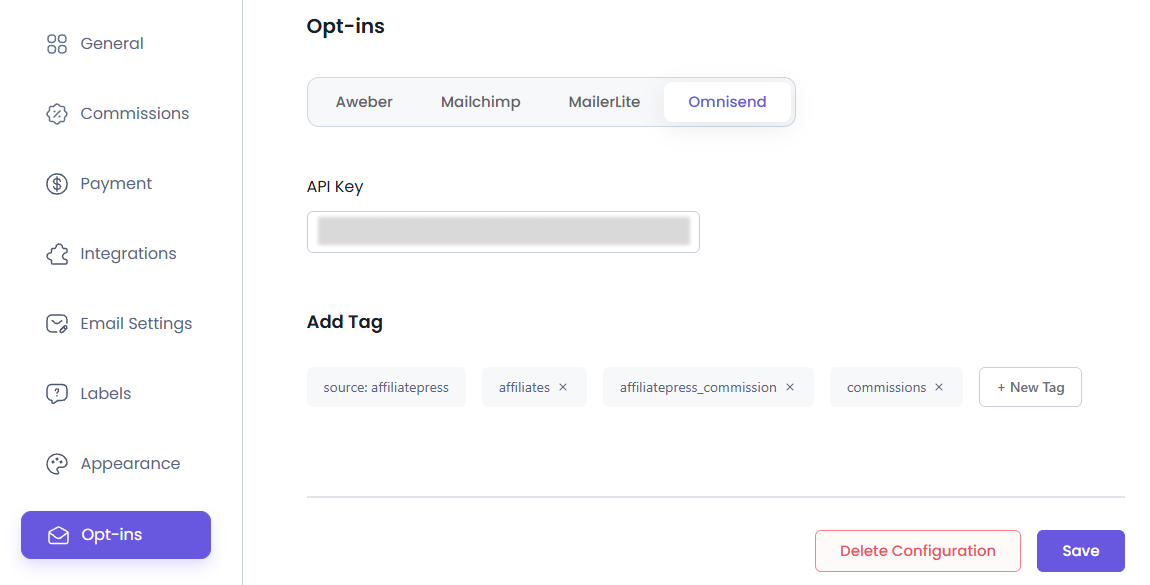
If the connection is successful, AffiliatePress will begin syncing new affiliate registrations with your Omnisend account automatically.
Moreover, compared to other email marketing integrations, Omnisend does not need you to manually select a list or map registration fields. AffiliatePress handles the synchronization automatically after a successful connection.
3. Configure Subscriber Tags
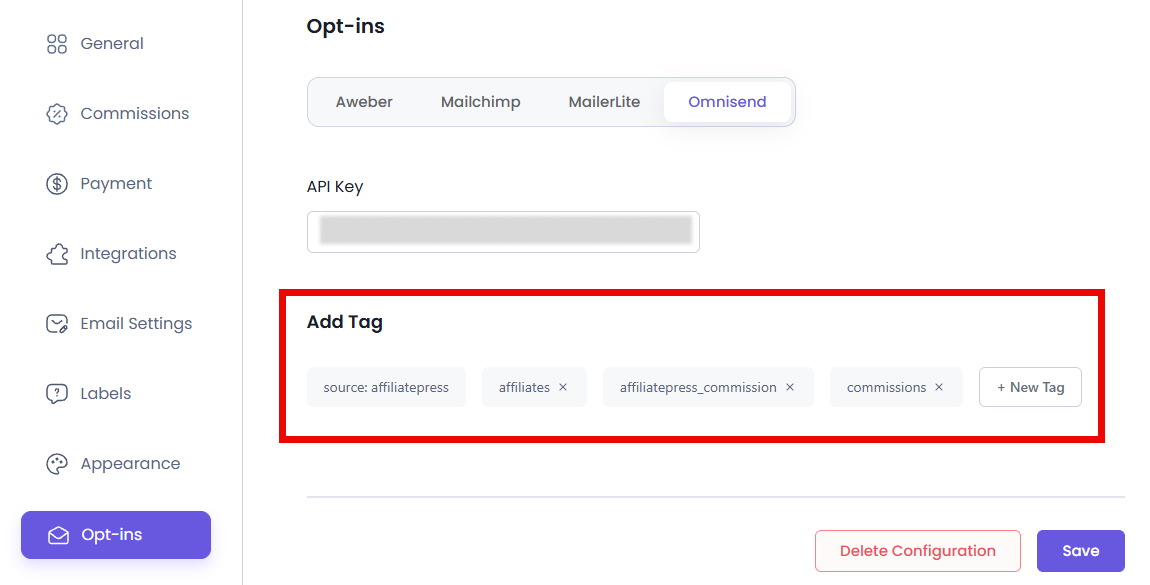
If you want to segment your contacts or track specific sources, you can assign tags to new affiliates directly from the Omnisend settings panel in AffiliatePress.
Click the “+ New Tag” button to create one or more tags such as:
- source:affiliatepress
- campaign:summer2024
These tags can also be managed dynamically from your Omnisend dashboard later, if needed. They are automatically assigned to every new affiliate synced with Omnisend which makes it easier to organize contacts, create audience segments and run targeted email campaigns.
You can also manage or edit these tags later from your Omnisend dashboard if needed.
Debug Logs for Omnisend
AffiliatePress does allow you to track the debug log for the Omnisend Integration if in-case you ran into any troubleshooting. If you experience any issues while connecting AffiliatePress with AWeber or syncing affiliate data, you can check the Omnisend Debug Logs from AffiliatePress → Settings → Debug Log.
For more details about viewing, downloading, and managing debug logs, see our Debug Log Settings documentation by clicking here.