



Easy Migration Tool
The AffiliatePress Easy Migration Tool Addon lets you import your existing affiliate data from supported affiliate plugins into the AffiliatePress system. You can easily migrate affiliates, commissions, creatives, payouts, affiliate groups and visits data with just a simple steps.
In this guide, you’ll see how to migrate your existing data in AffiliatePress.

Install and Activate the Easy Migration Tool
Before we get started, make sure AffiliatePress Pro is installed and activated on your WordPress website.
After you’ve got your affiliate program running, you’ll easily be able to install and activate the Easy Migration Tool addon for migrating from your old system to the new AffiliatePress system.
Supported Plugins
The AffiliatePress Easy Migration Tool supports migrating affiliate data from the following popular affiliate management plugins:
- ARMember Affiliate
- AffiliateWP
- Ultimate Affiliate Pro
- SliceWP
Before starting the migration, make sure the plugin you want to migrate from is installed and activated on your WordPress website.
Remember the migration option for a plugin will only show up in the Migration settings if the plugin is activated and works on your website.
Data You Can Migrate
The Easy Migration Tool allows you to import the affiliate data into AffiliatePress. Data such as:
- Affiliates
- Referral / Commission Data
- Creatives
- Payouts
- Affiliate Groups
- Visits
Just so you know, during the migration process, AffiliatePress transfers the selected plugin’s affiliate data into its own system.
Note: The migration process does not affect the original data in your existing affiliate plugin.
Furthermore, the migration is performed only when you start the migration process and does not create any ongoing synchronization between both plugins.
Important: The Easy Migration Tool is designed to be used on a fresh AffiliatePress installation. If affiliate or referral data already exists in AffiliatePress, running the migration will replace that existing data completely with the imported one. Thus make sure to review your current AffiliatePress data before starting the migration.
Migrate Data to AffiliatePress
After activating the Easy Migration Tool from AffiliatePress → Add-ons, you can start the migration process in two ways:
- Click on the Configure button on the Easy Migration Tool addon card.
- Alternatively, go to the Settings → Migration tab inside AffiliatePress.
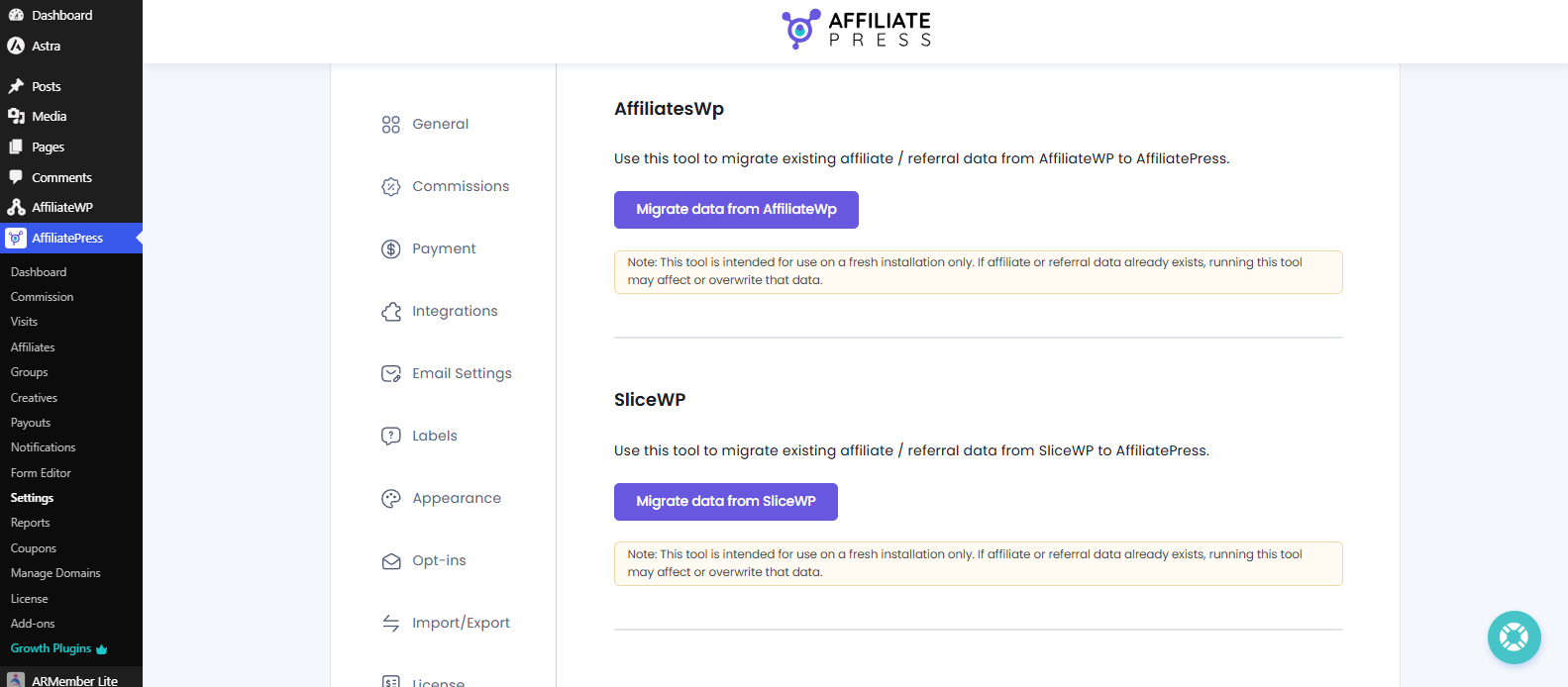
The Migration page shows all the available migration options based on the supported affiliate plugins installed on your website.
To migrate your data from another plugin,
- Scroll to the plugin you want to migrate data from.
- Click the “Migrate data from [Plugin Name]” button.
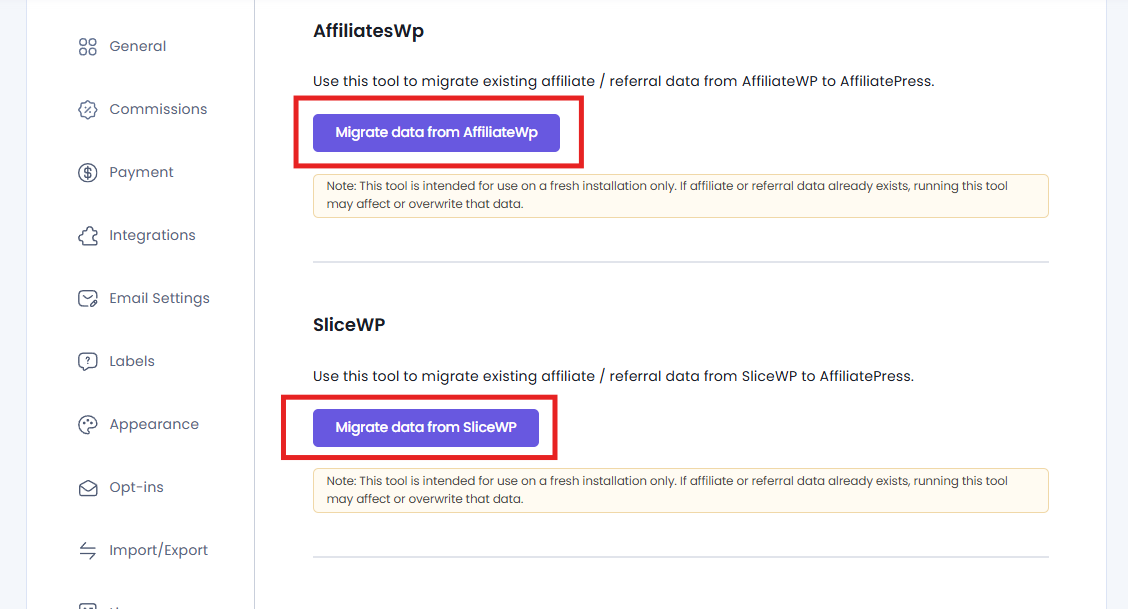
For example, to migrate your existing data from:
- ARMember Affiliate → Click on the “Migrate data from ARMember Affiliate”.
- AffiliateWP → Click on the “Migrate data from AffiliateWp“.
- SliceWP →Click on the “Migrate data from SliceWP”.
- Ultimate Affiliate Pro → Click on the “Migrate data from Ultimate Affiliate Pro”.
Once you click on the migrate data button of your respective plugin, AffiliatePress will detect the available affiliate data and prepare it for migration. All the available data will be imported and shown in the Migration Summary popup. The summary includes:
- Total Affiliates
- Total Commission
- Total Creative
- Total Payout
- Total Group
- Total Visit
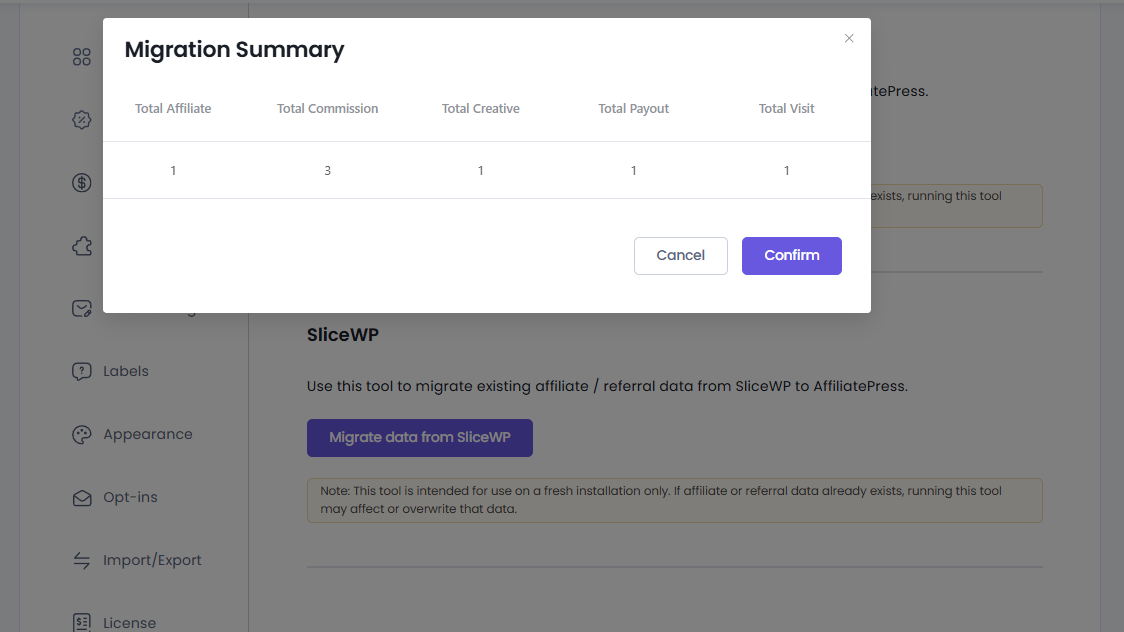
Simply cross check and review the number of total data once before continuing by clicking on Confirm to start the migration.
Next, once you confirmed, AffiliatePress starts importing the data and shows the migration progress.
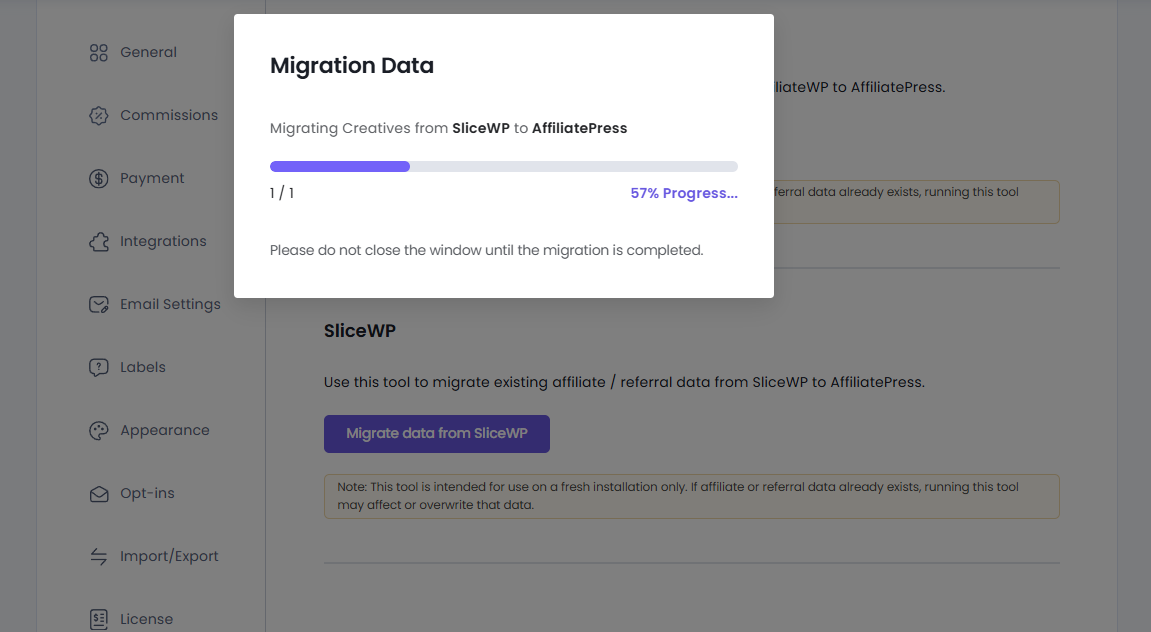
After the migration is completed, a confirmation popup will show up showing all the imported records.
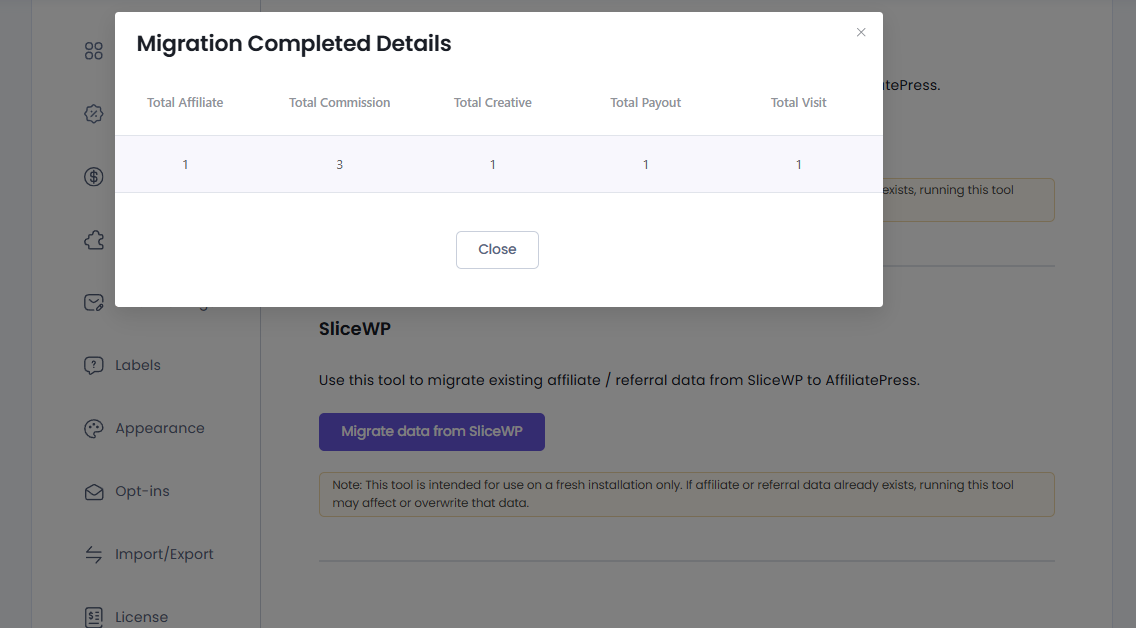
Note: Migration is a one time import process. AffiliatePress does not continuously sync data with the original affiliate plugin.
Verify Migrated Data
At last you can verify the imported data from the respective sections after the migration process is completed inside AffiliatePress.
- Affiliates: Verify that all affiliate profiles have been imported from the AffiliatePress Affiliate page.
- Commissions : Make sure all referral and commission records are available inside the AffiliatePress Commission page.
- Creatives : Confirm that available creatives have been migrated properly inside the Creatives page.
- Payouts : From Payouts, you can cross check all migrated payout data.
- Groups : Check imported affiliate groups inside AffiliatePress Groups.
- Visits: Head straight to the Visits page for verifying migrated visit records.
That’s all! Now you can continue managing your affiliate program data right from your AffiliatePress system.