



Multi-Level Commission Addon
The AffiliatePress Multi-Level Affiliates Addon allows you to build a network of affiliates, where affiliates can earn commissions for the sales made by affiliates they refer to (downline affiliates).
This multi-level structure rewards affiliates to expand their network and maximize their earnings.
In this guide, we’ll show you how to install and set up a Multi-Level Commission Addon for creating multi-level affiliate commission structure.

How Does a Multi-Level Affiliate System Work?
In most affiliate programs, the system is simple. Admin creates an affiliate program. Affiliates onboard, use referral link/Coupon code/QR code to promote, and when a sale happens, the affiliate gets commission.
However, in the multi-level affiliate commission model, the Multi-Level Affiliates Addon allows your affiliates earn commissions not only from their own referrals but also from the referrals generated by affiliates they invite into your program.
Let’s look at a simple example.
Let’s say James Swift joins your affiliate program. At this stage, James doesn’t have any parent or sub-affiliate.
James shares his affiliate invitation link with Sarah, who signs up through it. James becomes Sarah’s Parent Affiliate, while Sarah becomes James’s Level 1 affiliate.
Later, Sarah invites Daniel to join the affiliate program. Daniel registers using Sarah’s invitation link, making Sarah his Parent Affiliate and James his Level 2 upline affiliate.
Your affiliate network now looks like this:
James
└── Sarah
└── Daniel
Now suppose Daniel refers to a customer who completes a purchase.
- Daniel receives the standard affiliate commission for the sale.
- Sarah earns the configured Level 1 commission.
- James earns the configured Level 2 commission.
This process continues automatically based on the number of commission levels you configure in AffiliatePress.
Install and Activate the Multi-Level Affiliates Addon
Before we get started, be sure to install and activate AffiliatePress on your WordPress site.
After you’ve got AffiliatePress installed and your license is activated, you can easily install and activate the Multi-level Commission addon.
Configure Multi-Level Affiliates
After activating Multi-level Commission Addon, you can click on “Configure” which will redirect you to the Settings → General panel inside AffiliatePress.
Here scroll till Multi-Level Commission settings, and toggle on the Multi-Level Commission option. This will allow affiliates to earn from their sub-affiliates.
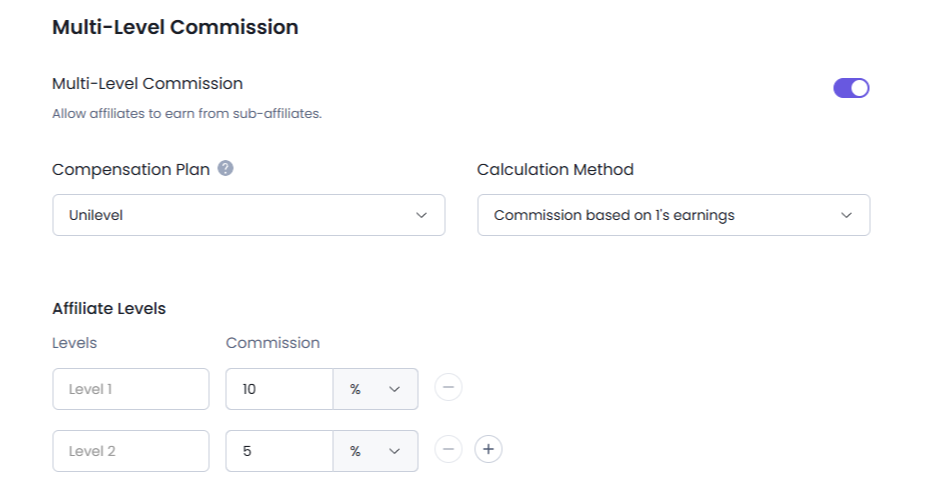
Here are the options you can set:
Compensation Plan
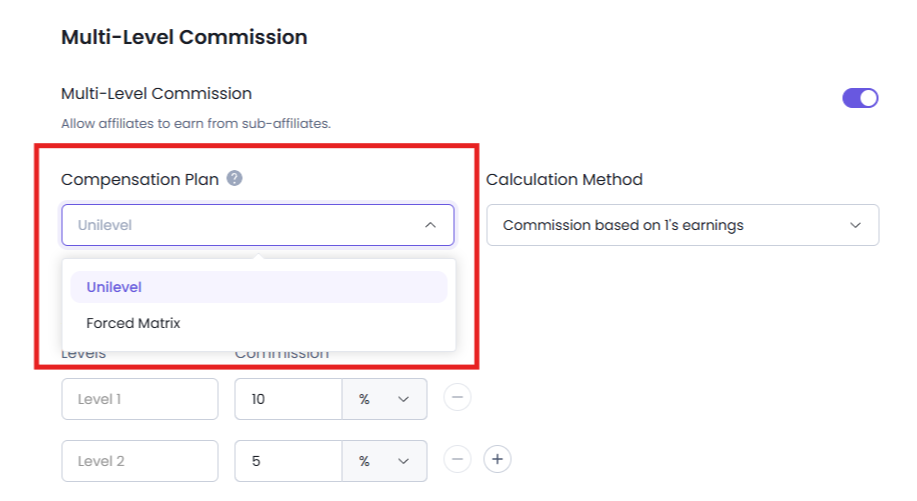
This Compensation Plan option allows you to choose how your affiliate network is structured and how new affiliates are placed within it.
Unilevel
The Unilevel compensation plan allows each of your affiliates to recruit an unlimited number of direct affiliates. Every new affiliate who joins via an affiliate’s invite link is placed directly under that affiliate. This allows your network to grow without restrictions.
This option is best if you want affiliates to freely expand their own networks with no limits.
Forced Matrix
The Forced Matrix compensation plan limits the number of direct affiliates (Width) and the maximum number of levels (Depth) within the network.
Note: In the Forced Matrix compensation plan, once an affiliate reaches the maximum Width and Depth limits, any additional affiliates who register using that affiliate’s Network Invite Link are created as independent affiliates. They are not assigned as sub-affiliates and are not connected to the existing multi-level network.
This Forced Matrix compensation plan can be useful for those who want to maintain a structured and balanced affiliate network.
Commission Calculation Method
The commission Calculation Method decides how commissions are calculated for affiliates at each level of your multi-level network.
AffiliatePress offers two ways to calculate:
Commission based on 1’s earnings
This method calculates commissions for higher levels based on the commission earned by the direct referring affiliate. Here, the 1’s earnings means the earnings of affiliates who drove the first sale.
Remember this applies only when the commission rate for the higher level is set as a percentage.
For example:
- Sale Amount: $1,000
- Direct Affiliate (Level 0) Commission: 20% = $200
- Level 1 Commission: 20% of $200 = $40
- Level 2 Commission: 10% of $200 = $20
In this method, higher level commissions are calculated from the direct affiliate’s commission.
Based on Total Sale Amount
This method is best if you want each affiliate level to earn a commission based on the original sale amount.
Example
- Sale Amount: $1,000
- Direct Affiliate (Level 0) Commission: 20% = $200
- Level 1 Commission: 20% of $1,000 = $200
- Level 2 Commission: 10% of $1,000 = $100
In this method, every configured level receives its commission directly from the total sale amount, regardless of what other affiliates earn.
Note: The affiliate who generates the sale is considered the Direct Affiliate (Level 0). Level 1 is the affiliate who invited the Direct Affiliate, Level 2 is the affiliate who invited the Level 1 affiliate, and Level 3 is the affiliate who invited the Level 2 affiliate. This hierarchy continues for each configured commission level.
Multi-Level Commission Levels
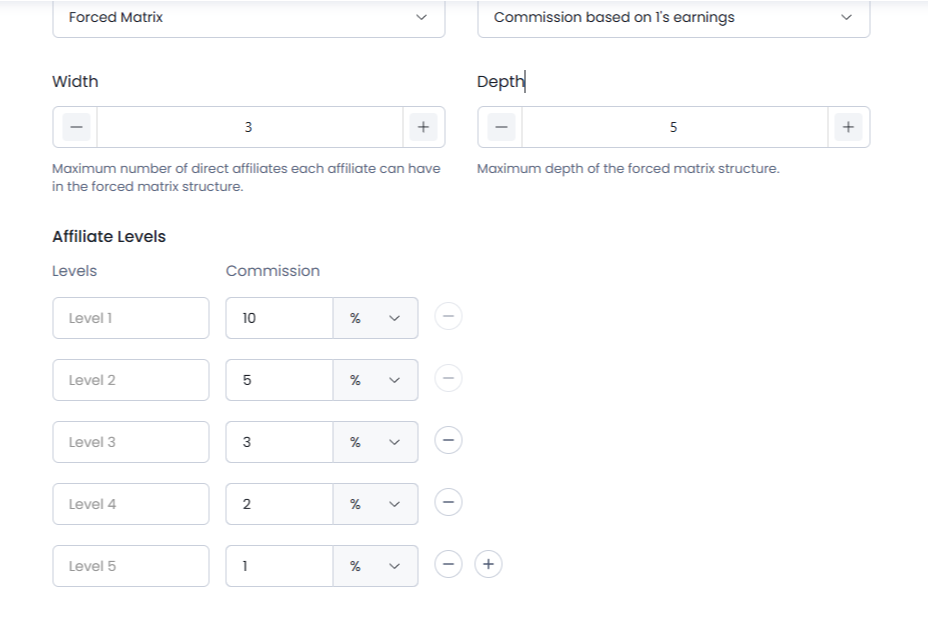
The Affiliate Levels section is where you can configure how much commission each affiliate level earns when a referral is generated within its network.
By default, Level 1 and Level 2 are available. You can add additional commission levels by clicking the + icon and remove existing levels using the − icon.
For each level, you can also specify the commission percentage or fixed amount that should be awarded.
For example:
- Level 1 earns 10%
- Level 2 earns 5%
- Level 3 earns 3%
When a qualifying referral is generated, AffiliatePress automatically calculates and distributes commissions according to the configured commission levels and the selected Commission Calculation Method.
After you’ve finished configuring the commission levels, click Save to apply your changes.
Understanding How Commission Rates Work For Affiliate Levels

So that you can better understand the way commissions are calculated, let’s look at the following example, using the affiliates from the previous section.
Let’s say that Daniel refers to a visitor who ends up making a $1,000 purchase from you. As the referrer, Daniel will be rewarded a commission that is calculated based on the commission rates set in the general settings section.
Assume the referred sale commission rate is 20%. Then Daniel will earn:
$1,000 × 20% = $200
In the multi-level affiliate system, Daniel is considered the Direct Affiliate (Level 0).
Now, let’s assume you also want to reward the affiliates who helped grow Daniel’s network:
- Sarah is Daniel’s Parent Affiliate and is considered Level 1.
- James is Sarah’s Parent Affiliate and is considered Level 2.
You configure the following commission levels:
- Level 1: 20% commission rate
- Level 2: 10% commission rate
Based on these settings:
Sarah (Level 1) earns:
20% of Daniel’s commission ($200) = $40
James (Level 2) earns:
10% of Daniel’s commission ($200) = $20
The commission calculation depends on the Commission Calculation Method you select in AffiliatePress.
Manually Manage Affiliate Relationships
AffiliatePress allows administrators to manually assign or update an affiliate’s Parent Affiliate, making it easy to organize and maintain the structure of your multi-level affiliate network.
To manage an affiliate’s relationship:
- Go to AffiliatePress → Affiliates.
- Add a new affiliate or edit an existing one.
- Select the desired Parent Affiliate from the Parent Affiliate dropdown.
- Click Save to apply the changes.
The selected Parent Affiliate becomes the affiliate’s direct upline and will receive multi-level commissions according to your configured commission settings.
Furthermore, affiliatePress provides a visual network view that helps administrators understand how affiliates are connected within the multi-level structure.
To view an affiliate’s network inside the Affiliates page, simply click the Network icon next to the affiliate whose network you want to view.
From here, you can easily see the affiliate’s position in the network along with their parent and sub-affiliate relationships.
For more configurations in the Affiliates page, check out our beginner-friendly guide from here.
How AffiliatePress Handles Multi-Level Commission Approvals
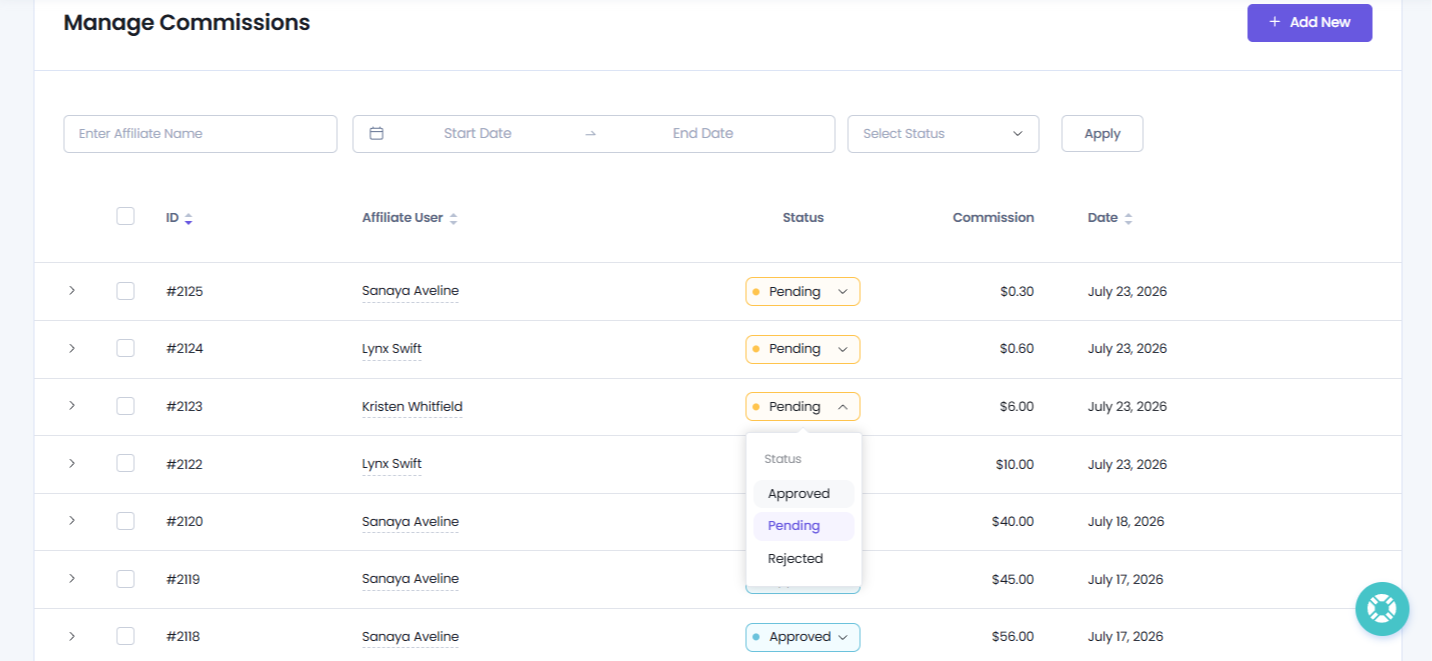
When a sale is generated through an affiliate referral, AffiliatePress automatically creates commissions for all eligible affiliates in the multi-level network as per your Multi-Level Commission Settings.
You can manage these commissions from AffiliatePress → Commissions.
For better understanding, let’s say Kristen Whitfield generates a sale. Then the commissions are created for the affiliates in her upline network:
- Sanaya Aveline earns $0.30
- Lynx Swift earns $0.60
- Kristen Whitfield earns $6.00
First of all, these commissions may have a Pending status.
When you approve or reject the commission generated by the affiliate who directly referred the customer (Direct Affiliate / Level 0), AffiliatePress automatically updates the status of the related multi-level commissions.
For example, if you approve Kristen Whitfield’s commission, the commissions for Lynx Swift and Sanaya Aveline will also be approved. If you reject Kristen Whitfield’s commission, the related multi-level commissions will also be rejected.
But, as an administrator, you still have full control over individual commission records. You can easily change the status of each commission manually.
For example, you can:
- Reject Sanaya Aveline’s commission.
- Keep Lynx Swift’s commission pending.
- Approve Kristen Whitfield’s commission.
This flexibility allows you to manage exceptional cases and adjust commission statuses manually when needed.
Affiliate Network Dashboard
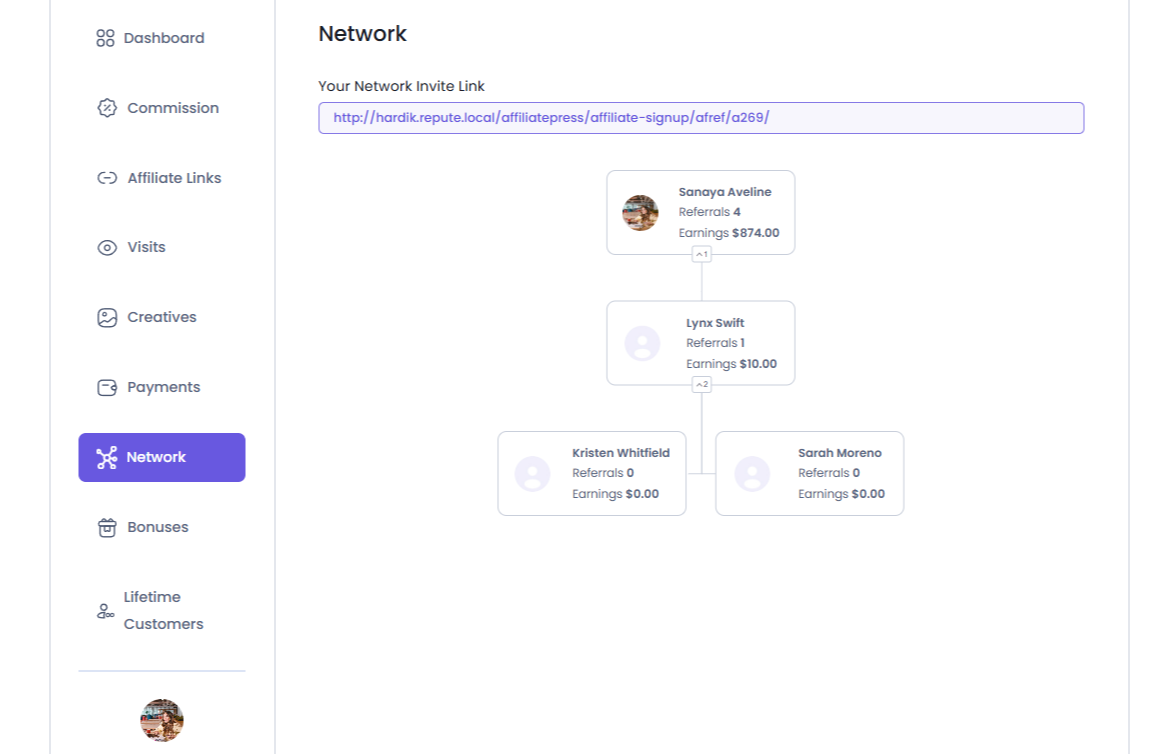
Affiliates can view and grow their network directly from the Network tab in the Affiliate Panel.
From the Network tab inside their Affiliate Panel, affiliates can:
- Copy their Network Invite Link.
- Share the invite link with potential affiliates.
- View their affiliate network hierarchy.
- Track the growth of their referral network.
When a new affiliate registers using the Network Invite Link, they are automatically added to the inviting affiliate’s network (subject to the configured Compensation Plan) and become eligible for multi-level commission tracking.
This creates a structured affiliate network while automatically distributing commissions based on your configured multi-level commission settings.
Modify Affiliate Panel Labels
You can customize the labels related to the Multi-Level Commission Addon from AffiliatePress → Settings →Label → Multi-level Labels.
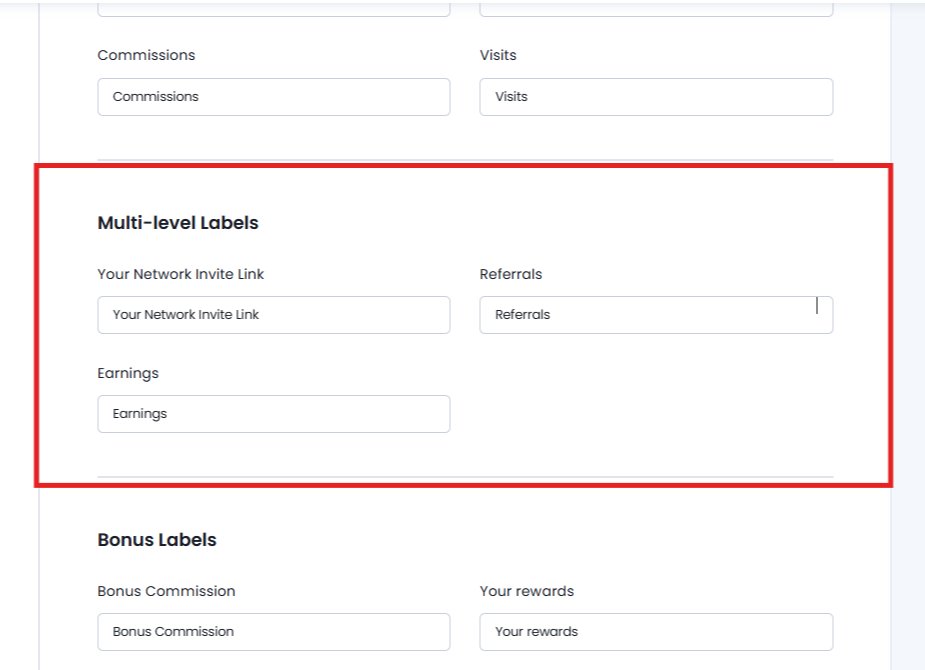
The Multi-level Labels section allows you to customize the labels shown for multi-level affiliate features in the Affiliate Panel.
Remember the labels customized here will be shown only in the Affiliate Panel. They do not change the corresponding labels or terminology in the AffiliatePress admin dashboard.
As for Affiliate Network tab, you can customize:
- Your Network Invite Link: The label shown for the affiliate’s network invitation link
- Referrals: The label used for referrals in the Affiliate Panel
- Earnings: The label used for affiliate earnings
- Network: The menu label used to access the affiliate’s network
This gives you the flexibility to use terminology that fits your affiliate program and website.
Multi-Level Affiliate Terms
Here are some common multi-level affiliate terms we’ve used throughout the guide.
| Term | Meaning |
| Direct Affiliate (Level 0) | The affiliate who generates the sale |
| Parent Affiliate | The affiliate who referred another affiliate |
| Level 1 Affiliate | The affiliate directly above the person who generated the sale |
| Upline | Affiliates above another affiliate in the network |
| Downline | Affiliates below an affiliate in the network |