



Multi-Currency
Selling to customers in multiple currencies? The Multi-Currency Addon for AffiliatePress automatically converts affiliate commission amounts into your configured default currency.
In this guide, we’ll show you how to install and set up the Multi-Currency Addon in AffiliatePress.

Install and Activate the Multi-Currency Addon
Before we get started, be sure to install and activate AffiliatePress on your WordPress site.
After you’ve got AffiliatePress installed and your license is verified you’ll be able to quickly install and activate the Multi-Currency addon.
Important: Multi-Currency Addon supports 20 integrations including:
- WooCommerce
- SureCart
- Easy Digital Downloads
- ARMember
- MemberPress
- Ultimate Membership Pro
- Restrict Content Pro
- Paid Member Subscriptions
- LearnDash
- LifterLMS
- LearnPress
- Masteriyo LMS
- ARForms
- WPForms
- BookingPress
- GiveWP
- WP Simple Pay (Stripe)
- GetPaid
- Accept Stripe Payments
- Download Manager
Configuring Multi-Currency Settings
After activating the addon, you have to:
1. Go to AffiliatePress → Settings → General.
2. Scroll down until you find the Multi-Currency Settings section.

3. Toggle on “Enable Multi-Currency” to access all available settings.
Enable Multi-Currency
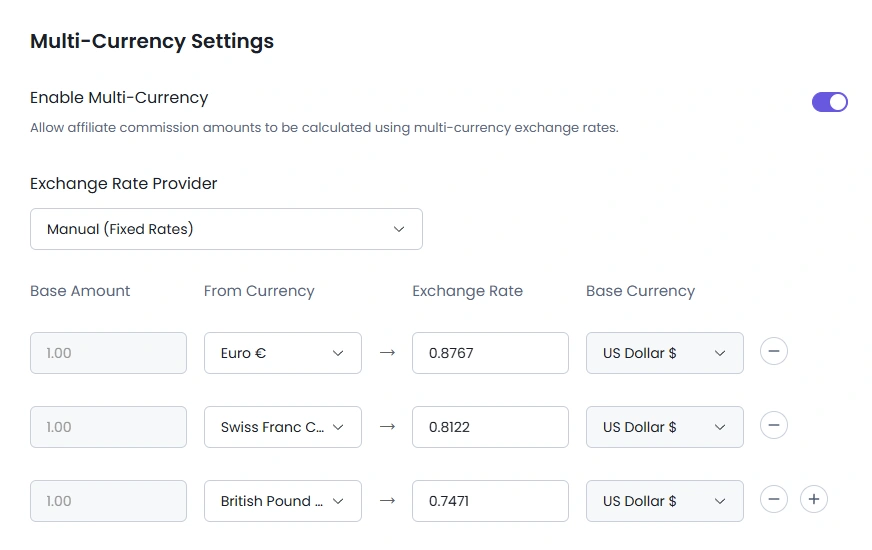
Once enabled this option, AffiliatePress calculates affiliate commissions using multiple currencies.
When a customer places an order in a currency different from your AffiliatePress default currency, the addon automatically converts the calculated commission amount into your configured default currency before storing it.
For example – in this case: Suppose your AffiliatePress default currency is US Dollar (USD). Now a customer buys a product using Euro (EUR). Thus here’s how it will work:
- Order Amount: €100
- Affiliate Commission Rate: 10%
- Calculated Commission: €10
If the current exchange rate is:
- €1 = $1.14
AffiliatePress automatically converts:
- €10 → $11.40
The affiliate commission is then recorded as $11.40 in the AffiliatePress Commissions page.
Exchange Rate Provider
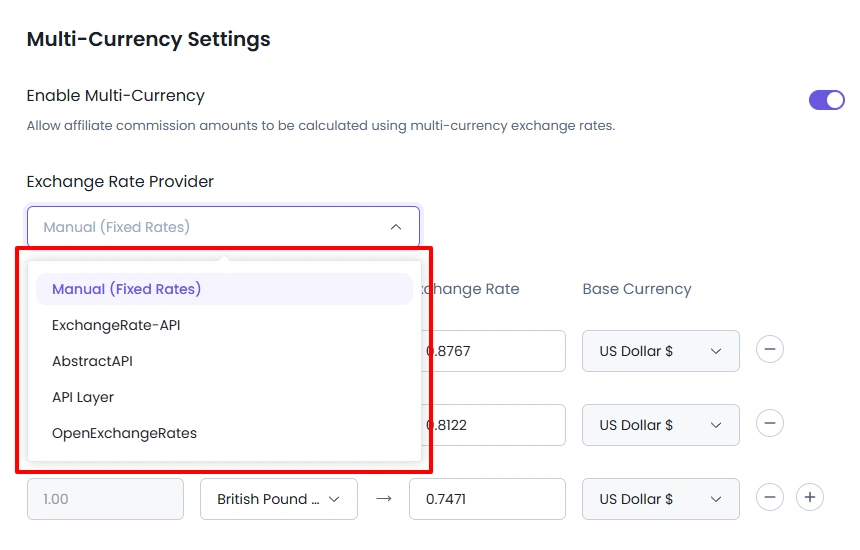
Choose how and from where AffiliatePress retrieves currency exchange rates.
The system uses the selected exchange rate provider to fetch the latest currency conversion values. This makes sure all commission rates are converted using up-to-date rates.
Here’s the list of exchange rate providers:
- Manual (Fixed Rates) – Select this option when you want to set your own Exchange Rate, not live
- ExchangeRate-API
- AbstractAPI
- API Layer
- OpenExchangeRates
Click on the respective Exchange Rate provider above to see how to get the API key.
Apart from the Manual method, all other exchange rate providers need authentication. Thus you’ll also need to enter a valid API key.
Simply enter the API key provided by your selected currency exchange service, and hit the “Connect“. After it connects successfully, AffiliatePress uses this key to securely fetch the latest exchange rates automatically.
Note: If the API key is invalid or missing, the addon won’t be able to update exchange rates automatically.
Exchange Rate Update Time
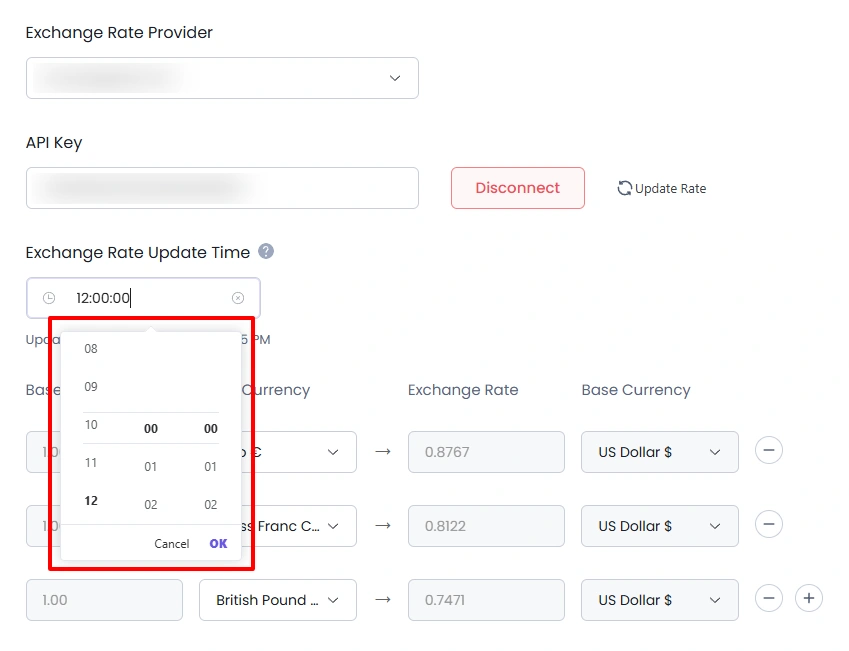
The exchange currency rate updates way more often than you think. That’s why you can schedule a daily update inside AffiliatePress Multi-Currency Settings.
This field shows the exact time with hour, minute and second, on when exchange rates were last successfully updated, and will be. This helps you verify that AffiliatePress is using the latest available conversion rates.
Note: Exchange rates will be automatically updated every 24 hours at the selected time.
Update Rate
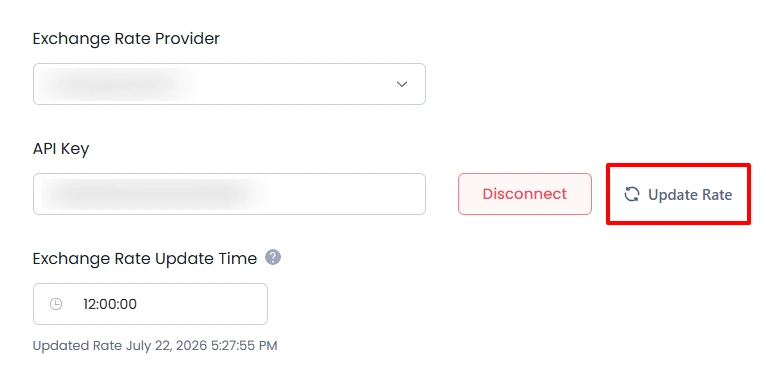
Click the Update Rate button to manually fetch the latest exchange rates from the configured exchange rate provider.
This is useful if you want to refresh the exchange rates immediately instead of waiting for the next automatic update.
Exchange Rates Table
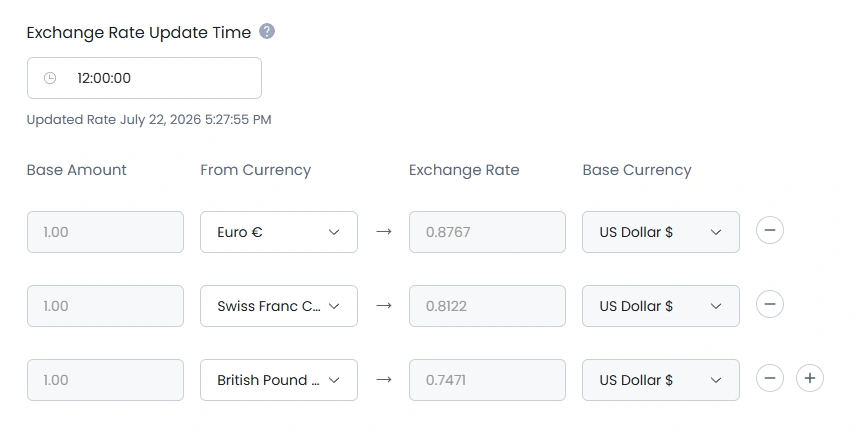
The Exchange Rates table shows all available currency conversion rates relative to your AffiliatePress default currency.
The table includes:
- Base Amount: Base amount used for the exchange rate
- From Currency: Select the currency you want to convert from
- Exchange Rate: Will update automatically once you click select the currency
- Base Currency: The default currency of your affiliate program
From here, you can add a new currency conversion rate by clicking on the + icon. And also delete one by simply clicking on the – icon.
AffiliatePress uses these exchange rates whenever it needs to convert affiliate commissions into your default currency. This conversion happens automatically, or you can also choose to do it manually, which we’ll discuss further.
Lastly, don’t forget to Save all the settings.
Viewing Multi-Currency Commissions
After commissions have been converted, you can verify both the order currency and the converted commission directly from the Commissions page. Simply, click on any commission record to open its details.
Here, the commission details show both the order amount and the converted commission amount:
- Order Amount: ¥163146.00 (Japanese Yen).
- Display Order Amount: $1000 (Your AffiliatePress Base Currency).
- Commission: $50.00 (Your AffiliatePress Base Currency).
This is useful when you want to you verify the:
- Commission amount after it has been converted into your base currency.
- Source of the commission.
- Commission type and order reference.