



Affiliate Registration
Affiliate Registration allows visitors to join your affiliate program directly through a front end signup form on your website. Once registered, visitors turn into affiliates and can access their Affiliate Panel, generate referral links and start earning commissions.
Here we’ll show you everything you need to set up and manage affiliate registration in AffiliatePress.
Enable Affiliate Registration
Before visitors can register as affiliates on your website, you must enable affiliate registration in AffiliatePress.
- To do this, go to WordPress → AffiliatePress → Settings → General.
- From here, toggle on the “Allow Affiliate Registration” option to enable it.
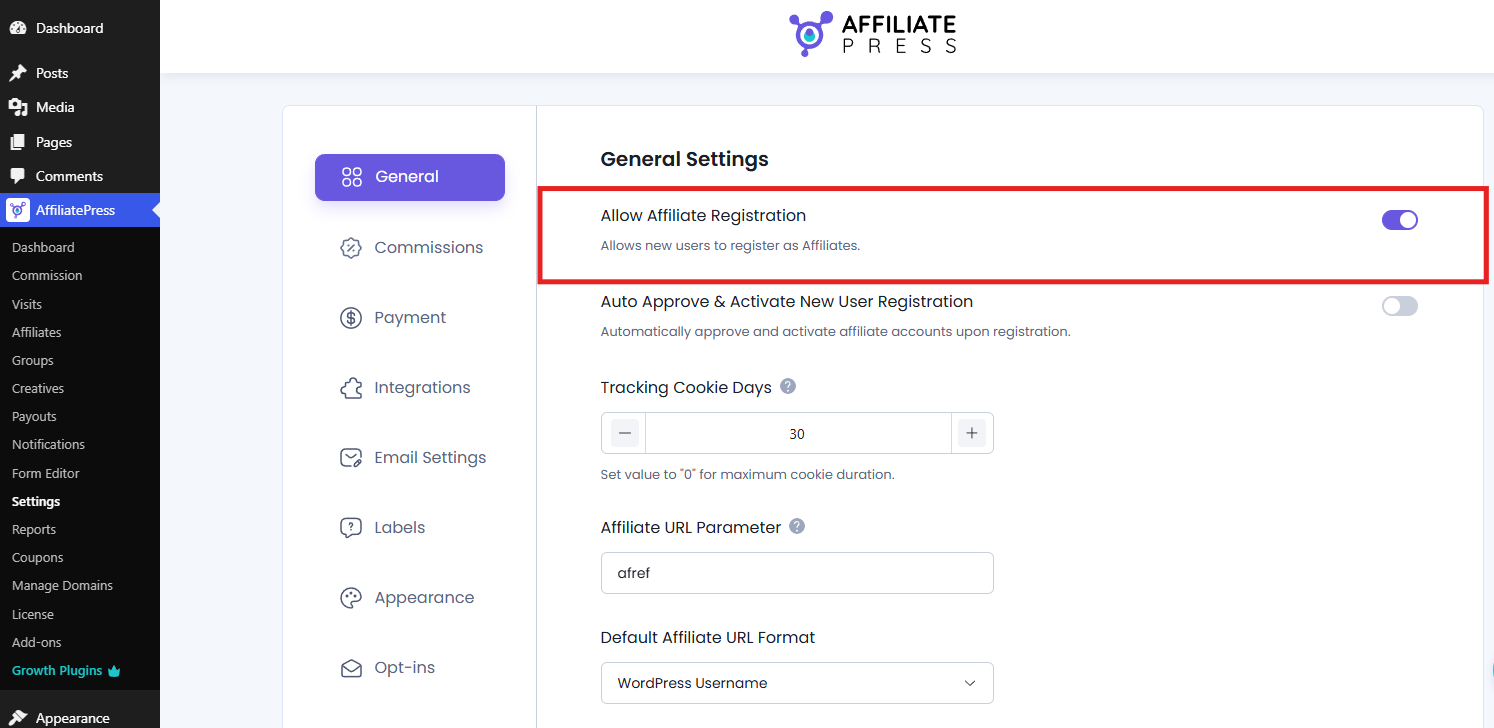
After enabled, visitors can submit the affiliate registration form from your Affiliate Registration page.
If a new user tries to signup as a new affiliate through AffiliatePress signup form, and this setting is disabled, then a message will be shown such as below after user submits the form:
“Affiliate registration is currently disabled by the admin. Please contact support for assistance.”
Note: If this setting is disabled, the affiliate registration form will not accept new registrations, even if the registration form is shown publicly.
How Do I Set Up an Affiliate Registration Page?
After affiliate registration setting is enabled, next you have to give the visitors a registration page or signup form from where they can sign up for your affiliate program.
AffiliatePress gives you three ways to set up an Affiliate Registration page:
- Use the default Affiliate Signup page created automatically by AffiliatePress.
- Create a custom registration page using the Affiliate Registration shortcode.
- Design a custom registration page with the AffiliatePress Elementor widget.
Here we go.
Default Registration Page
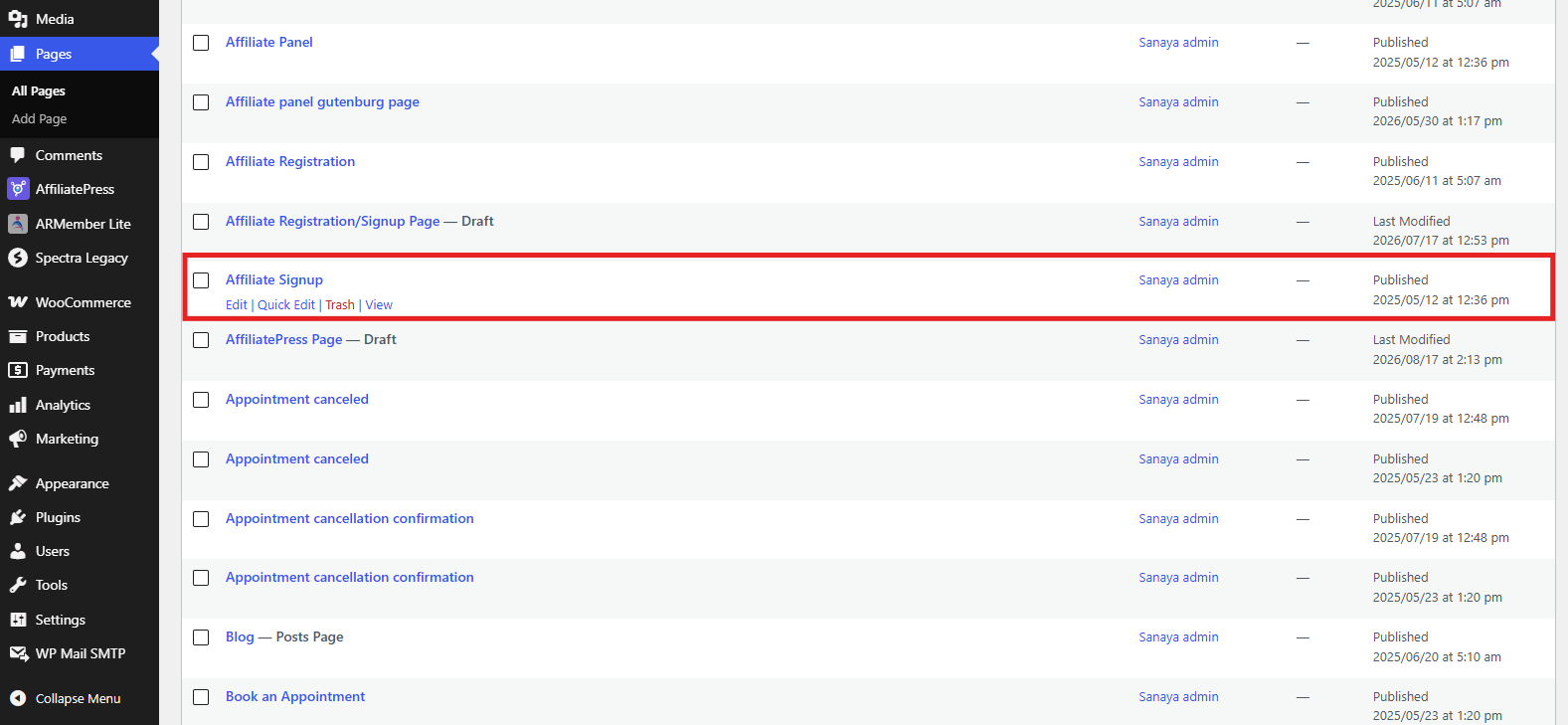
During the time of AffiliatePress activation, the system automatically created an Affiliate Signup page containing with the shortcode:
[affiliatepress_affiliate_registration]
This page serves as the default registration page where visitors can apply to join your affiliate program.
Alongside that, AffiliatePress also created an Affiliate Panel page during the time of activation. From here affiliates can log in and manage their accounts after registration.
Create a Custom Registration Page
If you’d like to use a different page for affiliate registration, you can easily create your own.
- Go to WordPress → Pages.
- You can either create a new registration page or edit an existing one.
- Now click on the + icon (Block Inserter) and search “affiliate signup form”.
- Just click on the AffiliatePress – Affiliate Signup Form block. This will add the following shortcode to the page:
[affiliatepress_affiliate_registration]
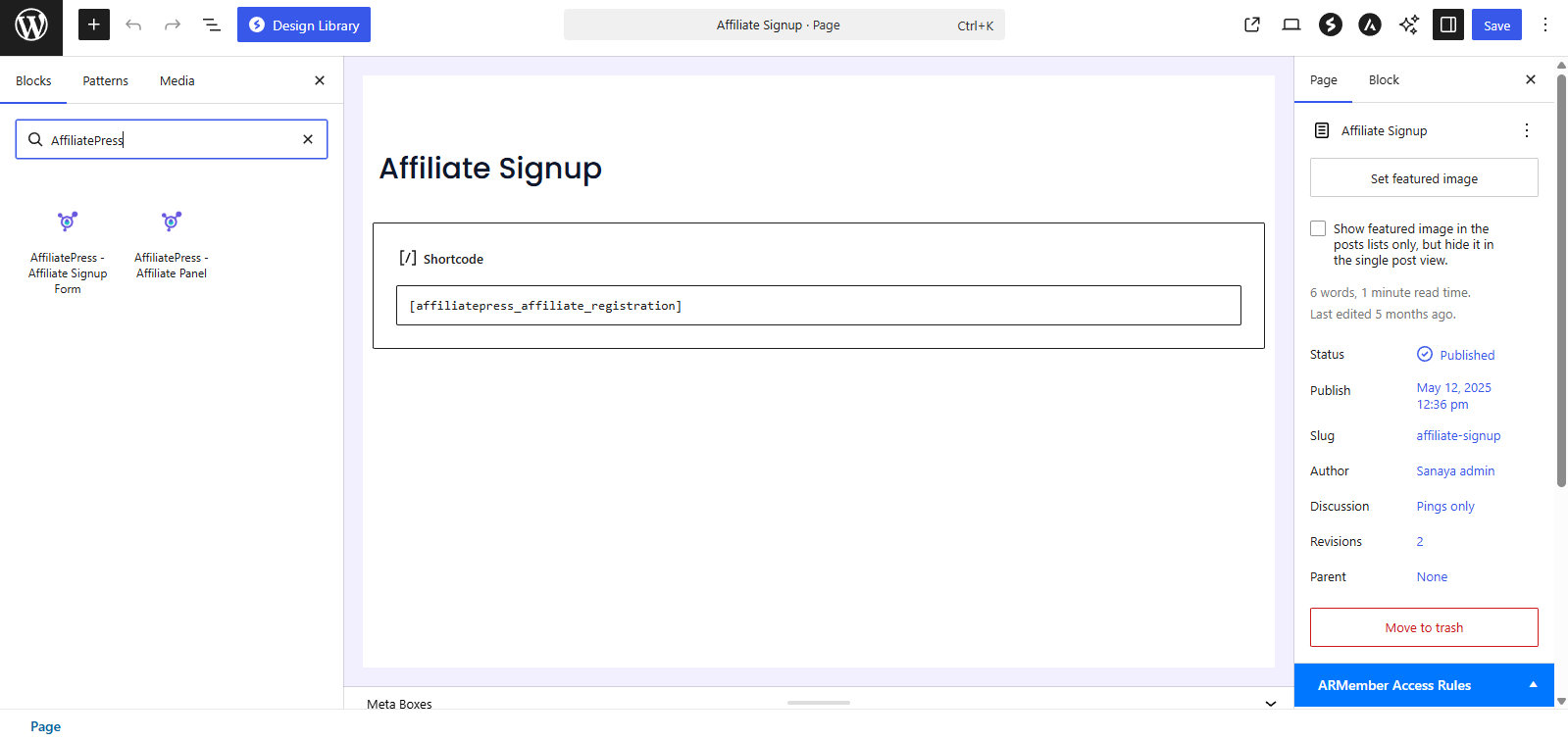
- Lastly, hit the Publish or update the page.
Note: For detailed instructions, see Available Shortcodes in AffiliatePress.
After your affiliate registration page is updated or published, assign it as your Affiliate Registration page.
- Go to WordPress → AffiliatePress → Settings → General.
- Under Page Settings, select your newly created page from the Affiliate Registration Page dropdown and save the changes.
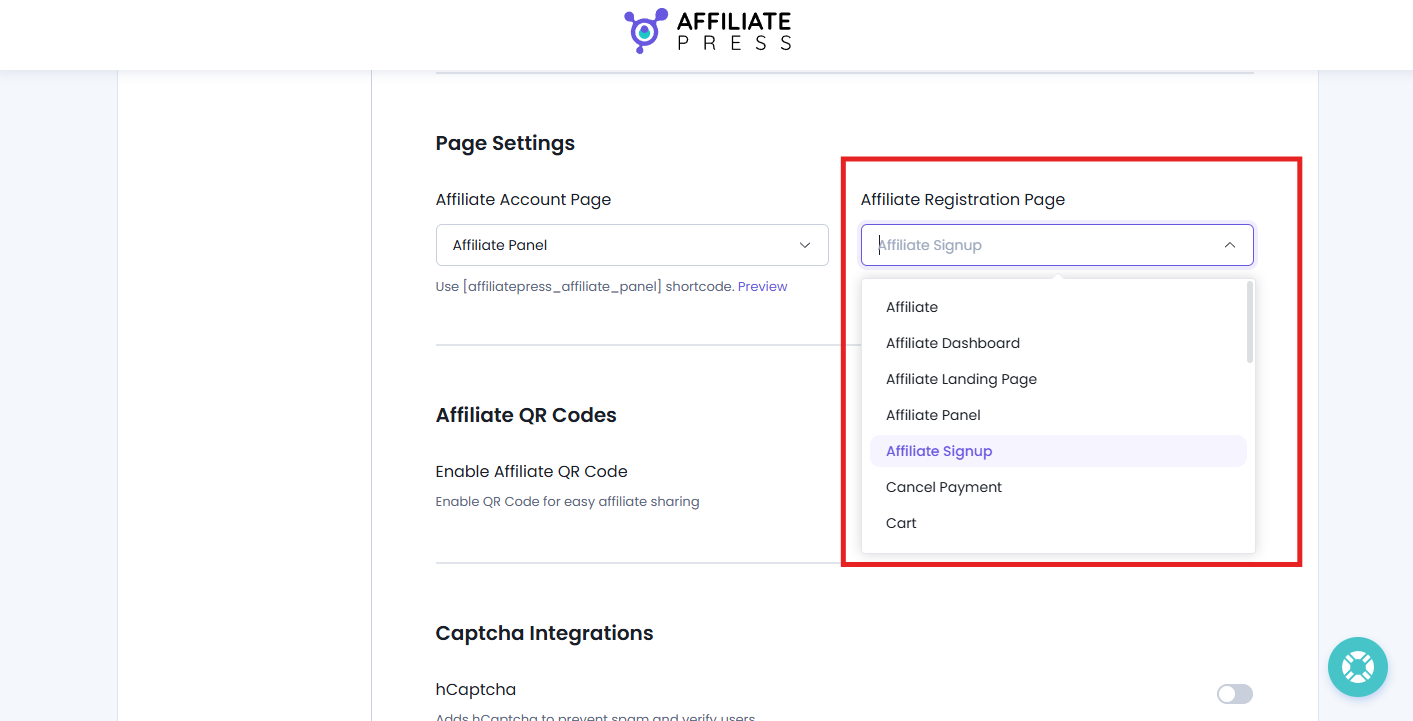
Note: Only the page selected under Affiliate Registration Page will be used for new affiliate registrations.
Use the Elementor Widget
If you’re creating your website with Elementor, you can add the Affiliate Registration Form and affiliate panel without using a shortcode.
Simply edit your page with Elementor, search for the AffiliatePress Affiliate Registration widget/Affiliate panel, and drag it onto the page.
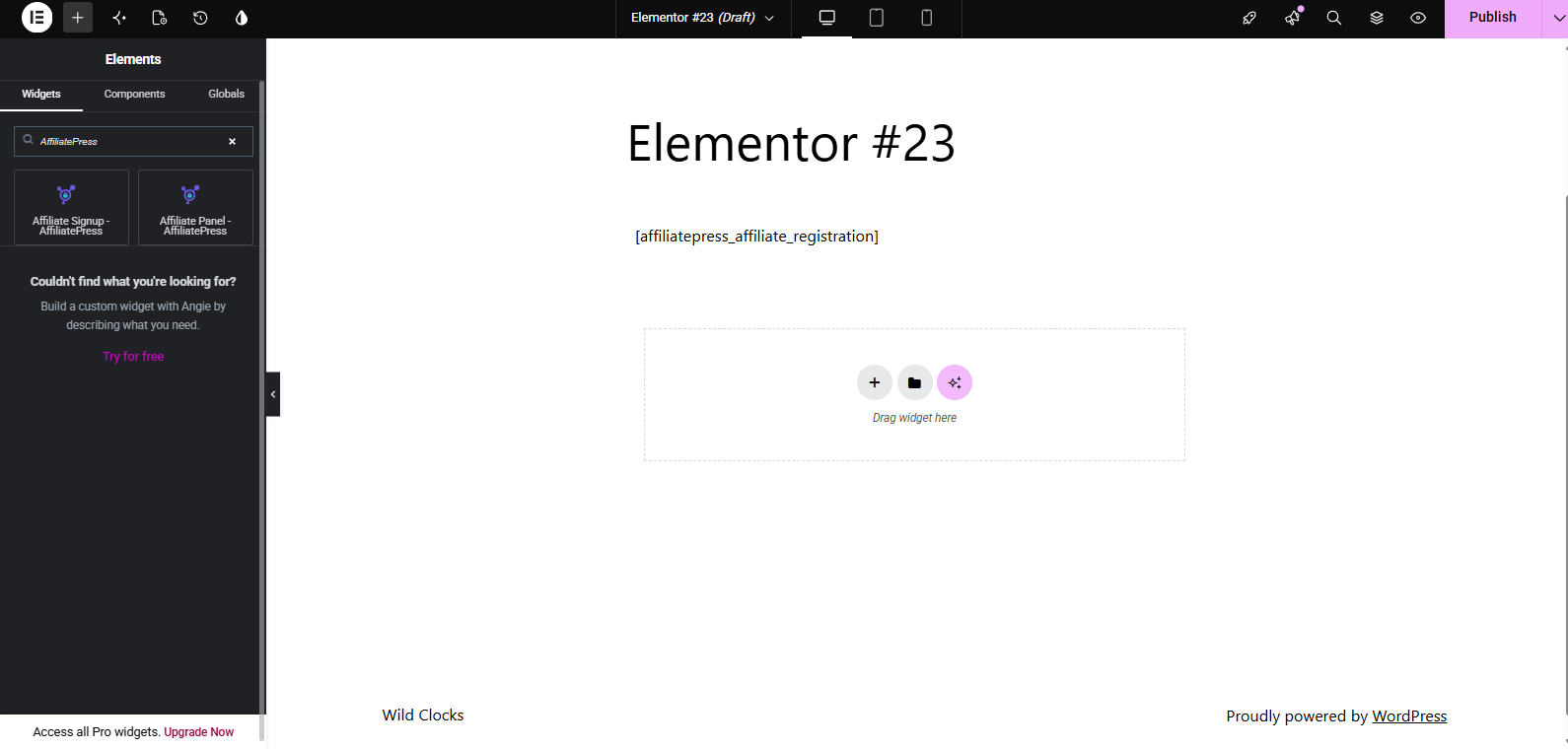
That’s all. You can later even customize your registration page layout easily using Elementor’s designing tools.
Customizing the Affiliate Registration Form
AffiliatePress in-built form builder lets you customize your registration form using a simple drag and drop interface. Just go to AffiliatePress → Form Editor.
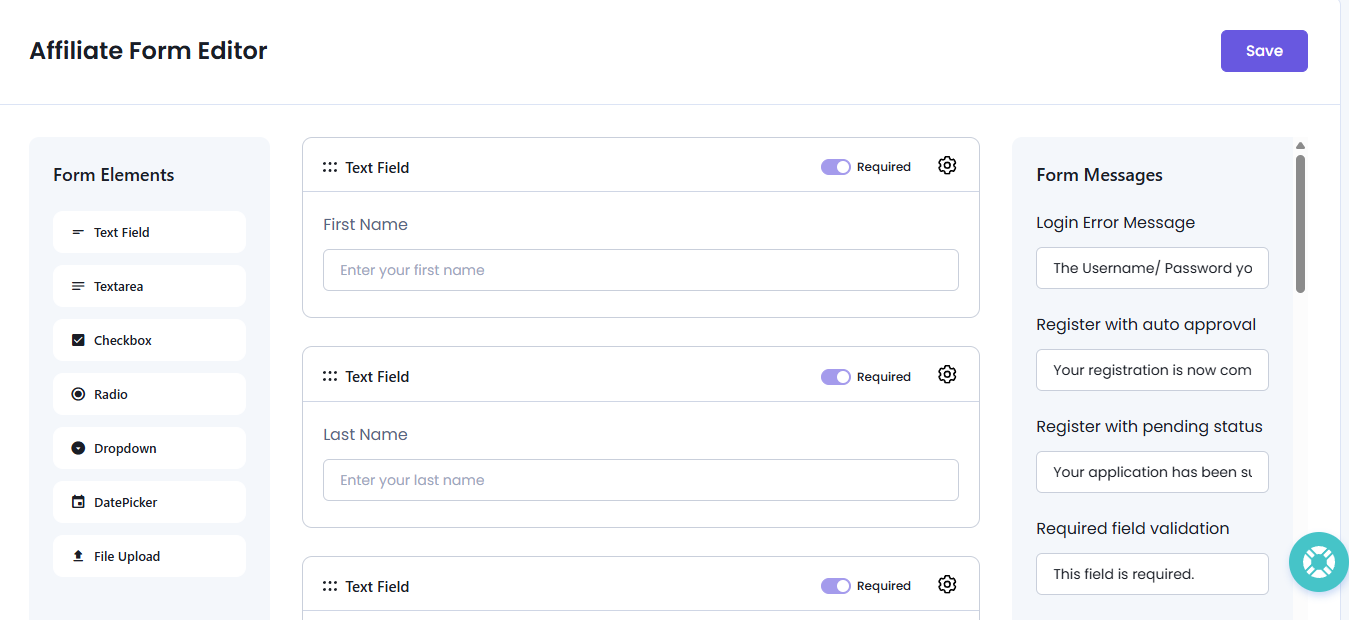
Here, by default, the affiliate registration form has all the essential form fields in place such as first name, username, email, and more. Here you can:
- Add custom registration fields
- Edit field labels and placeholders
- Reorder fields using drag and drop
- Show or hide fields on the registration form
- Mark fields as required or optional
- Customize validation and error message
Note: For customizing form fields and messages, check out our beginner friendly Affiliate Form Editor guide.
Affiliate Approval & Activation
After a visitor submits the Affiliate Registration Form, AffiliatePress creates a new affiliate account. Now here you have two options. Either you let the system auto approve affiliates or manually do it on your own.
Manual Approval
When this “Auto Approve & Activate New User Registration” setting is disabled, newly registered affiliates are assigned a Pending status. You must review and approve its status to Approved from the Affiliates page, so they can access their Affiliate Panel and start earning commissions.
Auto Approval Enabled
When this “Auto Approve & Activate New User Registration” setting is enabled, new affiliates are automatically approved immediately after registration. They can log in to the Affiliate Panel and begin promoting your products or services without administrator intervention.
To configure the approval process:
- Go to the WordPress dashboard → AffiliatePress → Settings → General
- From here, look for the Auto Approve & Activate New User Registration option.
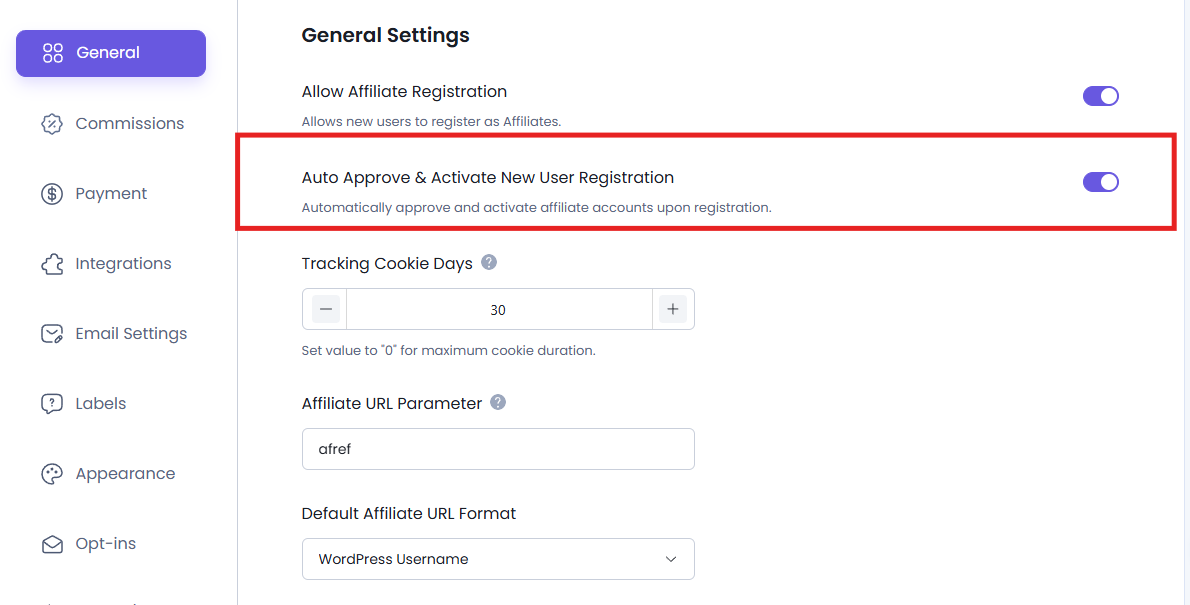
- Simply toggle it on then Save the changes.
Make sure to go with the approval method that best matches your affiliate program’s onboarding process.
Registration Email Notifications
AffiliatePress automatically sends email notifications during the affiliate registration process to keep both administrators and affiliates informed.
You can manage these notifications easily. Just head over to WordPress Admin → AffiliatePress → Notifications.
From here, you can:
- Enable or disable registration email notifications
- Customize email subject lines
- Edit email message content
- Use dynamic placeholders to personalize emails
- Configure separate notifications for administrators and affiliates
Tip: Keep registration emails short, clear and action oriented so affiliates know exactly what happens next after signing up.