



Tutor LMS Integration
The AffiliatePress Tutor LMS integration lets you track course enrollments through affiliate links in real time. This helps in managing affiliate commissions more effortlessly and automate payouts directly from your Tutor LMS website.
Here we’ll show you how to integrate Tutor LMS with AffiliatePress.

Before You Begin
Make sure you have the following installed and activated:
- WordPress with administrator access to your WordPress dashboard
- Tutor LMS
- AffiliatePress (Any Premium version)
If everything above is good to go, follow the steps below to learn how to activate Tutor LMS in AffiliatePress.
Install & Activate the Tutor LMS Integration
Before using the Tutor LMS Integration, make sure AffiliatePress is installed and activated alongside the Tutor LMS plugin.
Next, install and activate the Tutor LMS Integration Addon to track affiliate sales, manage commissions and automate payouts for Tutor LMS course purchases
Set Up the Tutor LMS Integration
After activating the Tutor LMS Integration Addon, click Configure to open the AffiliatePress Integration Settings.
To setting the Tutor LMS integration:
- Go to AffiliatePress → Settings → Integrations.
- Scroll down to the Tutor LMS section.
- Enable the Tutor LMS integration.
Next, here are the commission settings you can configure for this integration.
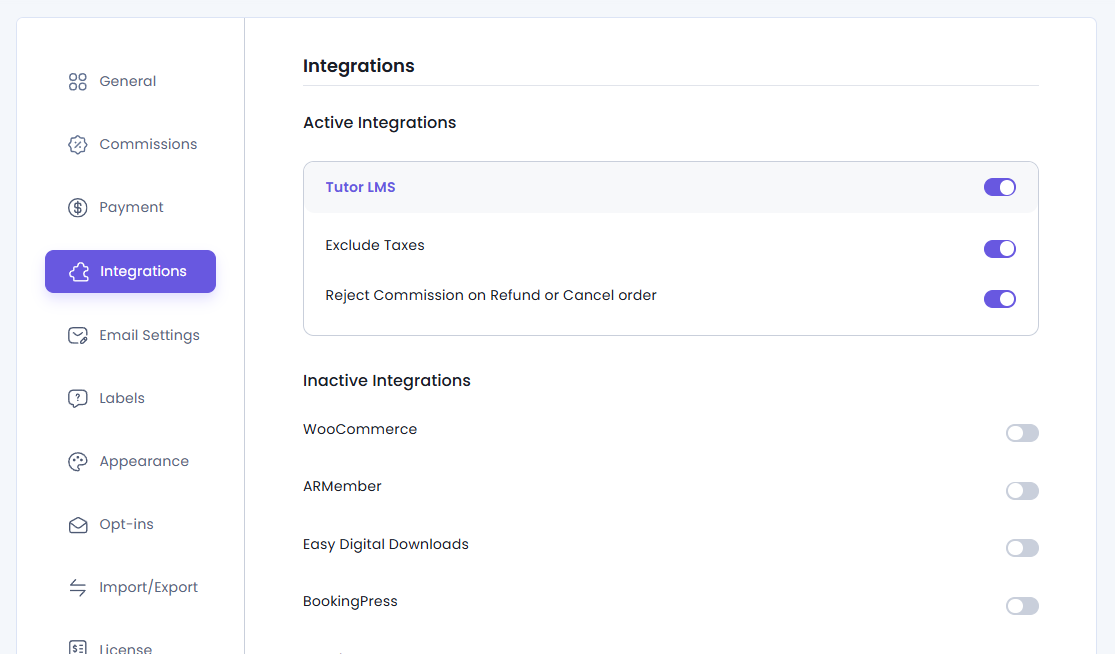
Exclude Taxes
When Exclude Taxes is enabled, the system calculates commissions using only the base product price, ignoring any tax included in the order.
This ensures affiliates earn commissions only on the actual course value. It helps maintain more accurate and consistent commission calculations.
Reject Commission on Refund or Cancel Order
This Reject Commission on Refund or Cancel order option automatically rejects unpaid affiliate commissions when a Tutor LMS order is cancelled or refunded.
Cancelled Orders
If an order is cancelled by either the administrator or the customer, AffiliatePress automatically changes the related unpaid commission status to Rejected.
Refunded or Partially Refunded Orders
If an order is fully or partially refunded, AffiliatePress automatically changes the related unpaid commission status to Rejected.
This avoids affiliates from getting commissions for cancelled or refunded purchases, saving your revenue.
Commission Auto-Approve on Order Completion
When a customer purchases a Tutor LMS course through an affiliate link, AffiliatePress automatically creates the commission with a Pending status.
After the payment is confirmed, go to WordPress Admin → Tutor LMS → Orders, open the order, and click Mark as Paid.
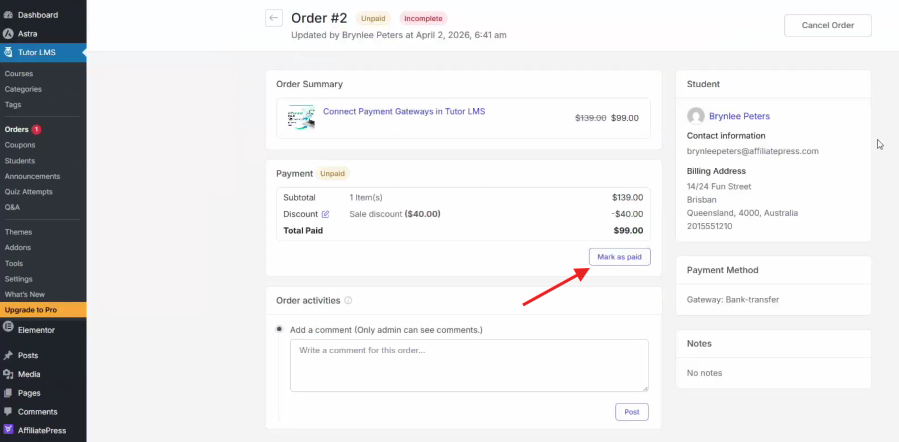
Now the AffiliatePress system will automatically update the related commission status from Pending to Approved.
Important: Automatic commission approval works only when AffiliatePress → Settings → Commissions → Default Commission Status is set to “Dynamic – Upon Product Order Status“. Otherwise, the commission status will not update automatically.
Product Selection Add-on Support
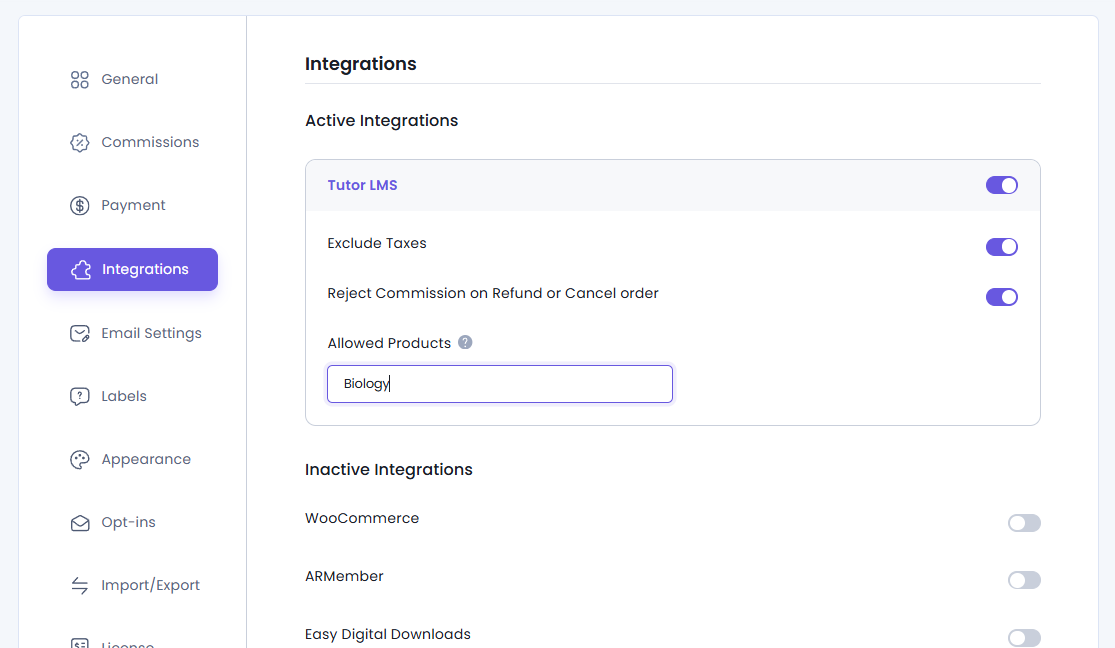
AffiliatePress allows you to generate affiliate commissions only for selected Tutor LMS courses on your website.
To use this feature, install and activate the Product Selection Addon. After it’s activated, you can easily pick exactly which Tutor LMS courses are eligible for affiliate commissions.
After installing the add-on:
- Go to Tutor LMS Integrations.
- Select one or more courses under Allowed Products.
- Save your settings.
After configuration, affiliate commissions will be generated only for the selected courses. Any Tutor LMS courses that are not selected will not generate commissions.
Note: AffiliatePress currently does not support disabling commissions for individual Tutor LMS courses. The Product Selection Addon is the only way to control which Tutor LMS courses are eligible for affiliate commissions.
For detailed setup instructions and more information, click here.
Managing Tutor LMS Commissions
AffiliatePress records all Tutor LMS commissions in the AffiliatePress → Commissions page. This way, you can easily identify, verify and manage course-related affiliate commissions.
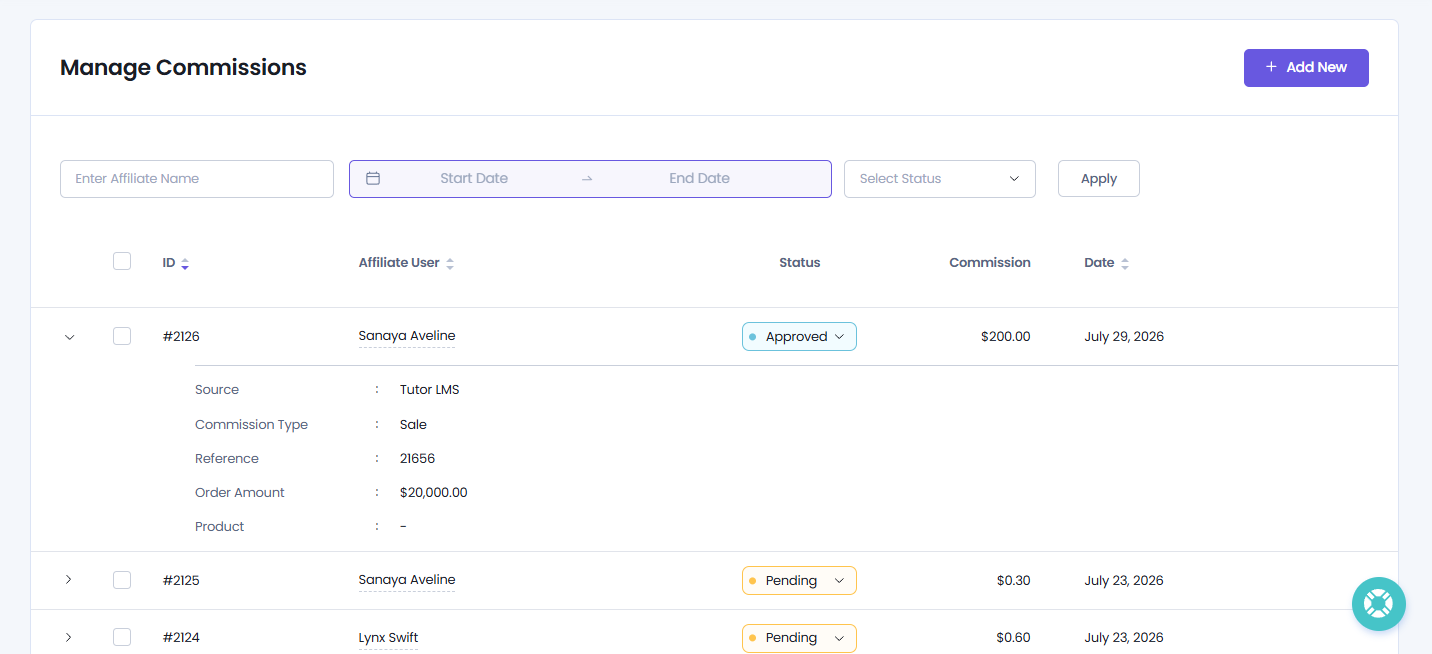
From here you can view every commission generated through the Tutor LMS Integration in the Source column. This way you can quickly recognize which commissions originated from Tutor LMS course purchases if you have AffiliatePress connected with more than one plugin.
Moreover, each Tutor LMS commission has a reference link in the Reference column. Clicking the reference opens the corresponding Tutor LMS order which allows you to review the purchase details and verify the commission.
How To Manually Add Tutor LMS Commissions
You can add a Tutor LMS commission the same way you add any other new commission record in AffiliatePress. To learn how to manually add Tutor LMS Commissions, check out our beginner friendly guide right from here.
How Tutor LMS Commission Tracking Works
After the Tutor LMS Integration is configured:
- A visitor clicks an affiliate link.
- The visitor purchases a Tutor LMS course.
- AffiliatePress validates the purchase and creates a Pending commission.
- After the payment is confirmed, go to WordPress Admin → Tutor LMS → Orders, open the order, and click “Mark as Paid”.
- AffiliatePress automatically updates the commission status from Pending to Approved.
If Reject Commission on Refund or Cancel Order is enabled, AffiliatePress automatically changes unpaid commissions to Rejected when the corresponding Tutor LMS order is cancelled, refunded, or partially refunded.