



Fraud Protection
The AffiliatePress Fraud Protection Add-on helps you detect suspicious affiliate activity and lower the risk of any kind of fraudulent commissions.
Using conversion rate monitoring and IP restrictions, you can track affiliate behavior and protect your affiliate program from any kind of commission loss.
This guide shows you how to install, configure and use the Fraud Protection Add-on in AffiliatePress.

Install & Activate the Fraud Protection Add-on
Before we get started, make sure AffiliatePress Pro is installed and activated on your WordPress website.
After you’ve got your affiliate program running, you’ll easily be able to install and activate the Fraud Protection addon and let the system monitor suspicious affiliate activity.
Configure Anti-Fraud Settings
After activating the Fraud Protection Add on, you can either click on the Configure to set Anti-Fraud settings, or reach there by yourself from AffiliatePress → Settings → Anti-Fraud.
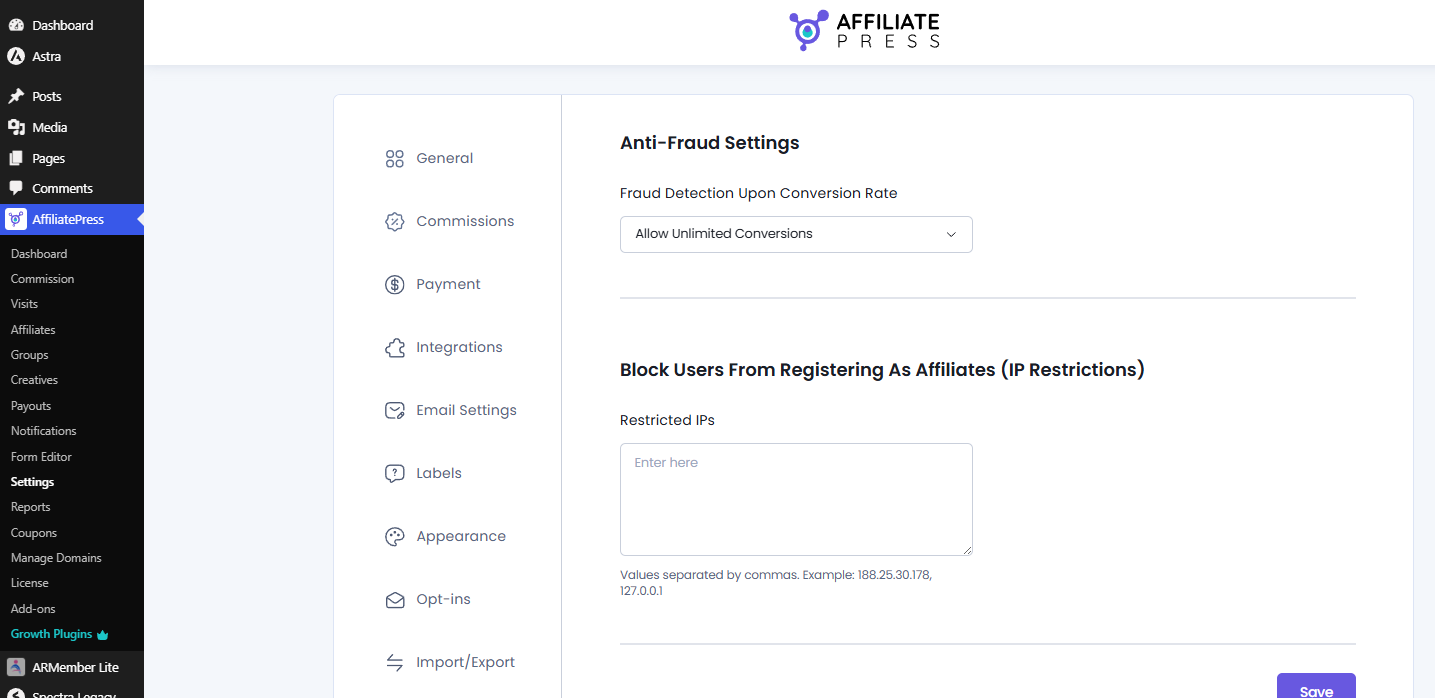
From here, you can set up the fraud detection features.
Conversion Rate Monitoring
Conversion Rate Monitoring helps you recognize affiliates with unusually high conversion rates that may show suspicious or fraudulent activity.
By comparing the number of referrals generated against the number of recorded visits, AffiliatePress can automatically flag commissions that exceed your decided conversion rate limit, which you can manually review later.
Under Fraud Detection Upon Conversion Rate, you’ll find the following options:
- Allow Unlimited Conversions
- Commissions flagged if conversion rate exceeds limits.
Allow Unlimited Conversions
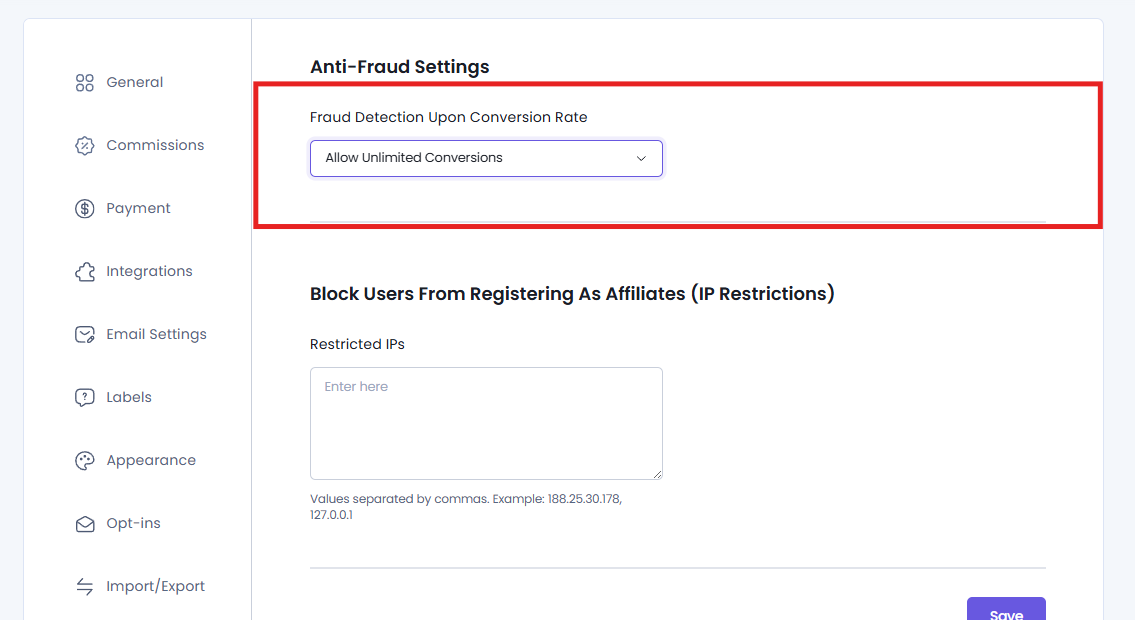
If you don’t want AffiliatePress to track affiliate conversion rates, go with this option. All commissions will be recorded normally, regardless of the affiliate’s conversion rate.
Commissions flagged if conversion rate exceeds limits
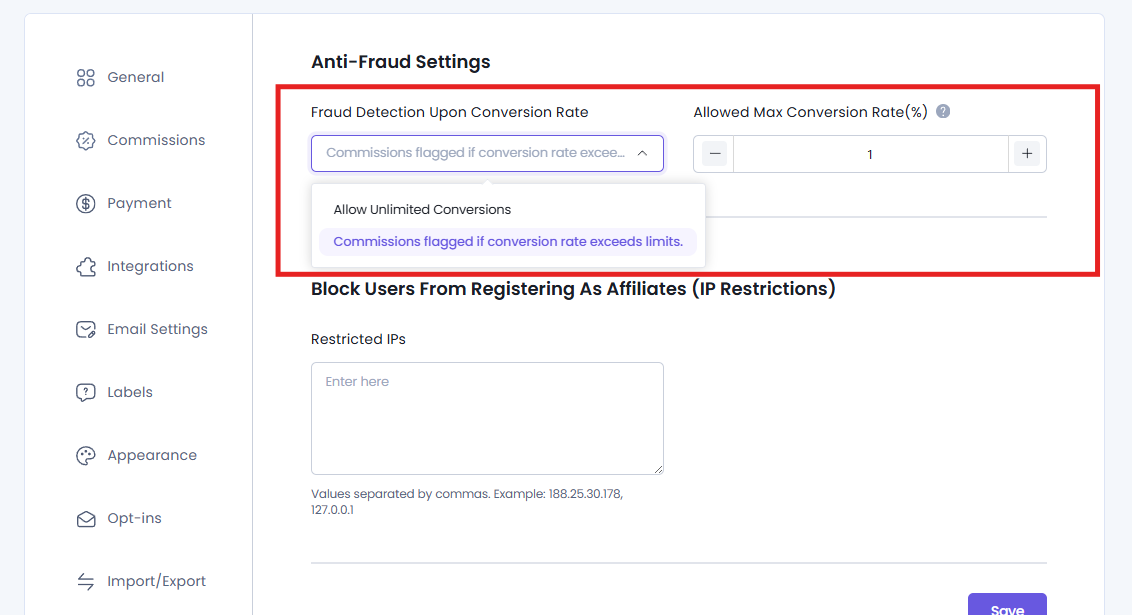
This automatically flags commissions when an affiliate’s conversion rate exceeds your configured maximum limit. Flagged commissions aren’t rejected automatically, allowing you to review them before approving payouts.
Important: Conversion Rate Monitoring only starts after an affiliate has generated 10 non-rejected referrals. Pending, Approved and Paid referrals are included in this count, while Rejected referrals are ignored.
After selecting this option, enter the maximum conversion rate in the Allowed Max Conversion Rate (%) field.
For example, let’s say you set the Allowed Max Conversion Rate (%) to 1%.
Now the AffiliatePress starts tracking every affiliate after they have generated at least 10 non rejected referrals (Pending, Approved, or Paid). Rejected referrals aren’t included in this calculation.
After the minimum referral requirement is met, which is in this scenario from 11th successful conversion, AffiliatePress automatically flags all upcoming commissions for manual review until the conversion rate falls within your configured limit.
IP Restrictions
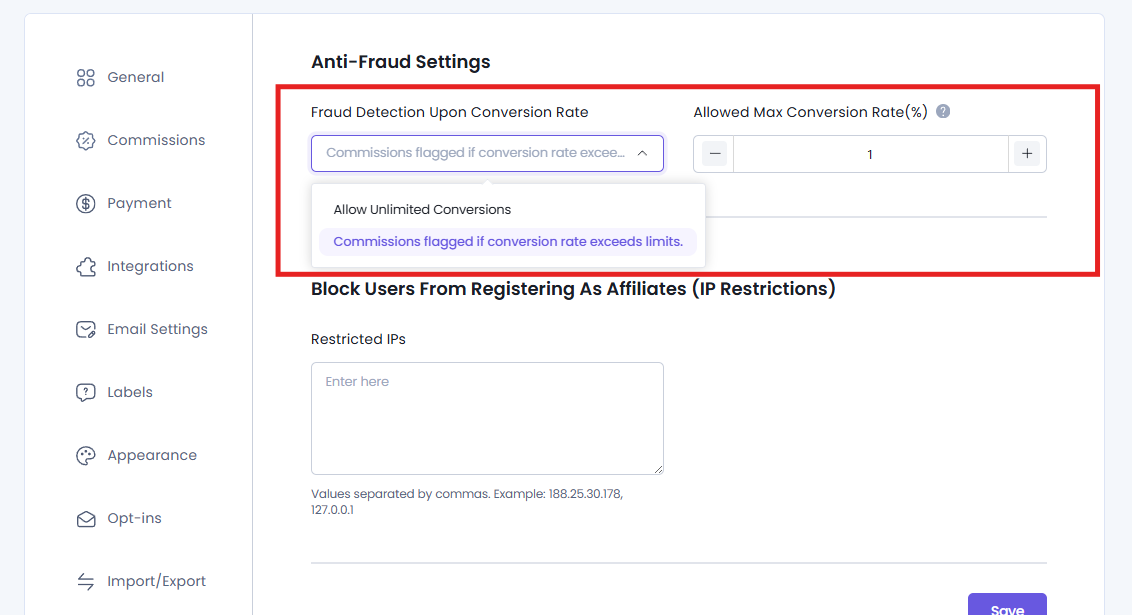
IP Restrictions help avoid affiliate registrations from known or suspicious IP addresses.
To block registrations from specific IP addresses, simply add them to the Restricted IPs list and save your settings. For adding more than one IP address, you can separate them with a simple comma (,).
After an IP address has been added to the list, visitors using that IP address won’t be able to submit the AffiliatePress registration form.
This blocks all new affiliate registrations as well as existing affiliate accounts from the IP addresses you’ve added to the restricted list. You can use it for blocking repeated registration attempts from known fraudulent sources or preventing affiliate registrations from IP addresses you no longer trust.
Lastly, don’t forget to Save your settings.
How to Review Flagged Commissions
Whenever the Fraud Protection detects any kind of suspicious affiliate activity, the affected commission is automatically flagged for your manual review.
Flagged commissions are not rejected automatically which allows you to verify the referral before processing the payout.
To review flagged commissions, simply go to your AffiliatePress → Commission page.
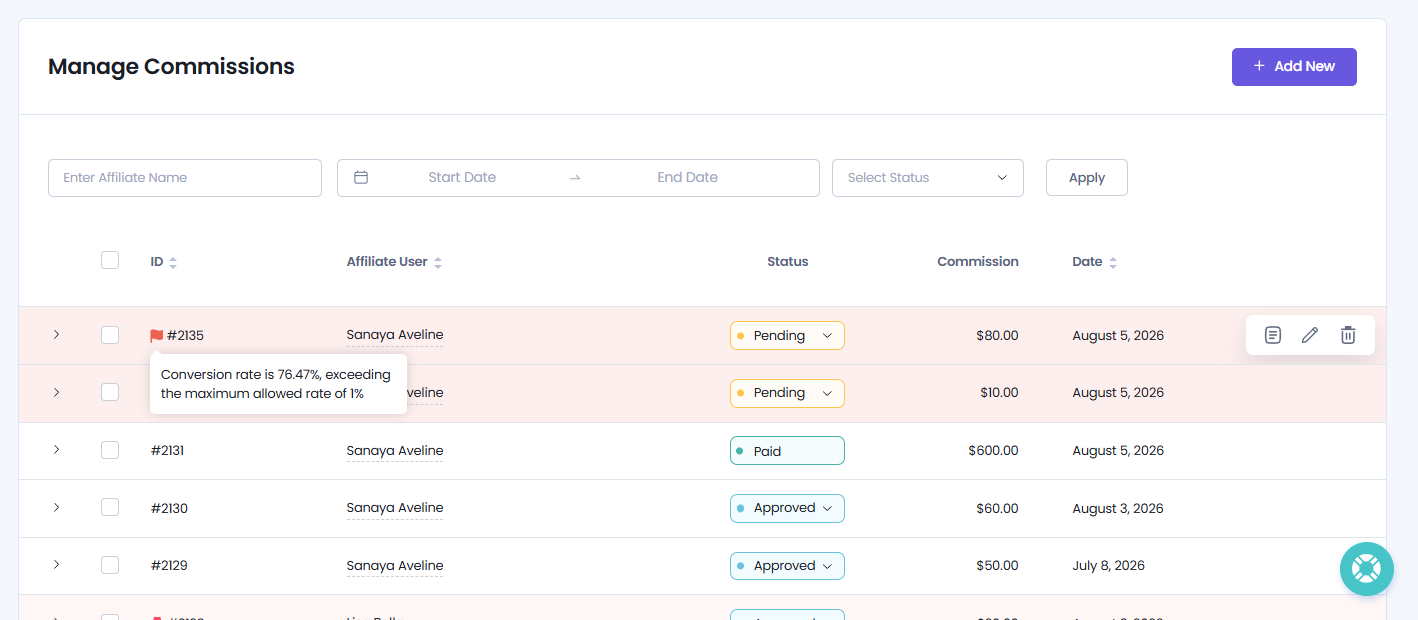
When the Fraud Protection system flags a commission, a warning icon appears next to the commission record on the Commissions page. Hover your cursor over the flag icon to view the reason why the commission was flagged.
For example:
Conversion rate is 76.47%, exceeding the maximum allowed rate of 1%.
This helps you quickly understand why the commission was flagged. Now the decision is up to you whether to approve or reject it.
Note: Setting a very low Allowed Max Conversion Rate (%) may cause legitimate high performing affiliates to have their commissions flagged more frequently.