



LifterLMS Integration
Integrating LifterLMS with AffiliatePress only takes a few steps. And then, you can automatically track affiliate commissions whenever a customer purchases or enrolls in your online courses.
Whether you offer individual courses, memberships, coaching programs, certifications, or training bundles, AffiliatePress attributes eligible purchases to the affiliate who referred the customer.

Here we’ll show you how to integrate LifterLMS with AffiliatePress.
Before You Begin
Before setting up the integration, make sure you have the following installed and activated:
- WordPress with administrator access
- LifterLMS
- WooCommerce (if you’re selling LifterLMS courses through WooCommerce)
- AffiliatePress
Set Up LifterLMS Integration
To connect LifterLMS with AffiliatePress:
- Head over to AffiliatePress → Settings → Integrations.
- Scroll down until you find the LifterLMS integration.
- Toggle on the integration and save your changes.
After turning on the integration, the following commission setting becomes available.
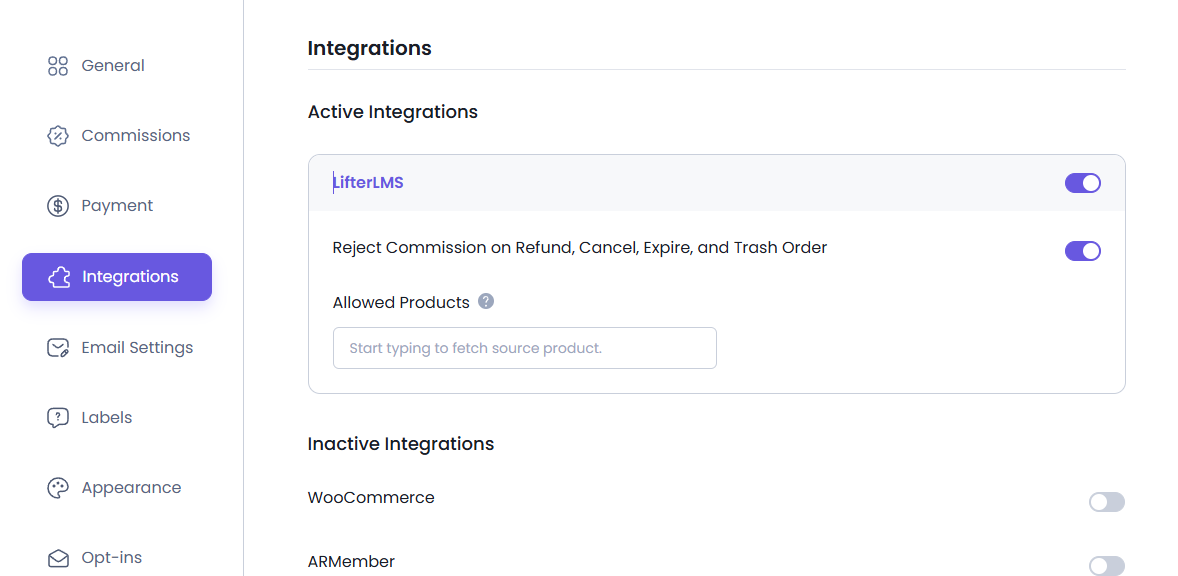
Reject Commission on Refunded, Cancelled, Expired, or Trashed Orders
If a course purchase is refunded, cancelled, expires, or is moved to the trash before the commission is paid, AffiliatePress automatically rejects the unpaid commission associated with that order.
This makes sure affiliates earn commissions only for valid and completed course purchases.
Note: This option only affects commissions that have not yet been paid.
Disable Commissions for Individual Courses
By default, AffiliatePress generates commissions for all eligible LifterLMS course purchases.
If there are specific courses that shouldn’t be included in your affiliate program, you can disable commissions for those courses individually. Furthermore, since LifterLMS sells courses via WooCommerce products, this setting is available inside the associated WooCommerce product.
To do this:
- Head over to Products → All Products.
- Open the WooCommerce product linked to your LifterLMS course.
- Scroll down to the Product Data section.
- Open the AffiliatePress Settings tab.
- Turn on the Disable Commissions option.
- Update the product.
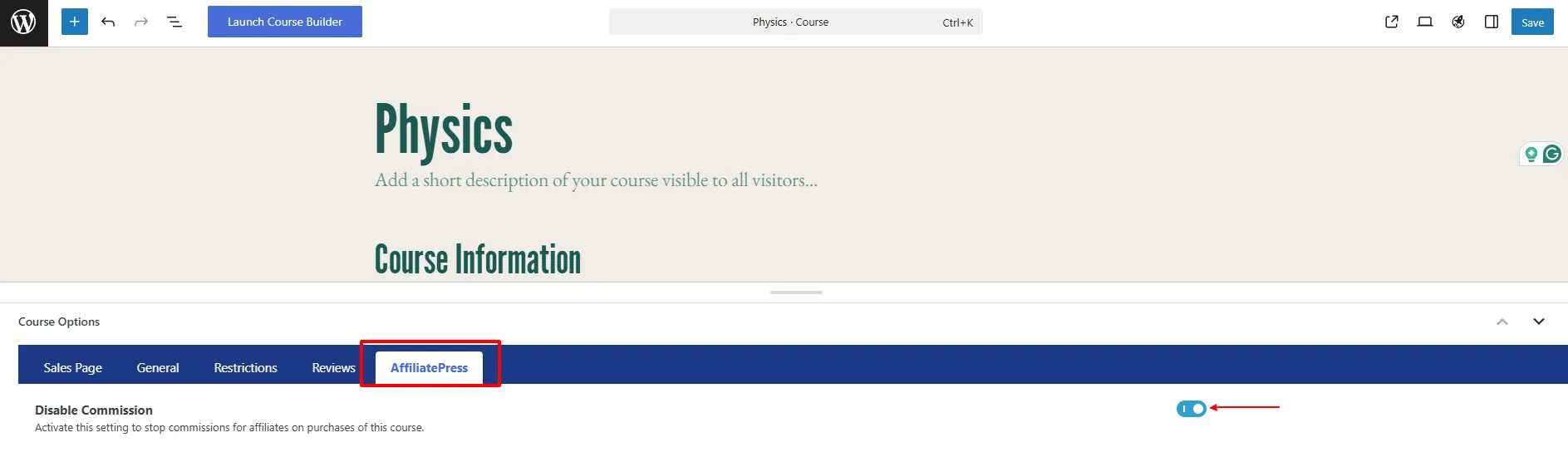
Note: This option does not work when Commission Basis is set to Commission Per Order.
Coupon Code Add-on Support
AffiliatePress allows you to track affiliate commissions when customers purchase LifterLMS courses using affiliate coupon codes.
When a customer uses an assigned coupon code during checkout:
- The coupon discount is applied automatically.
- The purchase is attributed to the mapped affiliate.
- The affiliate commission is generated automatically.
To use this feature, make sure you have:
- The AffiliatePress Coupon Code add-on installed and activated.
- Coupon codes created for your LifterLMS checkout process.
For detailed setup instructions and more information, click here.
Product-wise Commission Add-on Support
AffiliatePress allows you to set different commission rates for individual LifterLMS courses.
To use this feature, you must install and activate the AffiliatePress Product-wise Commission Rate Add-on. Once activated, you can assign custom commission rates to specific courses while keeping your default commission settings for other courses.
For example:
| Course | Commission |
| Web Development Bootcamp | 25% |
| SEO Masterclass | 20% |
| Digital Marketing Course | Default Rate |
Course specific commission rates always override:
- Default commission
- Group commission
- Affiliate specific commission
Courses without a custom commission rate continue using the default commission settings.
For detailed setup instructions and more information, click here.
Product Selection Add-on
AffiliatePress allows you to control which LifterLMS courses are eligible for affiliate commissions.
To use this feature, you must install and activate the AffiliatePress Product Selection Addon. Once activated, you can select specific LifterLMS courses that should generate affiliate commissions. Courses that are not selected will not generate commissions.
After installing the add-on:
- Go to the LifterLMS integration settings.
- Choose the courses under Allowed Products.
- Save your settings.
Note: Products selected through this add-on override the Disable Commissions product setting and will still generate commissions.
For detailed setup instructions and more information, click here.
How LifterLMS Commission Tracking Works
After turning on the LifterLMS integration:
- A visitor clicks an affiliate link.
- The visitor purchases or enrolls in a LifterLMS course.
- LifterLMS processes the order.
- AffiliatePress attributes the purchase to the referring affiliate.
- A commission is created based on your commission settings.
- If the order is refunded, cancelled, expires, or is deleted, the commission may be automatically rejected. Now this depends on your settings configured in LifterLMS