



MailerLite Integration
The MailerLite Integration lets you send your affiliate signups to your mailing list and MailerLite groups automatically. This makes it easy to send welcome emails, onboarding sequences, newsletters, promotions and other updates.
Here we’ll show you how to integrate AffiliatePress with MailerLite integration.

Before You Begin
MailerLite is an email marketing platform that lets you automatically add new affiliate registrations to your mailing list.
Thus before setting up the MailerLite integration, you must make sure you have:
- A MailerLite account
- The AffiliatePress MailerLite Add-on (included with all AffiliatePress Premium plans)
- Permission to manage MailerLite groups
- An Affiliate Registration page
If all above requirements meet, continue below to learn how to connect MailerLite with AffiliatePress.
How to Integrate The MailerLite Add-on in AffiliatePress
1. Activate The MailerLite Add-on
To activate the MailerLite Add-on, you can head over to AffiliatePress → Add-ons. Scroll down until you find the AWeber Integration add-on. Now just click on the “Activate“.
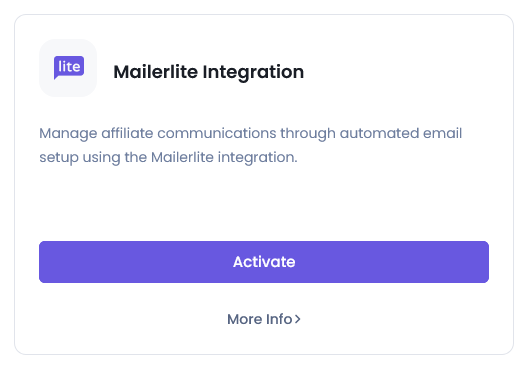
From here, you can click on Configure. This will lead you to the AffiliatePress → Settings → Opt-ins panel. Inside the Opt-ins panel, if you have multiple opt-ins activated, select the MailerLite tab from the top bar.
2. Connect MailerLite with AffiliatePress
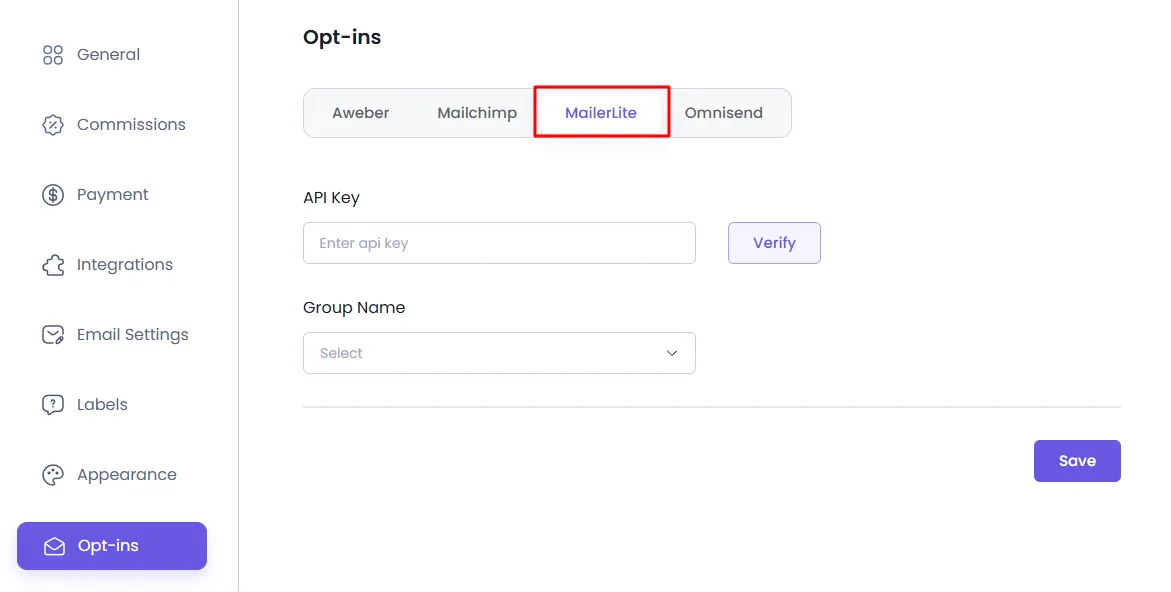
Inside the MailerLite panel, enter the API Key needed to connect your MailerLite account.
If you don’t already have a MailerLite account, create one before continuing right from here.
Getting Your MailerLite API Key
- Log in to your MailerLite account.
- Click on your profile icon in the top-right corner and choose Integrations.
- Under the API section, click Use next to the Developer API.
- If you don’t already have a key, click Generate new token.
- Copy the API key/token once it’s generated.
Now head back to your AffiliatePress → Settings → Opt-Ins, click on the MailerLite tab and paste the API Key into the API Key field. Hit Verify and you’re connected.
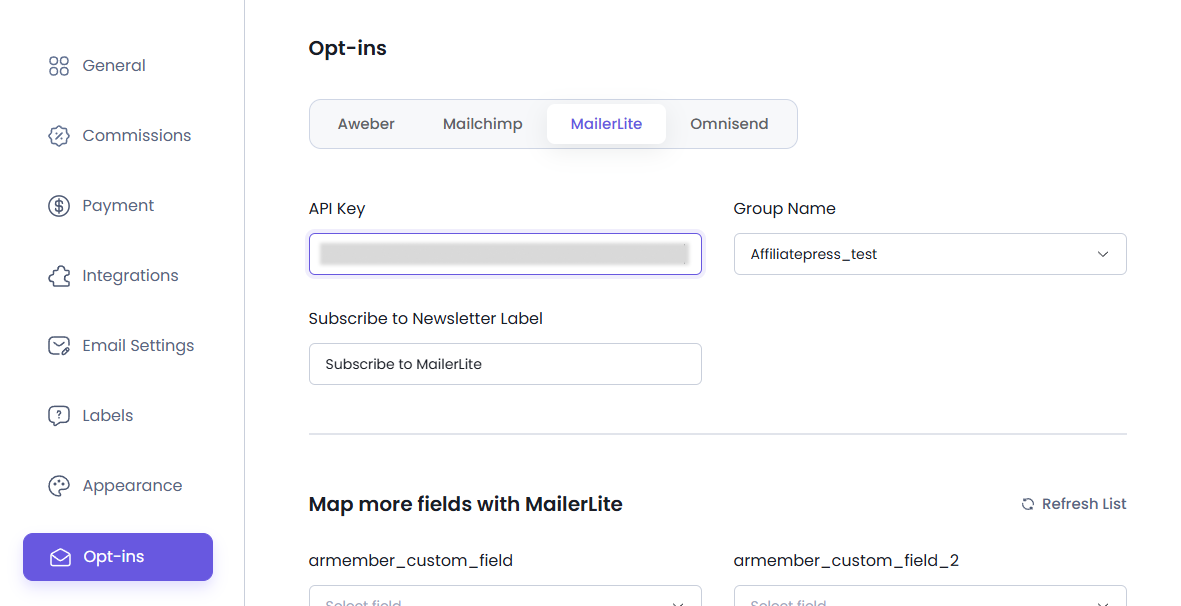
If the connection is successful, your available MailerLite groups will appear in the Group ID dropdown along with additional configuration options.
3. Select a Group Name
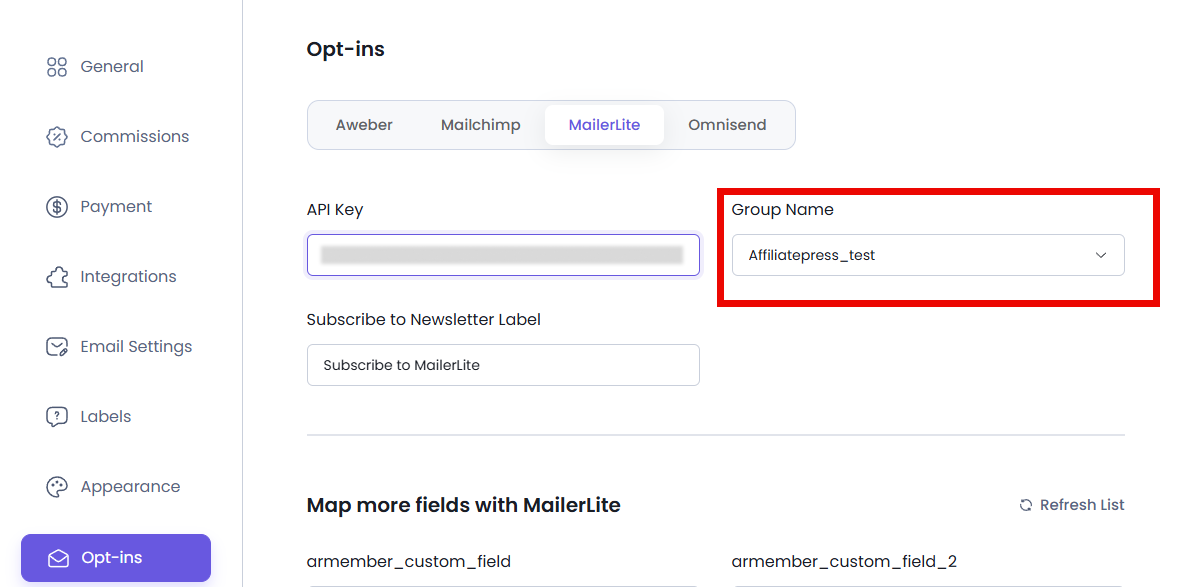
After successful verification, your MailerLite groups will be pulled in automatically.
Simply select the MailerLite group where new affiliate registrations should be added. After selecting a group, all available MailerLite fields will appear under the Map more fields with the MailerLite section.
4. Customize the Newsletter Checkbox
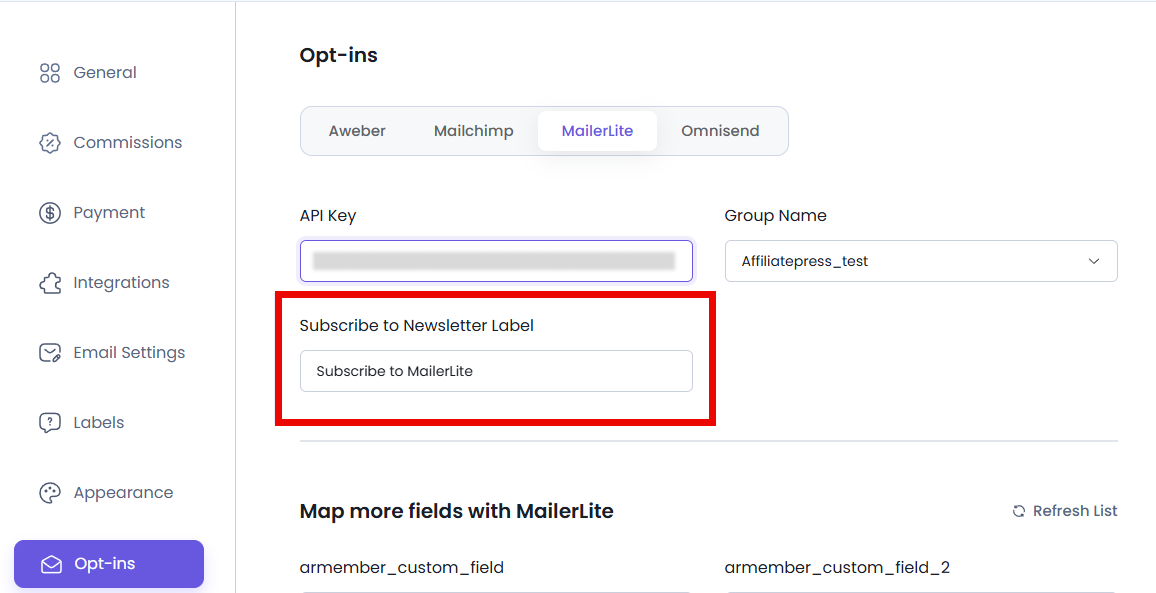
You can customize the default Subscribe to Newsletter Label which will be shown on your Affiliate Registration form.
Just write your personalized subscription to the newsletter label, and after saving your changes, visit the AffiliatePress Affiliate Registration page to see the updated subscription label.
Affiliates must select the Subscribe to Newsletter checkbox during registration before they are added to your MailerLite group. This is just to make sure your affiliate registration forms are always compliant with email marketing consent needs.
5. Map Affiliate Registration Fields
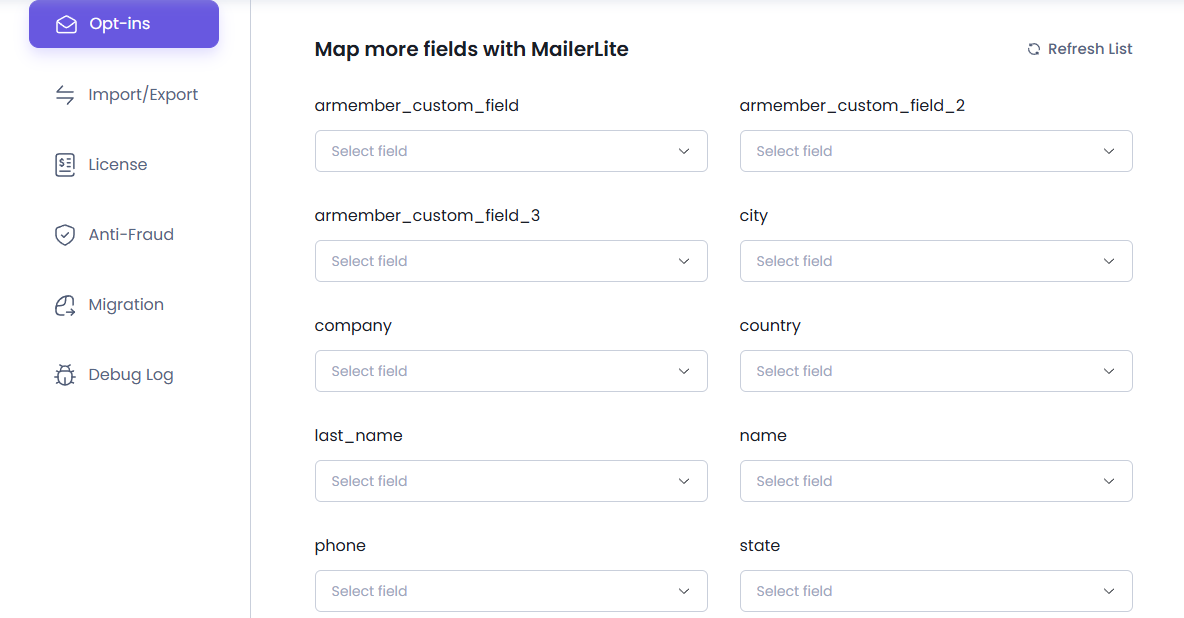
After everything above is set, map each MailerLite field with the corresponding field from your Affiliate Registration Form such as:
- First Name
- Last Name
- Country
- Tags
- and more.
Field mapping tells AffiliatePress which registration field should be sent to each MailerLite field. Here’s how it goes:
- Affiliate Email → Email
- Affiliate First Name → Name
After correctly mapping all MailerLite fields with your AffiliatePress registration fields, remember to Save all the changes.
If you misconfigure anything, you can click Delete Configuration to remove the current setup.
If your latest MailerLite groups or custom fields are not showing, click the Refresh List button next to the Map more fields with MailerLite section to reload the latest data.
Debug Logs for MailerLite
AffiliatePress does allow you to track the debug log for the MalierLite Integration if in-case you ran into any troubleshooting. If you experience any issues while connecting AffiliatePress with AWeber or syncing affiliate data, you can check the MailerLite Debug Logs from AffiliatePress → Settings → Debug Log.
For more details about viewing, downloading, and managing debug logs, see our Debug Log Settings documentation by clicking here.