



Product-wise Commission Addon
Want to set different commission rates for specific products, memberships or services? The Product-wise Commission Addon allows you to assign custom commission rates to individual products across supported integrations.
In this guide, we’ll show you how to install and set up the Product-wise Commission Addon in AffiliatePress for every integration supported.

Install and Activate the Product-wise Commission Addon
Before we get started, be sure to install and activate AffiliatePress on your WordPress site.
After you’ve got AffiliatePress installed and your license is activated, you can easily install and activate Product-wise Commission addon.
Understanding Product-wise Commission Settings
After activating the Product wise Commission Addon, you can configure custom commission rates for your products from supported integrations.
Important: Before setting product specific commissions, make sure that the commission basis in AffiliatePress is set to Commission Per Product Sold from AffiliatePress → Settings → Commission. This tells AffiliatePress to calculate affiliate commissions individually for each product, not as a total order value.
Regardless of the integration you’re using, AffiliatePress provides the following commission options.
Commission Rate Types
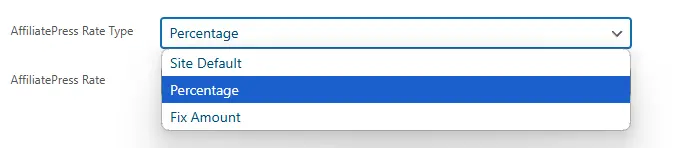
The Commission Rate Type option allows you to choose how the commission should be calculated for a specific product.
AffiliatePress lets you select from these three commission rate types:
Site Default
Uses the global commission rate configured in AffiliatePress settings. This option is useful when you want a product to follow your existing affiliate commission rules without setting a custom rate.
Percentage
Sets the commission as a percentage of the product’s sale price. For example, if you set a product commission rate of 30%, an affiliate will earn $30 commission on a product worth $100.
Fixed Amount
Sets a fixed commission amount for each product sale, regardless of the product price. For instance you set a fixed commission amount of $25. Then the affiliate will earn $25 for every successful sale of that product.
| Rate Type | Description | When to Use | Example |
| Site Default | Applies the global commission rate configured in the AffiliatePress settings. | Use when you want the product to follow the same commission rule as the rest of your site. | If the global commission rate is 20%, selling a $100 product generates a $20 commission. |
| Percentage | Sets a custom percentage of the product’s price as the commission. | Use when a product requires a different commission rate based on its profit margin or marketing strategy. | A 30% commission on a $100 product pays $30 per sale. |
| Fixed Amount | Sets a flat commission amount for each sale, regardless of the product price. | Use when you want to pay a consistent and predictable commission for every sale. | A $25 commission is paid per sale, whether the product costs $50 or $200. |
Commission Rate Value

The Commission Rate Value decides the actual commission amount based on the selected Commission Rate Type.
1. If you select Percentage, enter the percentage value you want to offer as commission.
Example:
- Commission Rate Type: Percentage
- Commission Rate Value: 30
Then the affiliate will earn 30% of the product sale amount.
2. If you select Fixed Amount, enter the fixed commission amount you want to offer as commission.
Example:
- Commission Rate Type: Fixed Amount
- Commission Rate Value: 25
Then the affiliate will earn $25 per product sale.
After configuring the commission rate type and value, AffiliatePress will automatically apply these settings whenever an affiliate generates a qualifying sale for that product.
How Product Commission Rates Override Global Commission Rates
AffiliatePress, by default, applies the global commission settings configured in your affiliate program. However, when you set a custom commission rate for a specific product, the product wise commission settings take priority over the global commission rules.
For example:
- Global commission rate: 20%
- Product specific commission rate: 30%
So what will happen here is that when an affiliate sells that product, AffiliatePress will calculate the commission using the product specific rate (30%) rather than the global rate (20%).
This way you can easily create different commission strategies for different products and also keep your overall affiliate program settings unchanged.
Configure Product-wise Commission by Integration
After installing and activating the Product-wise Commission Addon, you can assign custom commission rates for products, memberships, services, courses, forms and other supported items directly from their respective plugins.
Although the navigation may differ between integrations, the configuration process still remains the same:
- Open the item (product, membership, service, course, form, etc.) that you want to configure.
- Locate the AffiliatePress Settings or AffiliatePress Commission Settings section.
- Select the Commission Rate Type.
- Enter the Commission Rate Value.
- Lastly, save or update the item.
The sections below show where you can configure product-wise commission for each supported integration.
Ecommerce Integrations
These are the eCommerce integrations that allows you to set
WooCommerce
For setting Product-Wise Commission rates in WooCommerce, go to Products in your WordPress dashboard and add a new product or edit an existing one.
Scroll till you see the AffiliatePress Settings section.
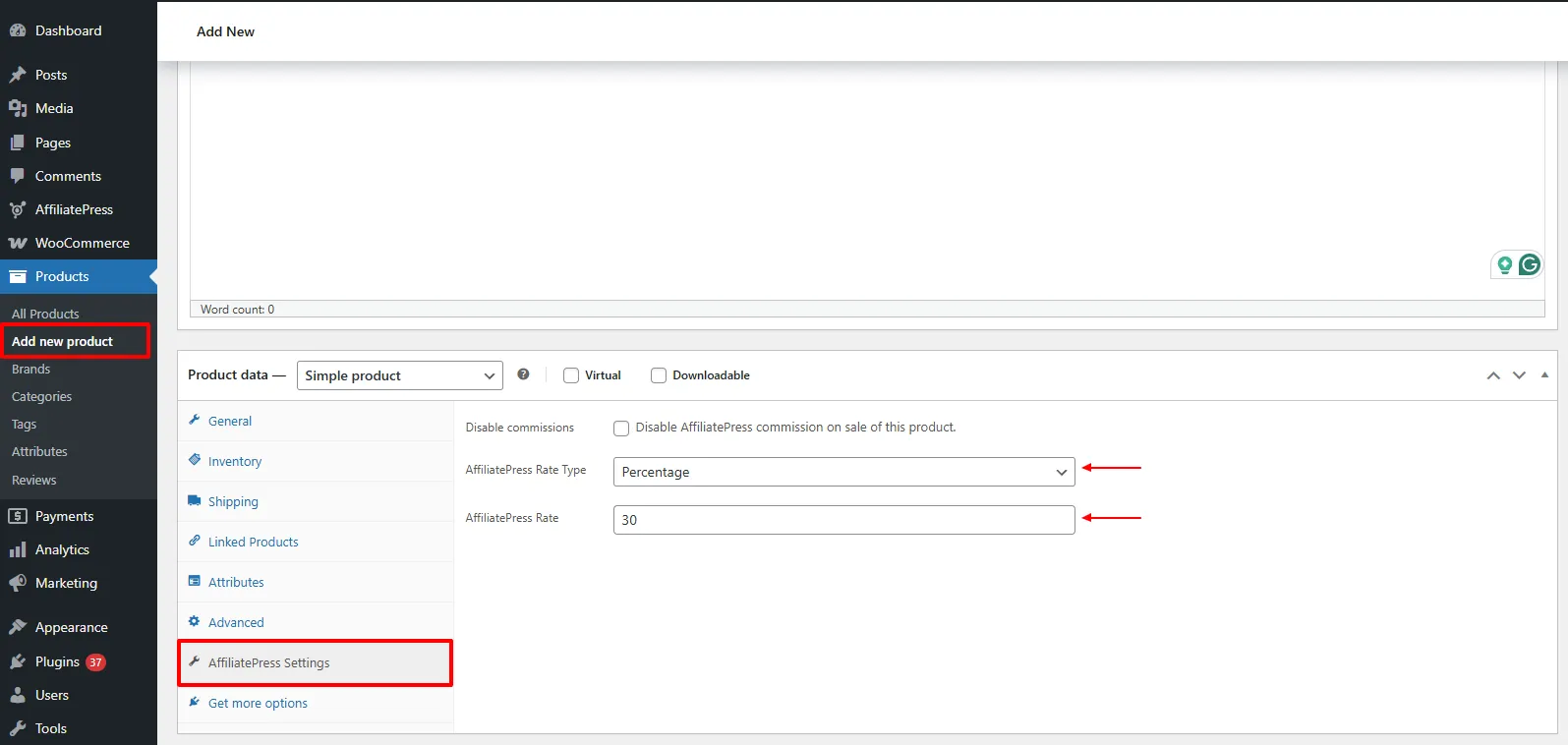
Inside, select the Commission Rate Type, enter the Commission Rate Value, and update the product.
Easy Digital Downloads
For setting Product-Wise Commission rates in Easy Digital Downloads, go to Downloads and add a new download or edit an existing one.
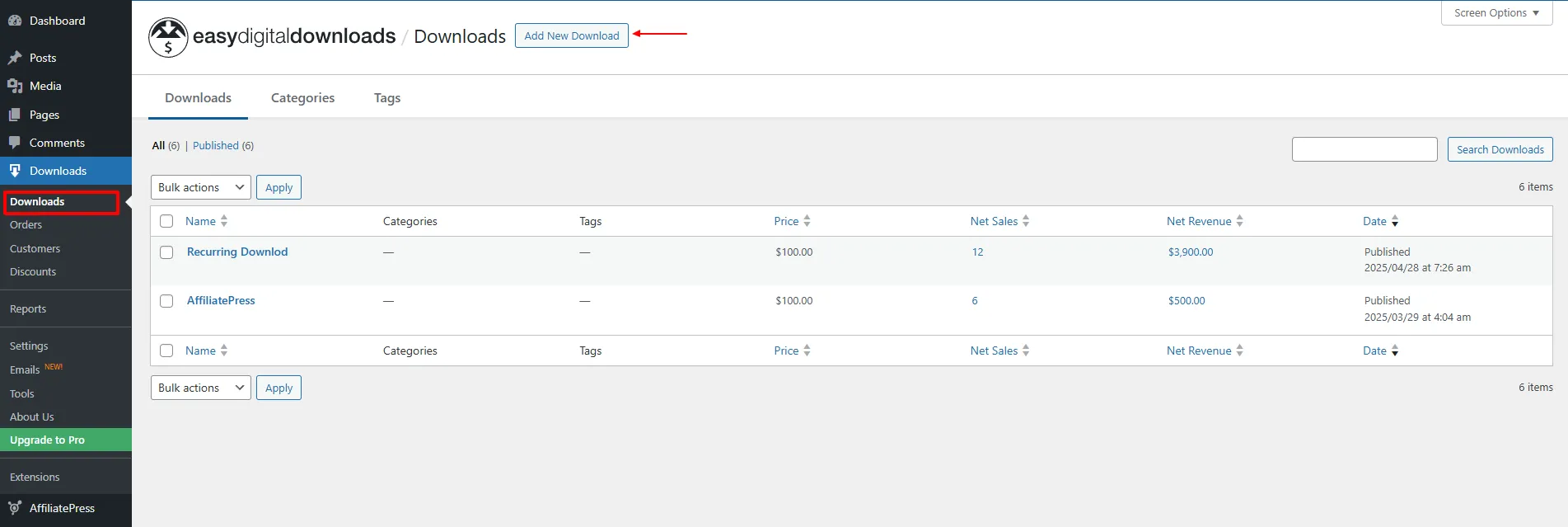
Inside the AffiliatePress Commission Settings, select the Commission Rate Type and enter the Commission Rate Value.
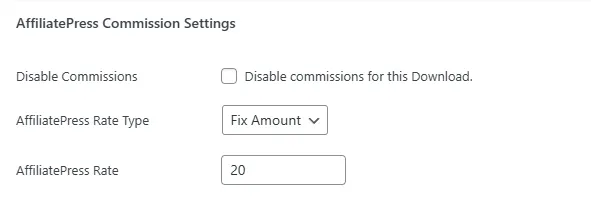
Lastly, don’t forget to save the download.
WP EasyCart
Inside WP EasyCart, you can easily set product-wise commission rates from the Products page. Here create a new product or edit an existing one.
Now scroll till you find the AffiliatePress Commission Settings section.
Simply select the Commission Rate Type, enter the Commission Rate Value, and save your changes.
Membership Integrations
The following membership plugins support Product-wise Commission. You can configure custom commission rates for individual membership plans directly from their respective settings inside each plugin.
ARMember
Go to ARMember → Manage Plans and create a new membership plan or edit an existing one.
Next, scroll till you find the AffiliatePress Commission Settings section.
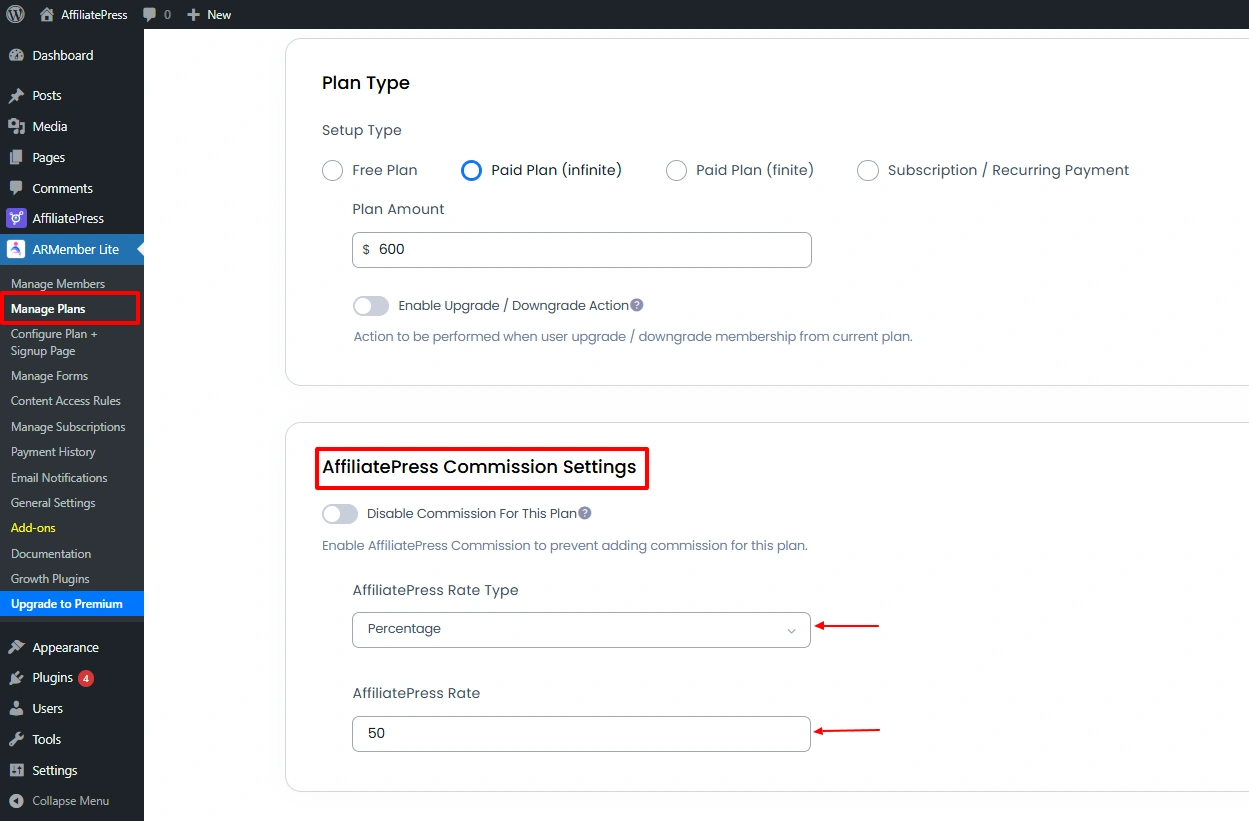
Now select the Commission Rate Type, enter the Commission Rate Value, and save the membership plan.
MemberPress
Go to MemberPress → Memberships and create a new membership or edit an existing one.
Now scroll till the AffiliatePress Commission Settings section.
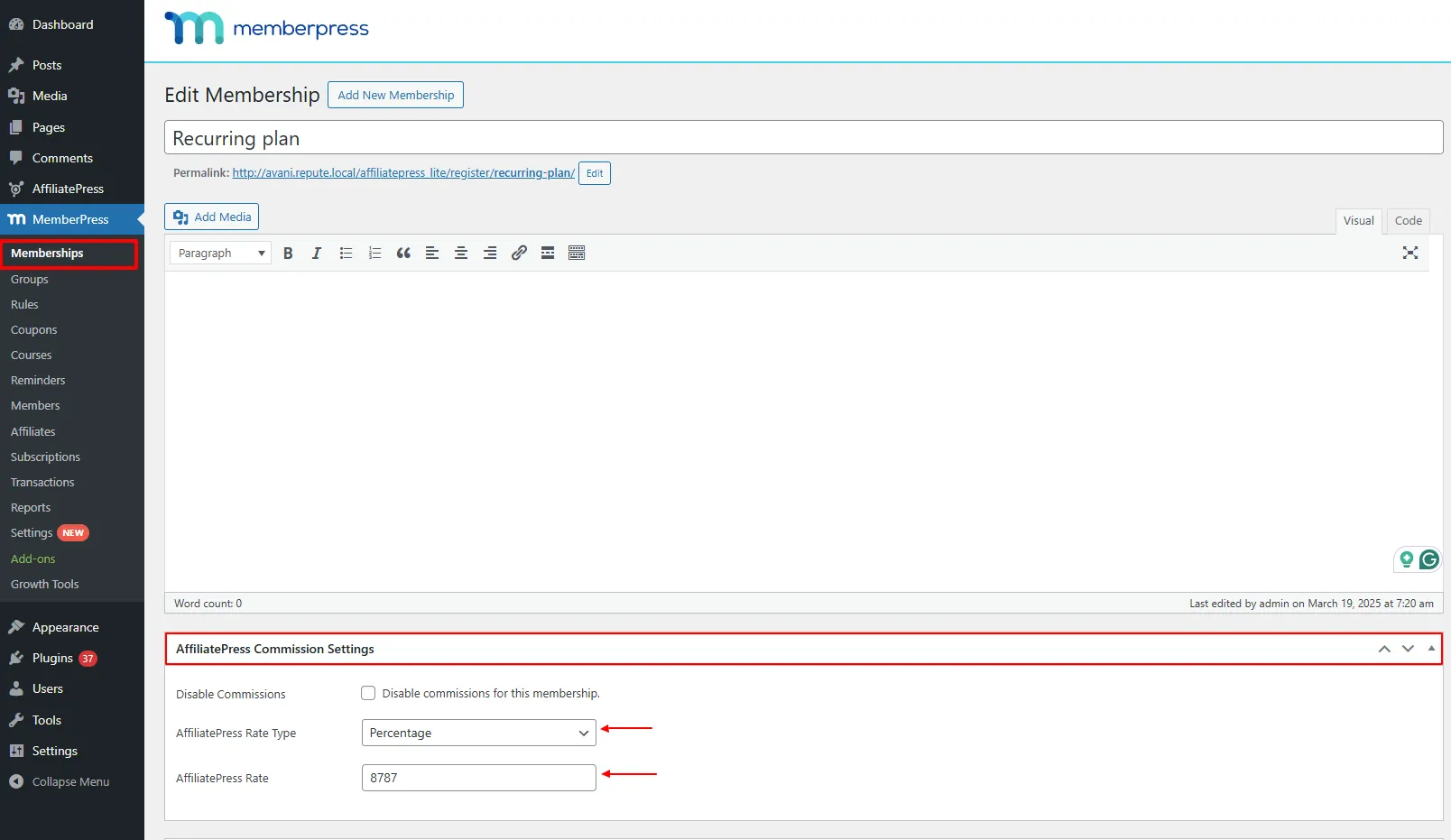
At last, select the Commission Rate Type, enter the Commission Rate Value, and update the membership.
Restrict Content Pro
Go to Restrict → Membership Levels and create a new membership level or edit an existing one.
Locate the AffiliatePress Commission Settings section.
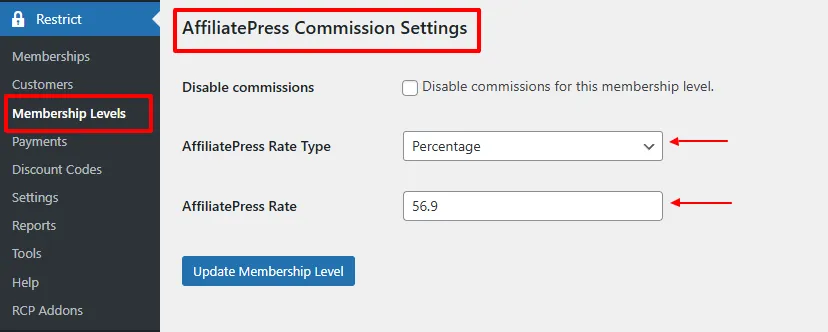
Select the Commission Rate Type, enter the Commission Rate Value, and save the membership level.
Simple Membership
Go to WP Membership → Membership Levels and create a new membership level or edit an existing one.
Now scroll till you find the AffiliatePress Settings section.
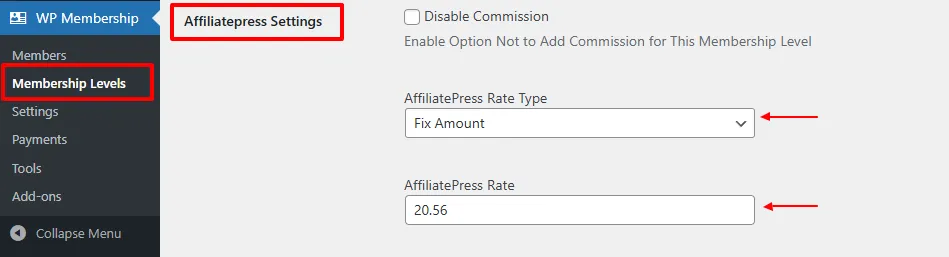
Here, pick the Commission Rate Type, enter the Commission Rate Value, and save the membership level.
Paid Member Subscriptions
Go to Paid Member Subscriptions → Subscription Plans and create a new subscription plan or edit an existing one.
Locate the AffiliatePress Commission Settings section.
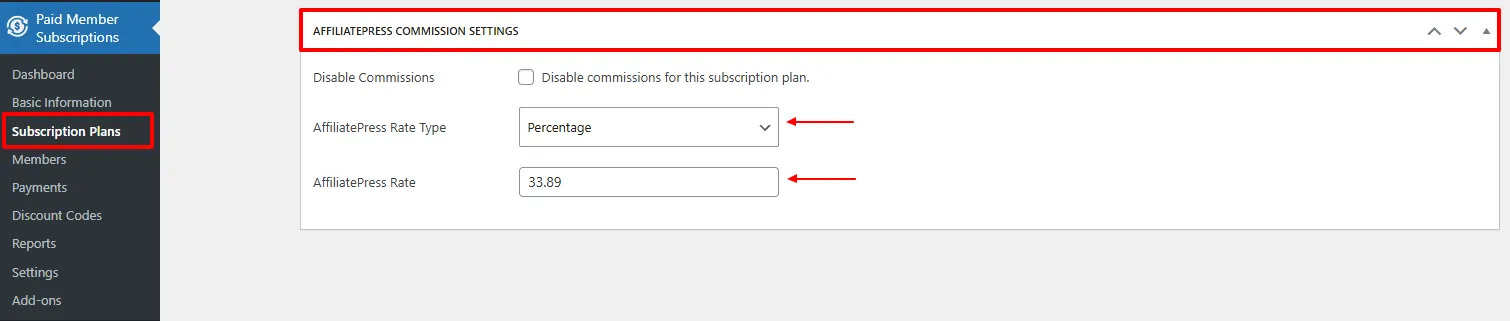
Select the Commission Rate Type, enter the Commission Rate Value, and save the subscription plan.
Paid Memberships Pro
Go to Memberships → Settings → Levels and create a new membership level or edit an existing one.
Under the Other Settings section, locate AffiliatePress Settings.
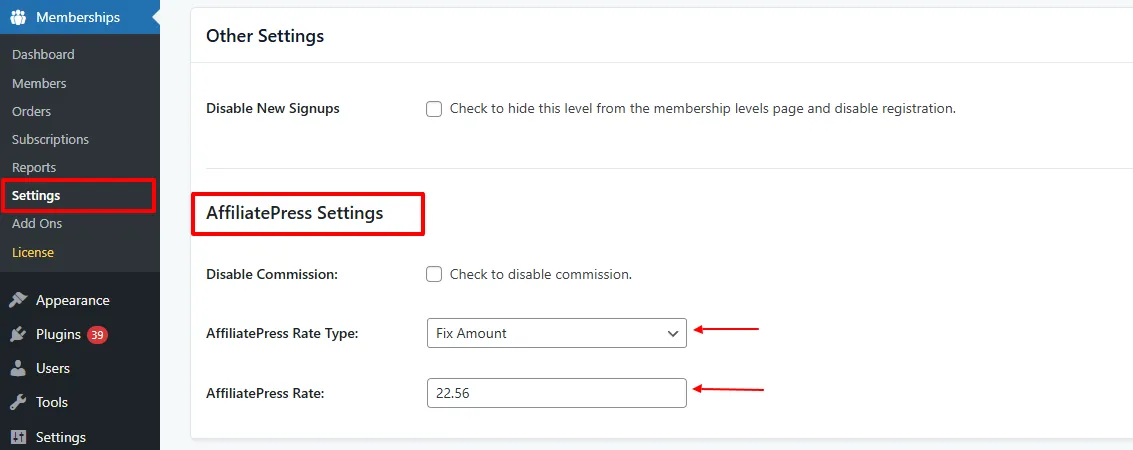
Now just select the Commission Rate Type, enter the Commission Rate Value, and save the membership level.
Ultimate Membership Pro
Go to Ultimate Membership Pro → Memberships and create a new membership plan or edit an existing one.
Locate the AffiliatePress Settings section.
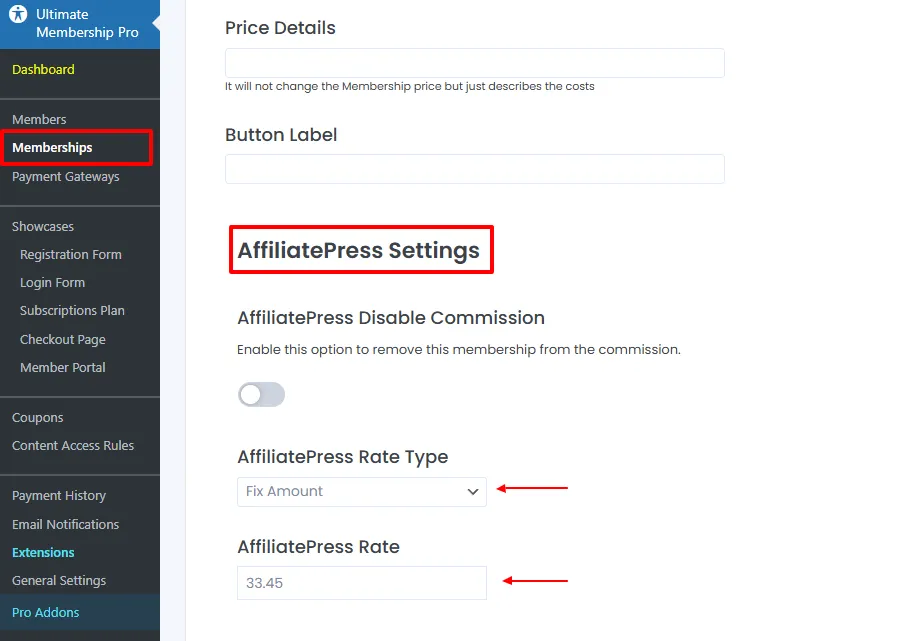
Select the Commission Rate Type, enter the Commission Rate Value, and save the membership plan.
LMS Integrations
The following LMS plugins support Product-wise Commission. Here you can easily set up custom commission rates for individual courses directly from the respective settings of each WordPress LMS plugin.
LifterLMS
Go to LifterLMS → Courses and create a new course or edit an existing one.
Locate the AffiliatePress Commission Settings section.
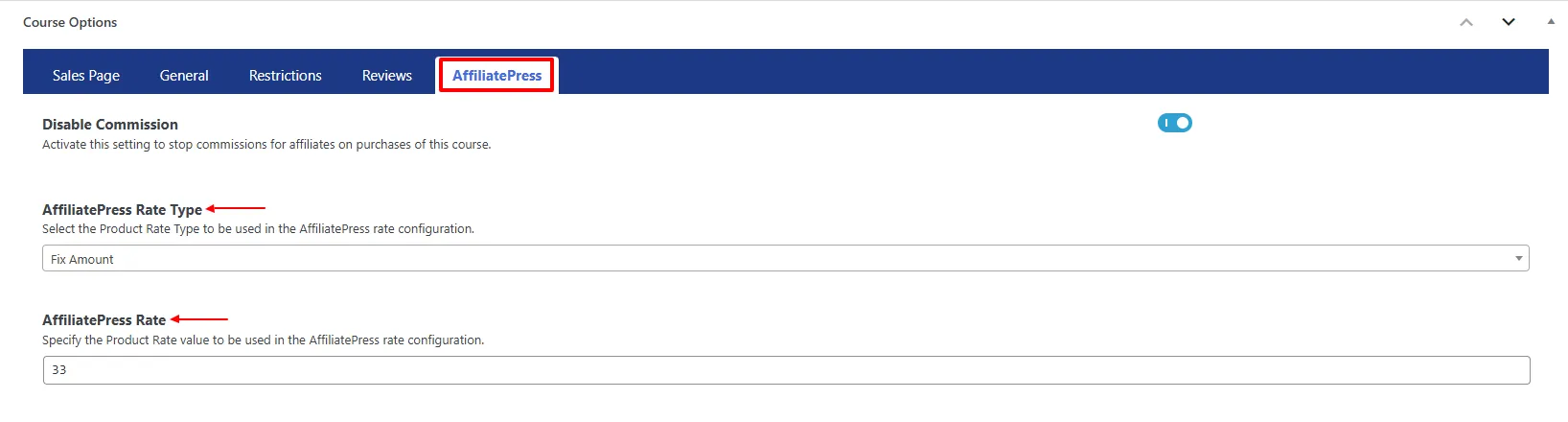
Select the Commission Rate Type, enter the Commission Rate Value, and save the course.
LearnPress
Open LearnPress → Courses and create a new course or edit an existing one. Within the course editor, locate the AffiliatePress tab.
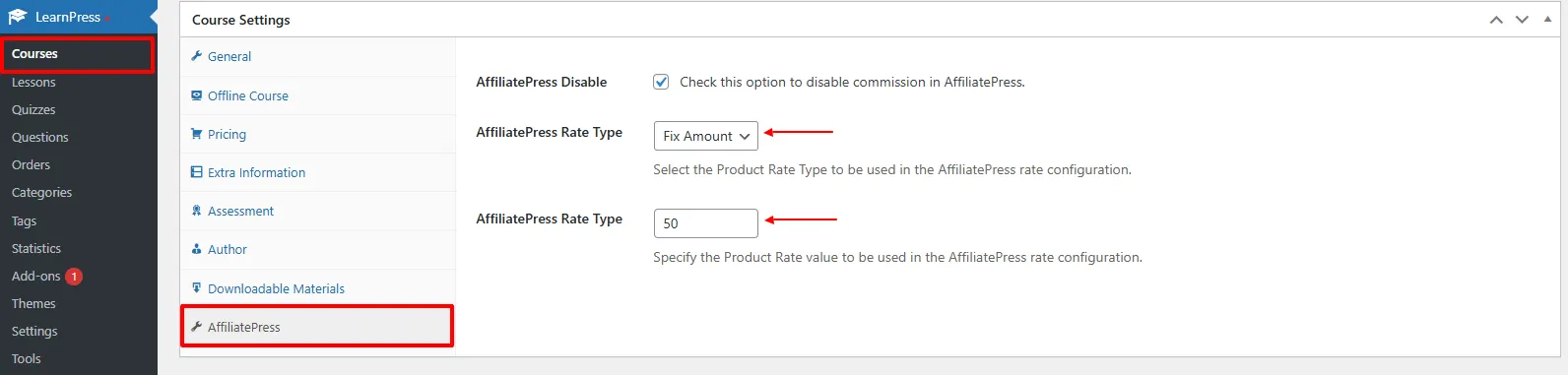
Here, set the Commission Rate Type and enter the Commission Rate Value.
At last, update the course.
MasterStudy LMS
Inside Courses, add a new course or edit an existing one.
Scroll to the AffiliatePress Settings section.

Select the Commission Rate Type, enter the Commission Rate Value, and save your changes.
Form Integrations
The following form plugins support Product-wise Commission. You can configure custom commission rates for individual forms directly from their respective settings.
ARForms
For setting product-wise commission rates, go to ARForms → Other Options → General Options and create a new form or edit an existing one.
Locate the AffiliatePress Settings section.
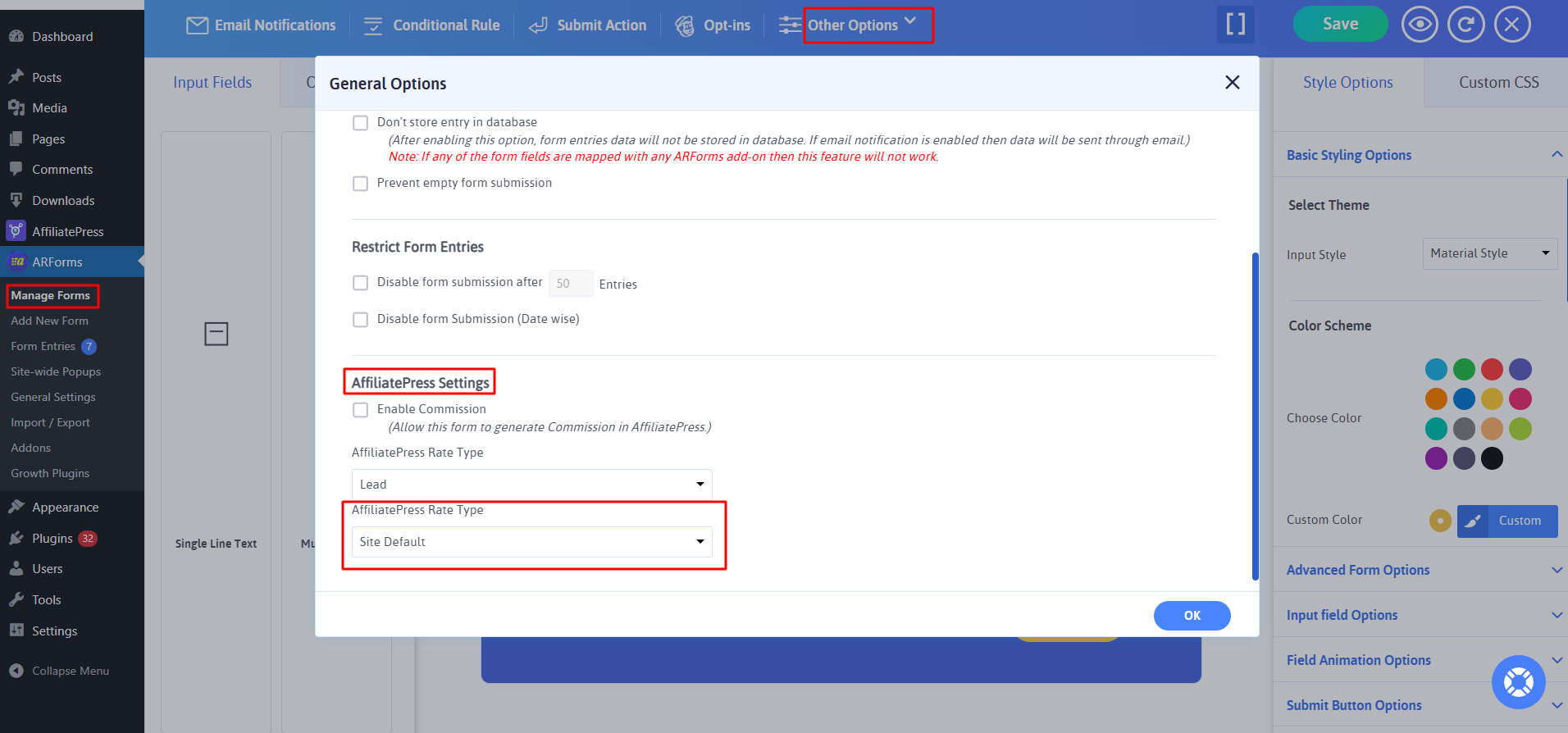
Select the Commission Rate Type, enter the Commission Rate Value, and save the form. Do the same to any form you want to set product-wise commission for.
WPForms
Open WPForms and create a new form or edit an existing one.
Navigate to Settings → AffiliatePress.
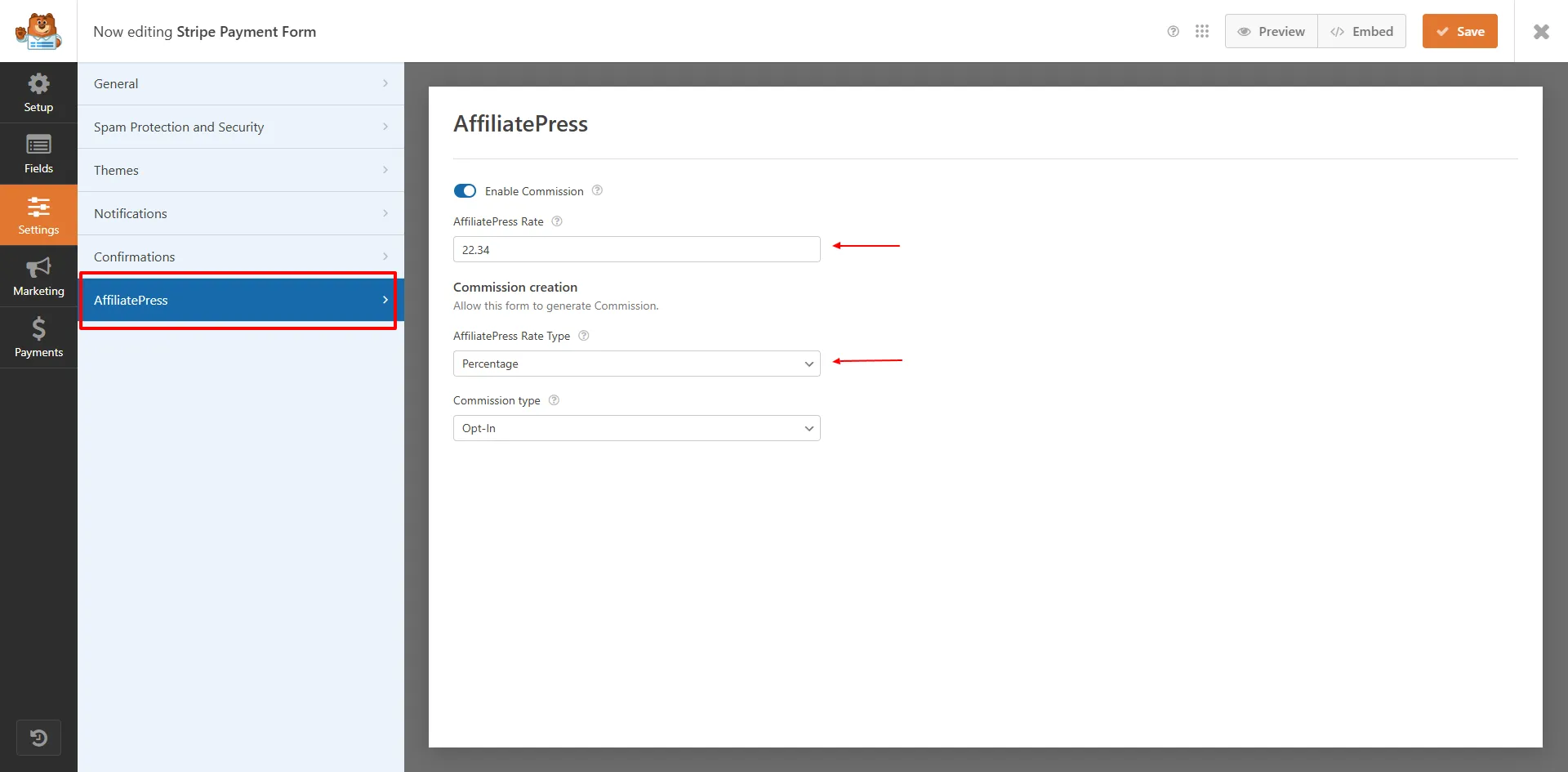
Select the Commission Rate Type, enter the Commission Rate Value, and save your changes.
Gravity Forms
Inside Gravity Forms → Forms, create a new form or edit an existing one. Next click on the Settings → Form Settings.
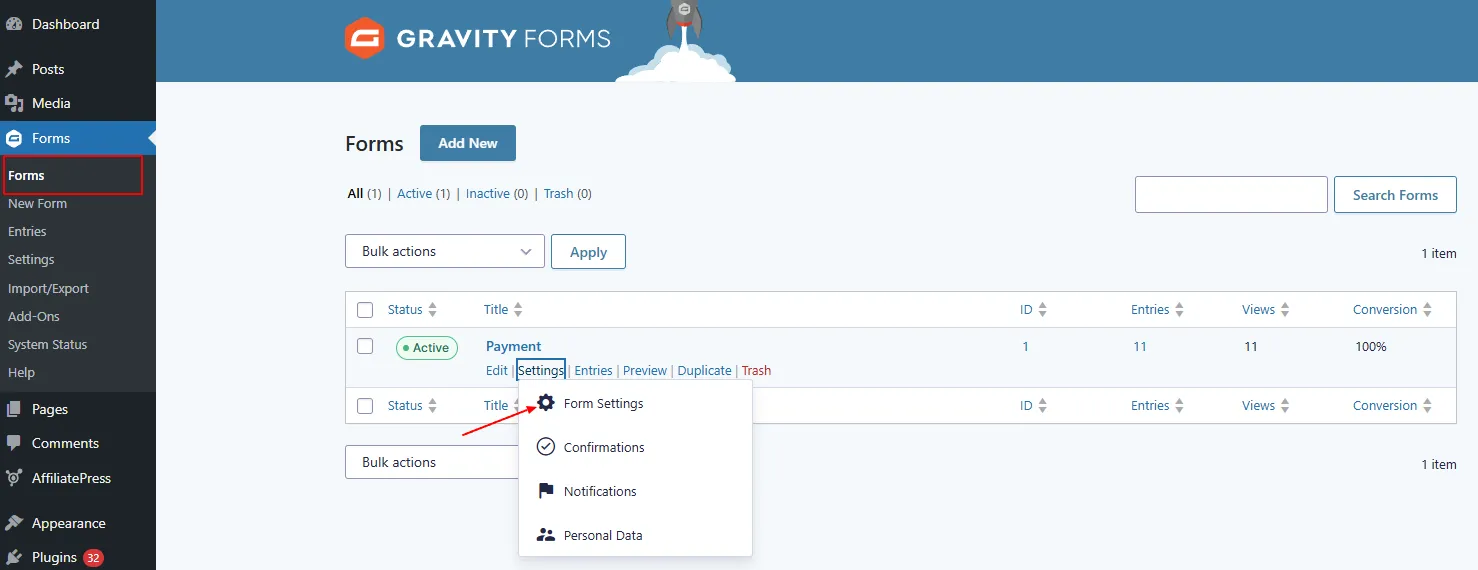
Now scroll till you see the AffiliatePress Product Settings section.
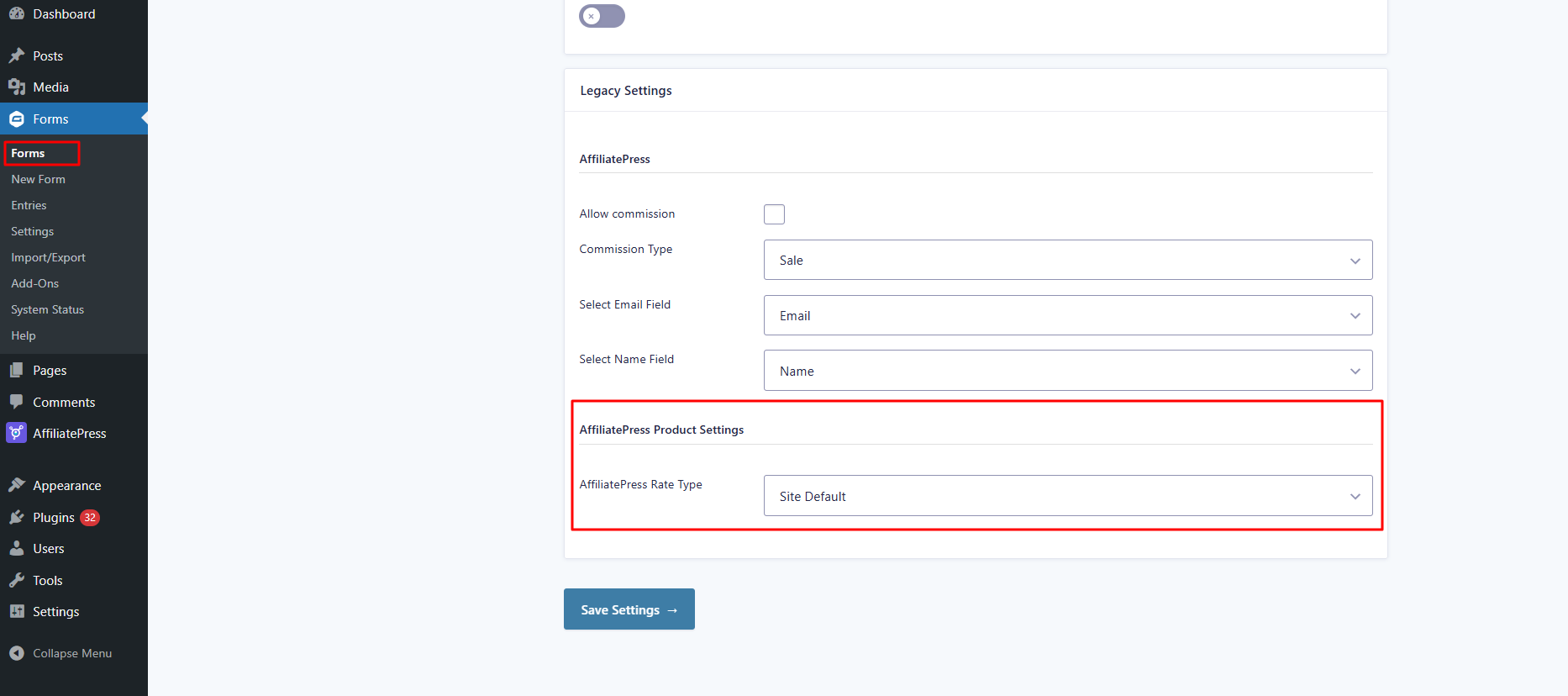
Select the Commission Rate Type, enter the Commission Rate Value, and update the form for saving your changes.
Ninja Forms
For setting product-wise commissions,navigate to Ninja Forms → Dashboard and create a new form or edit an existing one.
Under the Emails & Actions tab, locate the AffiliatePress Commission action.
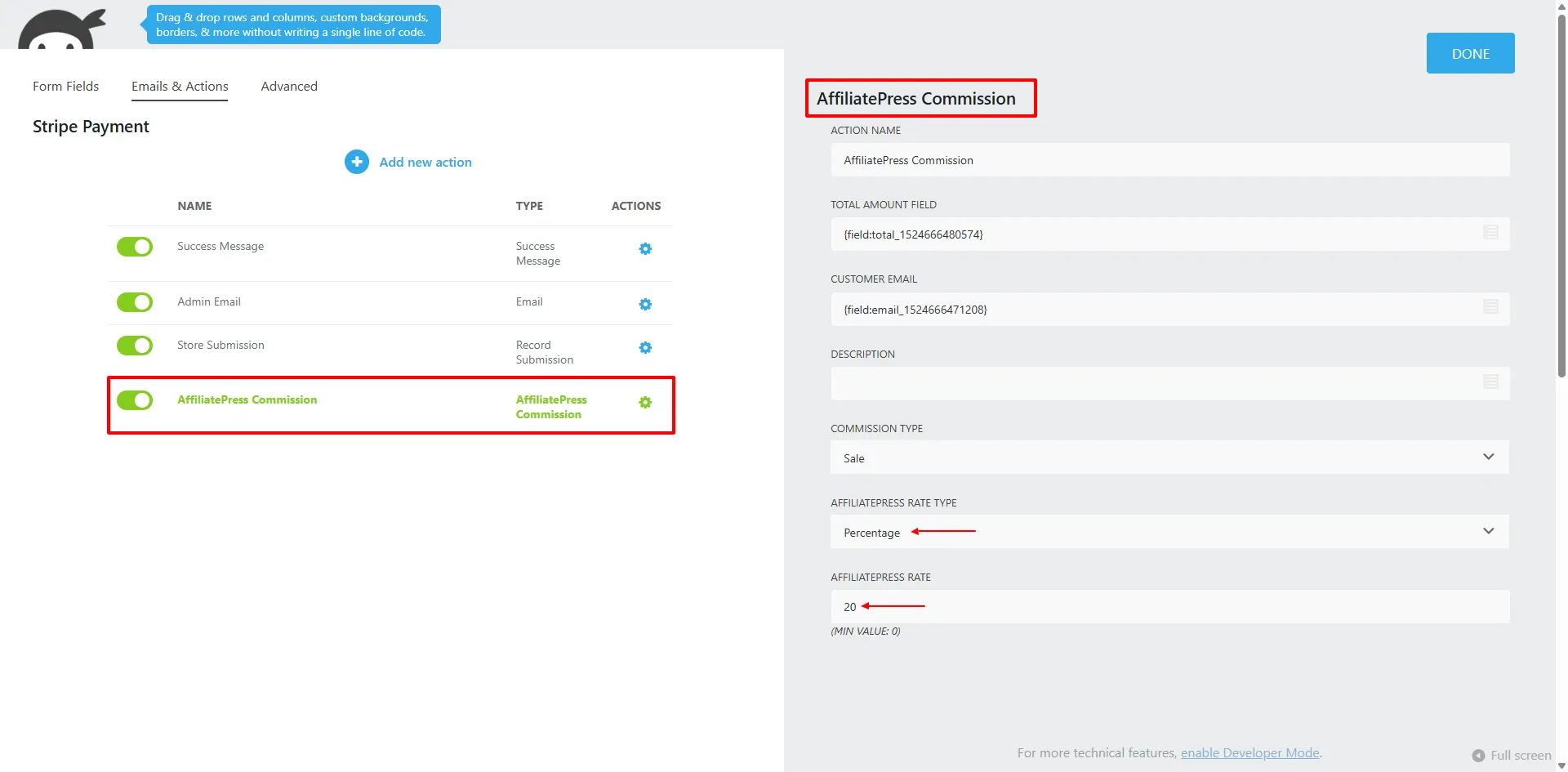
Select the Commission Rate Type, enter the Commission Rate Value, and save the form.
Payment Integrations
Payment Integrations
The following payment plugins support Product-wise Commission. You can configure custom commission rates for individual payment items directly from their respective settings.
WP Simple Pay
For setting product-wise commissions for your payment forms, head over straight to WP Simple Pay → Payment Forms, and create a new payment form or edit an existing one.
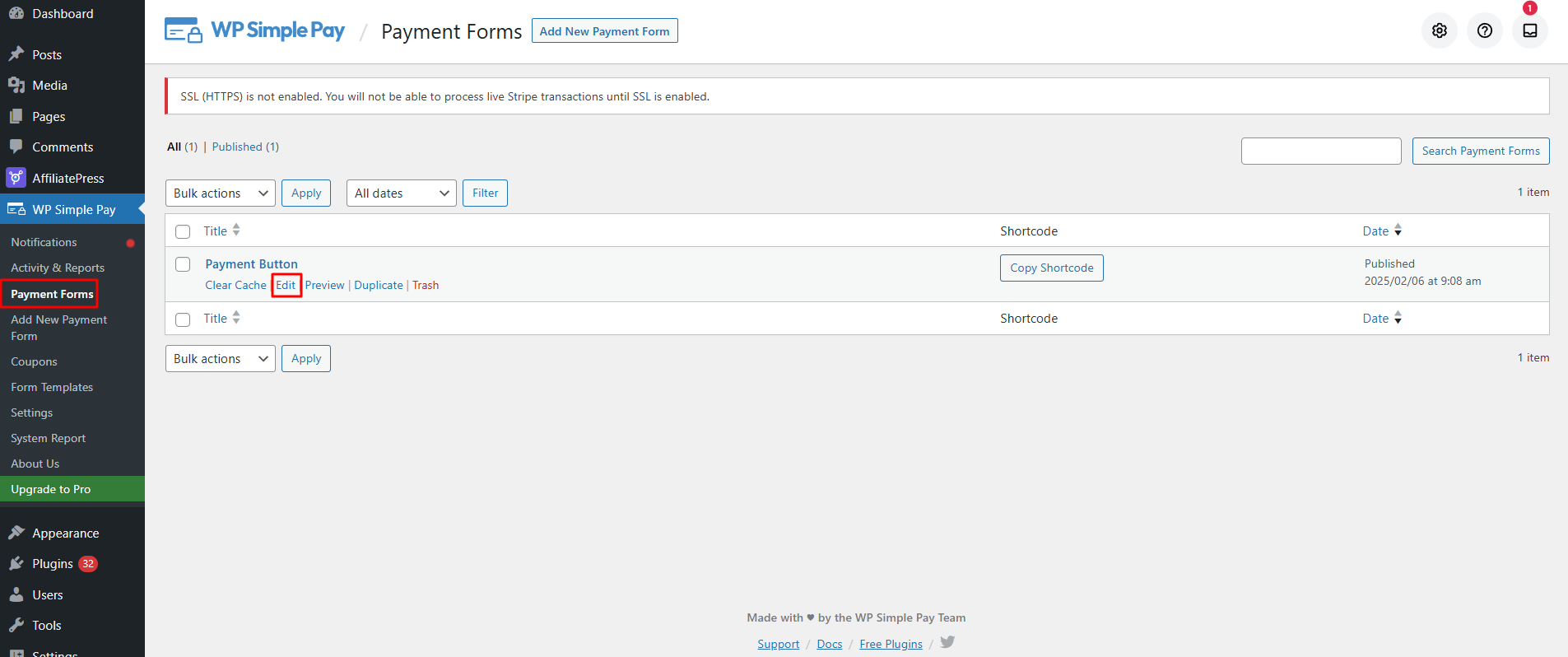
Locate the AffiliatePress Settings tab.
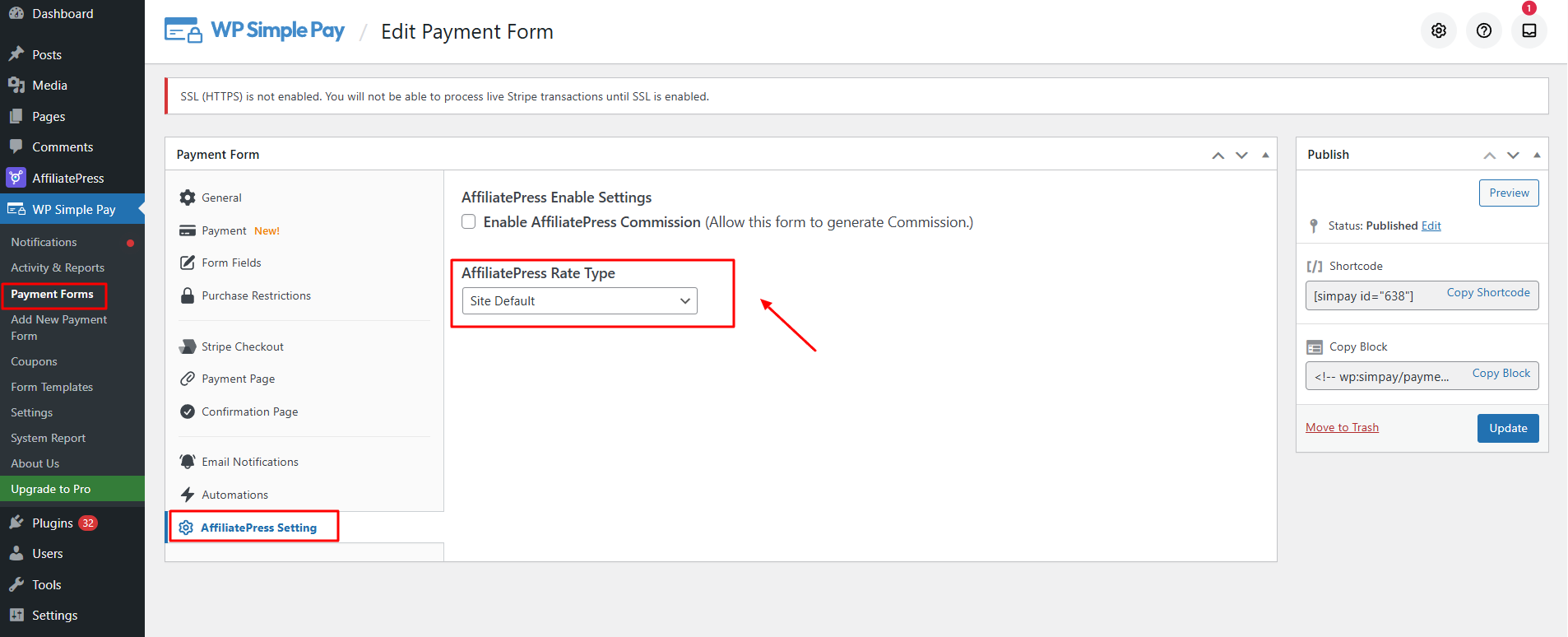
Simply pick the Commission Rate Type from the dropdown field, enter the Commission Rate Value, and save or update the payment form.
Accept Stripe Payments
Open Stripe Payments → Products and create a new product or edit an existing one.
Locate the AffiliatePress Commission Settings section.
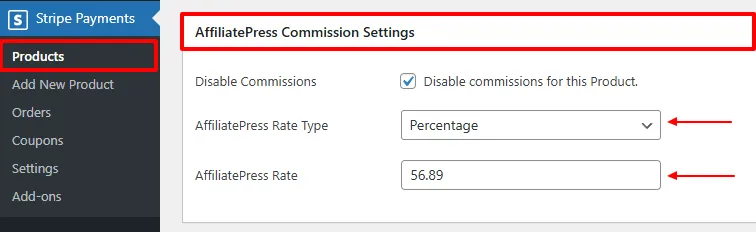
Select the Commission Rate Type, enter the Commission Rate Value, and save your changes.
Booking Integrations
The following booking plugins support Product-wise Commission. You can configure custom commission rates for individual services directly from their respective settings.
BookingPress
To set up product-wise commissions for each specific BookingPress service, go to BookingPress → Services. Here create a new service or edit an existing one.
Scroll to the AffiliatePress Settings section.
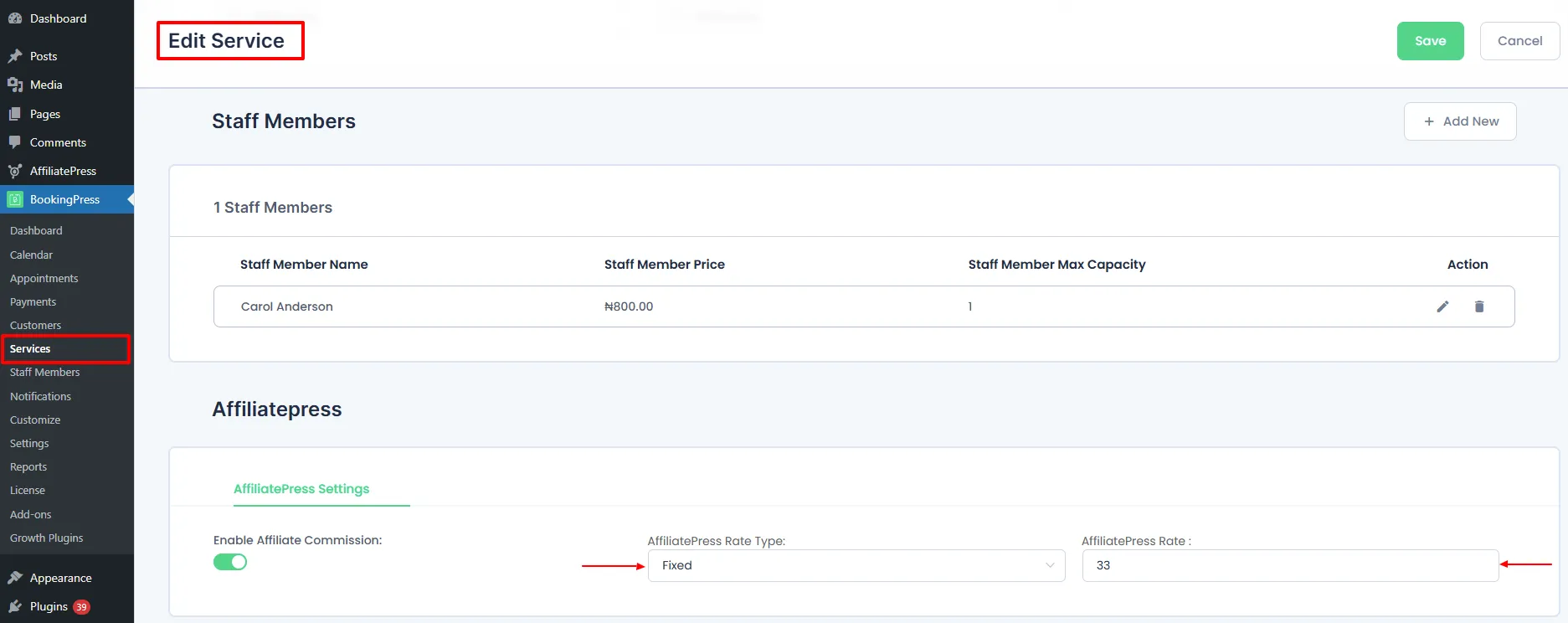
Now select the Commission Rate Type, enter the Commission Rate Value, and save the service.
Important: Product wise commission is not available with a few plugins including LearnDash, SureCart, Masteriyo LMS and Tutor LMS.