



Groups Management
Affiliate Groups allows you to organize affiliates and apply different commission structures without configuring each affiliate individually. Using the Groups page, you can create groups, assign custom commission rates, set a default group for new affiliates, update group settings and manage existing groups from one place.
Here we’ll cover everything you need to know about managing affiliate groups in AffiliatePress.
View and Manage Affiliate Groups
You can view and manage affiliate groups from WordPress → AffiliatePress → Groups.
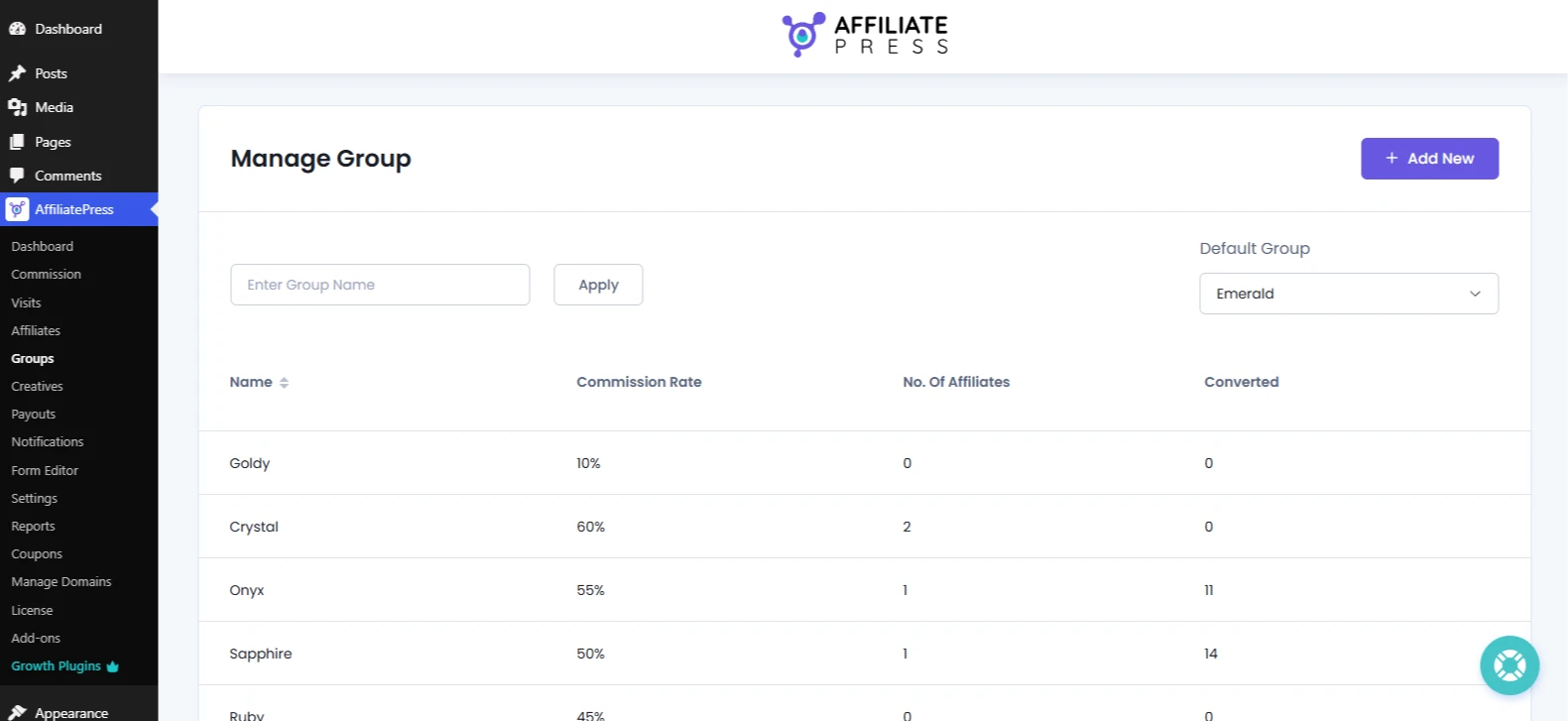
Group List
On this Groups page, you can see all the details of your existing affiliate groups such as:
- Name: The name of the affiliate group.
- Commission Rate: The commission rate assigned to the group. This rate applies to affiliates in the group unless an individual commission rate overrides it.
- No. of Affiliates: The total number of affiliates in the group.
- Converted: The total number of approved and paid commissions generated by affiliates while they were assigned to this group. Pending and rejected commissions are not included in this count.
Note: The Converted value only counts commissions earned after an affiliate is assigned to the group. For instance an affiliate generated 20 approved commissions but joined the group after their 15th commission. Then only the remaining 5 approved or paid commissions will be counted for that group.
Search Groups
If you have multiple affiliate groups, you can easily find the one using the Group Name search field at the top of the page.
Just enter the group name and hit the “Apply” or enter to see all the matching results.
To remove the search filter, click on the newly appeared Reset button next to the search bar.
Default Group
You can set the default group from the dropdown list of groups.
After you select an affiliate group as default, a success message saying, “Default Group successfully added” will popup at the top right corner of Groups page.
Create a New Affiliate Group
To create a new affiliate group, click on the “Add New” button on the top right corner of the Groups page.
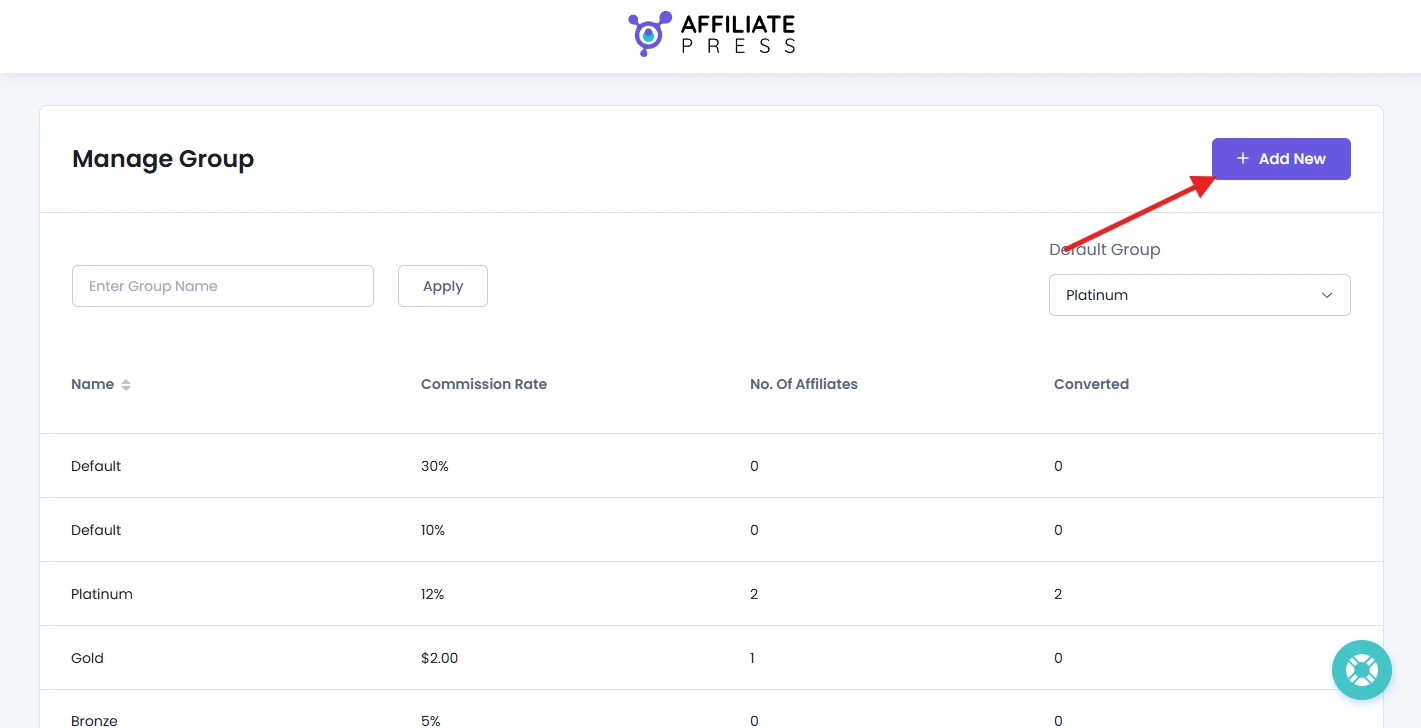
This slide opens the Add Group panel where you’ll need to configure the group’s details before saving it.
Note: If you have Recurring Commissions addon activated, you’ll also be able to set recurring commission rates from here.
Now set all the following fields to create a new affiliate group:
- Name: Enter the name of your affiliate group
- Custom Commission Rate: Toggle it on if you want this group to add a custom commission rate rather than global commission settings. Also, you can select whether the commission should be Percentage-based or Fixed rate.
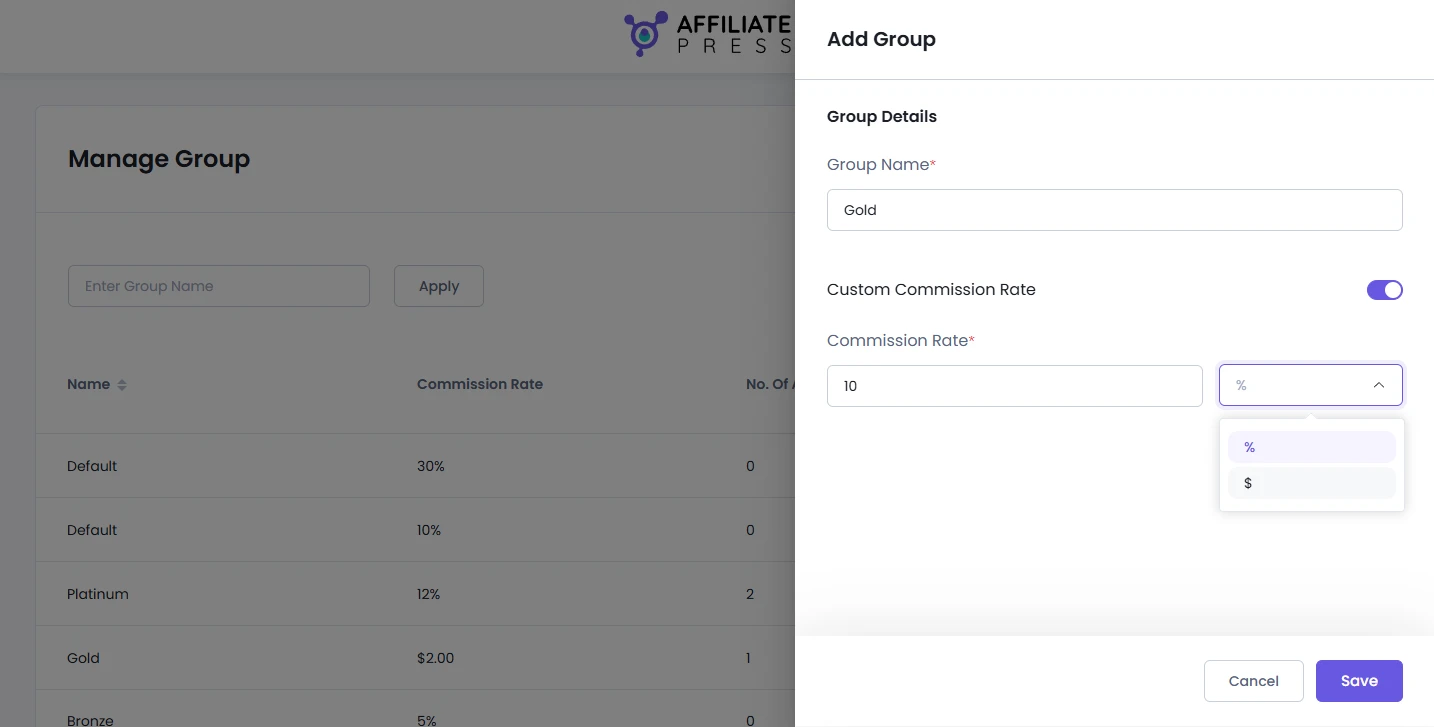
After adding all the group details, click Save to create the affiliate group.
Remember, affiliate group names do not have to be unique. If you create multiple groups with the same name, they will still be treated as separate groups. Since the Groups list is ordered by the most recently created entries first, the latest group with that name will appear above the older ones everywhere.
Note: If Enable Custom Rate is disabled, affiliates in the group will use the default commission settings configured in AffiliatePress → Settings → Commissions.
Edit an Affiliate Group
You can edit an affiliate group at any time to update its name or commission settings.
For editing an affiliate group details, hover over it and click on the Edit icon. This will slide open a Edit Group panel where you can modify/update the group’s details such as:
- Group Name
- Custom Commission Rates
- Recurring Commission Rates (If the Recurring Commissions Addon is activated)
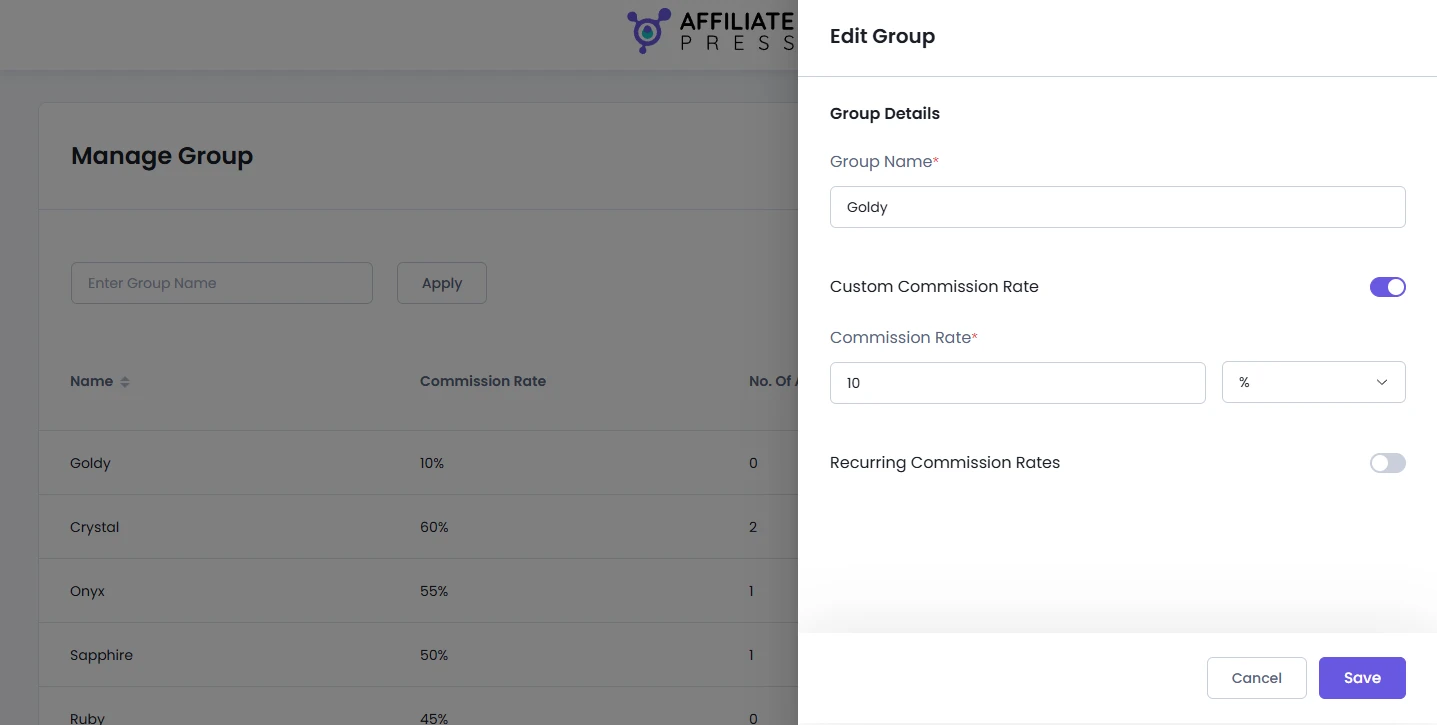
After making the changes, hit the Save to update it.
Delete an Affiliate Group
If you don’t want an affiliate group, you can easily delete it from AffiliatePress.
Inside the AffiliatePress Groups page, just hover over the group you want to remove, and click on the Delete icon.
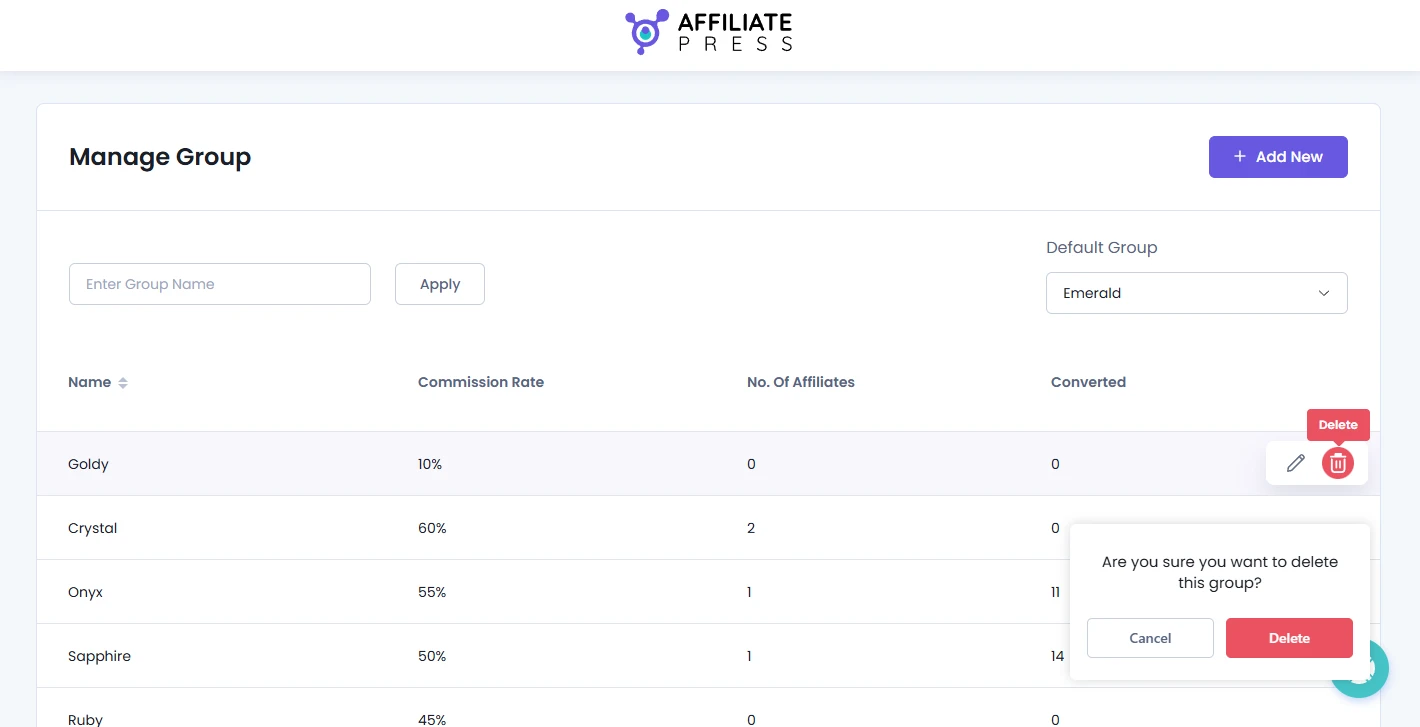
A confirmation dialog box will appear below it, confirming you are sure you want to delete this group to avoid accidental deletion.
If you are sure you wanna delete the selected affiliate group, Click Delete inside the dialog to permanently delete the group.
Note: Deleting an affiliate group removes only the group itself. It does not delete the affiliate accounts that were tied to the group.