



Label Settings
The Labels Settings lets you customize the text shown by default throughout the AffiliatePress Affiliate Panel.
You can rename menu items, buttons, headings, messages and form labels to match your brand, make the user experience better or use terminology that better fits your affiliate program.
Use AffiliatePress → Settings → Labels panel to manage all frontend labels from one place.
Note: Once you change a label, don’t forget to click the Save button at the bottom of the Labels panel.
Affiliate Panel Menu
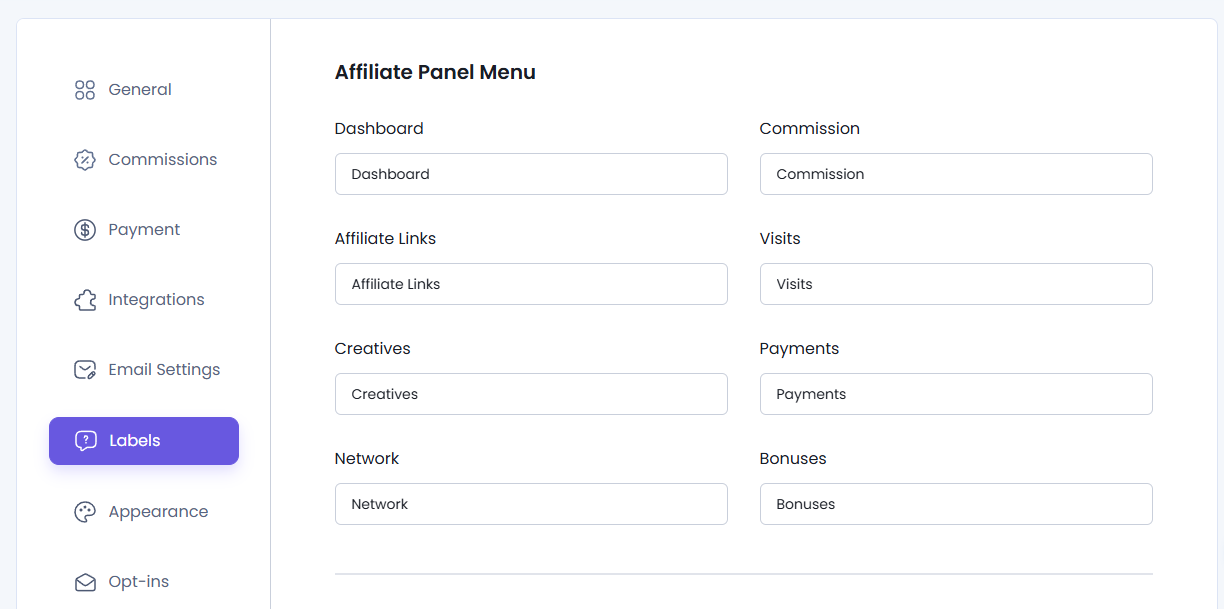
The Affiliate Panel Menu section lets you rename the navigation items shown in the affiliate dashboard, such as:
- Dashboard
- Commissions
- Visits
- Creatives
- Payments
- Network
- Bonuses
Note: Changing a label only changes the text shown to affiliates. It doesn’t affect AffiliatePress features or your existing affiliate data.
Dashboard Labels
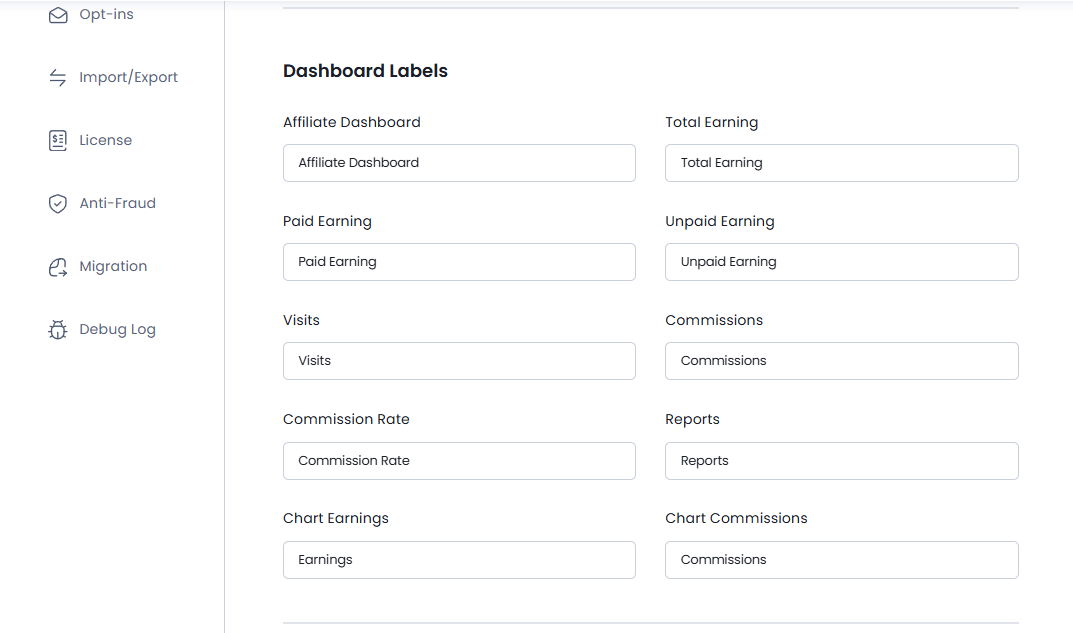
These are the most seen labels on the front-end side of the dashboard, so you can change these labels by scrolling down to the Dashboard Labels section.
From here, you can customize labels such as:
- Affiliate Dashboard
- Total Earning
- Paid Earning
- Unpaid Earning
- Visits
- Commissions
- Commission Rate
- Reports
- Chart Earnings
- Chart Commissions
Commission Labels
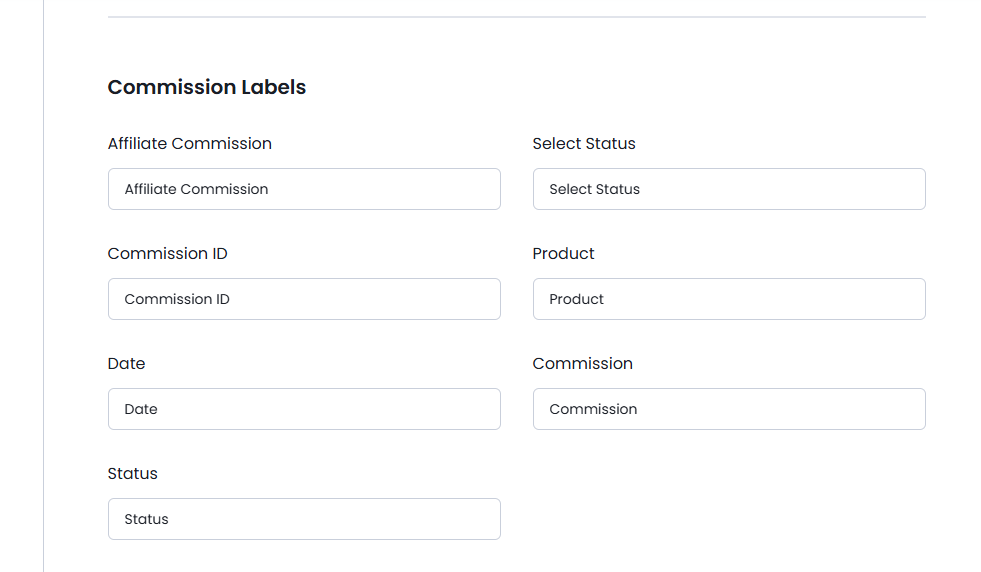
The Commission Labels section lets you rename the text displayed on the Commissions page including:
- Affiliate Commission
- Select Status
- Commission ID
- Product
- Date
- Commission
- Status
Affiliate Link Labels
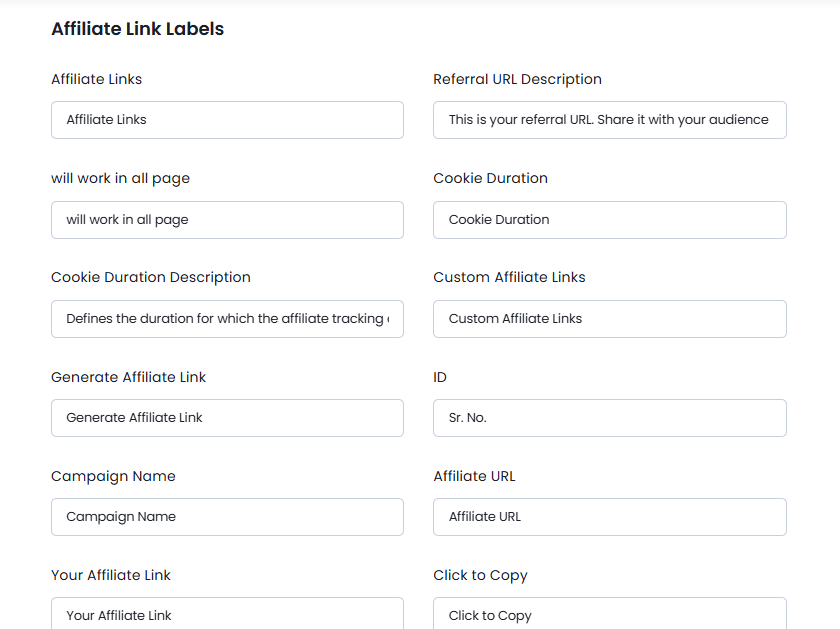
The Affiliate Link Labels section lets you customize the text displayed throughout the Affiliate Links page like:
- Referral URL descriptions
- Cookie information
- Campaign fields
- QR code labels
- Validation messages
- Action buttons
- And a lot more.
Visit Labels
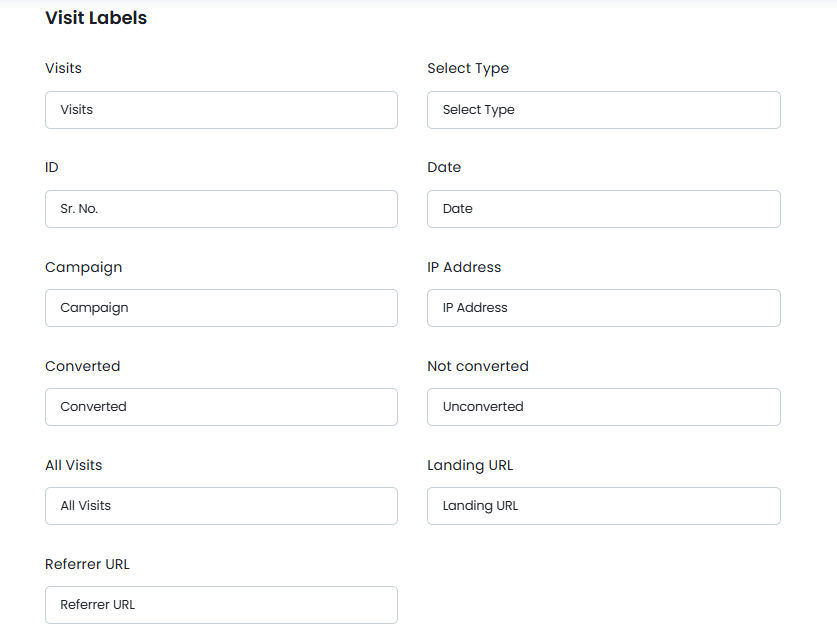
The Visit Labels section allows you to customize the labels shown on the Visits page such as:
- Visits
- Select Type
- ID
- Date
- Campaign
- IP Address
- Converted
- Not converted
- All Visits
- Landing URL
- Referrer URL
Creative Labels
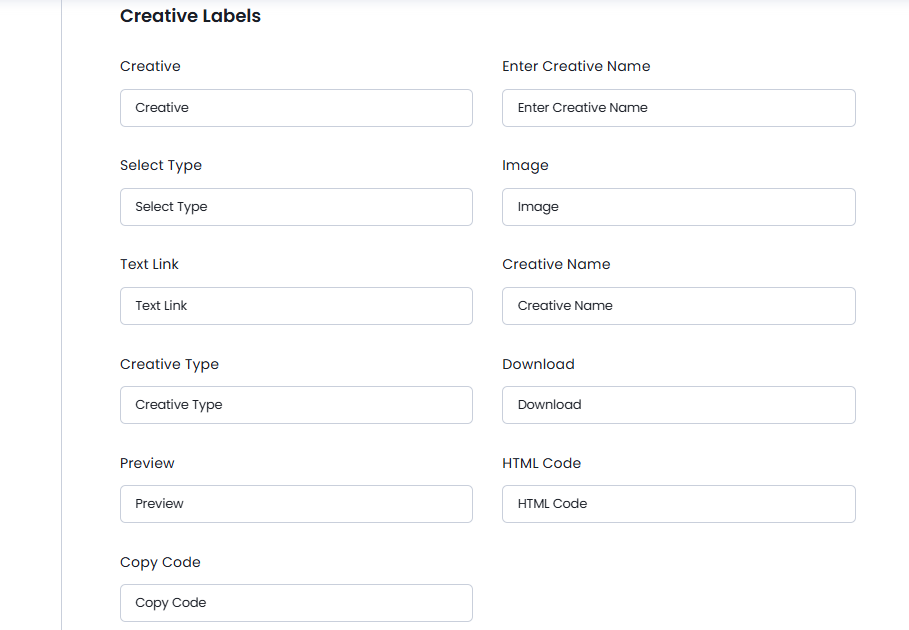
Here you can rename the text shown on the Creatives page such as:
- Creative
- Enter Creative Name
- Select Type
- Image
- Text Link
- Creative Name
- Creative Type
- Download
- Preview
- HTML Code
- Copy Code
Payment Labels
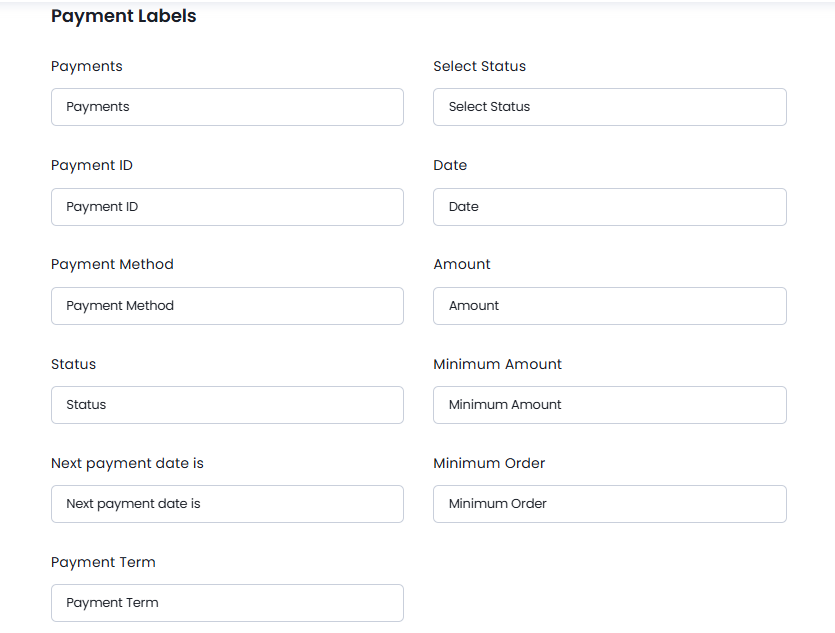
Use the Payment Labels section to modify the text for all labels displayed on the Payment in the frontend affiliate dashboard, including options like:
- Payments
- Select Status
- Payment ID
- Date
- Payment Method
- Amount
- Status
- Minimum Amount
- Next payment date is
- Minimum Order
- Payment Term
Edit Profile Labels
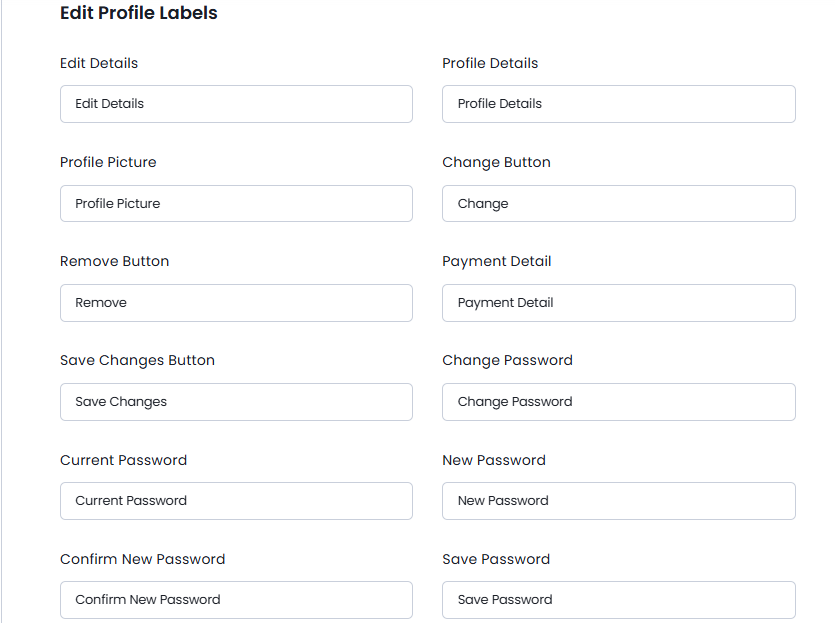
Want to personalize your affiliate dashboard? In the Edit Profile Labels section, you can easily rename any labels on the Edit Profile page to match your preferred wording. You can personalize labels such as:
- Edit Details
- Profile Details
- Profile Picture
- Change Button
- Remove Button
- Payment Detail
- Save Changes Button
- Delete the account will be delete all the records under the account
- Delete Button
- Cancel Button
- And a lot more!
Register Form Labels
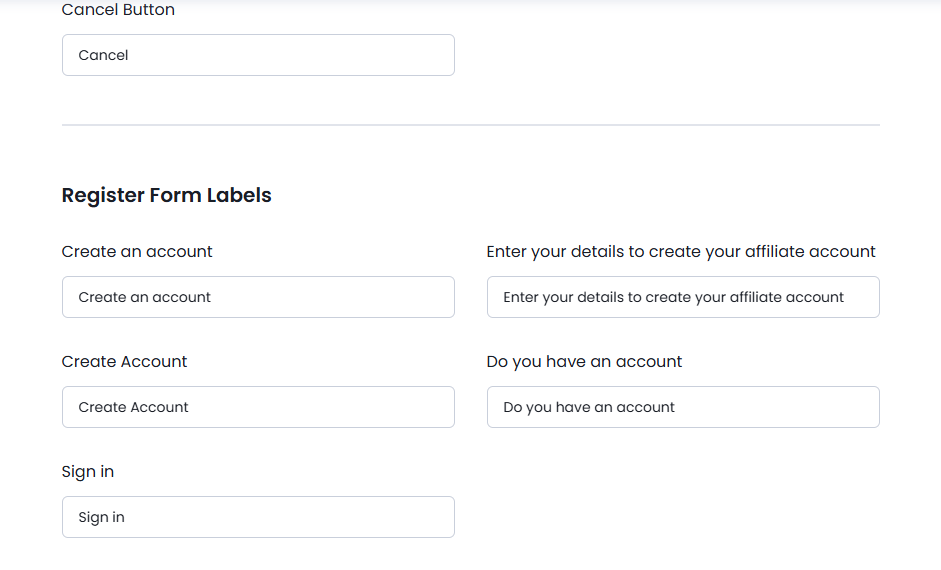
The Register Form Labels configuration area allows you to redefine the terminology used on the Signup page for the frontend registration such as:
- Create an account
- Enter your details to create your affiliate account
- Create Account
- Do you have an account
- Sign in
Login Form Labels
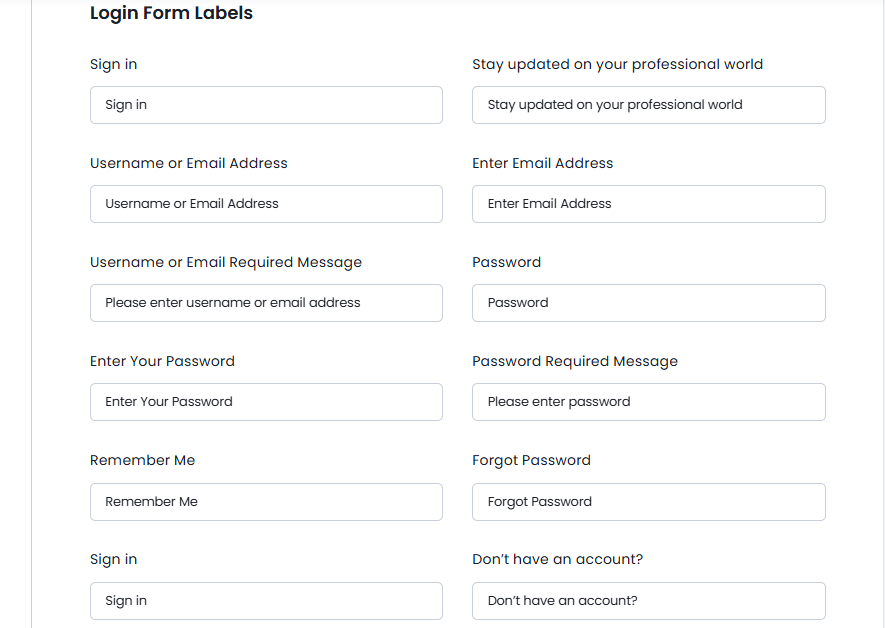
The Login Form Labels section lets you rename the text displayed on the affiliate login page, including :
- Sign in
- Stay updated on your professional world
- Username or Email Address
- Enter Email Address
- Username or Email Required Message
- Password
- Enter Your Password
- Password Required Message
- Remember Me
- Forgot Password
- Sign in
- Don’t have an account?
- Create account
Forget Password Form Labels
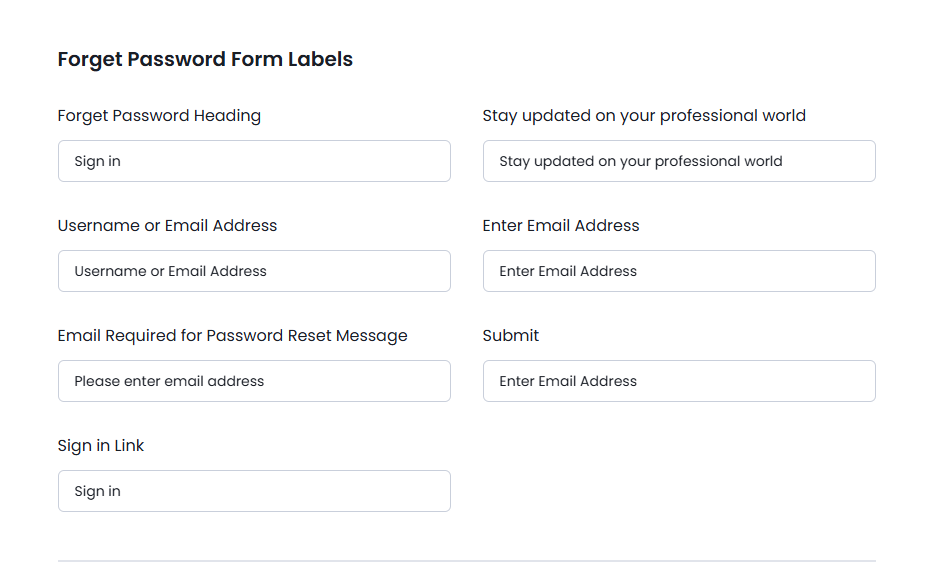
AffiliatePress allows you to set the labels personalized for the forget password forms. Labels such as:
- Forget Password Heading
- Stay updated on your professional world
- Username or Email Address
- Enter Email Address
- Email Required for Password Reset Message
- Submit
- Sign in Link
Coupon Labels
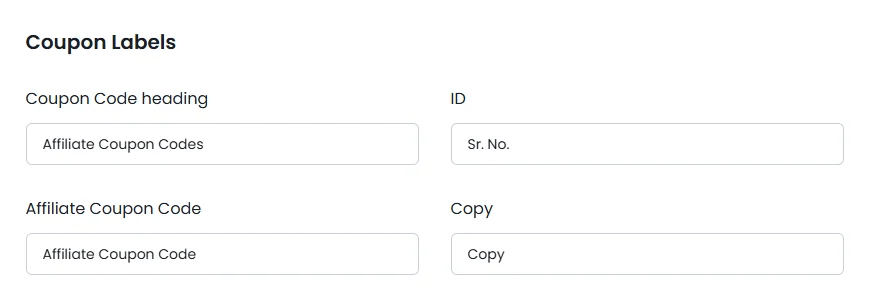
AffiliatePress allows affiliates to promote your products and services using their own unique coupon codes.
To customize these labels, you must install and activate the AffiliatePress Coupon Code Addon. Once activated, the Coupon Labels section becomes available, allowing you to customize the labels displayed on the affiliate coupon page, including coupon code headings, table columns, action buttons, and other coupon-related text.
For detailed setup instructions and more information, click here.
Landing Page Labels
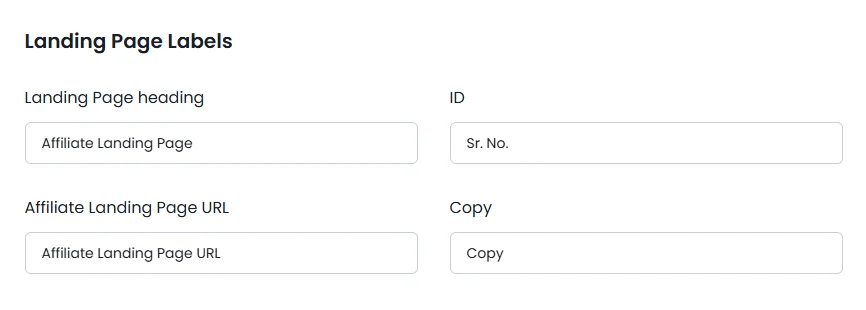
The Landing Page Labels section lets you rename the text displayed on the affiliate landing pages.
To customize this labels, you must first install and activate the AffiliatePress Affiliate Landing Page Addon. Once activated, the Landing Page Labels section becomes available, allowing you to customize headings, landing page URLs, table labels, copy buttons, and other landing page text.
For detailed setup instructions and more information, click here
Leaderboard Labels
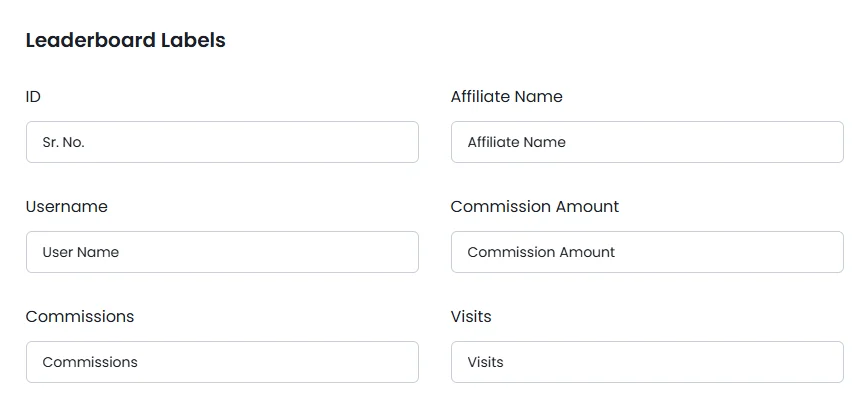
The Leaderboard Labels section lets you customize the labels shown on the affiliate leaderboard.
To customize these all labels, you must install and activate the AffiliatePress Leaderboard Addon. Once activated, the Leaderboard Labels section becomes available, allowing you to customize rankings, affiliate names, commissions, visits, and other leaderboard-related labels.
For detailed setup instructions and more information, click here.
Multi-level Labels
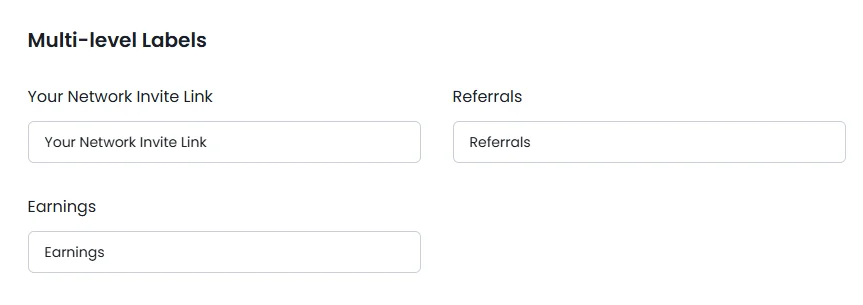
The Multi-level Labels section lets you customize the text displayed for your multi-level affiliate network.
To customise these labels, you must install and activate the AffiliatePress Multi-Level Commission Addon. Once activated, the Multi-Level Labels section becomes available, allowing you to customize labels related to your affiliate network, referrals, invitations, commissions, and other multi level features.
For detailed setup instructions and more information, click here.
Bonus Labels
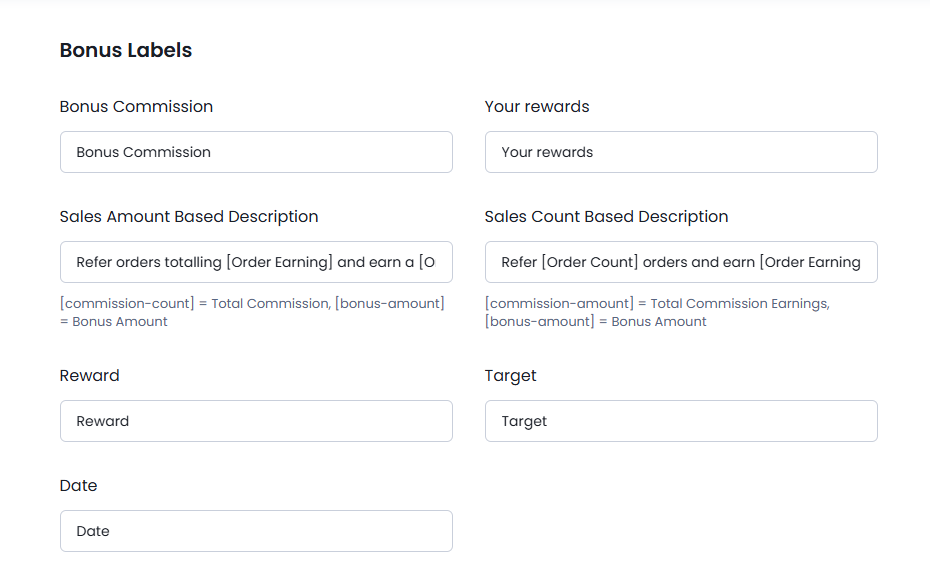
The Bonus Labels section lets you personalize the labels and descriptions used for affiliate bonus programs.
To customize these labels, you must install and activate the AffiliatePress Performance Bonuses Addon. Once activated, the Bonus Labels section becomes available, allowing you to customize labels for rewards, performance targets, bonus commissions, progress messages, and other bonus-related text.
For detailed setup instructions and more information, click here.
Signup Bonus Labels
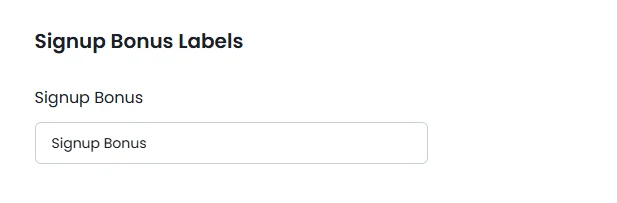
If you allow your affiliates to get an instant bonus just for signing up, this section lets you rename the labels displayed for signup bonus rewards.
To customize these labels, you must install and activate the AffiliatePress Signup Bonus Addon. Once activated, the Signup Bonus Labels section becomes available, allowing you to customize bonus headings, descriptions, reward messages, and other signup bonus labels.
For detailed setup instructions and more information, click here.
Stripe Labels
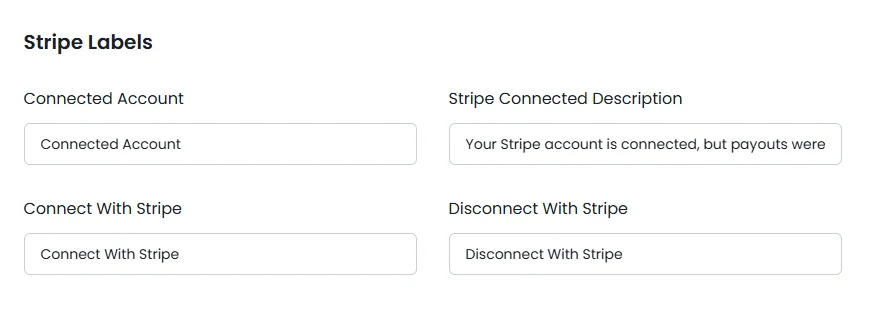
The Stripe Labels section allows you to customize the labels shown for Stripe account connections.
To customize these labels, you must install and activate the AffiliatePress Stripe Payout Addon. Once activated, the Stripe Labels section becomes available, allowing you to customize labels related to Stripe account connections, connection status, payment descriptions, and action buttons.
For detailed setup instructions and more information, click here.
Tiered Affiliate Rates Labels
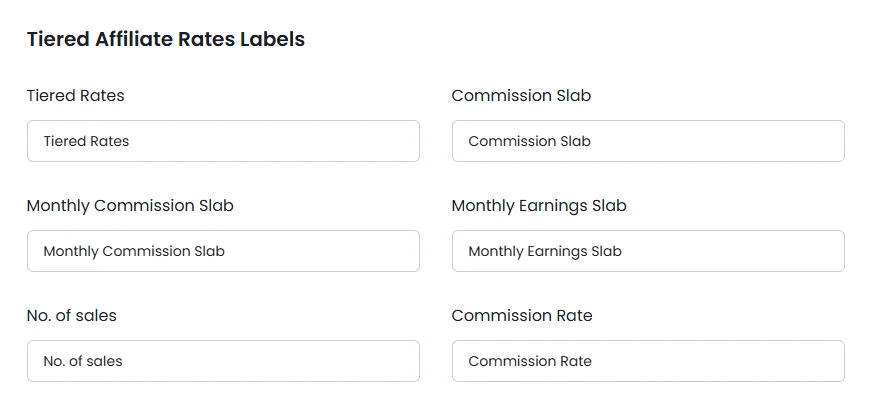
The Tiered Affiliate Rates Labels section lets you customize the labels you see for tiered commission rates.
For customizing these labels, you must install and activate the AffiliatePress Tiered Affiliate Rates Addon. Once activated, the Tiered Affiliate Rates Labels section becomes available, allowing you to customize labels for commission tiers, sales targets, earnings, and other tiered commission information.
For detailed setup instructions and more information, click here.
Common Labels
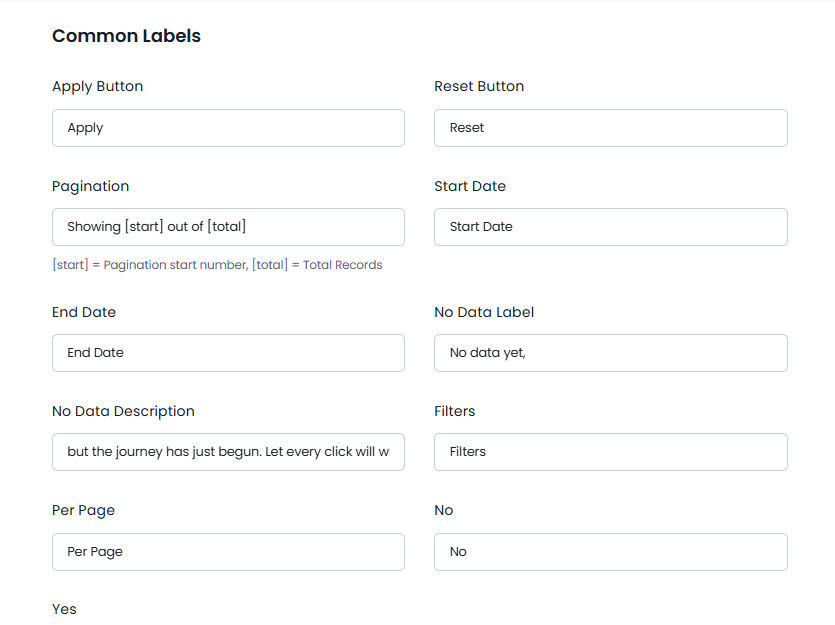
Apart from all the above labels, there are few common labels that can also be modified as per your requirements.