

Tutor LMS Integration

AffiliatePress integrates smoothly with Tutor LMS, allowing you to track course enrollments through affiliate links in real time. It helps you manage commissions efficiently and automates the payout process.
Set Up Tutor LMS Integration Addon
Go to AffiliatePress > Addons and enable the Tutor LMS Addon. Once activated, the Tutor LMS option will appear in your Integration settings, allowing you to configure the connection.
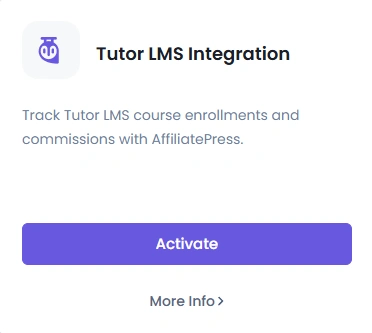
Enable Tutor LMS Integration
- Go to
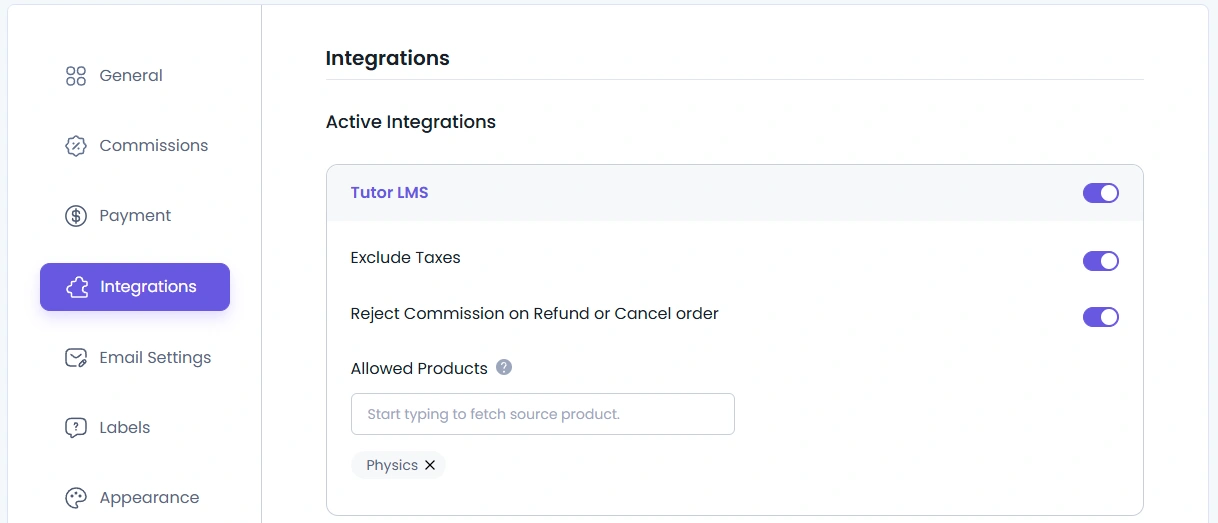
WordPress Admin > AffiliatePress > Settings > Integrations. - Enable the Tutor LMS option by enabling the switch.
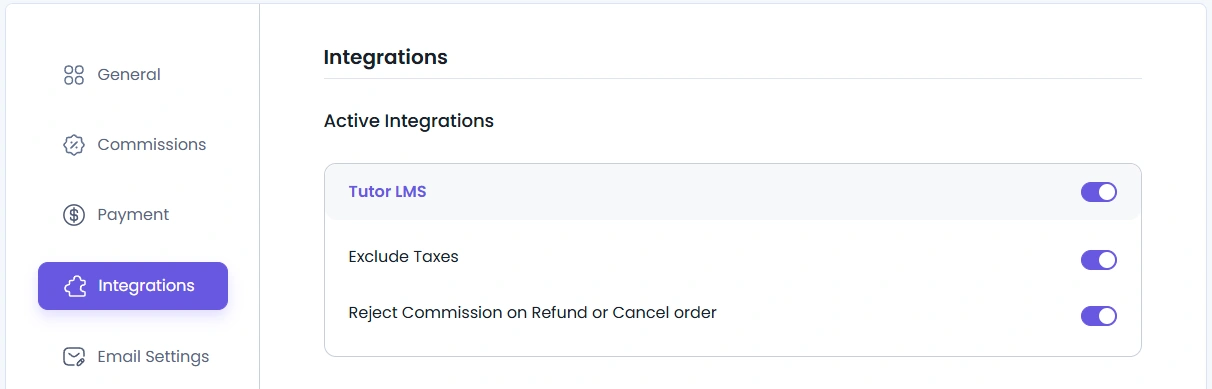
Once enabled, additional options will appear:
- Exclude Taxes
- Reject Commission on Refund or Cancel Order
Exclude Taxes :
When Exclude Taxes is enabled, the system calculates commissions using only the base product price, ignoring any tax included in the order. This ensures affiliates earn commissions purely on the actual course value. It helps maintain more accurate and consistent commission calculations.
Reject Commission on Refund or Cancel Order :
Cancel Order :
If an order is cancelled by either the admin or the customer, and the “Reject Commission on Refund or Cancel Order” setting is enabled, the system will automatically update the related affiliate commission status to Rejected. This ensures commissions are not granted for any cancelled orders, maintaining accurate and fair tracking.
Refund / Partial Refund :
When an order is refunded or partially refunded, and the “Reject Commission on Refund or Cancel Order” setting is enabled, the system will automatically update the related affiliate commission status to Rejected. This ensures that affiliates do not receive commissions on refunded transactions, keeping commission tracking accurate and consistent.
Commission Auto-Approve on Order Completion :
When an admin updates the order status from the admin panel and clicks “Mark as Paid”, the related affiliate commission is automatically updated to Approved. This ensures that commissions are only approved after the payment has been successfully completed, maintaining accurate and reliable commission tracking.
Default Commission : This automatic approval will only work if the Default Commission Status in AffiliatePress > Settings is set to “Dynamic – Upon Product Order Status”. If this setting in not set Dynamic – Upon Product Order Status , the commission status will not change automatically.
Tutor LMS Commisison
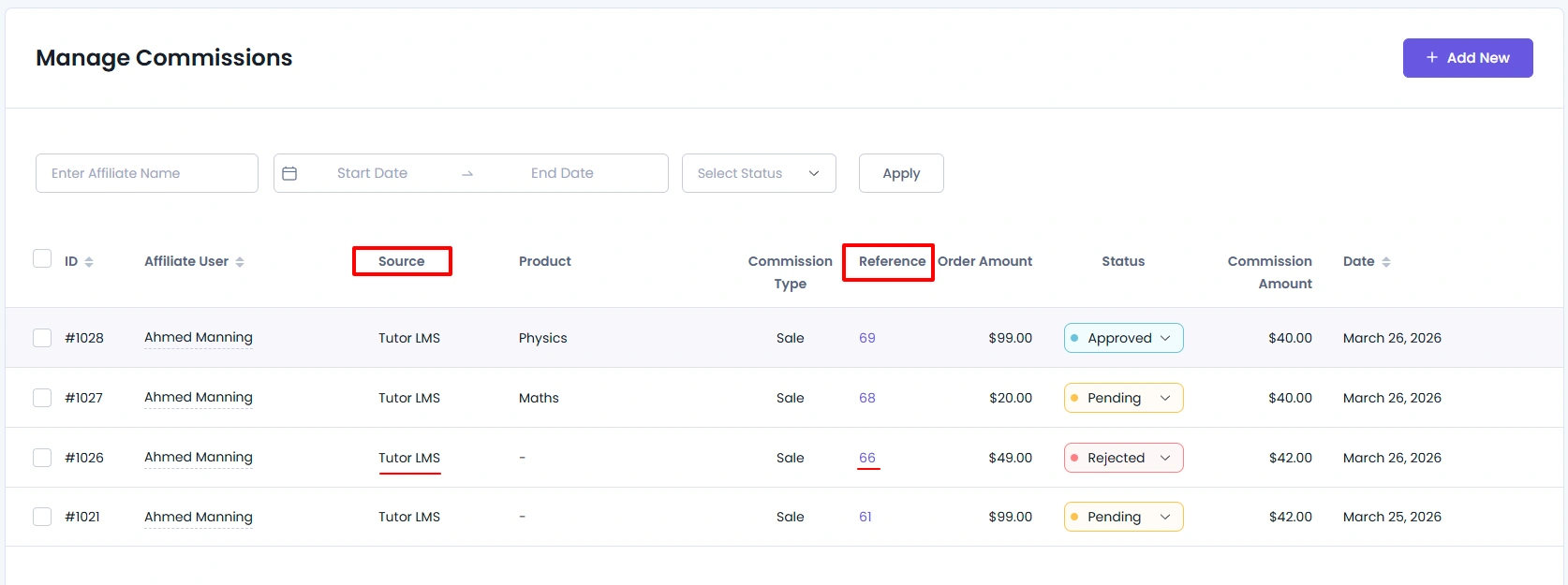
Commisison Source :
When a commission is generated through Tutor LMS using AffiliatePress, it will be recorded in AffiliatePress > Commissions. If the commission is created from a Tutor LMS course purchase, the source column will display Tutor LMS, allowing you to easily identify where the commission originated.
Commisison Order Link (Reference) :
For each Tutor LMS commission, the related order is linked in the Reference column AffiliatePress > Commissions. Clicking this reference link will redirect you directly to the corresponding Tutor LMS order page, where you can view complete order details such as purchase information, user details, and transaction status. This makes it easy to track and verify commissions directly from the original Tutor LMS order.
Tutor LMS Plugin Requirement
To enable commission generation with Tutor LMS, both the Tutor LMS plugin and the AffiliatePress plugin must be installed and activated, along with the AffiliatePress Tutor LMS Integration Addon. Once all required plugins are active, navigate to AffiliatePress > Settings > Integrations, where the Tutor LMS integration should appear in the list. After enabling the Tutor LMS integration and saving the settings, the system will begin tracking commisisons. Commissions will be created only when a user purchases a Tutor LMS course through a valid affiliate link and the integration is properly enabled.
Add Tutor LMS Commission (Admin Side)
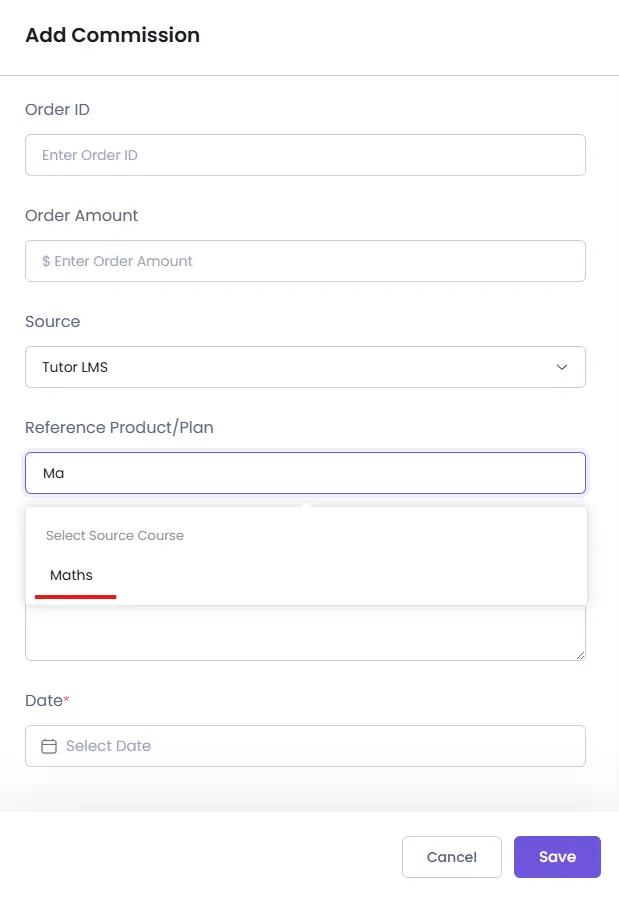
From the admin side, you can manually add a Tutor LMS commission by going to AffiliatePress > Commissions and clicking Add New. In the commission form, select Tutor LMS as the source from the Source dropdown. Once selected, the Reference Product/Plan field will allow you to search and select the course by typing a few characters, similar to a search field. After selecting the desired course, you can complete the form and add the commission accordingly.
Allow Commission for Specific Courses Only
AffiliatePress allows you to enable commissions only for selected courses instead of applying commissions to all courses. This feature is useful when you have many courses but want to allow affiliate commissions only for specific ones.When Product Selection is enabled, affiliates will earn commissions only for the courses that you explicitly select. Any courses not included in the selection list will not generate commissions.
- Go to
WordPress Admin > AffiliatePress > Settings > Integration Settings. - Locate the Tutor LMS Integration section.
- Use the product search field to find courses.
- Search by course name and select the courses you want to allow commissions for.
- The selected courses will appear in the list of allowed products.
After saving, if a customer purchases a course that is not included in the selected product list, no commission will be generated. However, if the purchased course is included in the Product Selection list, the commission will be generated successfully.
Disable Commission Limitation
Currently, AffiliatePress does not provide an option to disable commission at the individual course level for Tutor LMS courses.
You cannot assign different commission percentages per course , AffiliatePress does NOT support product-wise commission rates when Tutor LMS integration is enabled .