



MasterStudy LMS Integration
The AffiliatePress MasterStudy LMS Integration lets you automatically track affiliate course enrollments, and manage affiliate commissions and automate payouts directly from your MasterStudy LMS website.
Here we’ll show you how to integrate MasterStudy LMS with AffiliatePress.
Before You Begin
Make sure you have the following installed and activated:
- WordPress with administrator access to your WordPress dashboard
- MasterStudy LMS
- AffiliatePress (Any Premium version)
If everything above is good to go, follow the steps below to learn how to activate MasterStudy LMS in AffiliatePress.
Install & Activate the MasterStudy LMS Integration
Before using the MasterStudy LMS Integration, make sure AffiliatePress is installed and activated alongside the MasterStudy LMS plugin.
Next, install and activate the MasterStudy LMS Integration Addon to track affiliate sales, manage commissions and automate payouts for MasterStudy LMS course purchases.
Set Up MasterStudy LMS Integration Addon
After activating the MasterStudy LMS Addon, click Configure to open the AffiliatePress Integration Settings.
To set up the MasterStudy LMS integration:
- Go to AffiliatePress → Settings → Integrations.
- Scroll down till you see the MasterStudy LMS.
- Simply toggle it on.
After enabling, you’ll see the following commission settings below.
Reject Commission on Cancelled Order
AffiliatePress automatically rejects unpaid commissions for cancelled MasterStudy LMS orders. So when you enable it, any unpaid commission linked to a cancelled order will be automatically rejected.
Commission Calculation and Tax Handling
By default, when a customer buys a MasterStudy LMS course, AffiliatePress calculates the commission based only on the course price. Since this is by default,. You don’t have to configure any settings. Any additional charges such as taxes, are not included in the commission calculation.
Disable Commissions for Individual Courses
By default, commissions are applied to all Courses . To turn off commissions for a particular Course:
1. Go to WordPress Admin → MasterStudy → Courses.
2. Edit the Course you want to modify.
3. Scroll down to the AffiliatePress Settings.

4. Check the “Disable Commissions” option.
5. Save the changes.
Coupon Code Add-on Support
AffiliatePress allows you to track affiliates and generate commissions when customers buy any MasterStudy LMS courses using affiliate coupon codes. For using this feature, you must install and activate the AffiliatePress Coupon Code Addon.
After the addon is activated, you can assign coupon codes to specific affiliates. Thus when a customer uses an assigned affiliate coupon code during checkout:
- The coupon discount is applied to the order
- The purchase is attributed to the assigned affiliate
- AffiliatePress automatically generates a commission for the assigned affiliate
Coupon Behavior with “Commission Per Product Sold”
When the Commission Basis is set to Commission Per Product Sold, AffiliatePress calculates the commission using the original course price, even if a coupon discount is applied during checkout.
This means the coupon discount is not deducted from the amount used to calculate the commission.
For detailed setup instructions and more information, click here.
Product Selection Add-on Support
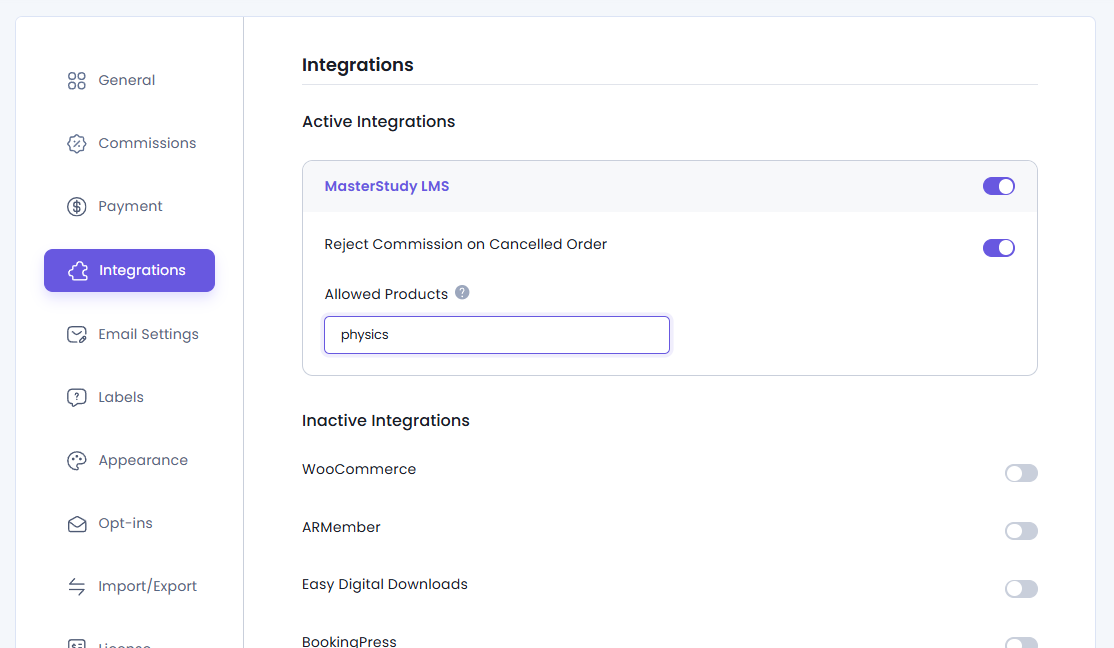
AffiliatePress allows you to generate commissions only for selected MasterStudy LMS courses instead of all courses.
For this, simply install and activate the Product Selection Addon. After that, you can decide and select which MasterStudy LMS courses are eligible for affiliate commissions.
After installing the add-on:
- Go to the Masterstudy LMS integration settings.
- Select one or more courses under Allowed Products.
- Save your settings.
After configuration, only the selected courses will generate affiliate commissions. Any courses that are not selected will be ignored.
Note: Product Selection takes priority over the Disable Commissions option. If a course is selected here, commissions will still be generated for that course.
For detailed setup instructions and more information, click here.
Product-wise Commission Add-on Support
AffiliatePress lets you assign different commission rates to specific MasterStudy LMS courses. And to do that, you must install and activate the Product-wise Commission Rate Addon.
After that, you can easily set custom commission rates for specific courses while keeping your default commission settings for all other courses.
Product-wise commission rates always override:
- Default commission
- Group commission
- Affiliate specific commission
Courses without a custom commission rate continue using the default commission settings. For detailed setup instructions and more information, click here.
WooCommerce Checkout Support
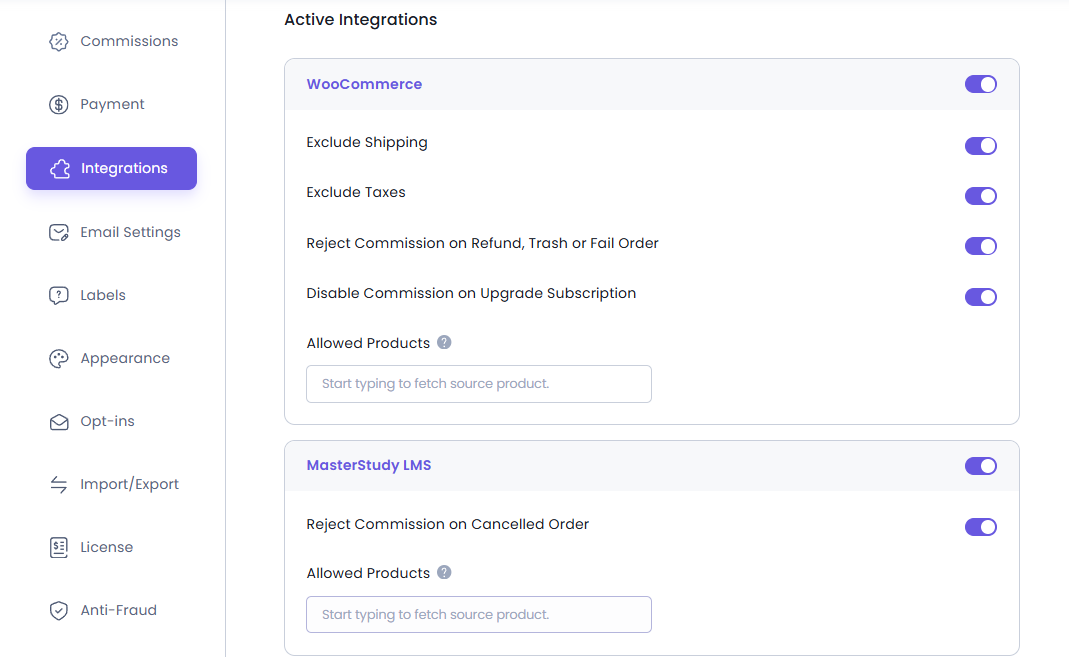
If your MasterStudy LMS website uses WooCommerce Checkout, you must also enable the WooCommerce Integration in AffiliatePress.
When WooCommerce Checkout is enabled:
- Both the MasterStudy LMS and WooCommerce integrations remain active.
- Affiliate commissions are tracked through WooCommerce.
- The commission source is recorded as WooCommerce.
Important: Even if the commission rate and product selection are configured for MasterStudy courses, when WooCommerce Checkout is used, the commission source will always be recorded as WooCommerce.
Managing MasterStudy Commissions
AffiliatePress records all MasterStudy LMS commissions in the AffiliatePress → Commissions page. This way, you can easily identify, verify and manage course-related affiliate commissions.
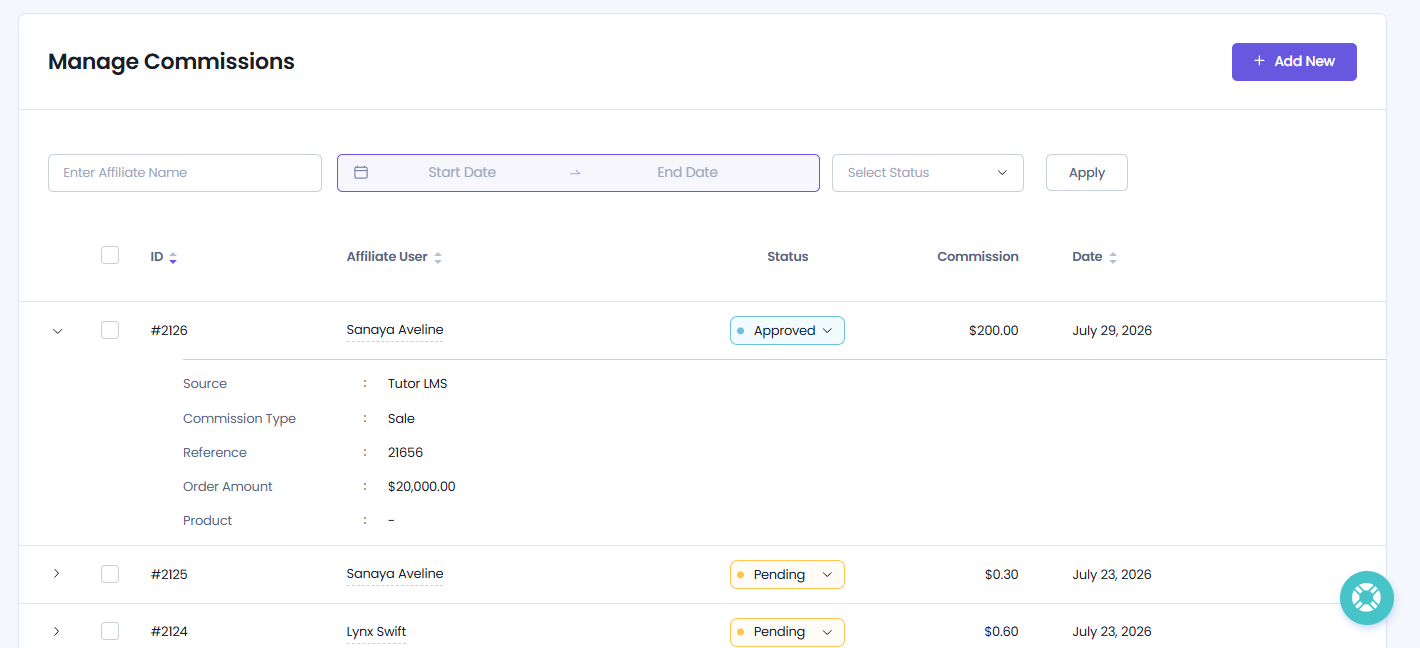
From here you can view every commission generated through the MasterStudy LMS Integration in the Source column. This way you can quickly recognize which commissions originated from MasterStudy LMS course purchases if you have AffiliatePress connected with more than one plugin.
Moreover, each MasterStudy LMS commission has a reference link in the Reference column. Clicking the reference opens the corresponding MasterStudy LMS order which allows you to review the purchase details and verify the commission.
How To Manually Add MasterStudy LMS Commissions
You can add a MasterStudy LMS commission the same way you add any other new commission record in AffiliatePress. To learn how to manually add MasterStudy Commissions, check out our beginner friendly guide right from here.
How MasterStudy LMS Commission Tracking Works
After the MasterStudy LMS Integration is activated:
- A visitor clicks an affiliate link.
- Later, let’s say the visitor purchases a MasterStudy LMS course.
- In real-time, AffiliatePress validates the purchase
- After that, a commission is generated for the affiliate.
- If the order is cancelled, the commission is automatically rejected based on your integration settings.
Even if the commission rate and product selection are configured for MasterStudy courses, when WooCommerce Checkout is used, the commission source will always be recorded as WooCommerce.