



Affiliate Panel
AffiliatePress offers a dedicated affiliate front-end dashboard for each of your affiliates. From here, your affiliates can track their performance, generate referral links, access promotion creatives and manage their account.
As soon as the plugin is activated, AffiliatePress automatically adds a ready-to-go Affiliate Panel page built with the WordPress block editor.
Here we’ll walk you throughout each and every section of the Affiliate Panel and what your affiliates will get once they log in.
Note: The Affiliate Panel can be added to any page using the AffiliatePress Elementor widget or the Affiliate Panel shortcode. If you’re using shortcodes, see the Shortcodes documentation for setup instructions and available shortcode options.
Exploring the Affiliate Panel
Here are all the default Affiliate Panel tabs your affiliates will see after they log in.
Note: Want to customize the Affiliate Panel? Personalize its labels, text, colors, borders, and more without writing any code. Head over to Labels Settings and Appearance Settings to get started.
Dashboard
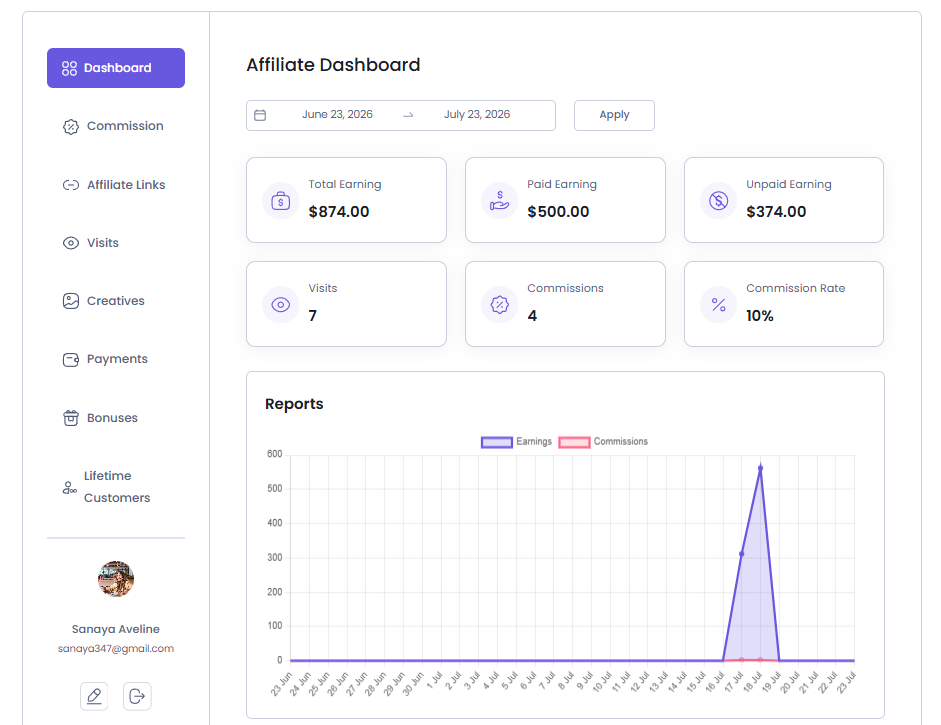
The Dashboard is the first screen your affiliates see after logging into the Affiliate Panel. It gives them a quick overview of their affiliate performance.
Your affiliates can also use the built-in date range filter to view their performance for a specific period which – trust me- makes it a lot easier to compare results over time.
The Dashboard shows the KPI cards such as:
- Total Earnings: The total commissions earned during the selected date range.
- Paid Earnings: The amount that has already been paid to the affiliate.
- Unpaid Earnings: The commissions that have been earned but are still awaiting payment.
- Visits: The total number of referral visits.
- Commissions: The total number of commissions earned.
- Commission Rate: The current commission rate of the affiliate.
After the KPI cards, affiliates can see a Reports chart that gives them a complete visual overview of their performance over time. It shows the graphs as for Earnings and Commissions as well.
Tip: Encourage your affiliates to check the Dashboard regularly to track their overall performance
Commission
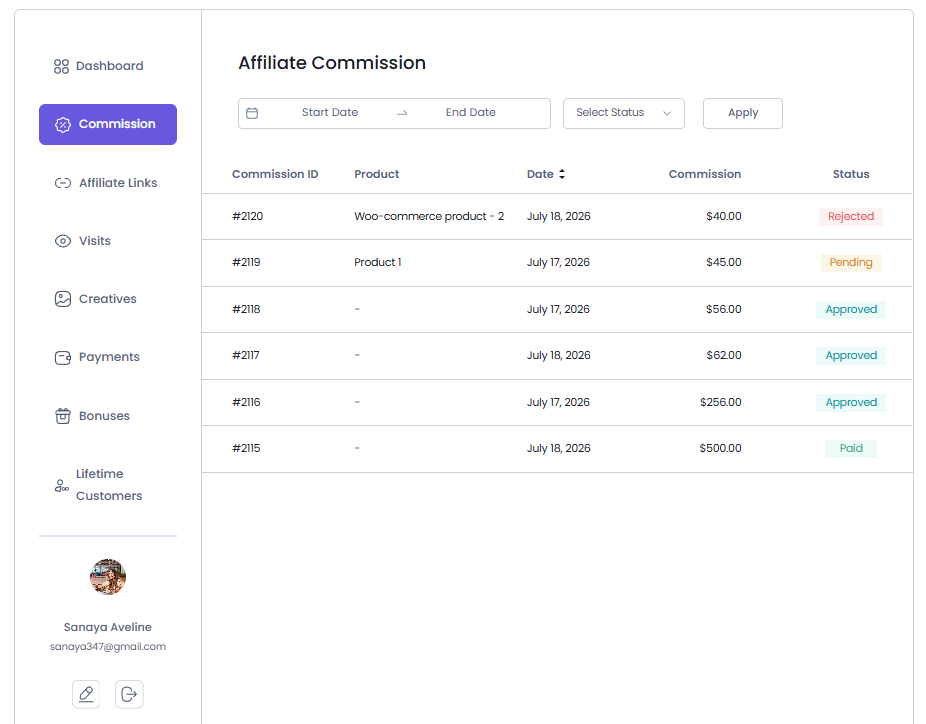
The Commission tab allows your affiliates to see all the commissions they’ve earned through your affiliate program.
Affiliates can use the available filters to quickly find commission records for a specific period by selecting a Start Date and End Date. Furthermore, there’s an option to filter commissions records by Status (Approved, Pending, Rejected, Paid).
For each commission, affiliates can view details such as:
- Commission ID
- Product
- Date
- Commission amount
- Status (Approved, Rejected, Pending or Paid)
Note: If you enable the Hide Pending and Rejected Commissions from Affiliate User option under WordPress Dashboard → AffiliatePress → Settings → Commissions, affiliates will only see Approved and Paid commissions in their Commission tab.
Affiliate Links
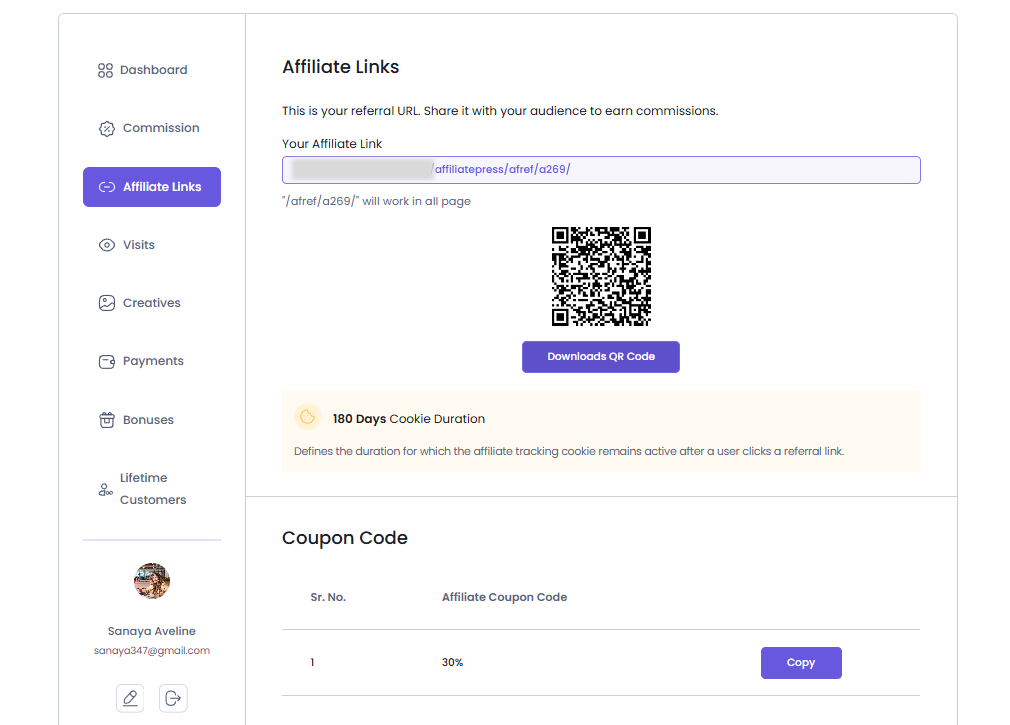
The Affiliate Links tab gives your affiliates everything they need to start promoting your products or services. From here, they can access their referral link, view assigned coupon codes and landing pages and manage their custom affiliate links.
Your Affiliate Link
Every affiliate receives a unique referral URL that can be shared through websites, blogs, social media, email campaigns or any other promotional channel. Whenever someone clicks this link and completes a qualifying action within the cookie duration, the referral is credited to the affiliate.
The panel also shows the cookie duration which is great so that affiliates know how long their referral will still be valid after a visitor clicks their link.
Coupon Code
Affiliates can share coupon codes with their audience so customers get discounts while the referral is attributed to the affiliate.
To use this feature, you must install and activate the AffiliatePress Coupon Code Addon. Once activated, the Coupon Code section becomes available in the Affiliate Links tab, where affiliates can view, copy, and share their assigned coupon codes while earning commissions from eligible purchases.
For detailed setup instructions and more information, click here
Note: If coupon tracking isn’t configured or no coupon has been assigned, this section will display No Data.
Affiliate Landing Page
In AffiliatePress, these pages allow affiliates to promote specific products, services or campaigns without needing to use referral parameters in the URL. Any assigned dedicated affiliate landing pages, they’ll be listed here.
To use this feature, you must install and activate the AffiliatePress Affiliate Landing Page Addon. Once activated, the Landing Page section becomes available in the Affiliate Links tab, allowing affiliates to access and promote their assigned landing pages directly from the Affiliate Panel.
For detailed setup instructions and more information, click here.
Note: If no landing pages have been assigned, this section will display No Data.
Custom Affiliate Links
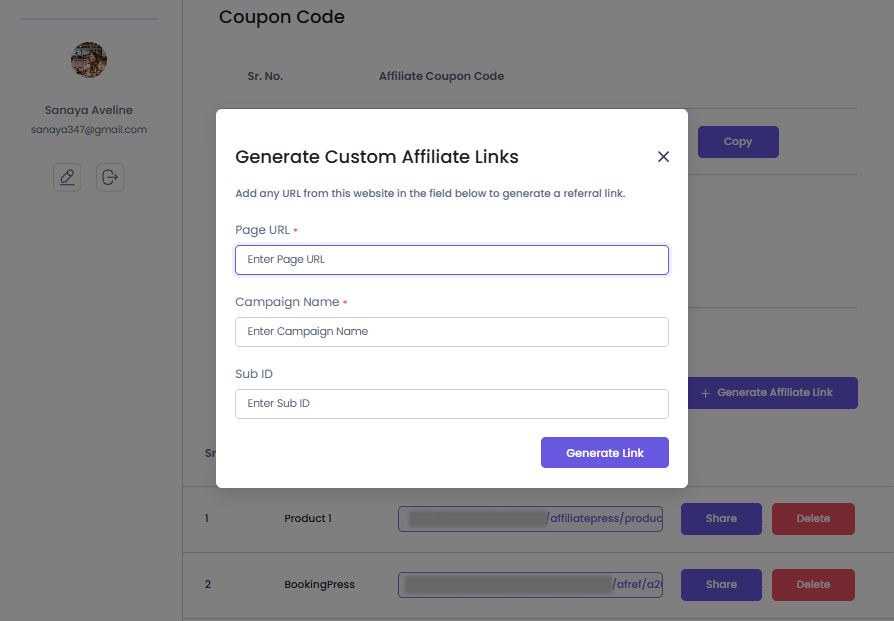
Affiliates can access the custom affiliate links they’ve created for specific pages or campaigns. Click on the + Generate Affiliate Link button next to Custom Affiliate Links section, then add:
- Page URL
- Campaign Name
- Sub ID (Optional)
After generating the link, it’s easy to copy or share the link directly to social media platforms like Facebook, X, LinkedIn, WhatsApp and email.
Visits
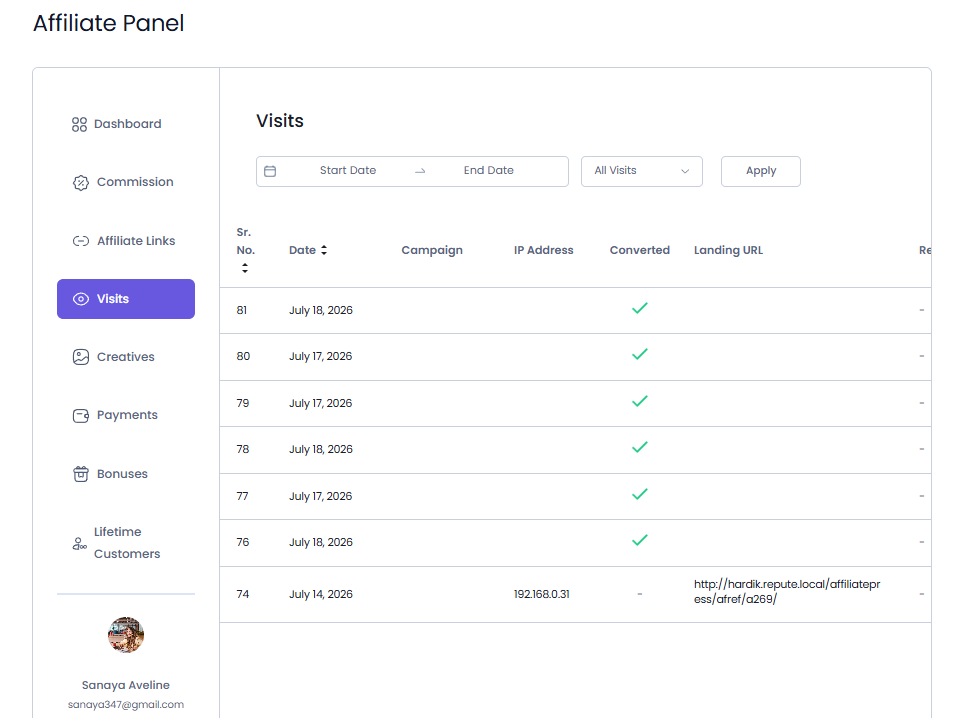
The Visits tab shows all the traffic generated through their referral links or coupon codes. It gives a record of every visit so affiliates can understand how their promotional efforts are turning out.
Affiliates can also filter visit records using the available Start Date and End Date fields. As for each visit record, affiliates can view details such as:
- Sr. No
- Visit Date
- Campaign name
- IP Address
- Converted
- Landing URL
- Referrer URL
By reviewing the visit history, affiliates can compare the performance of different campaigns and recognize which promotional efforts generate the most traffic.
Creatives
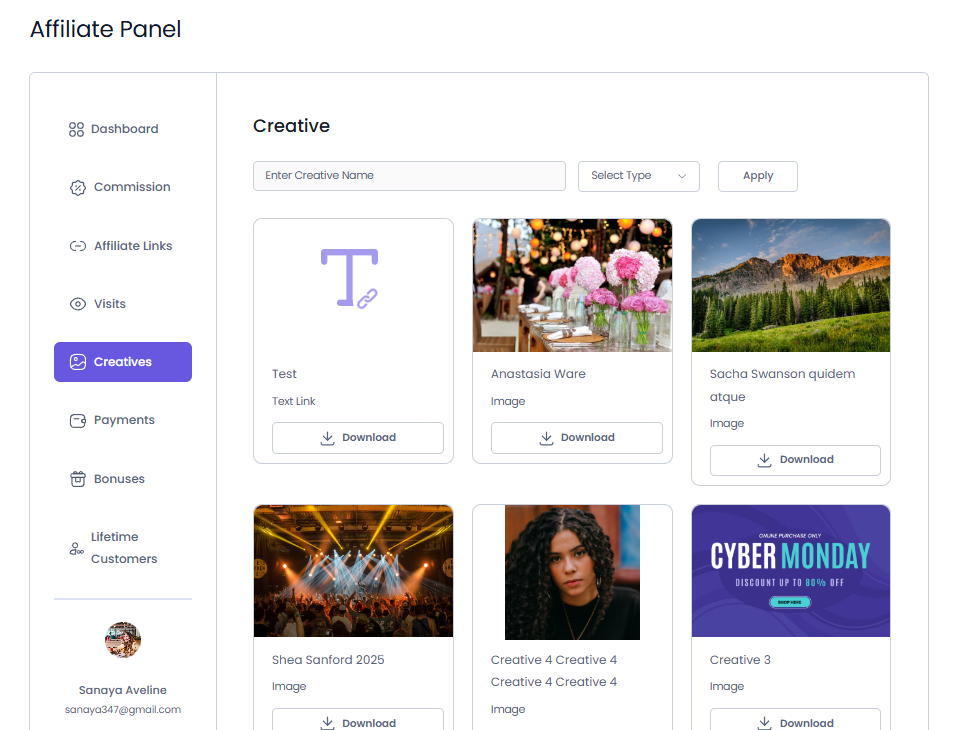
The Creatives tab gives your affiliates access to all the promotional materials you’ve made available for your affiliate program.
Based on your setup, this may include banner images, text links or other marketing assets. You affiliates can filter out these creatives by name or type (Image or Text Link).
Click on it and your affiliates can preview, download or copy the HTML Code of the creative to paste it on their website.
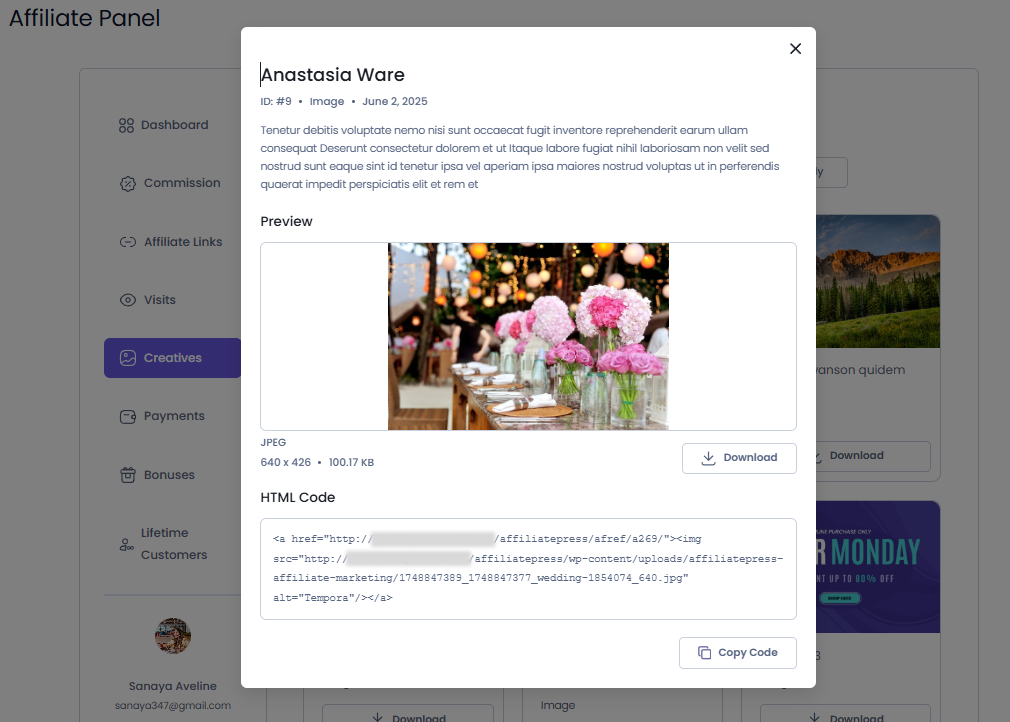
These brand creatives can be accessed from one place, and be used by affiliates across their websites, blogs, email campaigns or social media to promote your products and services.
Payments
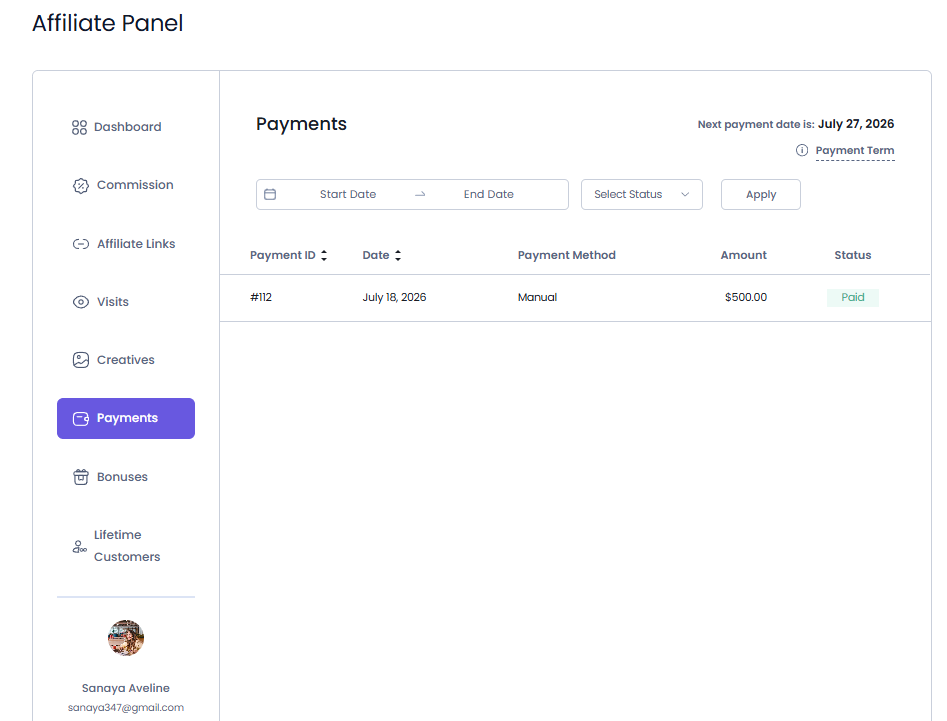
The Payments tab lets your affiliates view their payout history in one place.
They can keep track of the payments they’ve received, along with important details such as:
- Payment ID
- Date
- Payment Method
- Amount
- Status
This helps affiliates stay informed about their earnings and easily verify completed payouts.
Additional Affiliate Panel Tabs (Add-ons)
Depending on the addons you’ve activated, your affiliates may see extra tabs in their Affiliate Panel. These tabs give access to extra features and are only shown when the corresponding addon is active.
Network
AffiliatePress allows you to create a multi-level affiliate program where affiliates can earn commissions from both their own referrals and the referrals generated by affiliates they recruit.
If you’ve activated and set up the Multi-level Commission add-on, your affiliates will see the Network tab. From here, they can access their invite link, view their referral network and track the performance and earnings of affiliates they’ve referred.
For detailed setup instructions and more information, click here.
Bonuses
AffiliatePress allows you to automatically reward affiliates when they achieve their performance goals.
The Bonuses tab becomes available when the Performance Bonus add-on is active. It allows affiliates to track their bonus targets, track their progress and view any bonus rewards they’ve earned.
For detailed setup instructions and more information, click here.
Lifetime Customers
AffiliatePress allows affiliates to continue earning commissions from future purchases made by customers they originally referred to.
Activate the Lifetime Commissions add-on so your affiliates can have the Lifetime Customers tab. Depending on your settings, affiliates can which customers are linked to their account along with their lifetime referral relationships status.
For detailed setup instructions and more information, click here.
Managing Your Affiliate Profile
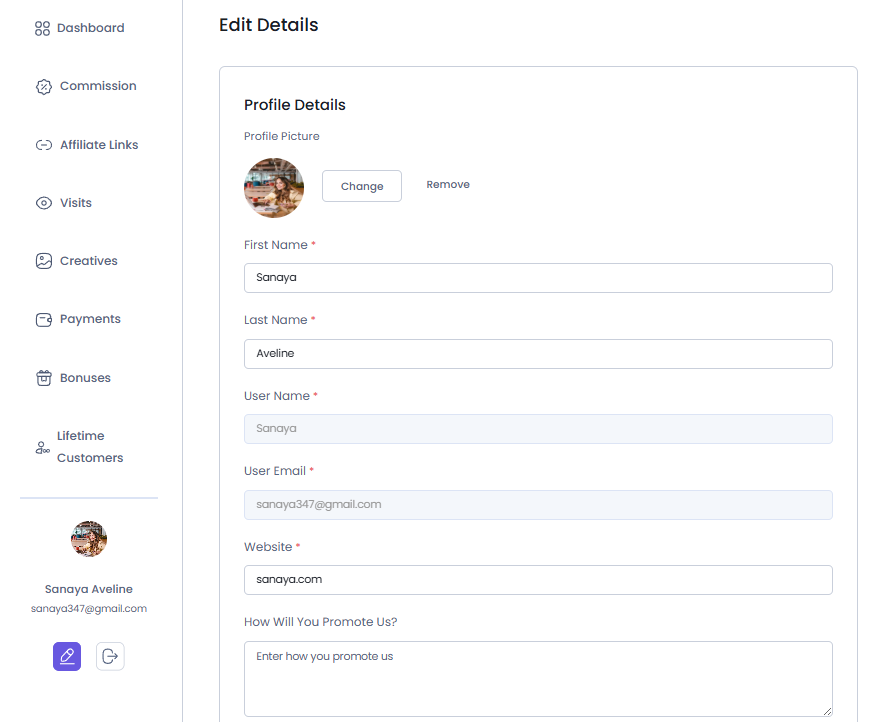
If the permission is granted from the backend, affiliates can edit the profile tab. They can change their:
- Profile Picture
- First Name
- Last Name
- Website
- and other details which are allowed.
Apart from these, affiliates can also set more options – most depending on the settings you have set from backend:
Payment Detail
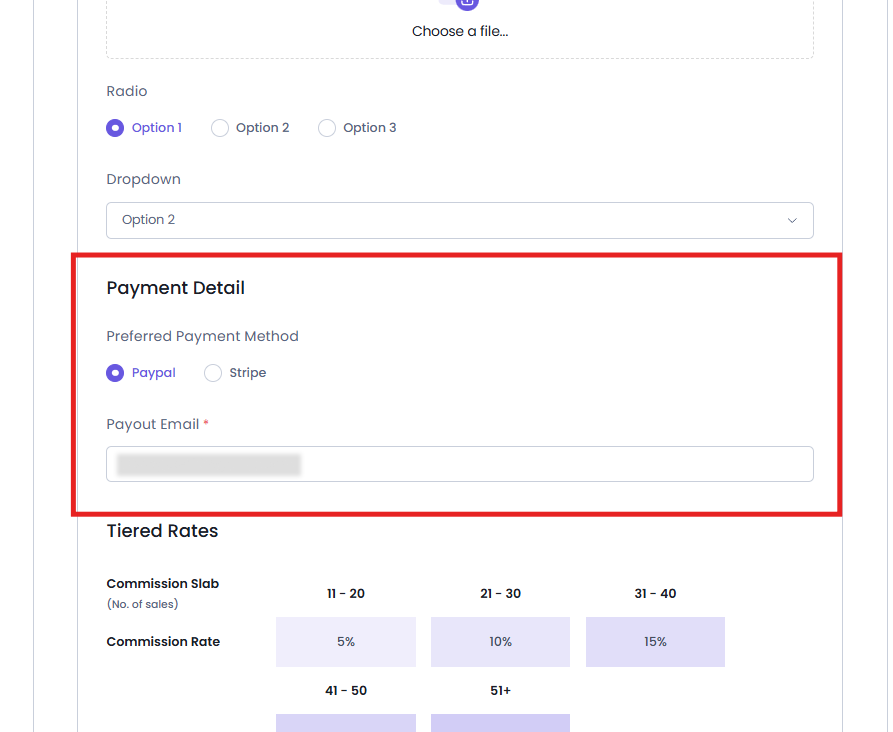
You can also let affiliates configure their Payment Detail – letting them choose their preferred payment method.
AffiliatePress lets you pay your affiliates via PayPal or Stripe.
By default, they can accept payment via PayPal. Affiliates can add their payout email from the Payment Details section of their profile and receive payouts through PayPal.
Stripe Payment Method
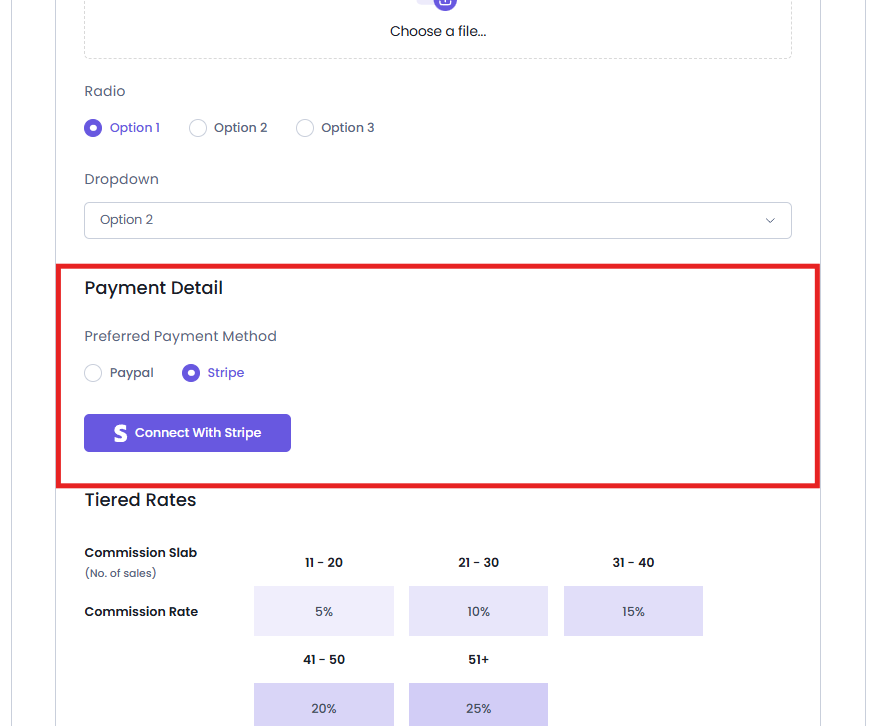
As for Stripe, administrators first have to install and activate the AffiliatePress Stripe Payout Addon. Once activated, affiliates can Connect their Stripe account from the Payment Details section of their profile and get payouts via the Stripe payment gateway.
For detailed setup instructions and more information, click here.
Tiered Rates
Their tiered rates are also shown in a proper table format for easy understanding.
Change Password
Affiliates can also change their password anytime they want.
For changing/updating the password, first they are required to type their current password. If the currency password is wrong, they can’t update the password. This functionality works as a security layer to ensure the real affiliate is the one trying to change the password.
After the currency password, simply add the new password, confirm it again, and click on Save.
Delete Account
At last, they can change their password or even have the option to delete their account permanently.
How to Log Out of the Affiliate Panel
Affiliates can log out of the affiliate panel by clicking the Logout option, located next to the Edit Profile icon. Just one click and the affiliate will be logged out.
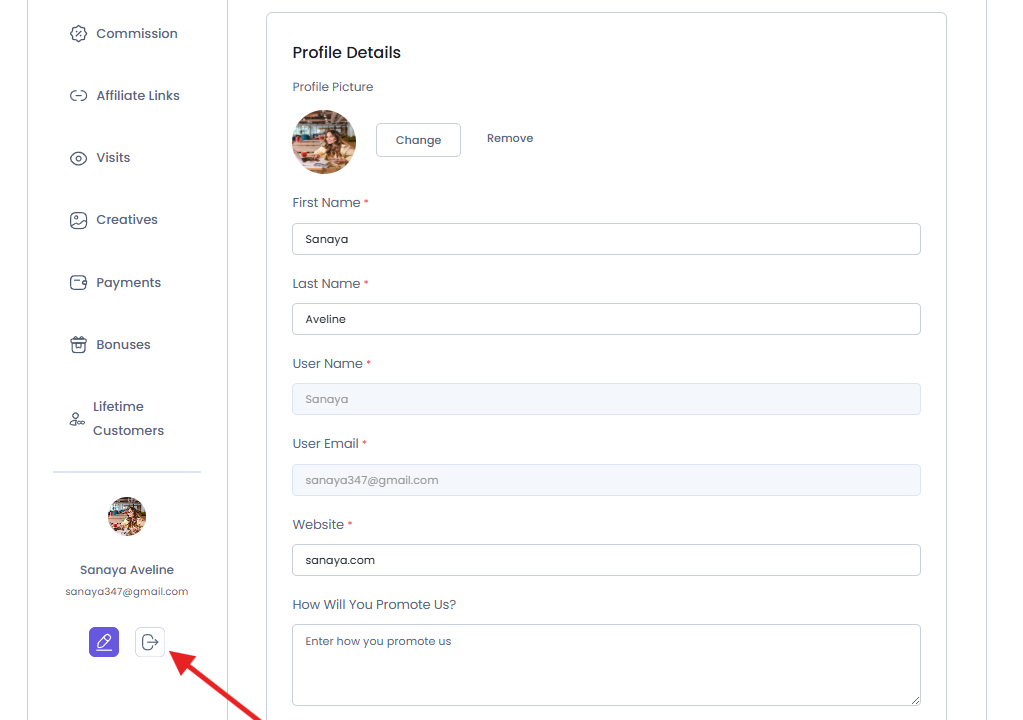
It securely ends the affiliate session and returns the user to the login screen or homepage, depending on site configuration.
Note: If the Affiliate Panel is blank or doesn’t appear, verify the page that contains the Affiliate Panel block or shortcode, and that the Affiliate Panel page is selected in General Settings.