



Payment Settings
Payment Settings allow you to configure how AffiliatePress sends payouts to affiliates. You can process payouts manually in just one click or automatically via payment gateways such as PayPal and Stripe.
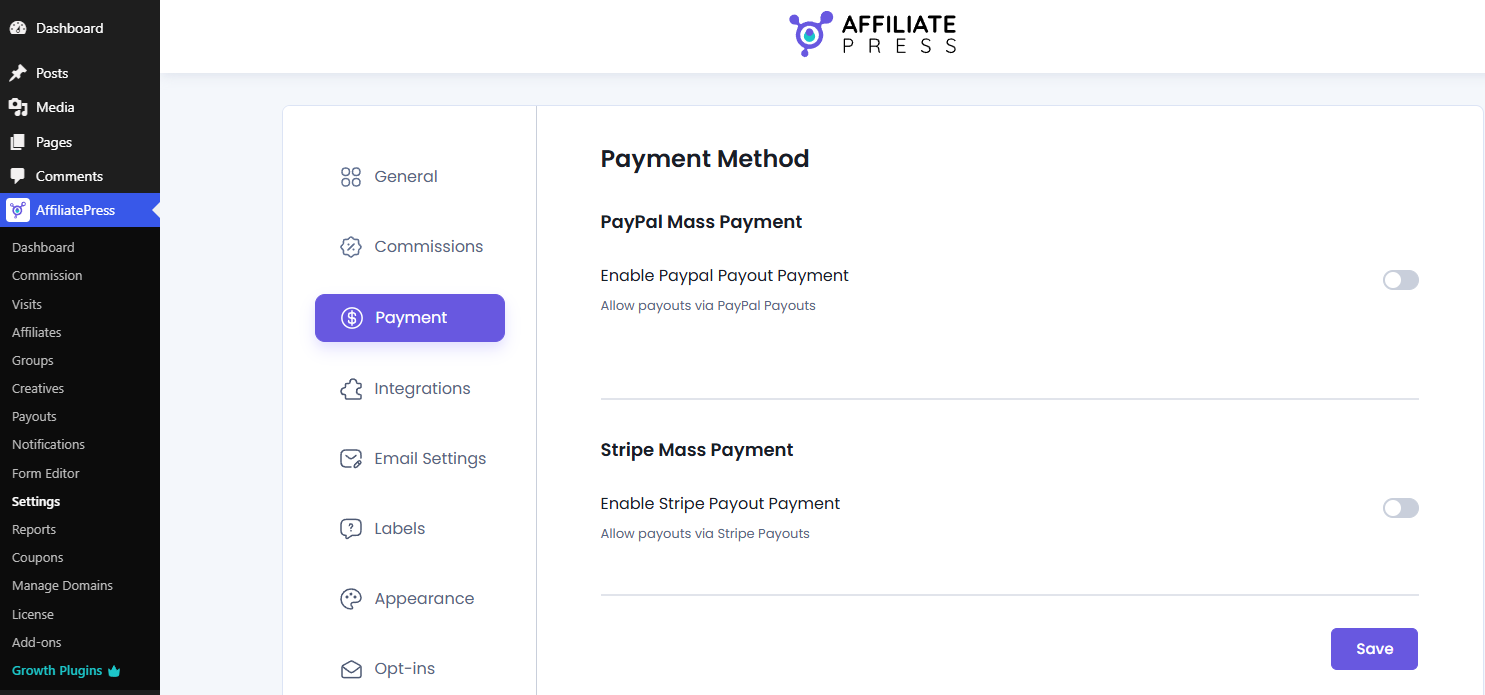
You can set your Payment Settings from AffiliatePress → Settings → Payment. From here, you can enable one or more payout methods available in AffiliatePress.
Overview
The Payment Settings gives you two payment methods to set up.
- PayPal Mass Payment: Send affiliate payouts via your PayPal Business account.
- Stripe Mass Payment: Send affiliate payouts via your connected Stripe account.
Configure the payment gateway you want to use, enter its API credentials, and don’t forget to Save your changes before generating payouts.
PayPal Mass Payment

AffiliatePress allows you to send affiliate payouts via PayPal. Before payouts can be processed, you’ll need to connect your PayPal Business account.
First of all, toggle on the Enable PayPal Payout Payment option to reveal the below settings:
Payout Type
With the PayPal Payment Gateway, you will get an option to select the Payout Type. Let’s check how each type works:
- Automatic: If this payout type is selected, then the admin has to configure the PayPal account, and when the payout is generated, at that time the system will check the PayPal ID and then mark the payout.
- Manual: If this payout type is selected, then the admin has to manually manage the payouts. And other settings to configure PayPal will not be displayed.
For those who chose Manual payout type, you can go straight to save.
However, those who selected Automatic Payouts have to configure Payment Mode, and add Paypal Client ID and Paypal Secret Key.
Payment Mode
Choose the PayPal environment you want to use.
- Sandbox: Used for testing payouts without sending real money.
- Live: Used to process real affiliate payouts through your PayPal Business account.
It’s recommended to test your configuration in Sandbox mode before switching to Live mode.
Paypal Client ID & Secret Key
Next comes the PayPal Client ID and PayPal Secret Key which you have to obtain from PayPal’s official website. After entering both, make sure to Verify it first before hitting the Save button at the end of Payment Settings.
How to Get Your PayPal Client ID and Secret Key
1. Create a PayPal Business Account
Go to PayPal’s website, click Sign Up, select Business Account, and complete the registration process.
2. Log into the PayPal Developer Dashboard
Visit PayPal Developer, click “Log In,” and use your PayPal Business account credentials.
3. Create a New App
- In the Developer Dashboard, go to My Apps & Credentials.
- Under REST API apps, click “Create App,” name your app, and choose the Sandbox or Live environment.
- Click Create App to proceed.
4. Copy the Client ID and secret key.
Use these credentials to authenticate your API requests securely. After creating the app, copy the Client ID and Secret Key displayed under the app details.
Need help getting your PayPal API credentials? Follow the PayPal Setup Guide.
Stripe Mass Payment

To enable Stripe payouts, connect your fully verified Stripe account by entering your Stripe publishable key and secret key in the Stripe Payment Settings tab.
Make sure payouts are enabled in your Stripe dashboard, then save your settings to start processing payments through Stripe.
For more information, please visit the Stripe Addon documentation.