



Bitly Integration
Long and messy links don’t convert well? Then give your affiliates instant short and clean affiliate referral links using the Bitly integration with AffiliatePress. Make links are usable and easy to share with full tracking accuracy.
Here we’ll show you how to integrate Bitly with AffiliatePress.

Before You Begin
Make sure you have the following systems installed and activated before catching up with this guide:
- WordPress with administrator access to your WordPress dashboard
- Bitly account
- AffiliatePress (Any Premium version)
If everything above is good to go, follow the steps below to learn how to activate Bitly Integration in AffiliatePress.
Install & Activate the Bitly Integration Add-on
Before using the Bitly Integration, make sure AffiliatePress is installed and activated.
After that, you must install and activate the Bitly Integration Addon so you can generate shortened affiliate referral links right inside the affiliate panel.
Configure the Bitly Integration
After the add-on is activated, you’re ready to connect your Bitly account with AffiliatePress and configure the integration.
Go to AffiliatePress → Settings → General, and scroll down till you find Bitly Settings to configure the integration.
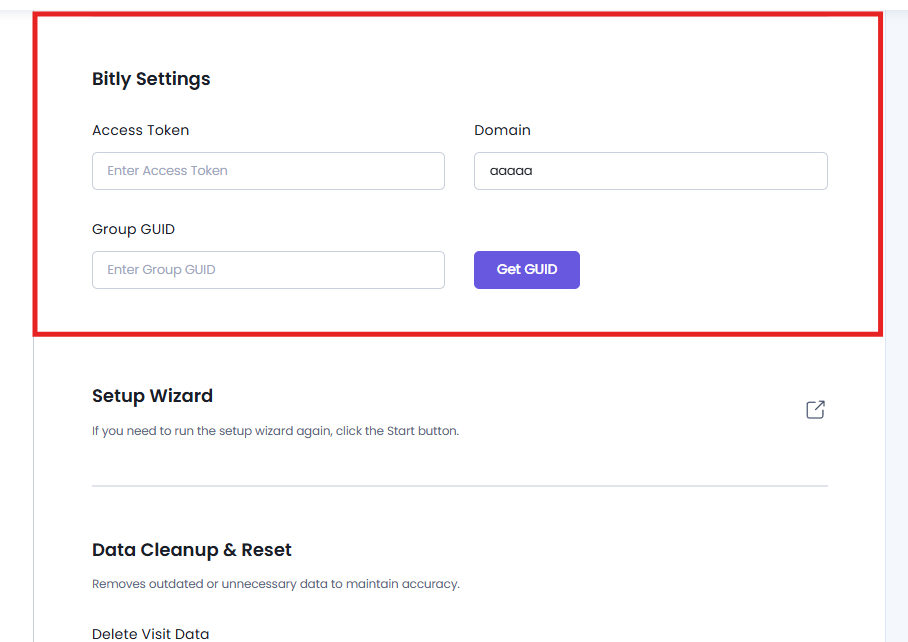
Access Token
The Access Token allows AffiliatePress to securely communicate with your Bitly account and generate shortened affiliate referral links.
Important: Make sure your Bitly Access Token has the required permissions. Otherwise, AffiliatePress won’t be able to retrieve your Group GUID or generate shortened referral links.
To get your Bitly Access Token:
- Log in to your Bitly account.
- Go to Settings → Developer Settings → Access Token.
- Copy your Access Token.
- Paste it into the Access Token field in AffiliatePress.
After entering the token, next you have to retrieve your Bitly Group GUID.
Note: If you connect a different Bitly account by updating your Access Token, newly generated Bitly referral links will use the new Bitly account.
Group GUID
The Group GUID identifies the Bitly group used to create and manage shortened affiliate links.
After entering your Access Token, click Get GUID. AffiliatePress will automatically retrieve your Bitly Group GUID and populate the field.
Domain (Optional)
If you’re using a custom Bitly domain (for example, go.example.com), simply type it here in the Domain field.
If you don’t have a custom Bitly domain, simply leave this field blank. AffiliatePress will use the default bit.ly domain to create shortened affiliate referral links.
At last, after you’ve finished configuring the Bitly settings, scroll till the bottom of the General Settings page, and Save to connect your Bitly account with AffiliatePress.
How the Bitly Integration Works
After the Bitly Integration is all set, AffiliatePress automatically generates shortened Bitly referral links for your affiliates. These links work just like any standard affiliate referral links do, yet much easier to share across websites, social media platforms, emails and other marketing channels.
Thus here’s how it works:
- An affiliate copies their referral link from the Affiliate Panel.
- AffiliatePress automatically generates a shortened Bitly link.
- The affiliate shares the Bitly referral link with their audience.
- When a visitor clicks the shortened link, Bitly redirects them to the original affiliate referral URL.
- AffiliatePress continues tracking the referral and attributes commissions normally.
The Bitly Integration only changes how affiliate referral links are shown and shared. It does not affect referral tracking, commission calculations or attribution within AffiliatePress.
Where Can Affiliates Find Their Bitly Links?
AffiliatePress lets your affiliate view and access their Bitly affiliate referral links directly from the Affiliate Panel → Affiliate Links tab.
Important: If a Bitly referral link isn’t generated, your Bitly account may have reached its monthly link generation limit. New links will be generated automatically after your Bitly quota resets.
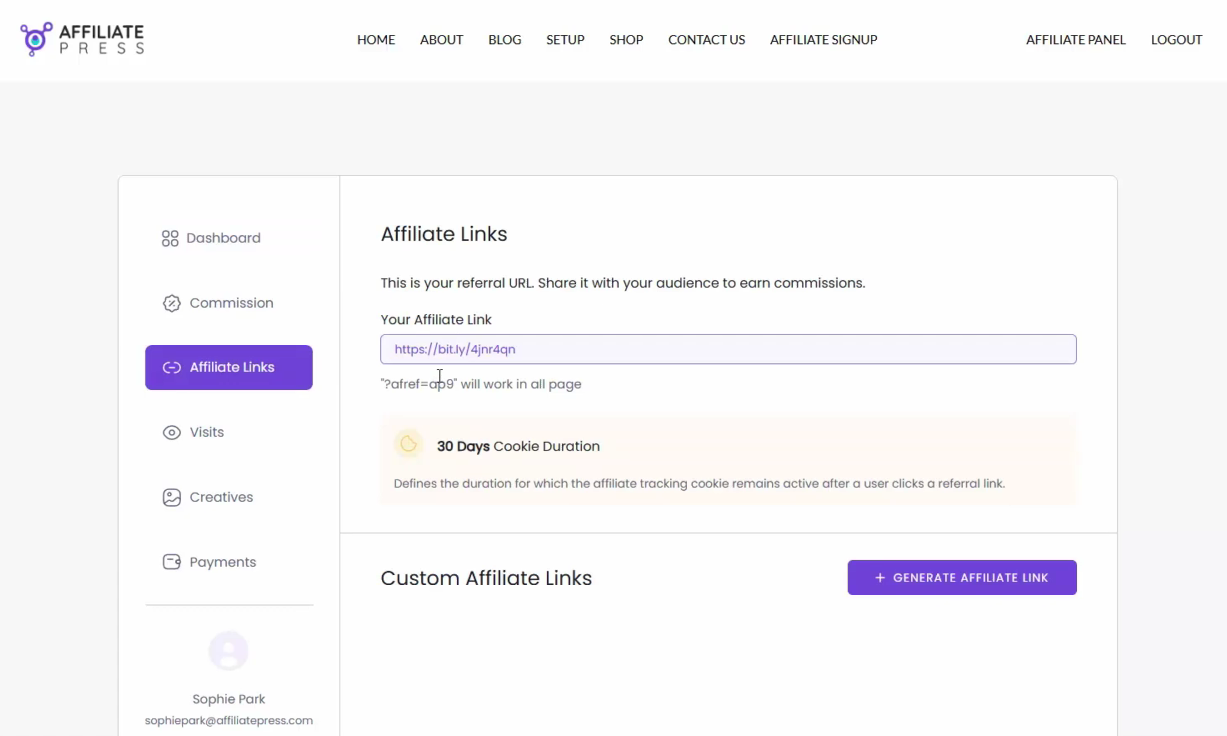
When an affiliate copies their referral link, AffiliatePress automatically provides the Bitly-shortened version rather than the standard affiliate URL. Affiliates can then share these links across websites, blogs, social media platforms, emails, and other marketing channels.
How Administrators Can View Bitly Links
Site administrators can view Bitly referral links from the AffiliatePress → Affiliates page.
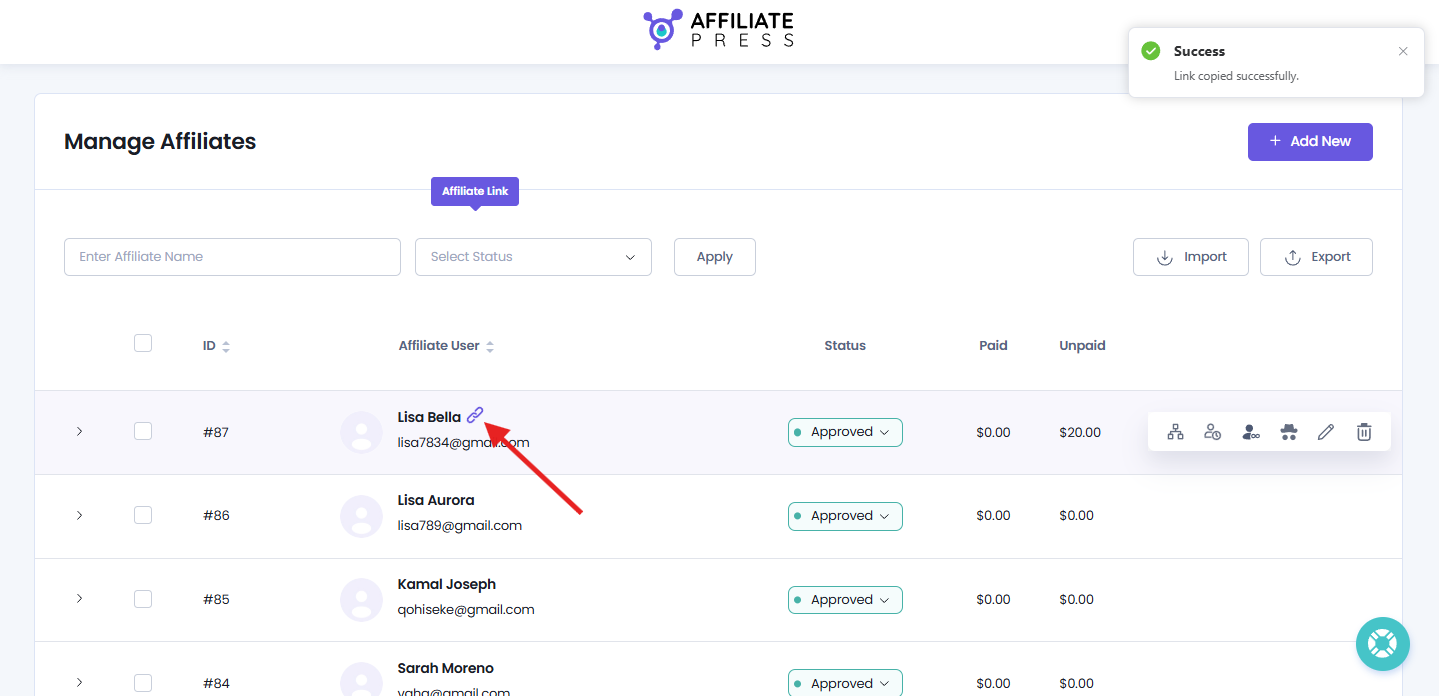
Simply click on the link icon next to the affiliate user’s name to copy its name.
This way you can verify that Bitly links are being generated correctly for each affiliate and manage affiliate accounts from a single location.
Verify Your Setup
After completing all the setup processes, it’s recommended to verify that the integration is working correctly.
To test the Bitly Integration:
- Open the Affiliate Panel and copy an affiliate referral link.
- Confirm that the copied link uses the bit.ly domain (or your custom Bitly domain).
- Open the shortened link in a new browser tab.
- Verify that it redirects to the correct destination page while preserving the affiliate referral.
If everything works as expected, your Bitly Integration has been integrated successfully.
Important: If you’re using a free Bitly account, changes made to Affiliate URL Parameter, Default Affiliate URL Format, Default Affiliate URL, or Enable Fancy Affiliate URL will change the affiliate URL structure. Previously generated Bitly links won’t update automatically, so you’ll need to update them manually wherever they’re being used.
Important: If you’re using a Bitly Premium account, existing Bitly links automatically reflect changes made to your AffiliatePress URL settings, so manual updates aren’t required.