



Paid Memberships Pro Integration
AffiliatePress integrates with Paid Memberships Pro to automatically track commissions whenever a customer purchases a membership through your website.
Whether you offer one-time memberships, recurring subscriptions, or premium content, AffiliatePress automatically attributes each completed membership purchase to the affiliate who referred the customer. This makes it easy to reward affiliates without manually tracking commissions.

Here you’ll see how to integrate Paid Memberships Pro with AffiliatePress.
Before You Begin
Before setting up the integration, make sure you have the following installed and activated:
- WordPress with administrator access
- Paid Memberships Pro (Pro)
- AffiliatePress
Set Up Paid Memberships Pro Integration
To turn on the Paid Memberships Pro integration:
- Head over to AffiliatePress → Settings → Integrations.
- Scroll down until you find the Paid Memberships Pro integration.
- Toggle on the integration and save your changes.
After turning on the integration, the following commission setting becomes available.
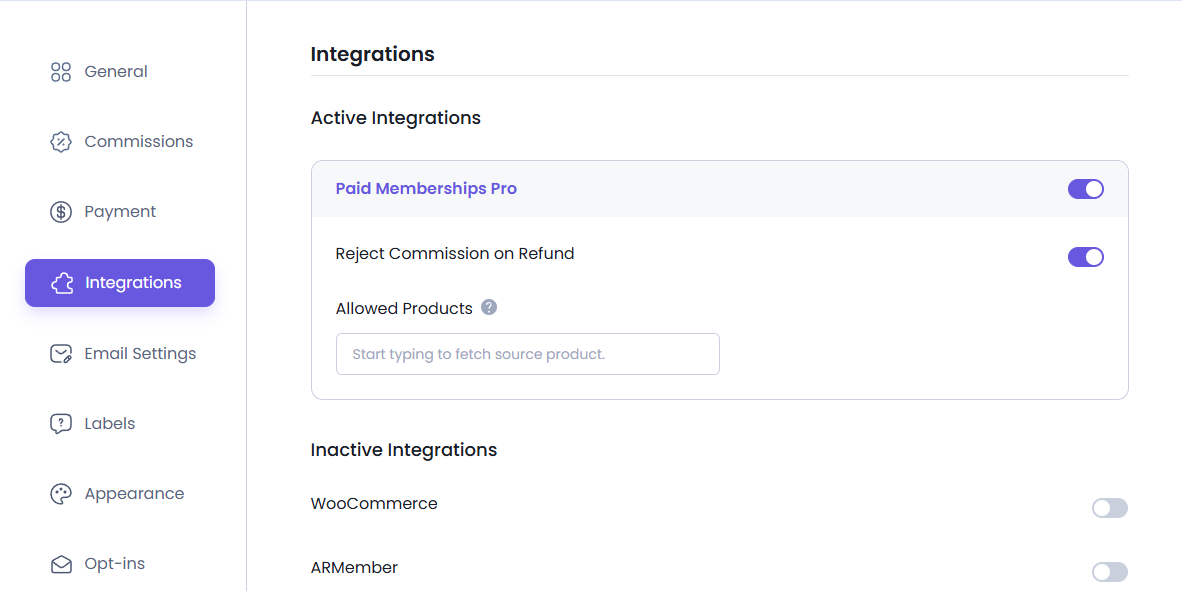
Reject Commission on Refund
Membership purchases don’t always remain active. If a customer requests a refund after purchasing a membership, you may not want the related affiliate commission to remain valid.
Turning on this setting automatically rejects any unpaid commission associated with a refunded membership purchase.
Note: This option only affects commissions that have not yet been paid.
Disable Commissions for Individual Membership Levels
By default, AffiliatePress generates commissions for every membership level created in Paid Memberships Pro.
If you have a membership level that shouldn’t generate affiliate commissions—such as a free membership, promotional plan, or internal membership—you can disable commissions for that level without affecting your other membership plans.
To do this:
- Head over to Memberships → Settings.
- Open the membership level you want to edit.
- Scroll down to the Other Settings section.
- Under AffiliatePress Settings, turn on the Disable Commissions option.
- Click Save Level.
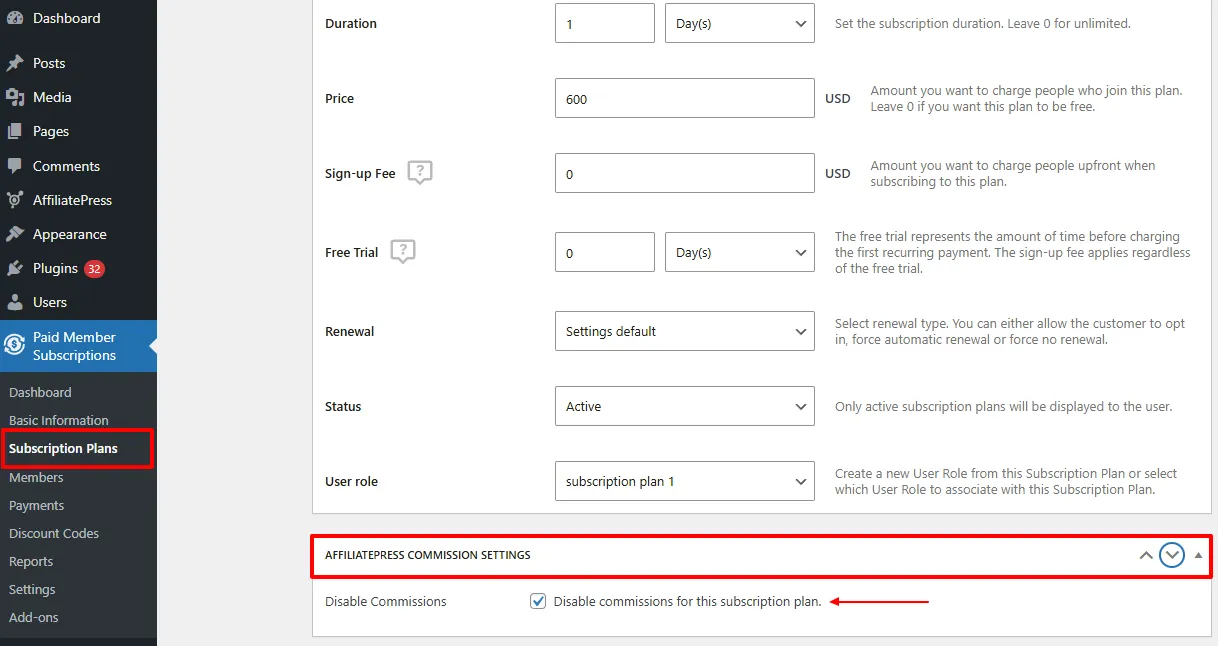
Note: This option does not work when Commission Basis is set to Commission Per Order.
Note: AffiliatePress settings are available only with Paid Memberships Pro Pro.
Coupon Code Add-on Support
AffiliatePress allows you to track affiliate commissions when customers purchase membership plans using affiliate coupon codes.
To use this feature, you must install and activate the AffiliatePress Coupon Code Addon. Once activated, you can assign coupon codes to specific affiliates.
When a customer purchases a membership using an assigned discount code:
- The discount is applied during checkout.
- The membership purchase is attributed to the assigned affiliate.
- AffiliatePress creates the commission automatically.
Before using this feature, make sure you have:
- The AffiliatePress Coupon Code Add-on installed.
- At least one discount code created in Paid Memberships Pro.
For detailed setup instructions and more information, click here.
Product-wise Commission Add-on Support
AffiliatePress lets you assign different commission rates to individual membership levels. For using this feature, you just have to install and activate Product-Wise Commission Addon. After activation, here’s how it goes:
| Membership Level | Commission |
| Basic | 10% |
| Premium | 20% |
| Business | 30% |
| Student | Default Rate |
Membership-level commission rates always override:
- Default commission
- Group commission
- Affiliate-specific commission
Membership levels without a custom commission rate continue using the default commission settings.
For detailed setup instructions and more information, click here.
Product Selection Add-on
AffiliatePress allows you to control which membership plans will be eligible for affiliate commissions.
To use this feature, you must install and activate the AffiliatePress Product Selection Addon. Once activated, you can select a specific membership plan that should generate affiliate commissions.
After installing the add-on:
- Go to the Paid Membership Pro integration settings.
- Choose the products under Allowed Products.
- Save your settings.
Note: Products selected through this add-on override the Disable Commissions product setting and will still generate commissions.
For detailed setup instructions and more information, click here.
How Paid Memberships Pro Commission Tracking Works
After turning on the Paid Memberships Pro integration:
- A visitor clicks an affiliate link.
- The visitor purchases a membership.
- Paid Memberships Pro completes the transaction.
- AffiliatePress attributes the membership purchase to the referring affiliate.
- A commission is created based on your commission settings.
- If the membership purchase is refunded, the commission may be automatically rejected depending on your settings.