


General Settings
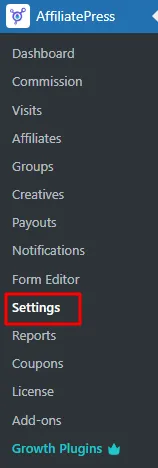
To access the general settings, go to the WordPress admin dashboard, click on the AffiliatePress menu in the sidebar, and then navigate to the Settings page.
The “General” tab allows you to configure general settings. Be sure to click the “Save” button on the page after making any changes.

Allow Affiliate Registration
Enable this setting to allow users to register as affiliates on your site.

Auto Active Upon Affiliate User Registration
Enable this setting to allow users to register with an active affiliate status and be auto-approved. If this setting is disabled, affiliate users will need to be manually approved by the admin.

Tracking Cookie Days

It refers to the duration for which an affiliate’s tracking cookie remains active on a user’s browser. When a user clicks on an affiliate link, a tracking cookie is placed on their browser. The “Tracking Cookie Days” setting determines how long this cookie will stay active.
Note: The maximum tracking cookie days can be set to 180 days.

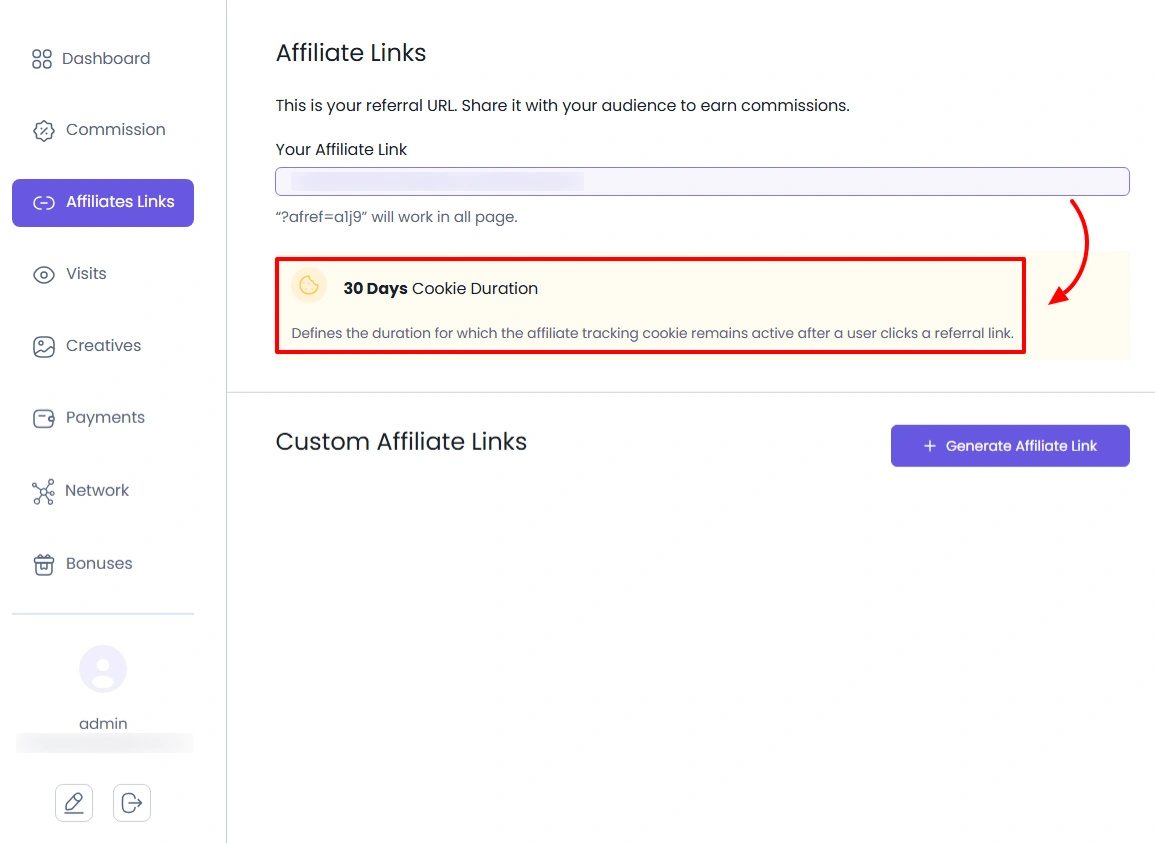
This cookie duration is also displayed on the affiliate panel so that the affiliate users can check how many days the tracking cookie is set for.
Affiliate URL Parameter
The affiliate URL parameter is a query variable that identifies affiliate referral links (e.g., yourwebsite.com/?ref=afcd5s). You can modify this variable, but please make sure it does not conflict with WordPress reserved terms.

Default Affiliate URL Format
This option allows you to set the default format of the Affiliate URL. Here you get 4 different types of options to choose from, and they are
- Affiliate ID (Encoded ID)
- Affiliate ID (Plain ID)
- WordPress Username
- MD5 Hashed Affiliate ID

Enable Fancy Affiliate URL
Enable this setting to create a clean, professional URLs for affiliate links (e.g. yourwebsite.com/ref/afcd5s). If you encounter a 404 error, go to WordPress » Settings » Permalinks to refresh the links.

Allowed Affiliate User to Close Their Account

Enable this setting to allow affiliate users the option to submit a close account request from the affiliate panel.

Maximum Custom Affiliate Links
The Maximum Custom Affiliate Links feature in AffiliatePress allows you to set a predefined limit on the number of custom affiliate links that can be created on your website. This helps optimize site performance, improve link management, and maintain a clean, scalable affiliate system.
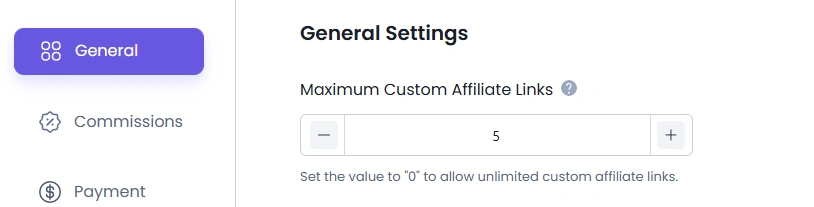
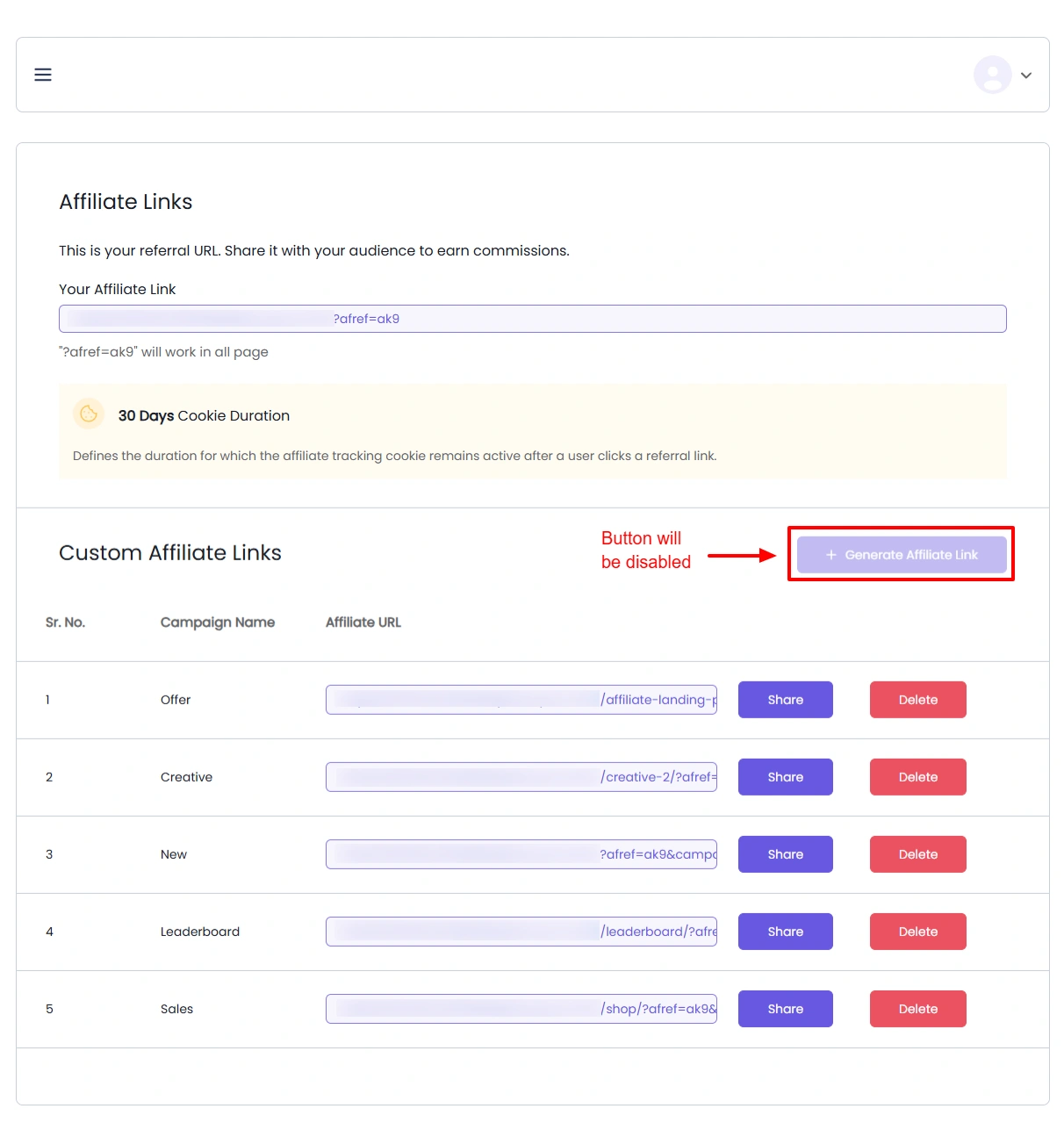
For example, if you set the maximum custom link limit to ‘5,’ then from the front end at the affiliate panel, the affiliate users will be able to add up to 5 custom links, and then the button to generate links will be disabled.
Auto affiliate creation on register as user from any registration form
If this switch is enabled, then it allows users from any other form to become affiliates of your site; if you do not need it, then you can keep this option off.

Currency Settings

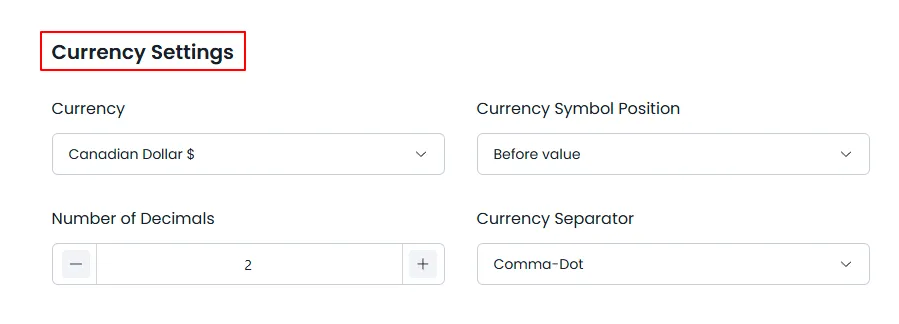
Currency
Select your currency.
Currency Separator
This setting defines the character used to separate thousands in the currency amount
Number of Decimals
This setting determines the number of decimal places to display for commission amounts. For example, setting it to “2” will display commission amounts with two decimal places (e.g., $10.50).
Page Settings
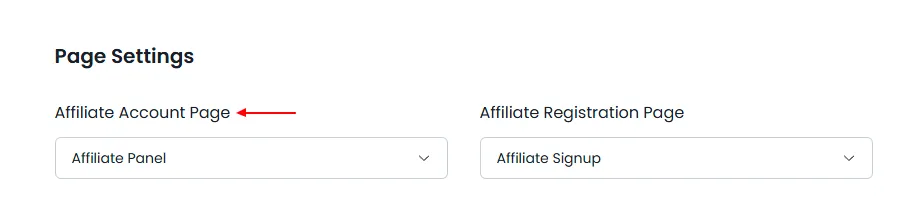
Affiliate Account Page
Select the page where affiliates will manage their accounts. By default, this is set to the Affiliate Panel page. If you choose a different page, make sure to add the shortcode displayed on that page. Also, AffiliatePress allows you to check the preview of the page, so you can click on “Preview,” and you will be able to check the page selected.
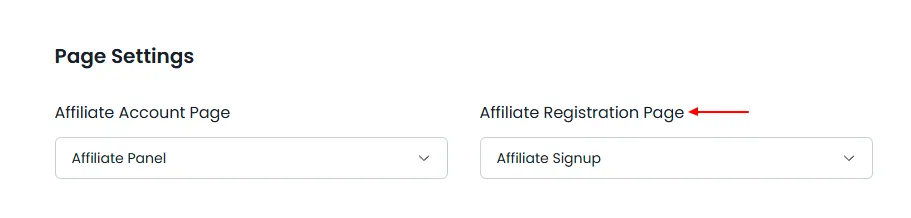
Affiliate Registration Page
Select the page where the affiliate’s user will register. By default, this is set to the Affiliate Signup Page. If you choose a different page, make sure to add the shortcode displayed on that page. Also, AffiliatePress allows you to check the preview of the page, so you can click on “Preview,” and you will be able to check the page selected.
Captcha Integrations
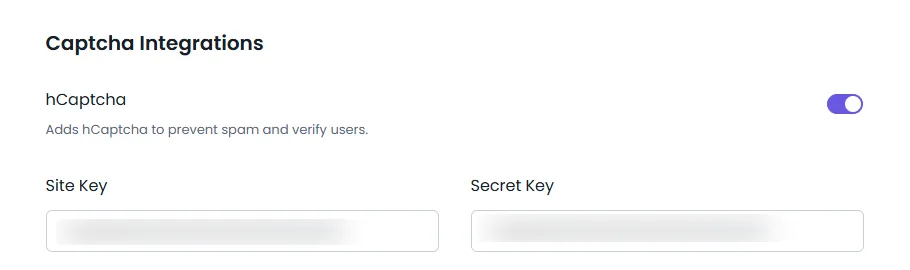
hCaptcha

Enable this setting to prevent spambots from registering and logging into affiliate accounts.
hCaptcha Integration
- Go to hCaptcha and sign up for an account, or log in if you already have one.
- After logging in, you will be directed to the “Sites” page.
- Click the “Add a new site” button.
- Enter your site’s domain name (e.g., yourwebsite.com) and select the desired settings for your site.
- Click the “Save” button to create your site key.
- In your hCaptcha dashboard, navigate to sites and click on the site you wish to integrate. Copy the site key and paste it into the Site Key field in your AffiliatePress settings.
- Go to the settings page of your hCaptcha dashboard, where you will find your account’s secret key. You may need to generate a new secret key, or you can use the existing one if you already have it. If you generate a new key, you will need to update it wherever hCaptcha is integrated. Once you have the secret key, paste it into the Secret Key field in your AffiliatePress settings.
After completing these steps, hCaptcha will be successfully integrated into your site.
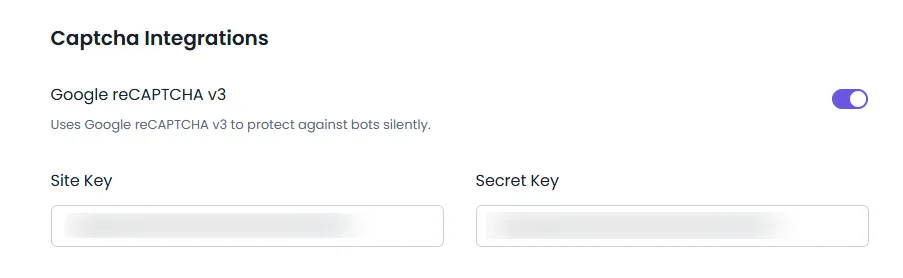
Google reCAPTCHA v3

Enable this setting to prevent spambots from registering & logging in to affiliate accounts using Google reCAPTCHA.
- Go to the Google reCAPTCHA website and sign in with your Google account.
- Click on Admin Console at the top right.
- If you don’t have an existing reCAPTCHA site, click on + to add a new one.
- Once the site is registered, you will be provided with a Site Key and a Secret Key. Copy both keys.
- Paste the Site Key into the Site Key AffiliatePress Setting field.
- Paste the Secret Key into the Secret Key AffiliatePress Setting field.
Setup Wizard
With this feature, you can run the setup wizard again.

Data Cleanup & Reset
Using this feature, you can delete the visited data as per your liking, such as one month, one week, or one year. You can also delete the visited data within a custom date range, if you wish.
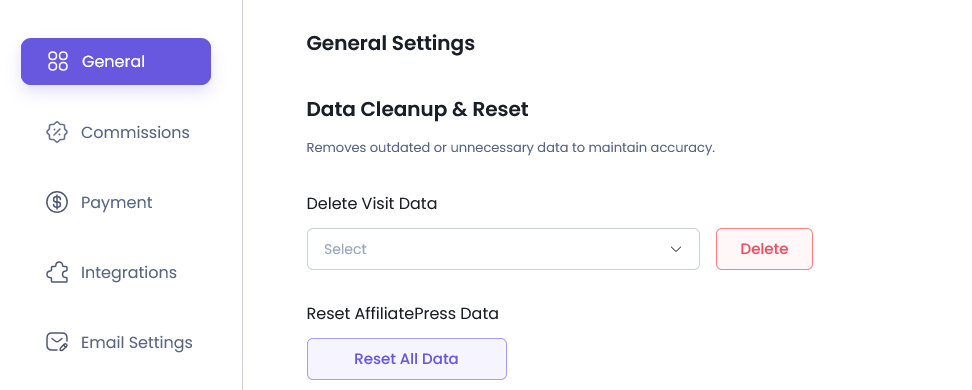
Reset AffiliatePress Data
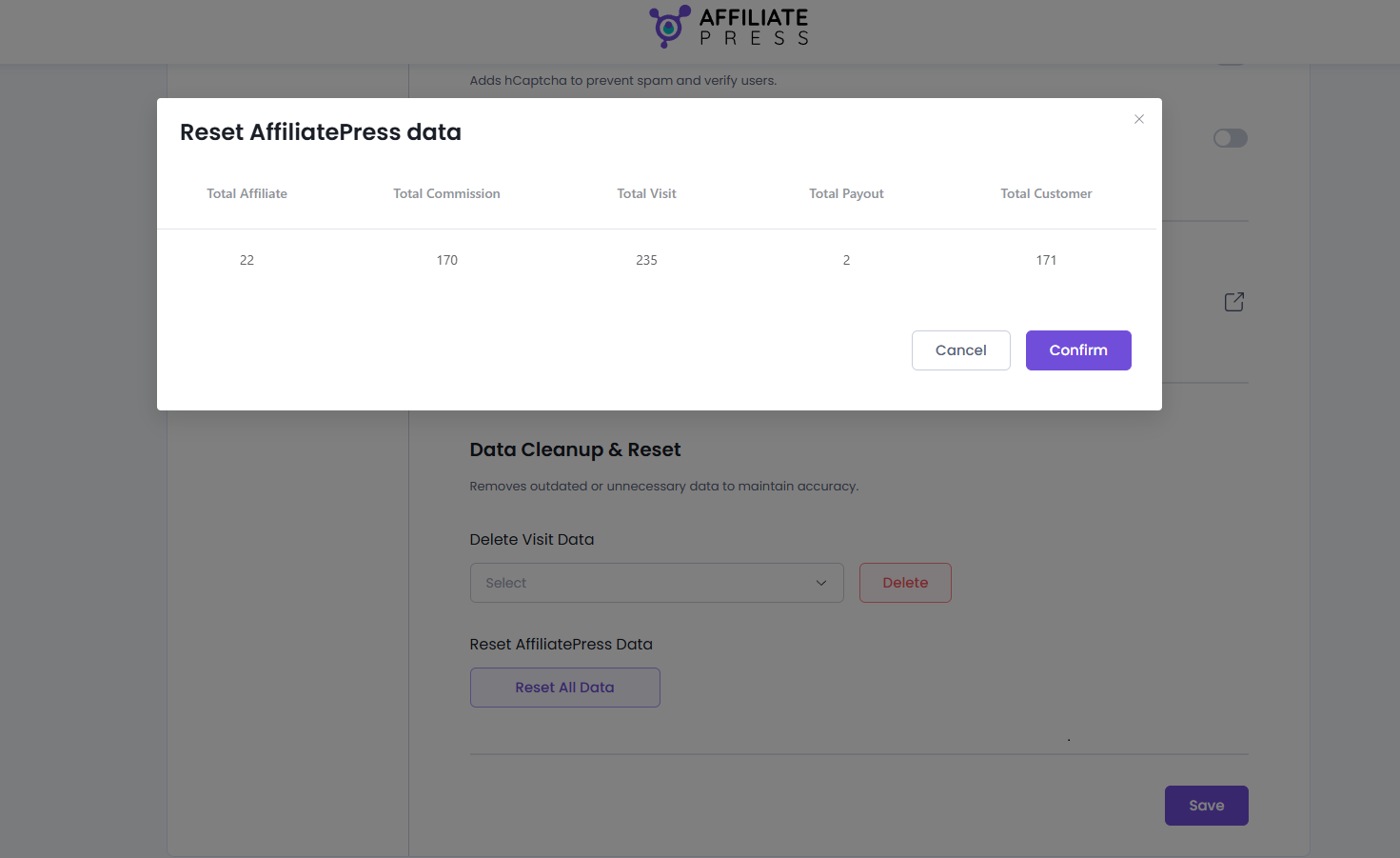
This button will allow you to delete the entire data for the AffiliatePress; however, all the basic configurations will not be removed. When this button is clicked at that time, a popup will show up indicating the amount of data as shown below.