



Form Editor
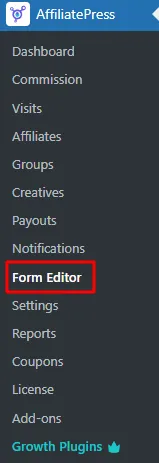
To manage the Form Editor, first go to the Admin Dashboard and from there head over to AffiliatePress > Form Editor, you can select this from the sidebar.
You can customize the Affiliate Registration and Profile edit form at Affiliate Form Editor section. You can add new Fields by simply adding it from the Form Elements section on the left.
Pre-defined Fields
Below are the pre-defined fields available for customization:
- First Name: Field for the affiliate’s first name.
- Last Name: Field for the affiliate’s last name.
- Username: Field for the affiliate’s username.
- User Email: Field for the affiliate’s email address.
- Password: Field for the affiliate’s password.
- Payment Email: Field for the affiliate’s PayPal email.
- Website: Field for the affiliate’s website URL.
- How Will You Promote Us?: Field for the affiliate to provide details about how they will promote your business.
- Terms and Conditions: Field for displaying the terms and conditions on the affiliate registration page.
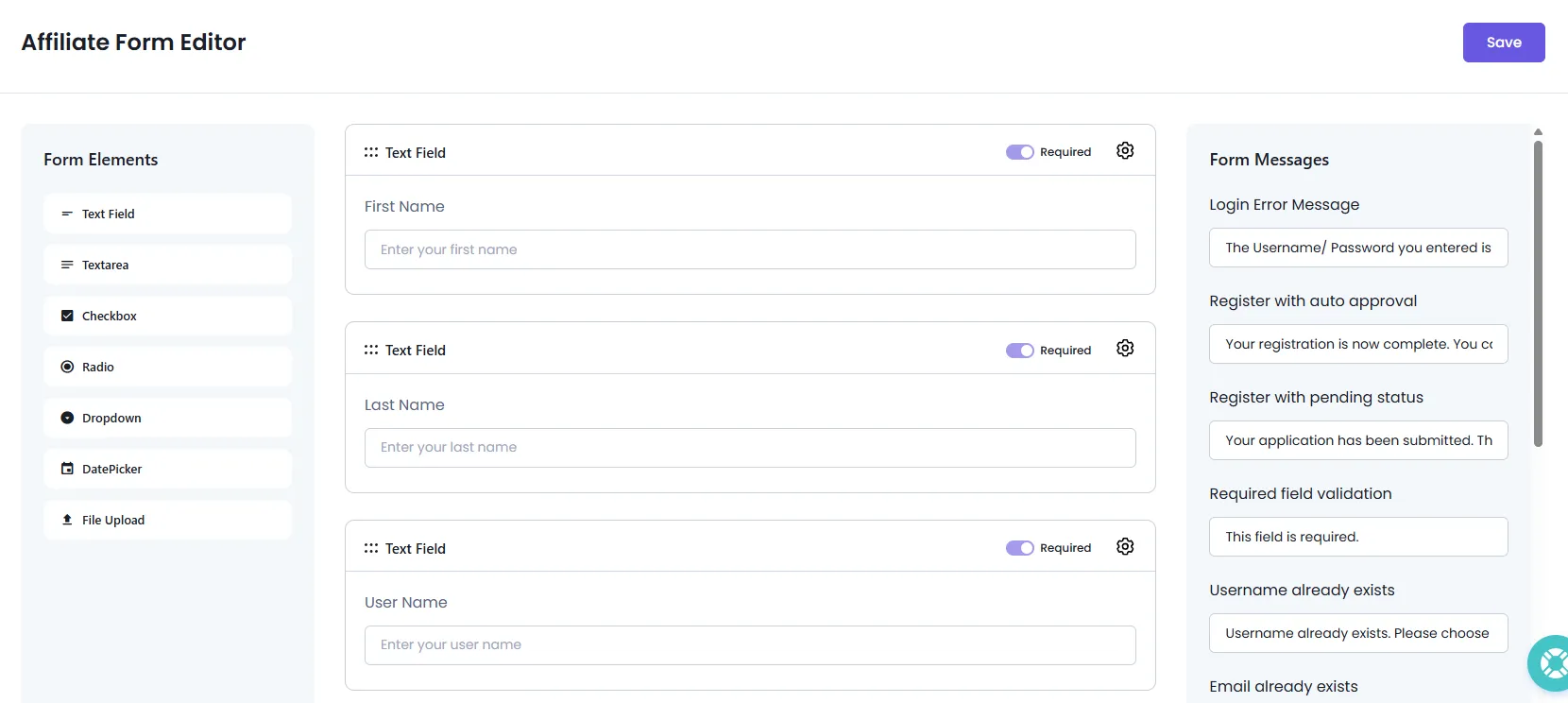
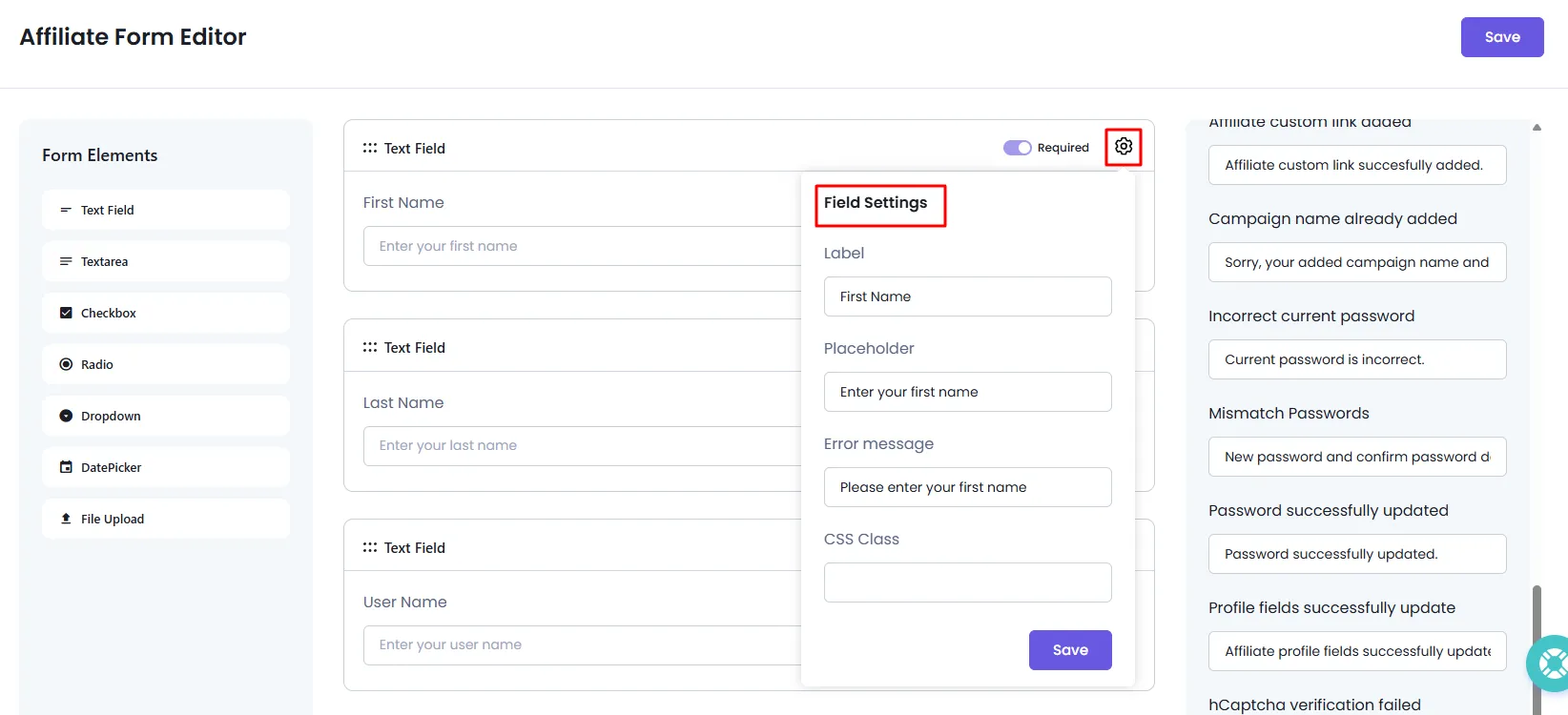
You can customize the label, and placeholder for each field by clicking the Gear Icon present on the very right of the field that you would like to edit. Additionally, you can reorder the fields using a drag-and-drop interface and apply a custom CSS class via the CSS Class option.
How to add Confirm Password Field?
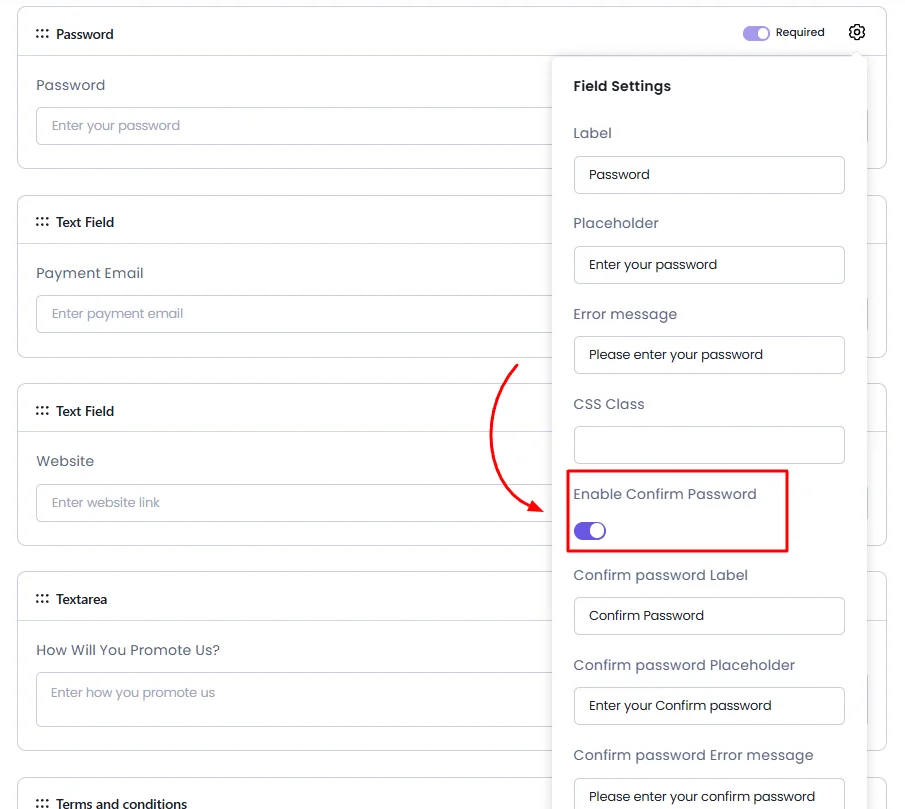
AffiliatePress offers you a flexibility to display/hide the confirmation password field as per your requirements. If you wish to enable/disable this, then navigate to the Admin Panel > AffiliatePress > Form Editor, here click on the gear icon for the ‘Password’ field, and you will be able to check the switch Enable Confirm Password if you do not wish to add this field then you can disable this switch and save the form.
By default, the switch to Confirm Password will be enabled. Also, you can edit the label and the error messages for the Confirm Password field too.
How to hide fields in forms?
You can hide the “Website”, “Payment Email”, “Terms & Conditions”(this is can be hidden only for the affiliate registration as this field is not available at profile edit form) and “How Will You Promote Us?” fields in both the affiliate registration and affiliate profile forms, by simply clicking on the Gear Icon and setting the switch off for the Show in Affiliate Registration and the Affiliate Profile.
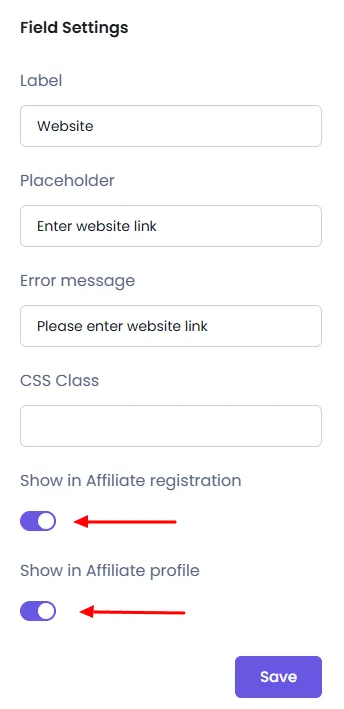
After making changes, click the “Save” button to apply and store the field settings.
How to edit the form messages?
AffiliatePress provides a facility where the site administrator can edit the messages, validations, and errors. In order to edit this, you can navigate to AffiliatePress > Form Editor the page in the right sidebar; you can change the messages as per the requirements.
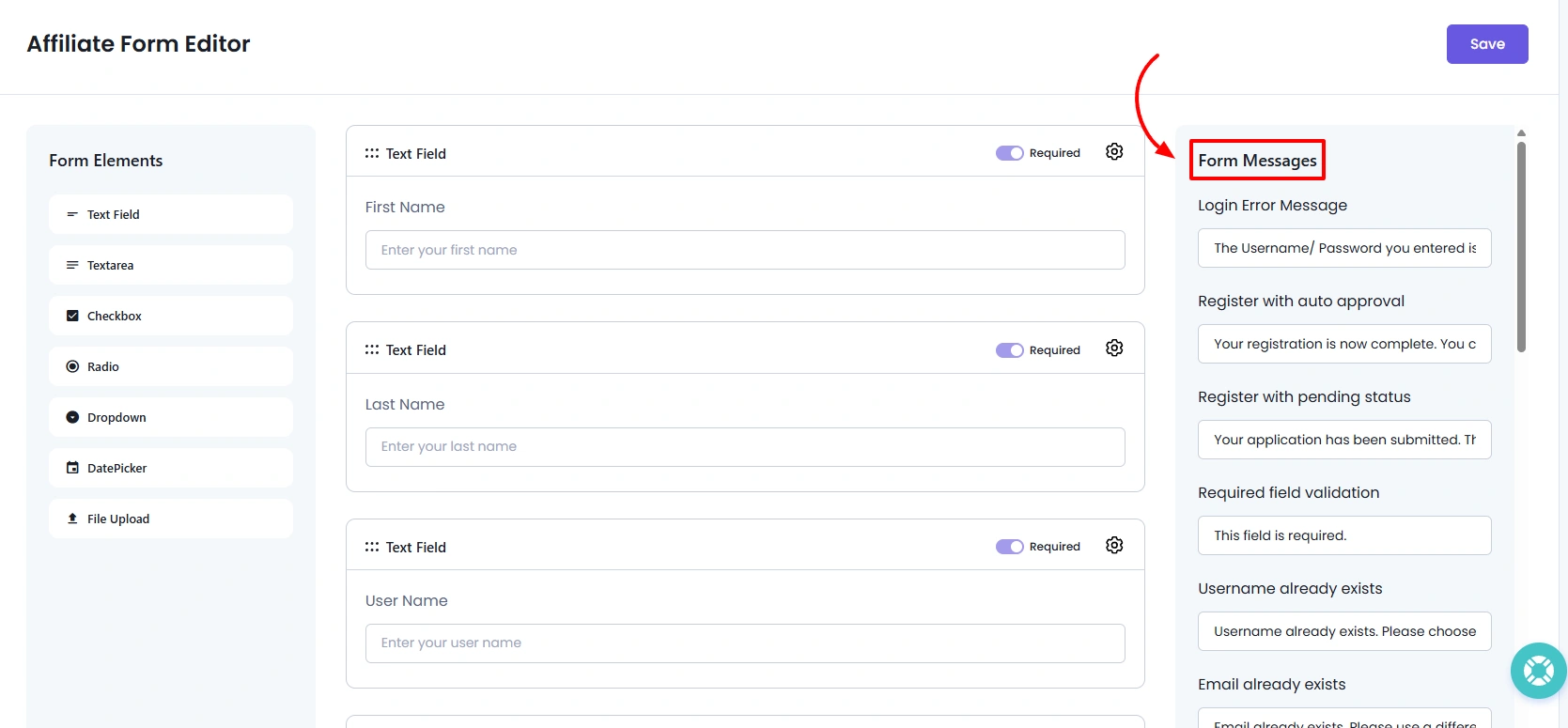
Below are provided messages that can be modified:
- Login Error Message: The username/password you entered is invalid.
- Register with auto approval: Your registration is now complete. You can log in to the affiliate area and begin promoting.
- Register with pending status: Your application has been submitted. The store owner will be contacting you soon.
- Required field validation: This field is required.
- Username already exists: Username already exists. Please choose a different one.
- Email already exists: The email address already exists. Please use a different email address.
- Affiliate Registration Disabled: Affiliate registration is currently disabled by the admin. Please contact support for assistance.
- Login is not allowed: Login is not allowed. Please contact the admin for assistance.
- Wrong email/username: There is no affiliate user registered with that email address.
- Password reset link: We have sent you a password reset link. Please check your mail.
- Account closure request success: Your account closure request email has been sent successfully. If you have any further questions or need assistance, please feel free to reach out.
- Affiliate custom link added: Affiliate custom link successfully added.
- Campaign name already added: Sorry, your added campaign name and sub ID are already added.
- Incorrect current password: Current password is incorrect.
- Mismatch Passwords: The new password and the confirm password do not match.
- Password successfully updated: Password successfully updated.
- Profile fields successfully update: Affiliate profile fields successfully updated.
- Affiliate Pending Account Login: Your affiliate account is currently under review. You will be notified by email once it has been approved.
- Affiliate Account Already Registered: Your account is already registered as an affiliate.
- Affiliate Account Blocked: Sorry, affiliate user temporarily blocked by admin.
- Affiliate Link Limit Reached: You cannot add a custom affiliate link because the maximum limit has been reached.
- Affiliate Link Deleted: The affiliate link has been deleted successfully.
- Affiliate Link Copied: Link copied successfully.
- Avatar Invalid File Type Message: Please upload a JPG, JPEG, PNG, or WebP file only.
- Avatar File Size Limit Message: Please upload a maximum 1 MB file only.
- Not Allowed Affiliate Registration: Sorry! You are not allowed to access the affiliate panel.
- hCaptcha verification failed: hCaptcha verification failed. Please try again.
- reCAPTCHA verification failed: reCAPTCHA verification failed. Please try again.