


Set Up Multi-level Affiliates

The AffiliatePress Multi-Level Affiliates Addon allows you to build a network of affiliates, where affiliates can earn commissions not only for the sales they directly generate but also for the sales made by affiliates they refer (downline affiliates). This multi-level structure incentivizes affiliates to expand their network and maximize their earnings.
Add-on Activation

- Ensure the AffiliatePress Pro plugin is active.
- Activate the AffiliatePress Multi-level Affiliates Addon from
Admin Panel > AffiliatePress > Addonspage.
Understanding how the multi-level affiliates system works
So that you have a clearer picture of how this system works, let’s walk through the following example.
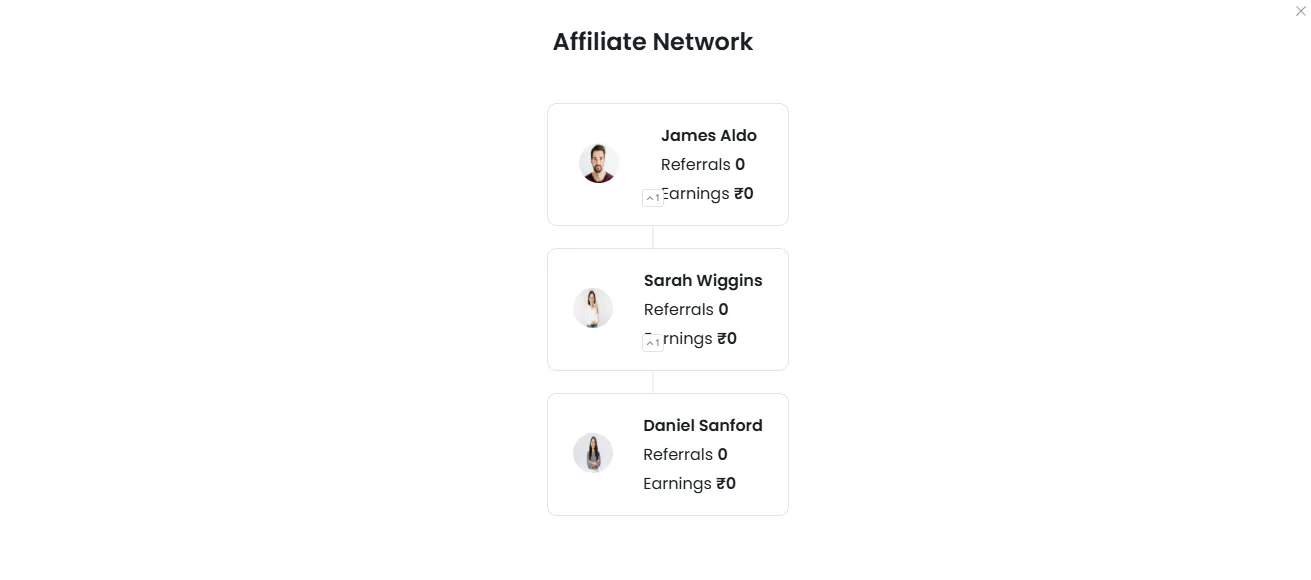
Let’s say that you already have an affiliate, James, who, at this point, is not a sub-affiliate and is not a parent to any other affiliate.
Now, let’s say that James invites Sarah, who joins your affiliate program. James becomes Sarah’s parent affiliate, while Sarah becomes a sub-affiliate of James.
Let’s take it one step further and assume that Sarah invites Daniel. Sarah becomes Daniel’s parent affiliate, while Daniel becomes Sarah’s sub-affiliate.
If you look at the bigger picture, you now have the following affiliate tree:
Accessing Multi-Level Settings
- Navigate to
AffiliatePress > Settings > General Tab. - Locate the Multi-Level Affiliates Settings section.
- Enable the Multi-Level Affiliate setting by enabling the switch to activate multi-level functionality.
Selecting a Compensation Plan
Selecting the right compensation plan is crucial for aligning your business objectives with your growth strategy. After enabling Multi-Level Commissions, a new Compensation Plan setting will be available.
1. Unilevel Compensation Plan
The Unilevel Compensation Plan allows affiliates to recruit an unlimited number of direct recruits, creating an expansive, potentially infinite network.
2. Forced Matrix Compensation Plan
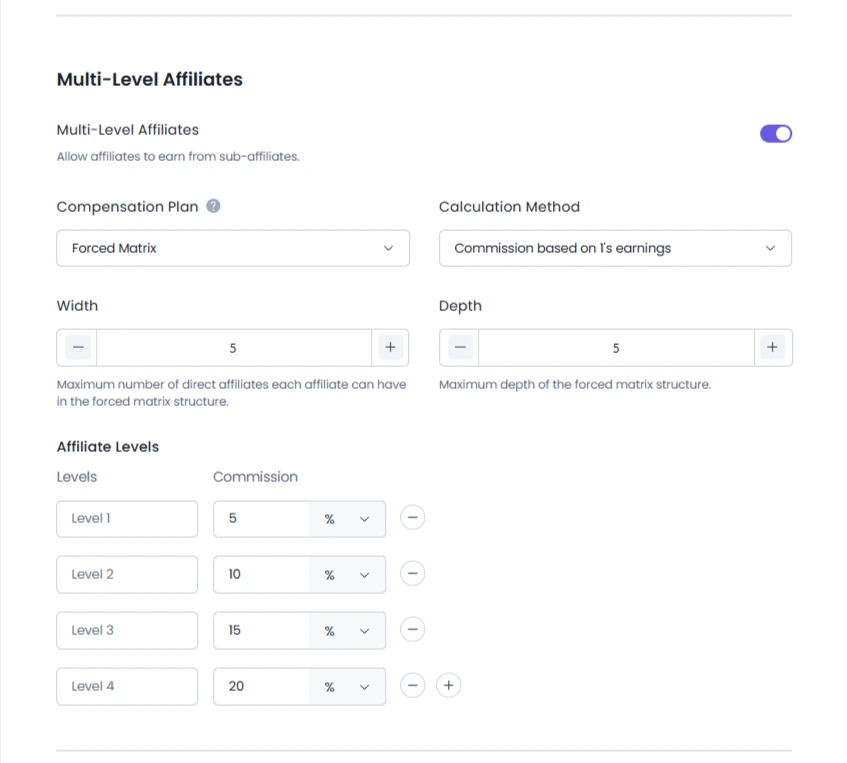
The Forced Matrix Compensation Plan limits the number of direct affiliates an affiliate can recruit (width) and restricts the network’s growth to a specific number of levels (depth).
Once the Forced Matrix plan is selected, two additional settings will appear:
- Width: Set the maximum number of direct affiliates each affiliate can recruit within the matrix structure.
- Depth: Define the maximum number of levels allowed in the affiliate network.
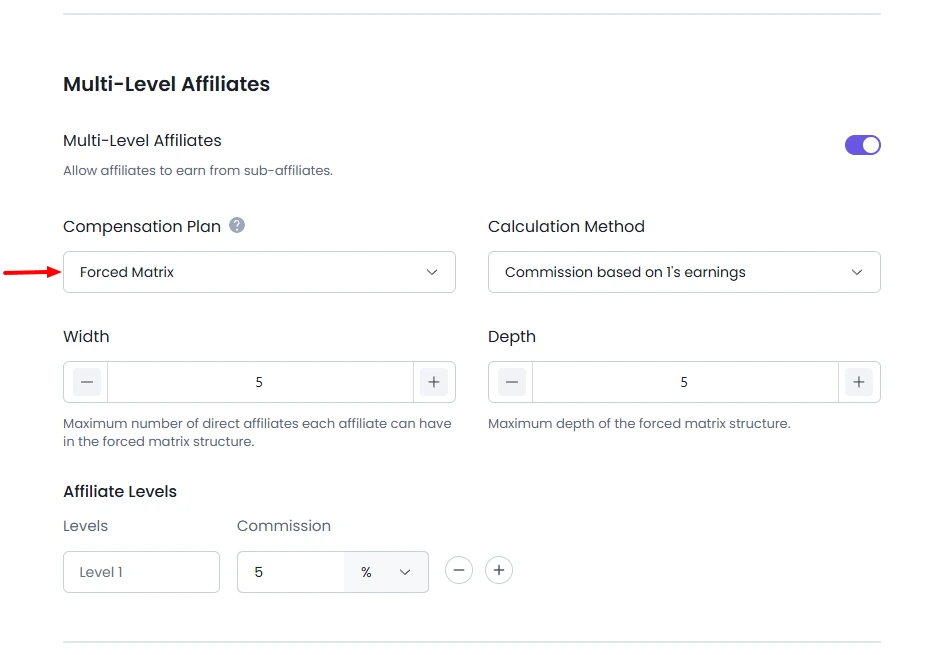
The commission for each level can be calculated in two ways:
Commission Based on Level 1’s Earnings:
This method calculates commissions for subsequent levels based on a percentage of Level 1’s earnings. This is applicable only when the level is set to a percentage.
Example: If Level 1 earns a 10% commission on a $1,000 sale (resulting in $100), and Level 2 earns 20% of Level 1’s earnings, then Level 2 would earn 20% of $100, which equals $20.
Commissions Based on Total Sale Amount:
In this method, commissions for each level are calculated directly from the total sale amount, regardless of other levels’ earnings. This is applicable only when levels are set to a percentage.
Example: If the total sale amount is $1,000 and Level 1 earns a 10% commission ($100), Level 2, which earns 20% of the total sale, will receive $200, independent of Level 1’s earnings.
Configuring and Managing Affiliate-Level Commissions
After enabling the Multi-Level option, a new setting called Multi-Level Commissions will be available. This feature allows you to configure commissions for up to 10 levels.
Click the “+” icon to add new levels.
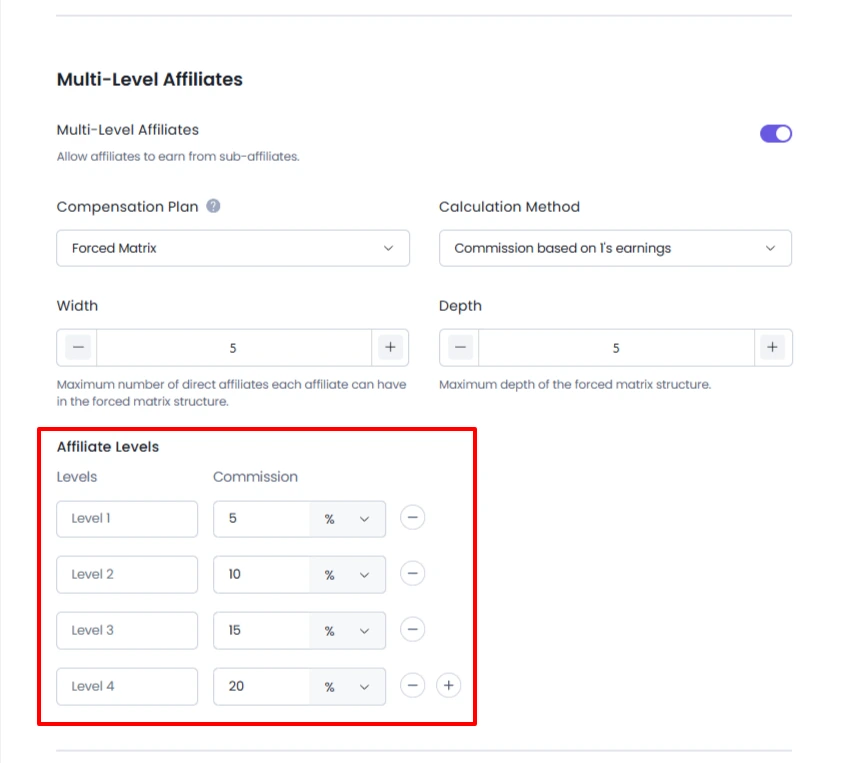
Assign a commission to each level. Commissions can be set either as a percentage or a fixed amount for each level.
Understanding how commission rates work for affiliate levels
So that you can better understand the way commissions are calculated, let’s look at the following example, using the affiliates from the previous section.
Let’s say that Daniel refers a visitor who ends up making a $1,000 purchase from you. As the referrer, Daniel will be rewarded a commission that is calculated based on the commission rates set in the general settings section.
In this example, we’ll assume that you’ve set a 20% rate for referred sales, which means that Daniel will be rewarded a $200 commission for the $1,000 sale.
Daniel, as the referrer, is considered Level 0 (zero) in the context of your multi-level affiliate program.
Now, let’s assume that you also want to reward the affiliate who invited Daniel (Daniel’s parent affiliate), as well as the affiliate who invited Daniel’s parent (the parent’s parent).
In this case, you’ll set up 2 affiliate levels:
Level 1: 20% commission rate
Level 2: 10% commission rate
In our example, Sarah is Daniel’s parent, and James is Sarah’s parent. Because Sarah is Daniel’s parent, she’s considered Level 1, while James, as Sarah’s parent, is considered Level 2.
For Level 1, we’ve set a 20% commission rate, which means that Sarah will be rewarded a $40 commission. As you can see, the $40 commission is calculated from Daniel’s $200 commission, not from the original $1,000 sale.
For Level 2, we’ve set a 10% commission rate, which means that James will be rewarded a $20 commission (10% of Daniel’s $200 commission).

Managing Affiliate Networks
AffiliatePress allows you to manually configure affiliate networks, enabling better organization by adjusting an affiliate’s parent (the affiliate who referred them). This helps you manage the structure of your affiliate network effectively.
To modify an affiliate’s network position in AffiliatePress:
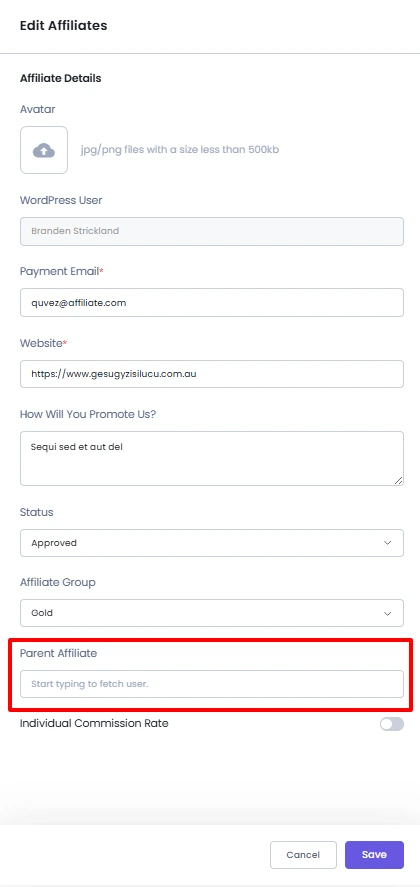
- Access Affiliate Page: Go to the Affiliates page from the menu and either add a new affiliate or edit an existing one.
- Select the Parent Affiliate: In the Parent Affiliate dropdown, choose the affiliate who will be the new affiliate’s sponsor or upline.
This functionality gives you the flexibility to reassign affiliates as needed to optimize your network’s structure.
Affiliate Network Overview
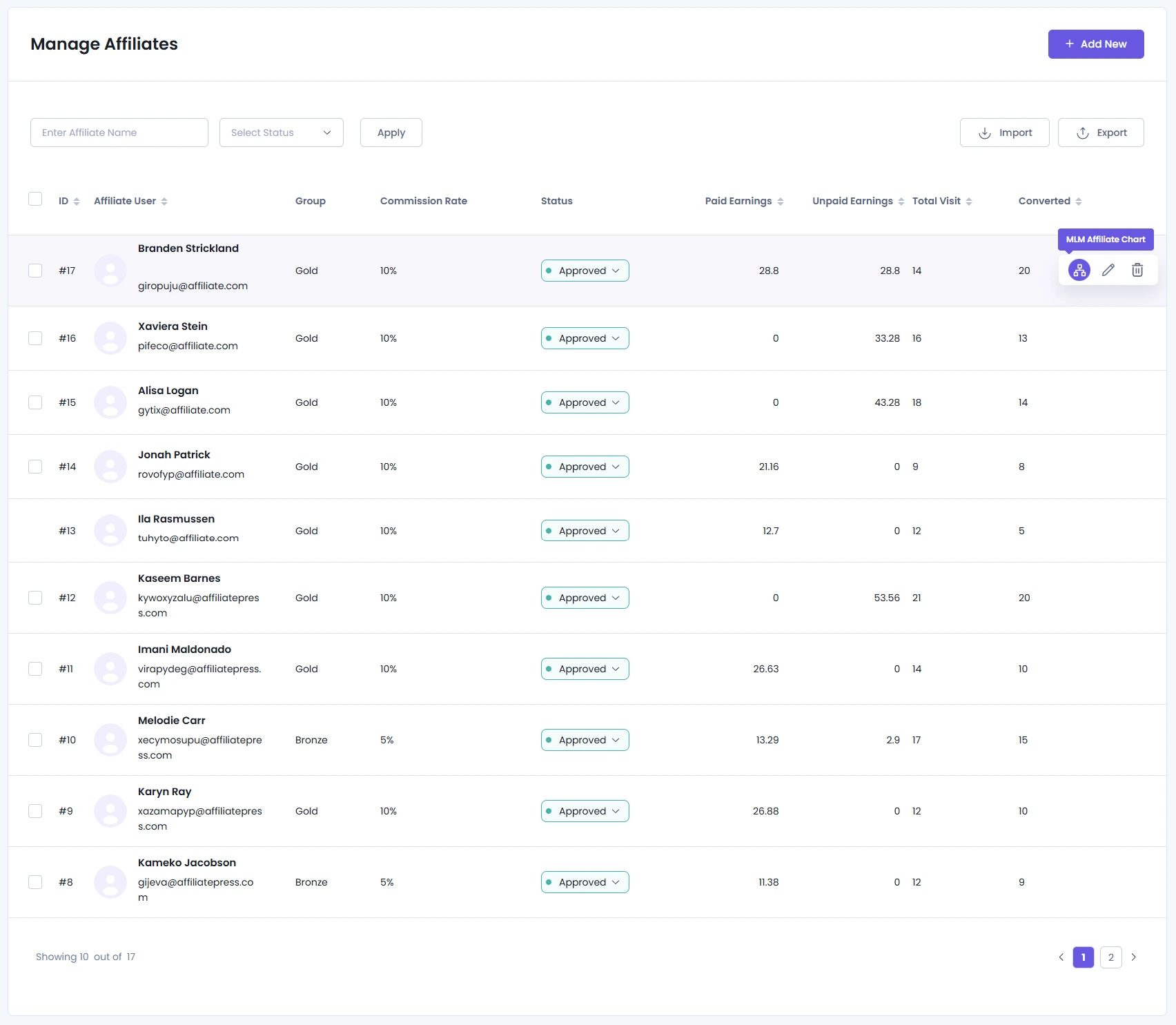
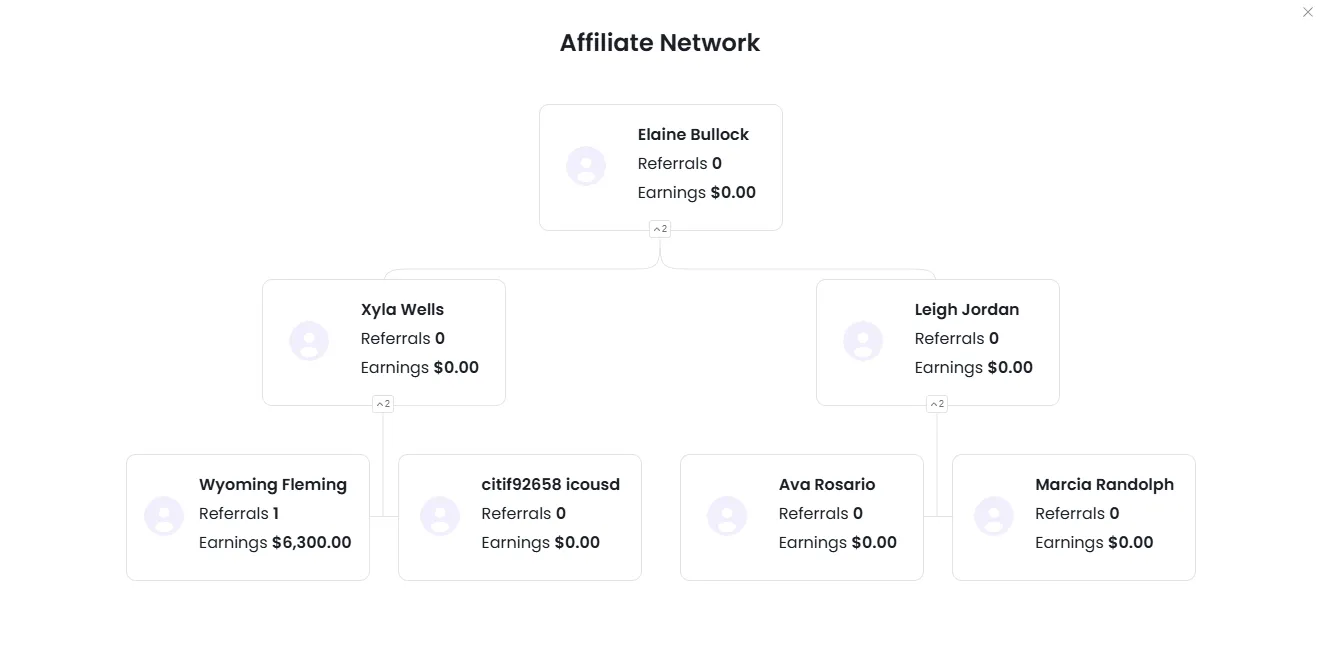
AffiliatePress offers a network view feature. To see an affiliate’s network:
- Click the network icon in the affiliate list. This will give you a visual representation of the affiliate’s network and their position within it.
Affiliate User Joining Another Affiliate’s Network
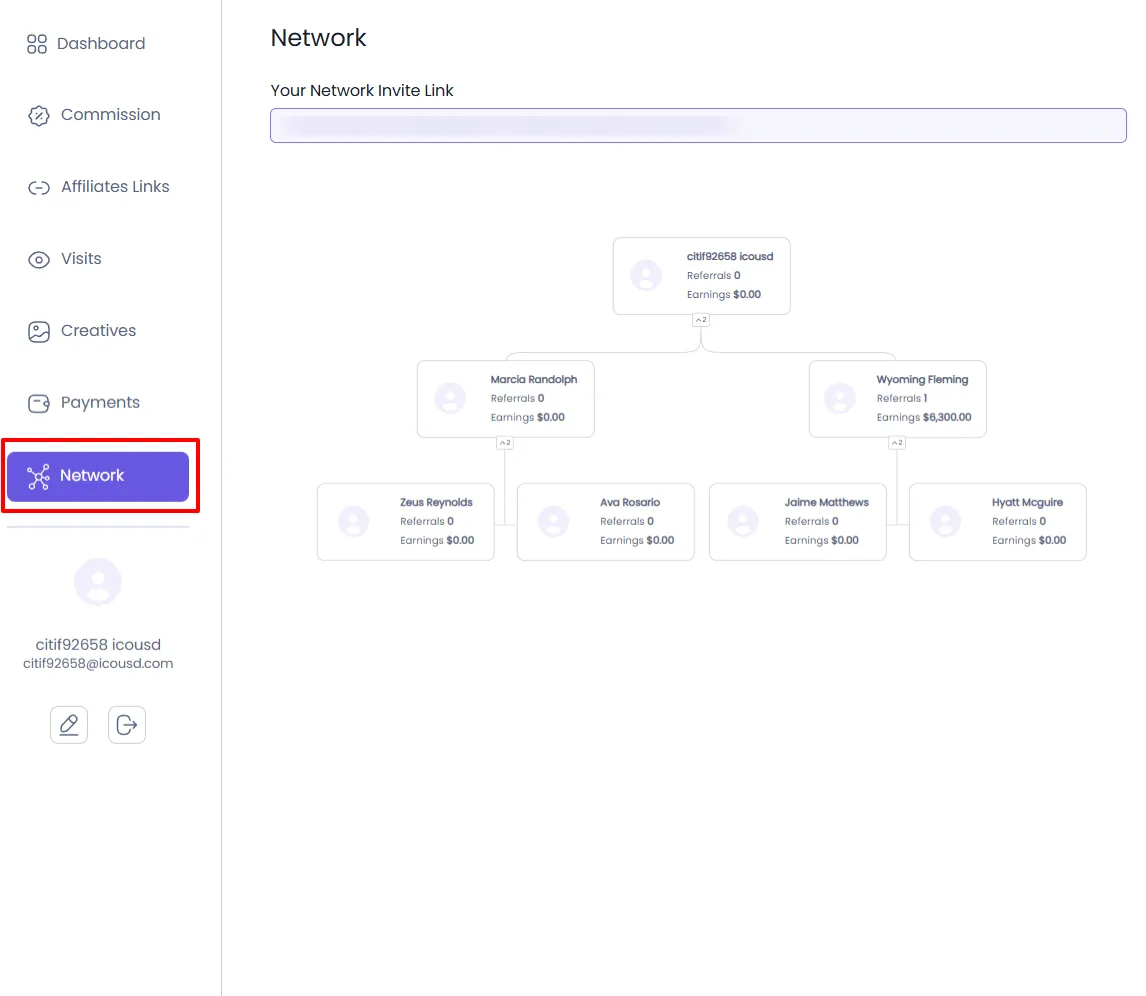
To expand their network, affiliates can share their Network Invite Link. This unique sign-up link is available in the Affiliate Panel under the Network tab.
- Affiliates share their invite link with potential recruits.
- When a new affiliate clicks the link and completes registration, they are automatically placed in the original affiliate’s network.
Affiliates can view and manage their network in the Affiliate Panel under the Network tab.