



MasterStudy LMS Integration
AffiliatePress seamlessly integrates with MasterStudy LMS to let you track affiliate course enrollment in real time, manage custom commissions and automate payouts.
Set Up MasterStudy LMS Integration Addon
Start by going to AffiliatePress > Addons and enabling the MasterStudy Lms Addon. Once activated, MasterStudy will appear under your Integration settings.
Enable MasterStudy LMS Integration
To activate the integration:
- Go to
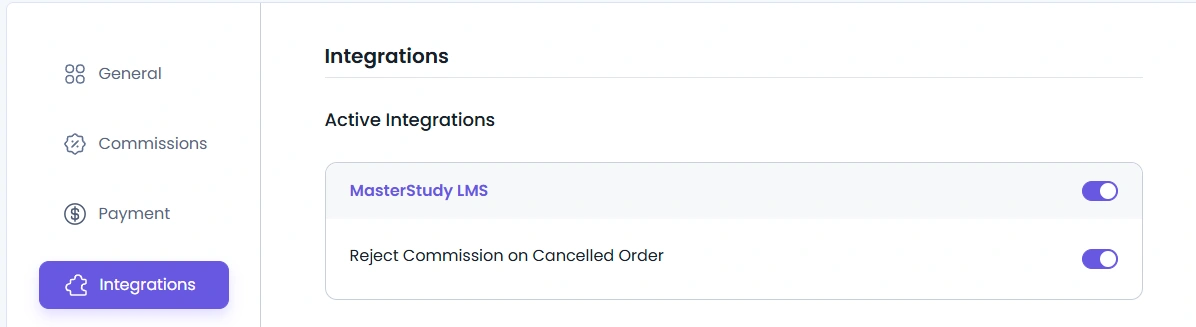
WordPress Admin > AffiliatePress > Settings > Integrations. - Enable the MasterStudy LMS option by enabling the switch.
- Once enabled, you’ll see additional settings:
- Reject Commission on Cancelled Order: When enabled, any unpaid commission linked to a cancelled order will be automatically rejected.
Coupon Code Behavior with “Commission Per Product Sold”
If customer purchase Masterstudy courses with using coupon code, still it generates the commission base on course amount intead of deducted amount, this happens when Commission Basis is Commisison Per product sold .
Commission Calculation and Tax Handling
When a customer purchases a MasterStudy LMS course, the commission is calculated based only on the course price and does not include any additional charges such as taxes.
Disabling Commissions for a Specific Course
By default, commissions are applied to all Courses . To turn off commissions for a particular Course:
- Go to
WordPress Admin > MasterStudy > Courses. - Edit the Course you want to modify.
- Scroll down to the AffiliatePress tab.
- Check the “Disable Commissions” option.
- Save the changes.

Product-wise Commission

AffiliatePress supports Product-wise Commission when the MasterStudy integration is enabled.
When this integration is active and the Product Commission Rate setting is enabled, additional AffiliatePress settings will appear in the course editor.
- Go to
WordPress Admin > MasterSTudy> Courses - Edit the course for which you want to set a custom commission rate.
- Scroll down to the AffiliatePress Settings section.
- Locate the Rate Settings options.
- Set: Rate Type (percentage or fixed amount) Rate Value ( 30% )
This all set and after purchase course that in course rate to calculate commisison rate
Product Selection (Allow Commission for Specific Courses Only)
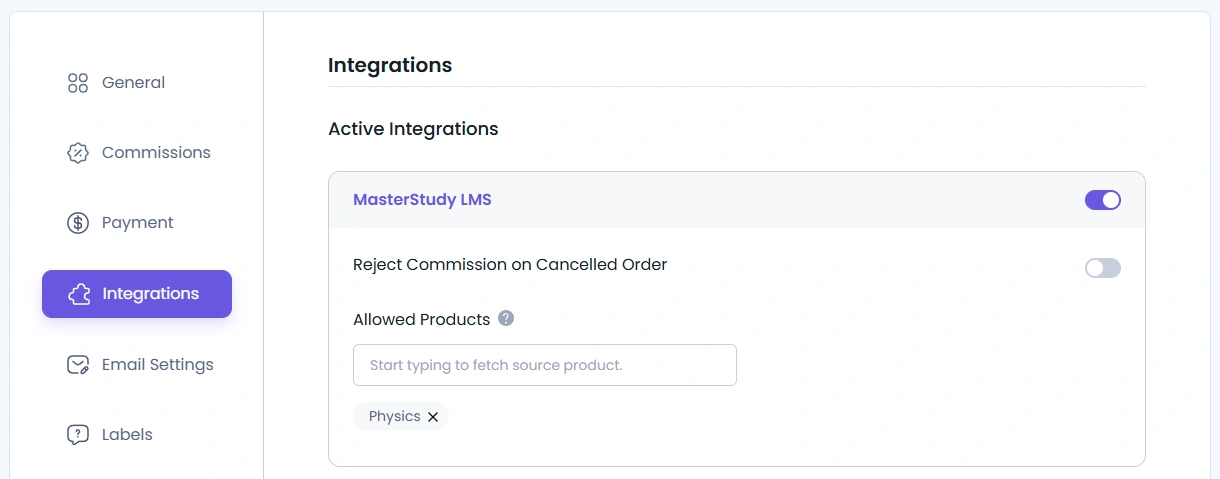
AffiliatePress allows you to enable commissions only for selected courses instead of applying commissions to all courses. This feature is useful when you have many courses but want to allow affiliate commissions only for specific ones.When Product Selection is enabled, affiliates will earn commissions only for the courses that you explicitly select. Any courses not included in the selection list will not generate commissions.
- Go to
WordPress Admin > AffiliatePress > Settings > Integration Settings. - Locate the MasterStudy Integration section.
- Use the product search field to find courses.
- Search by course name and select the courses you want to allow commissions for.
- The selected courses will appear in the list of allowed products.
- Save the settings.
Important Note
If Product Selection is enabled, commissions will only be calculated for the selected courses.
Additionally, this setting overrides the “Disable Commissions” setting, meaning the product selection rules will take priority for MasterStudy courses.
MasterStudy WooCommerce Checkout Integration
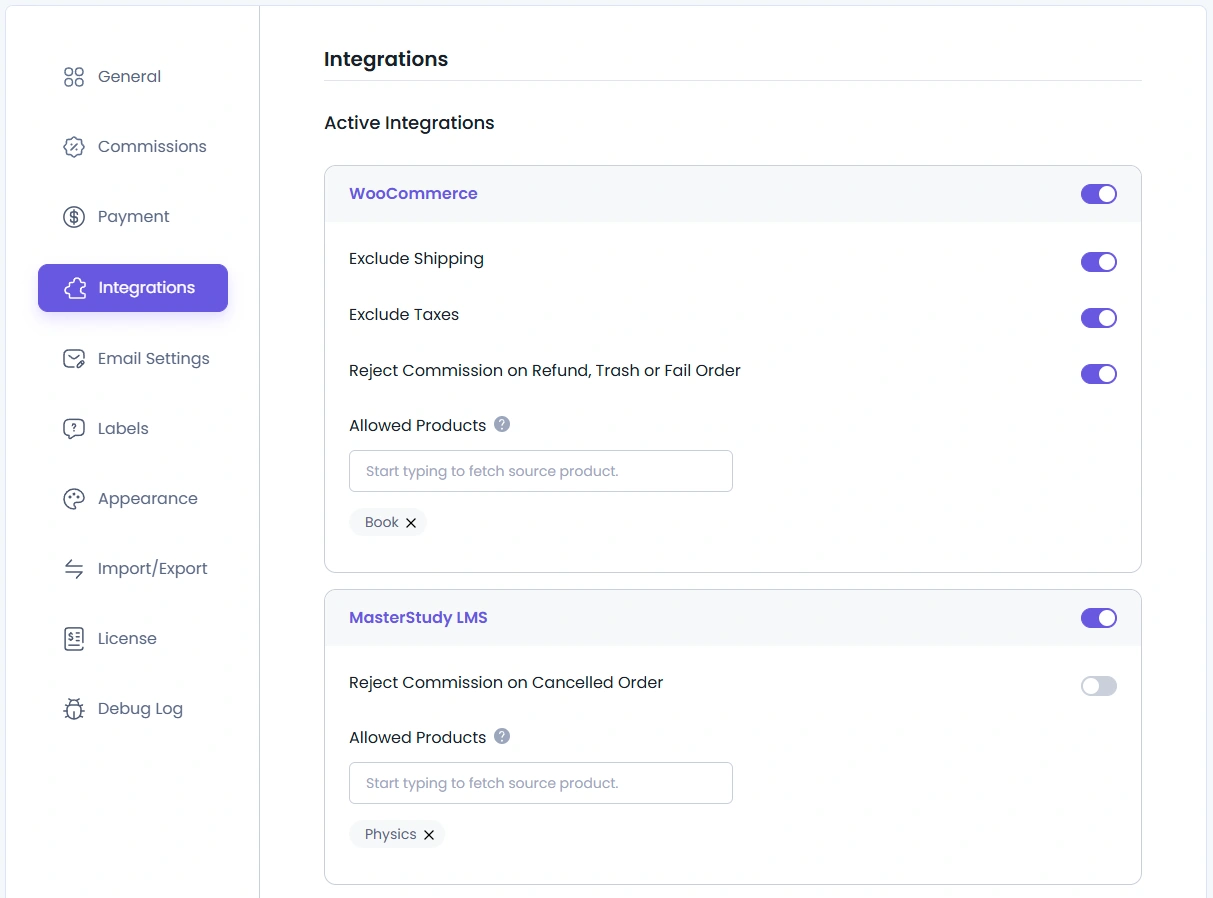
If the MasterStudy LMS is configured to use WooCommerce Checkout, you must enable the WooCommerce integration in AffiliatePress.
When WooCommerce checkout is used, both integrations will be active:
- MasterStudy Integration
- WooCommerce Integration
When WooCommerce checkout is used , Commission tracking source becomes WooCommerce.
Product Wise Commisison Behavior
- You can set a Product Commission Rate for a course inside the AffiliatePress Settings in the course editor.
- When a student purchases the course using WooCommerce Checkout, AffiliatePress will: Use the course commission rate defined in the MasterStudy course settings.
- Calculate the commission based on that rate.
However, since the purchase is processed through WooCommerce, the commission source will be recorded as WooCommerce.
Product Selection Behavior
If Product Selection is enabled in: WordPress Admin > AffiliatePress > Settings > Integration Settings and specific MasterStudy courses are selected, then:
- Commissions will be generated only for the selected courses.
- The commission rate defined in the course settings will still be used.
- But the commission source will appear as WooCommerce, because the checkout process is handled through WooCommerce.
Even if the commission rate and product selection are configured for MasterStudy courses, when WooCommerce Checkout is used, the commission source will always be recorded as WooCommerce.