



Affiliate Management
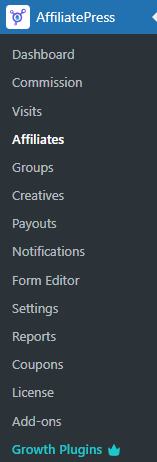
In the WordPress admin, click on the AffiliatePress menu in the sidebar, then navigate to the Affiliates page to manage it.
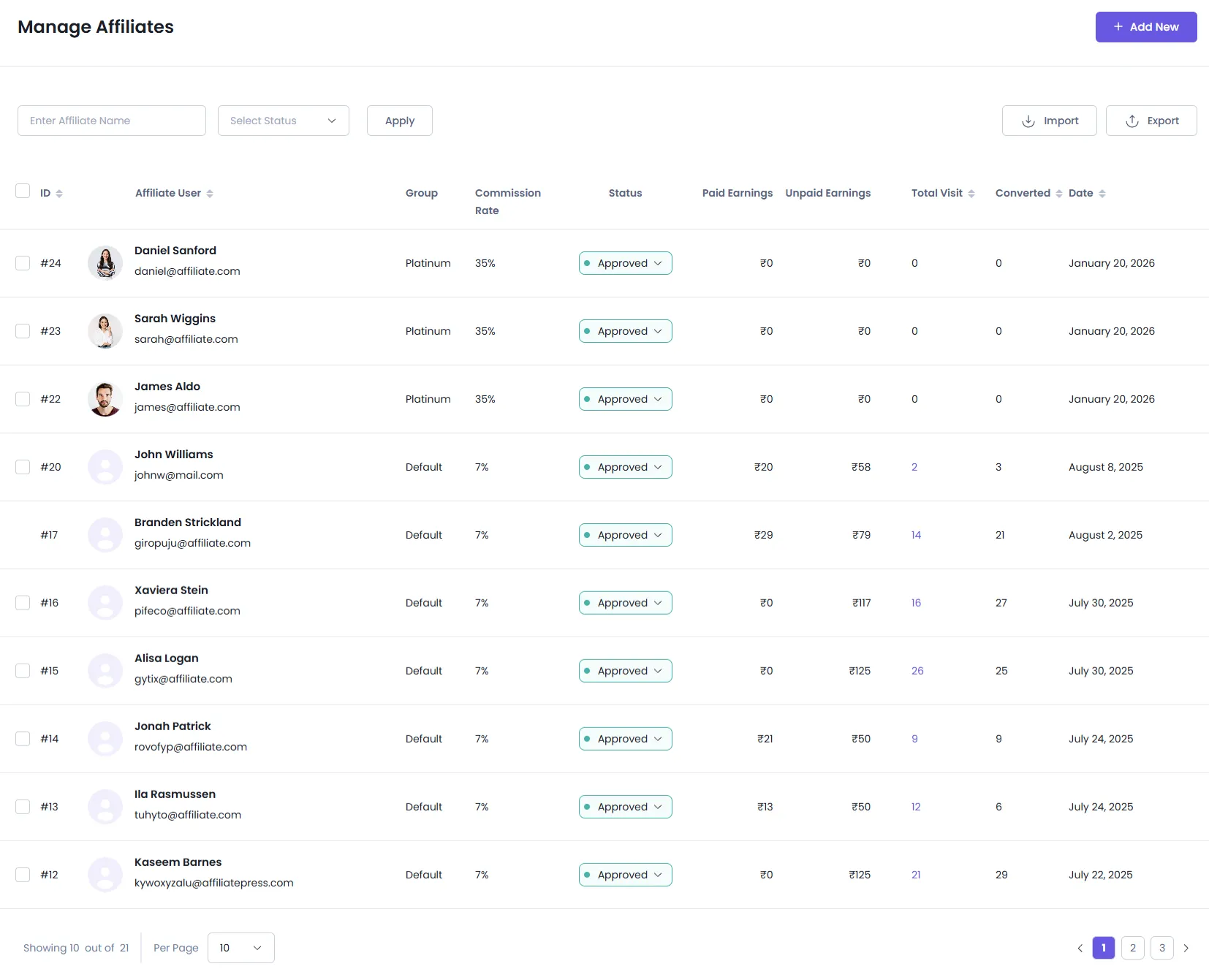
Affiliate List
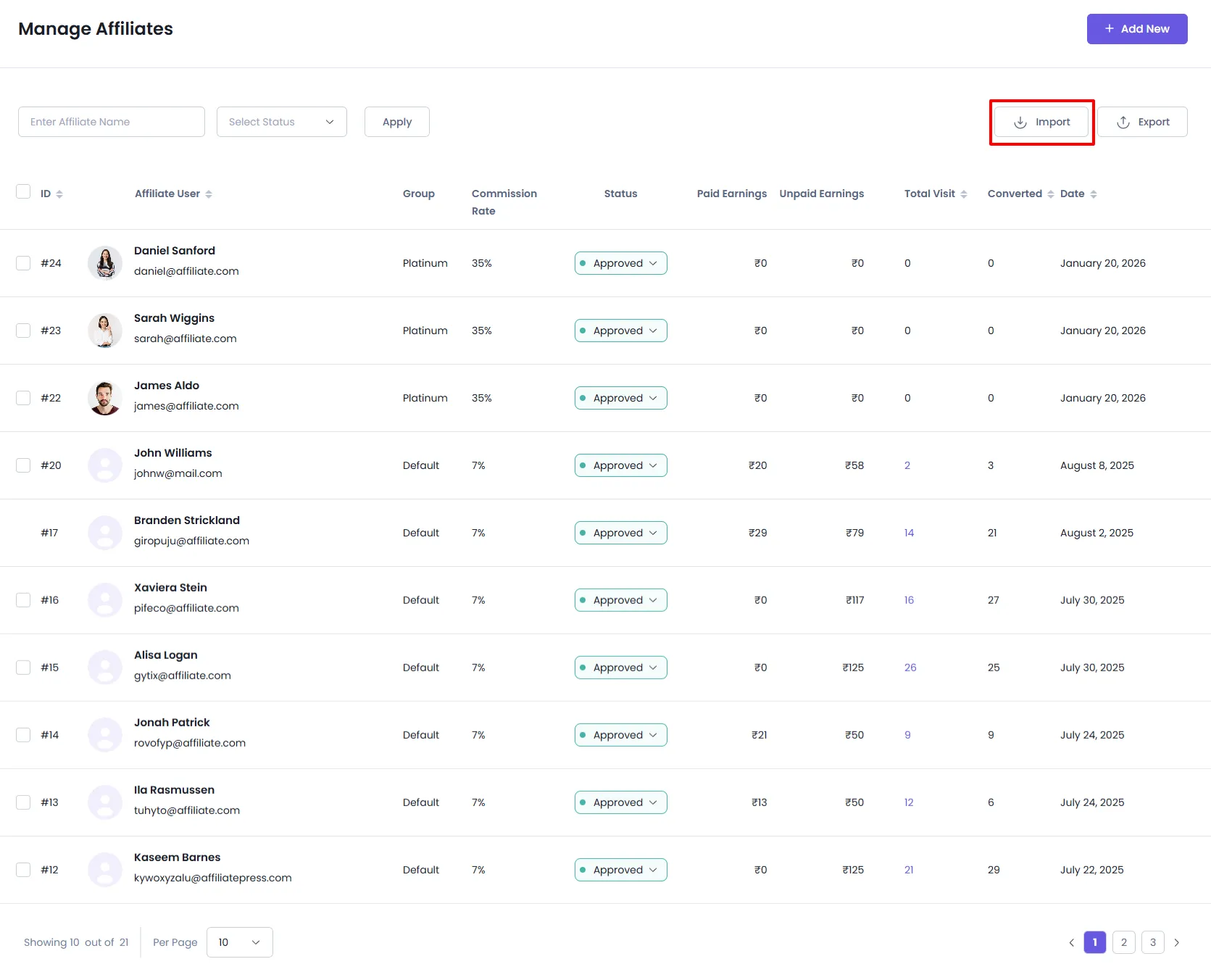
Here, you can view all the information about affiliate users. You can also filter affiliate users by specifying their name and status. Additionally, you can update each affiliate’s status by selecting the appropriate option from the dropdown menu.
Within the affiliate page, you’ll find a detailed list of all affiliate entries. This view allows you to:
- Filter affiliate records by:
- Affiliate name and Username
- Affiliate status
- Update commission status using the dropdown available within each commission row.
Adding New Affiliates Manually
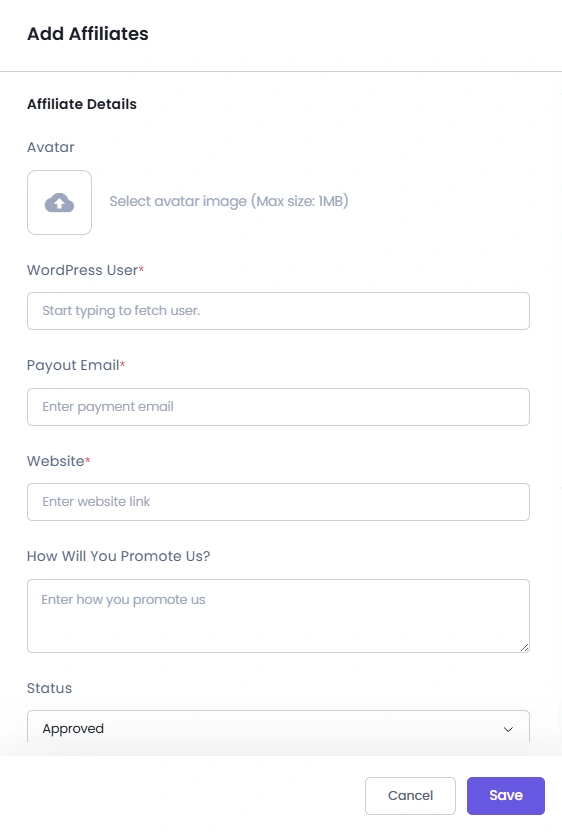
To create a new affiliate, click the “Add New” button. This will open a section where you can add the affiliate.
Required Fields:
- Affiliate User: Start typing the name of the affiliate. A list of matching WordPress users will appear—select the correct one.
Optional Fields:
- Avatar: You can add the avatar to the affiliate. The maximum file size is “1MB,” and supported formats include “JPG, JPEG, PNG, and WebP.”
- Payment Email: You can add the payment email address to make a payment to the affiliate.
- Website: Admin can add the website URL for that affiliate user.
- How Will You Promote Us?: While manually adding the affiliate, the admin can set the ways of promoting the site here.
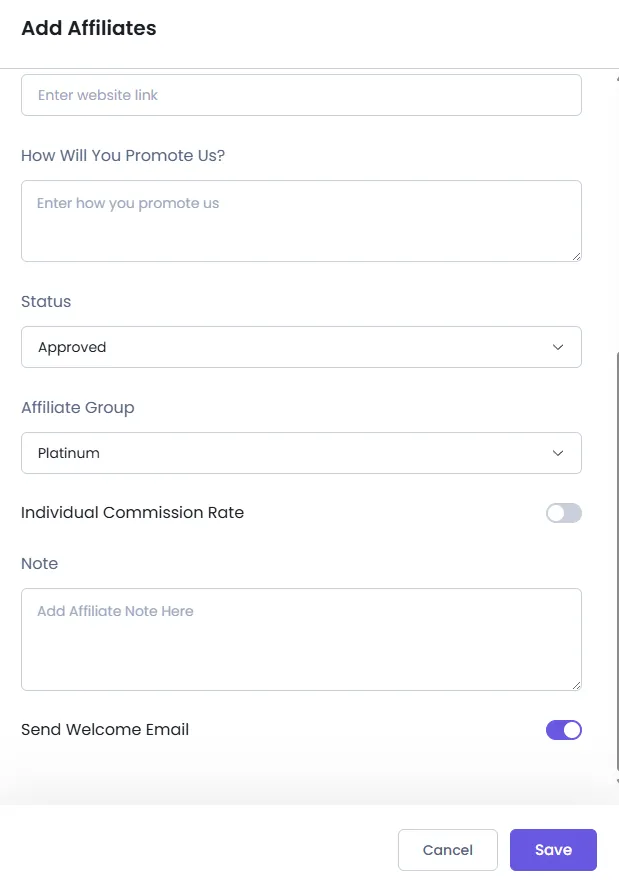
- Status: Set the status here.
- Affiliate Group: Select the affiliate group individually for each affiliate.
- Individual Commission Rate: Enable this option and set the individual commission rate for the affiliate.
- Note: Include internal notes, if necessary.
- Send Welcome Email: Enable this to send a welcome email.
Add Internal Notes for Affiliates

AffiliatePress offers an interesting feature through which you can add internal notes individually as per each affiliate. In order to add this, you can navigate to the AffiliatePress > Affiliates > Add/Edit Affiliate.
Here you will be able to notice a field named Notes; add any internal note that you wish to check in the future.
Creating an affiliate account for an existing WordPress user.
In the “WordPress user” field, start typing the name of an existing WordPress user you want to add as an affiliate. A list of matching users will appear based on the entered name, and you can click on the name you’d like to add as an affiliate.
1. Creating a WordPress user and affiliate simultaneously
If the user doesn’t already have a WordPress account on your site, you can create a new WordPress user and add them as an affiliate in one step. In the “WordPress User” field, select the “Create New” option. You can enter the affiliate’s PayPal email in the payment email field. Then, complete the form and click ‘Save‘ to create the new user and affiliate.
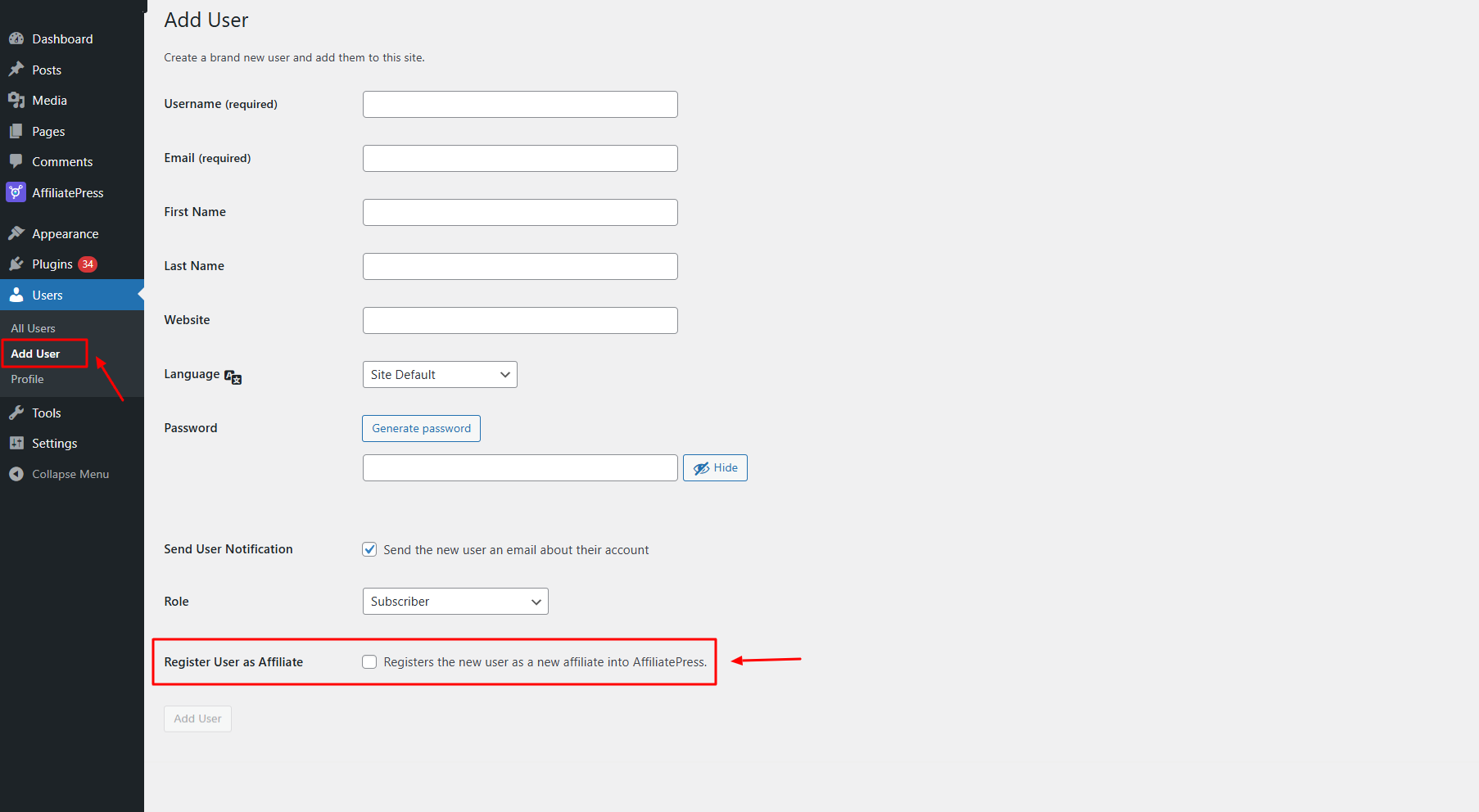
Add a user through WordPress Users panel.
AffiliatePress also allows admins to directly create an affiliate user. In order to do so, navigate to the Admin Panel > Users > Add User, and here you will be able to check a checkbox through which a user will be added as a user and an affiliate.
2. Flag Affiliate

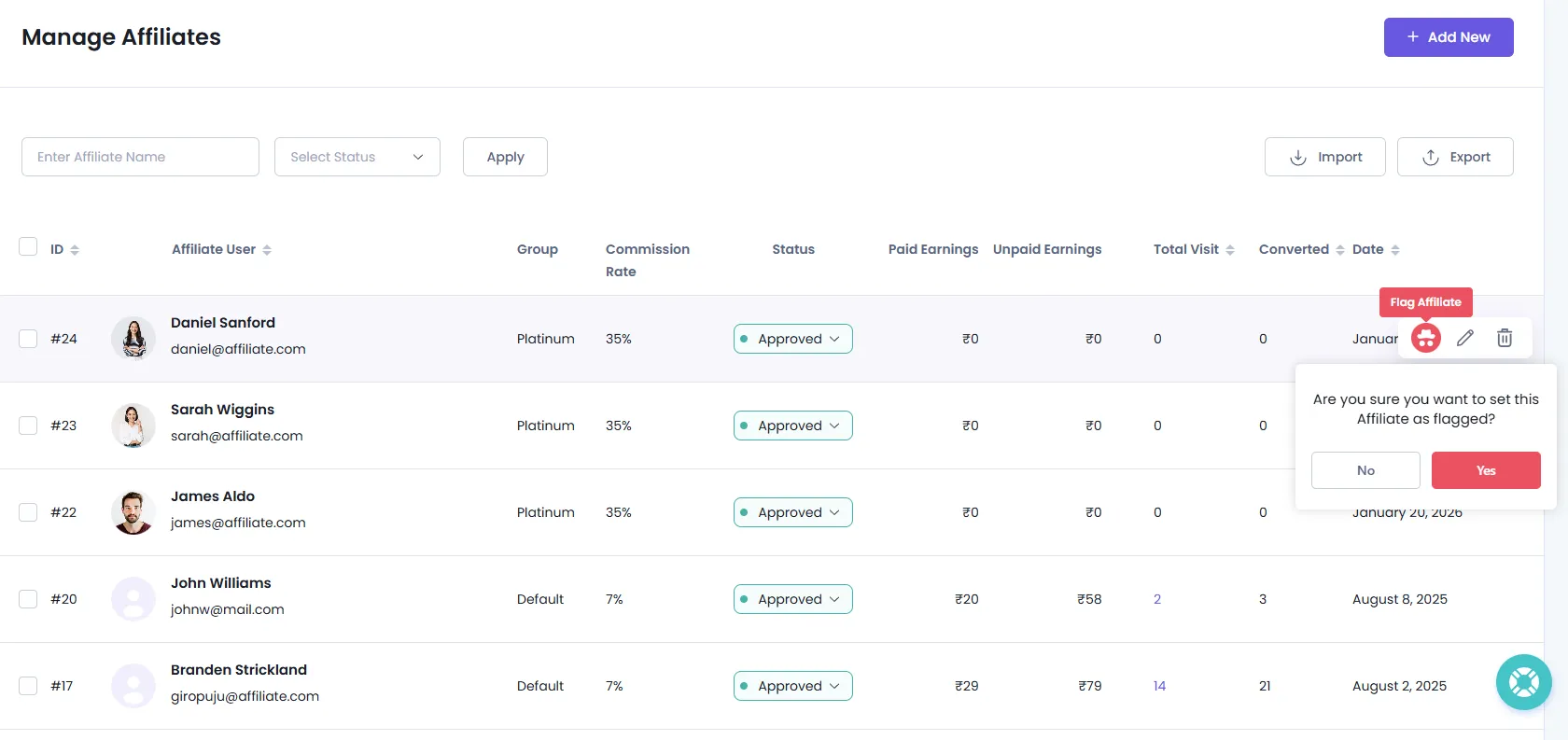
The Flag Affiliates feature allows administrators to mark affiliates as suspicious for monitoring and internal review. This helps identify potentially fraudulent activity while allowing further investigation before taking action.
In order to mark any affiliate as flagged, navigate to the Affiliates page and hover over any affiliate that you want to mark as flagged, and click on the icon for Flag Affiliate, and a confirmation popup will appear. Click on “Yes,” and then the affiliate will be marked as “Flagged.”
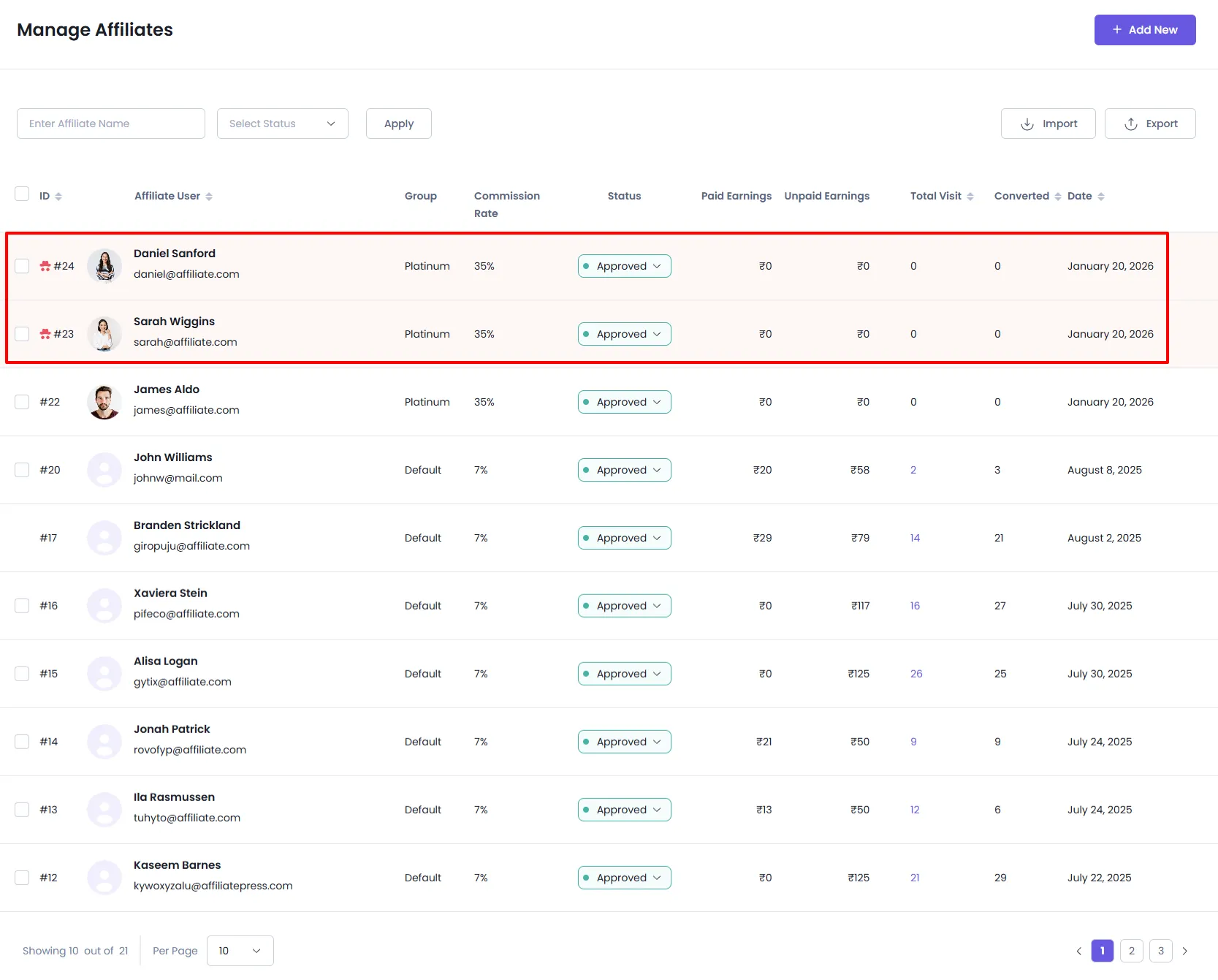
As soon as you mark the affiliates as flagged, their entry will be highlighted so that the admin can continuously monitor it.
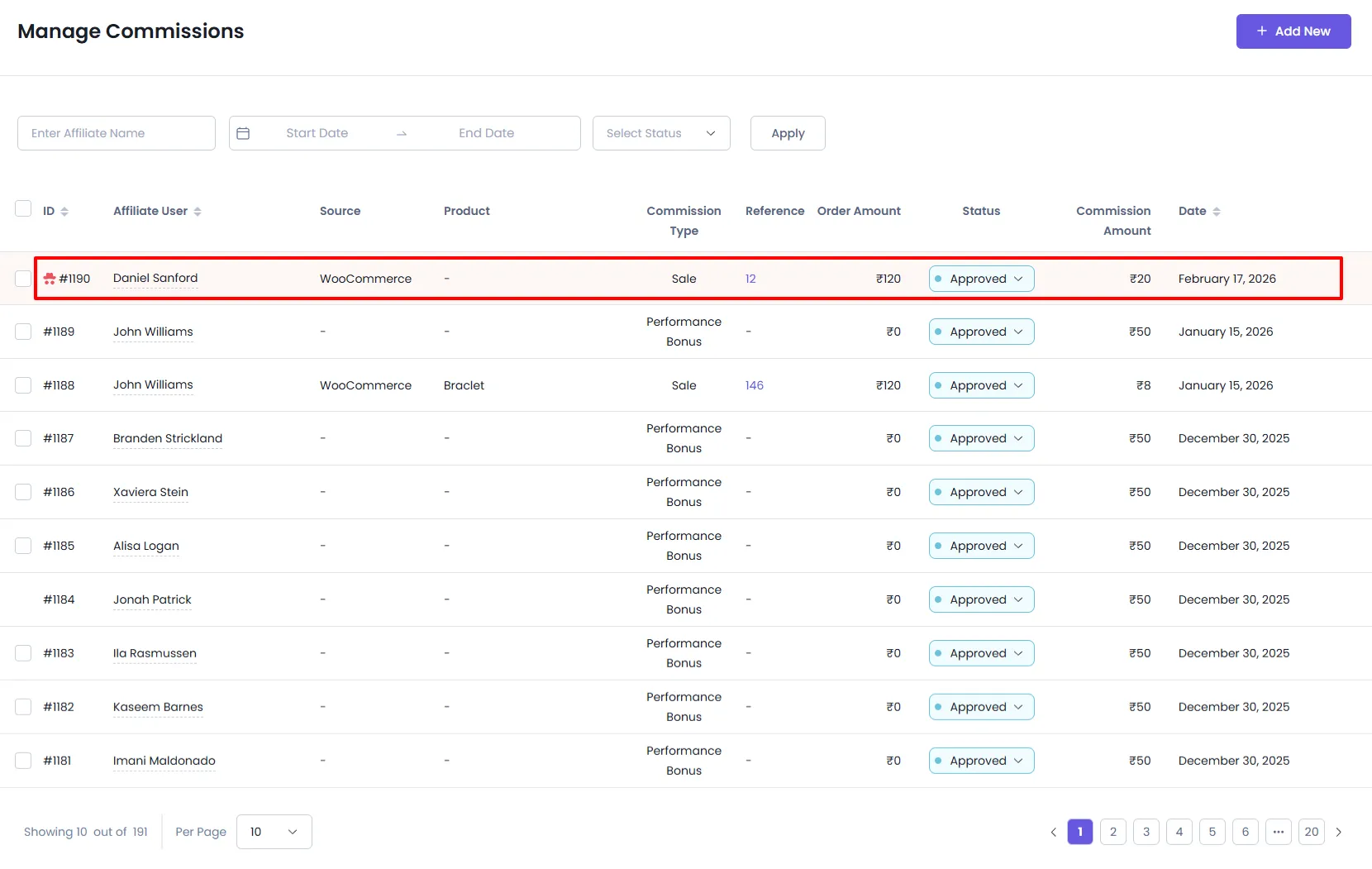
Also, at the commissions page, the commission for the flagged affiliate will also be highlighted so that the administrator can flexibly monitor their activity and actions.
3. Edit Affiliate
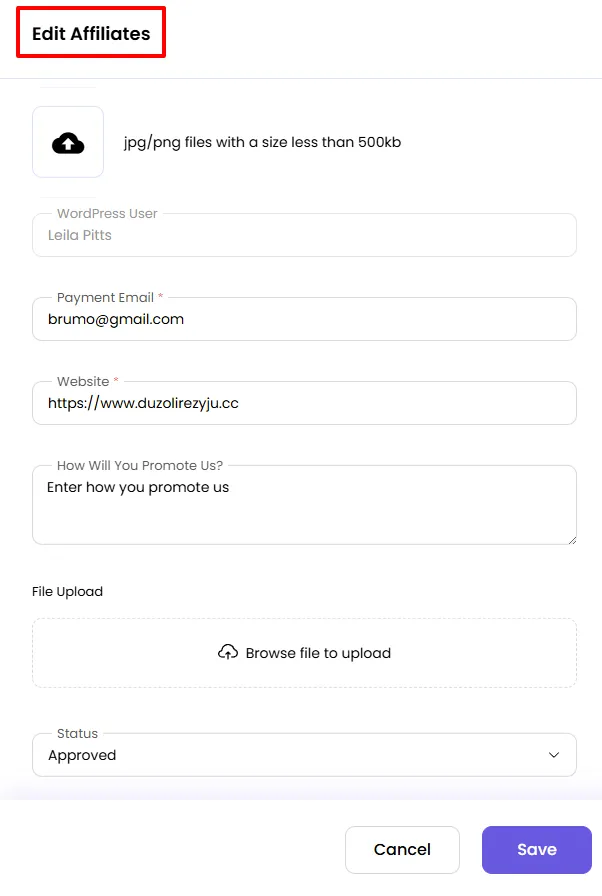
Sometimes, you may need to update the details of an existing affiliate. To edit an affiliate, hover over their row, and an action bar will appear with an “Edit” icon. Click the icon to open the affiliate form, which will display all the details of that affiliate.
4. Delete Affiliate
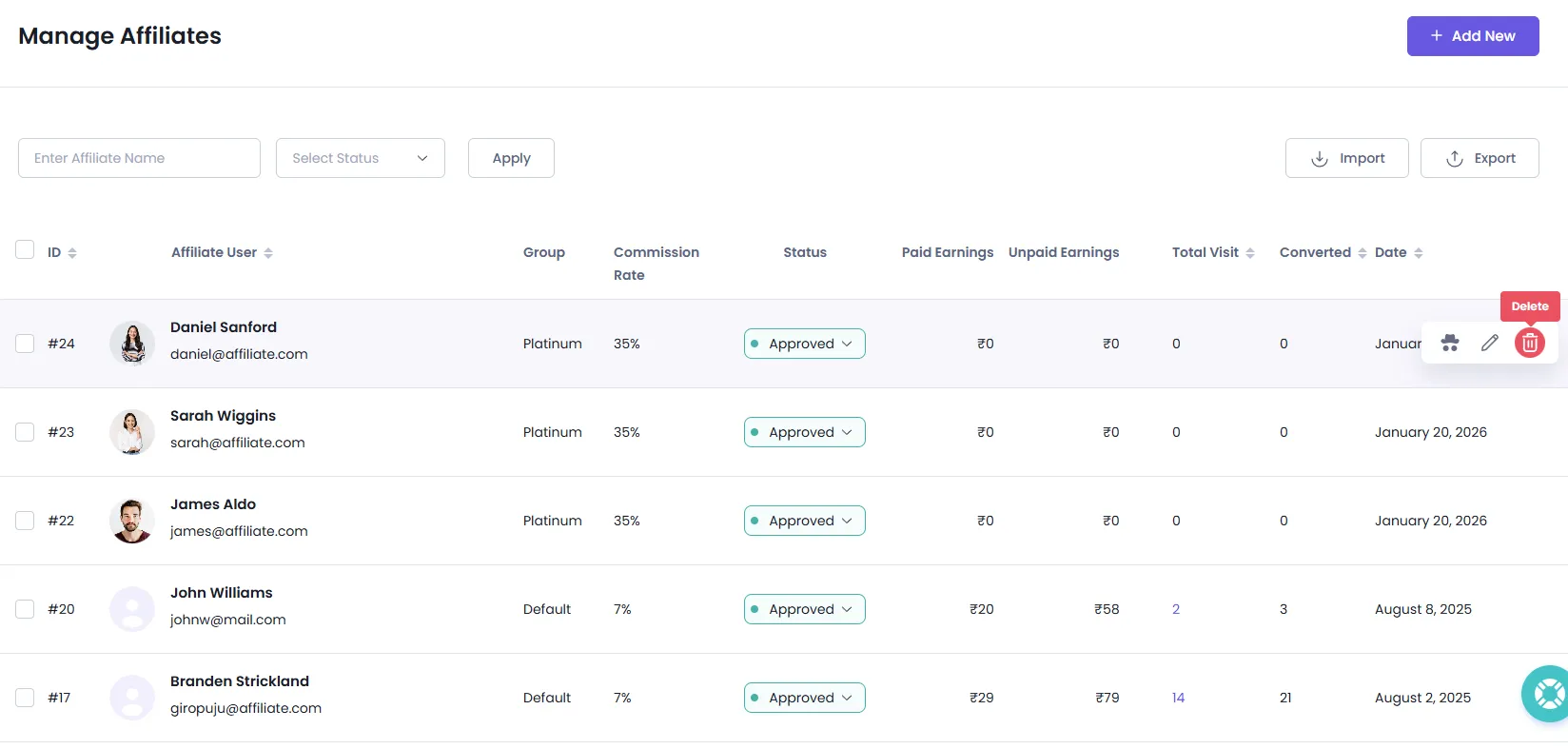
To delete a specific affiliate, hover over their row in the affiliate list, and an action bar with a ‘Delete’ icon will appear. Click the icon, and a confirmation prompt will appear. Click the ‘Delete’ button in the confirmation box to remove the affiliate.
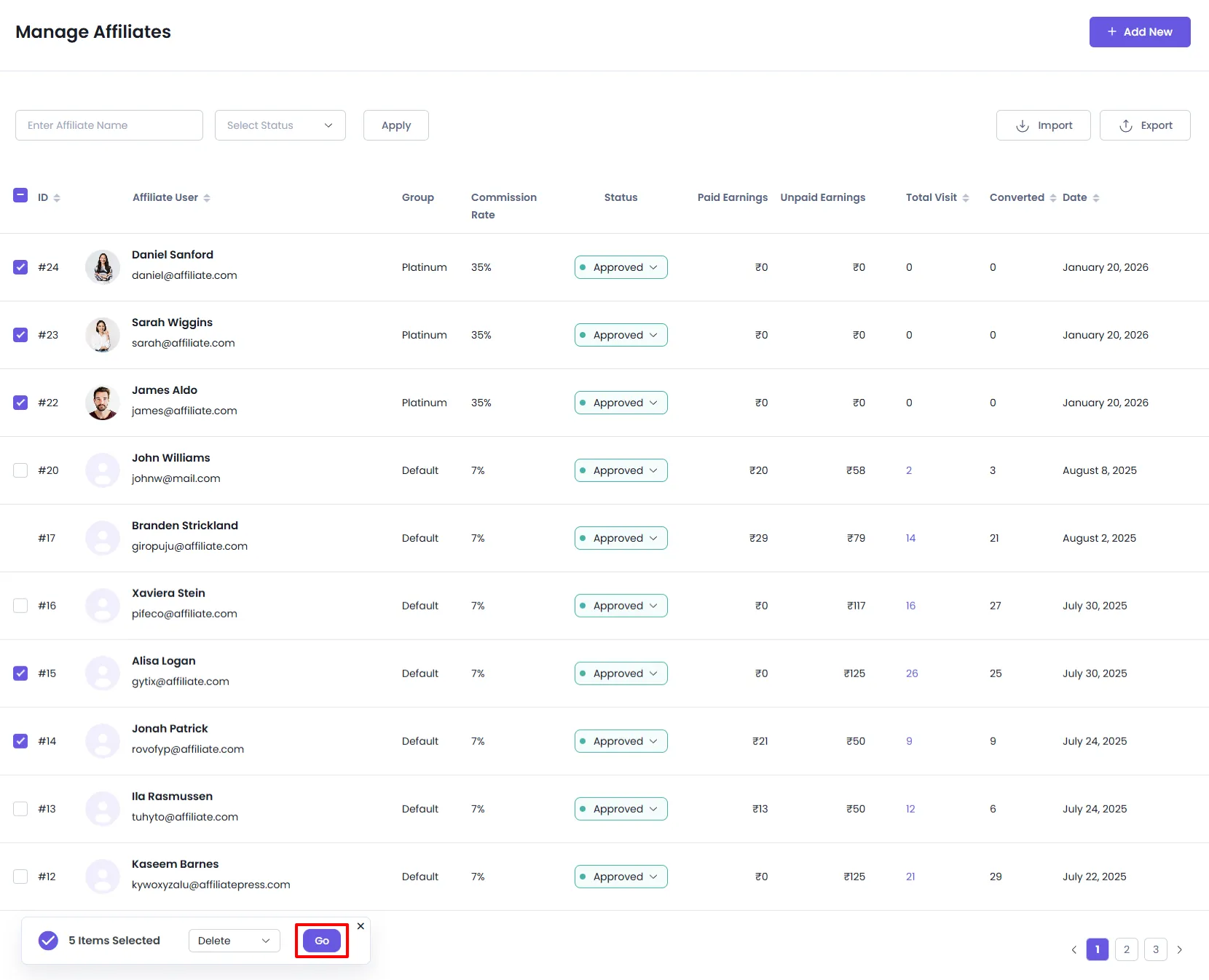
You can delete multiple affiliate users by checking the boxes next to the affiliates you want to remove. A dialogue box with options will appear at the footer once you select at least one affiliate. When you’re sure you want to delete the selected affiliates, click the ‘Go’ button to delete them.
5. Export Affiliates
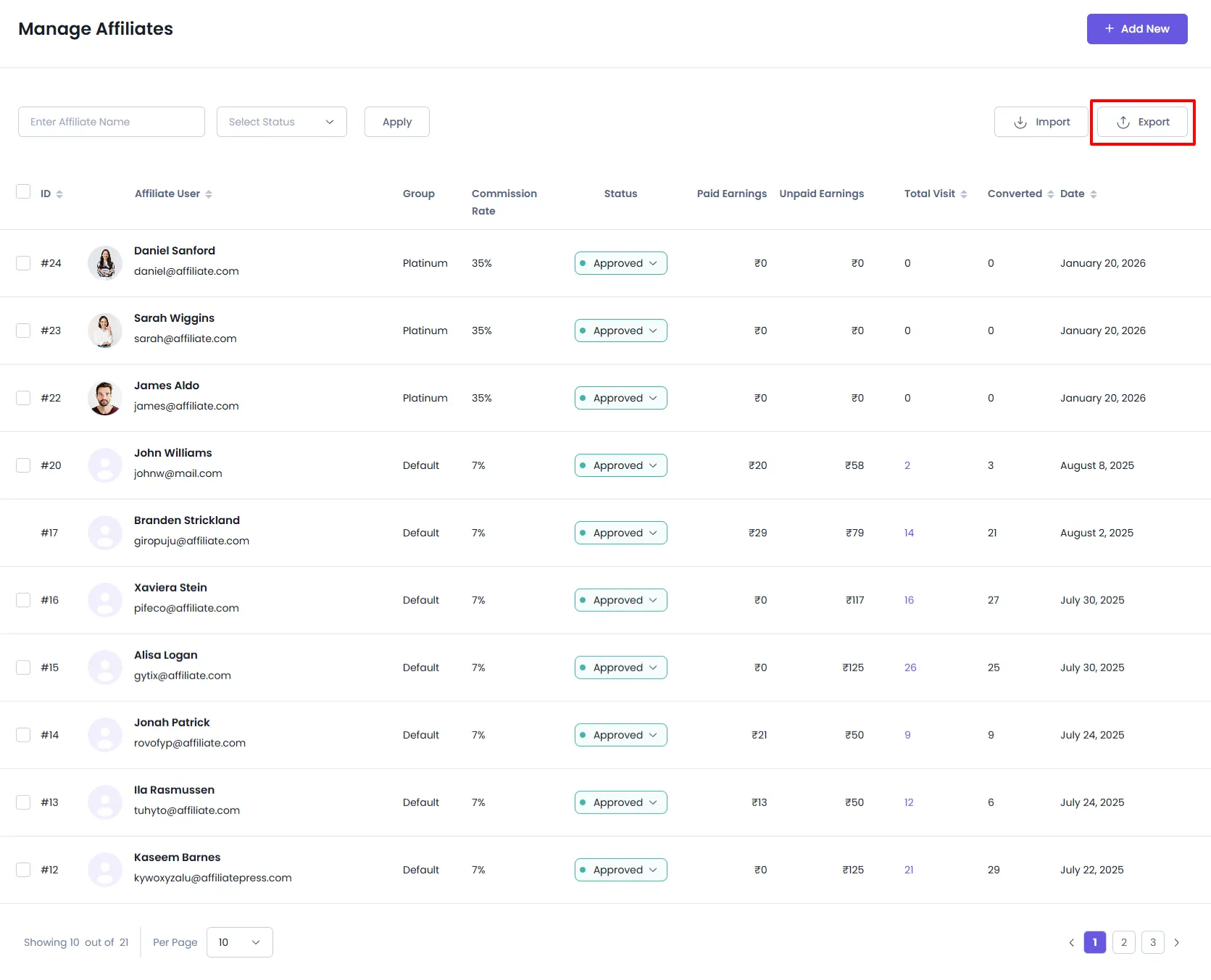
You can also export all the affiliates by clicking on the Export icon from the top-right corner.
6. Import Affiliates
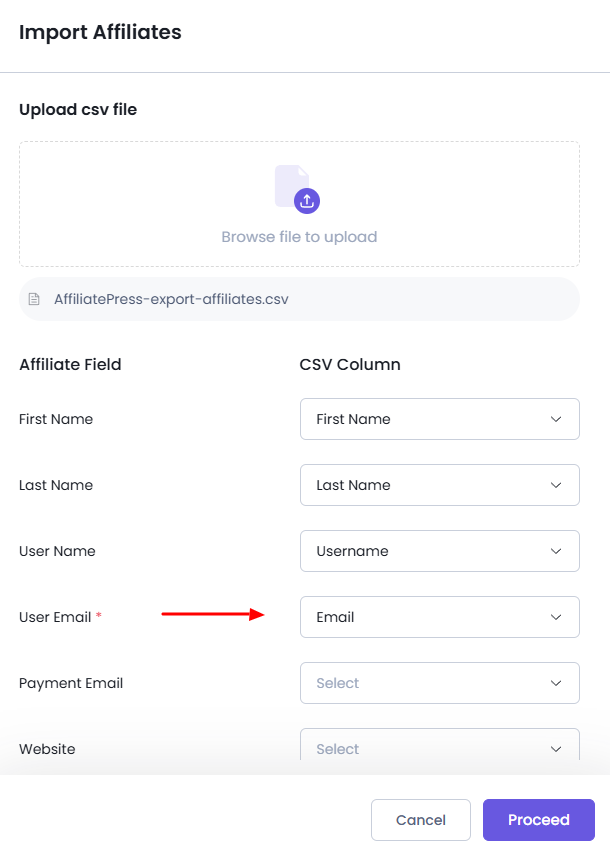
You can also import all affiliates by clicking the “Import” button in the top right corner. The CSV file should be comma-separated. The order of the fields is not important, as you will map them in the next step.
After uploading your file, you will see a list of affiliate fields that need to be filled. For each field, a dropdown will appear, allowing you to map the corresponding data. The dropdowns will be populated with the columns from your CSV, enabling accurate mapping of the data. The email field is required to import affiliates.
7. Affiliate Status Change – Rejected
In the affiliate management system, when an affiliate’s status is changed to rejected, the system will automatically update all related commission records.
- All commissions with the status Pending and Approved will be changed to Rejected.
- Commissions with the status rejected or paid will not be affected and will remain unchanged.
If the affiliate’s status is later changed from Rejected to Pending or Approved:
- Commission statuses will not be automatically updated.
- Previously rejected commissions will remain rejected.
- Paid commissions will remain unchanged.