



Commission
Each time an affiliate successfully refers a customer and the referral qualifies for a commission, AffiliatePress creates a commission record automatically.
From the Commissions page, you can verify the commission, approve or reject it, make changes if needed, manually add new commissions and mark commissions as paid once the affiliate receives their earnings.
Here, we’ll show you how to view the commission list, add new commission records, use advanced features and manage existing commissions.
View and Manage Commissions
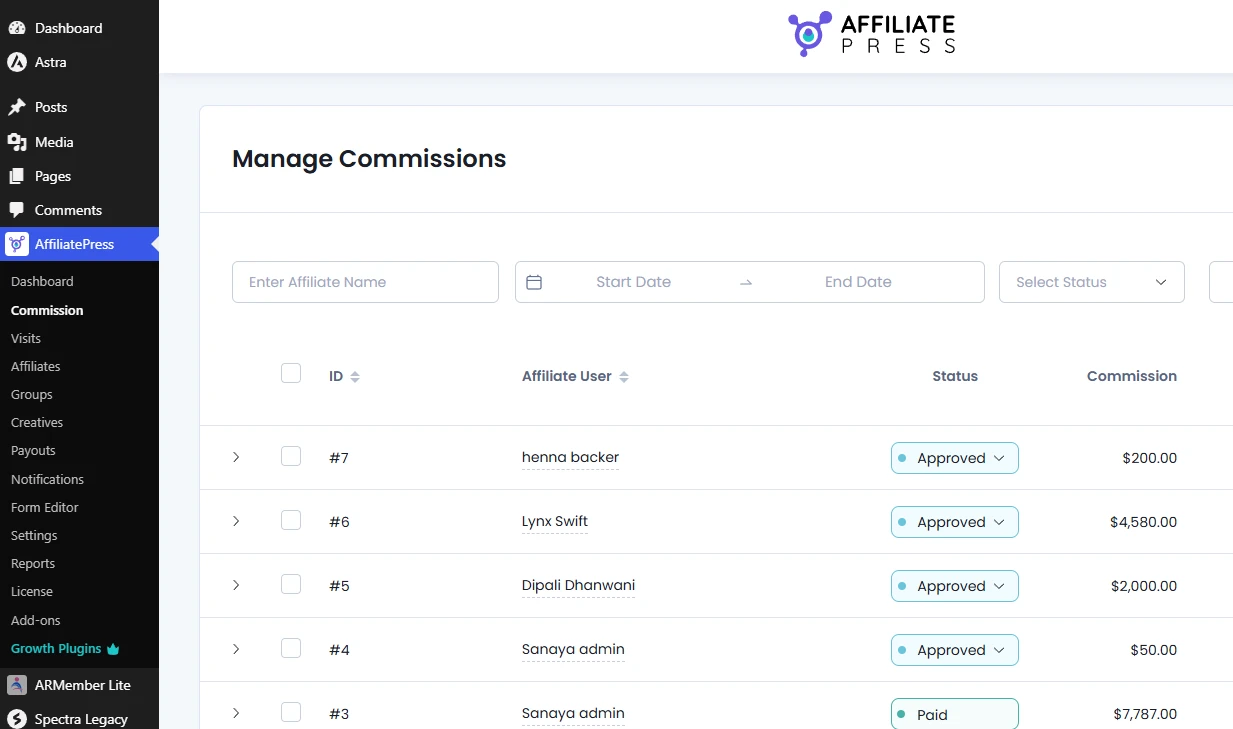
You can view and manage all affiliate commissions from the WordPress → AffiliatePress → Commissions.
View All Commissions
The Manage Commissions list shows all affiliate’s commission along with key details such as:
- ID
- Affiliate User
- Status
- Commission
- Date
To adjust the number of records shown per page, scroll till the bottom and select the number of records per page from the dropdown list.
Search and Filter Commissions
The AffiliatePress Commissions page has several ways to search for a specific commission record.
You can use the search bar to find commissions by affiliate name. Also, you can apply filters such as date range or shortlist based on status from the drop down list to quickly find the specific commission details.
After entering your data, click on the Apply button next to all search filters. You can also reset the list back to its original order by clicking on the Reset button which appears after search.
Update Commission Status
You can easily change the commission status of each commission’s record manually by using the dropdown available within each commission row.
You can change the commission status to:
- Approved: Commission is ready to be paid.
- Pending: Waiting for review.
- Rejected: Will not be paid.
- Paid: Already paid.
Note: You can only change Status to “Paid” by editing commission details.
Once a commission status is paid, you can’t change its status from here. To do that, you must Edit Commission details from the action icons.
View Commission Details
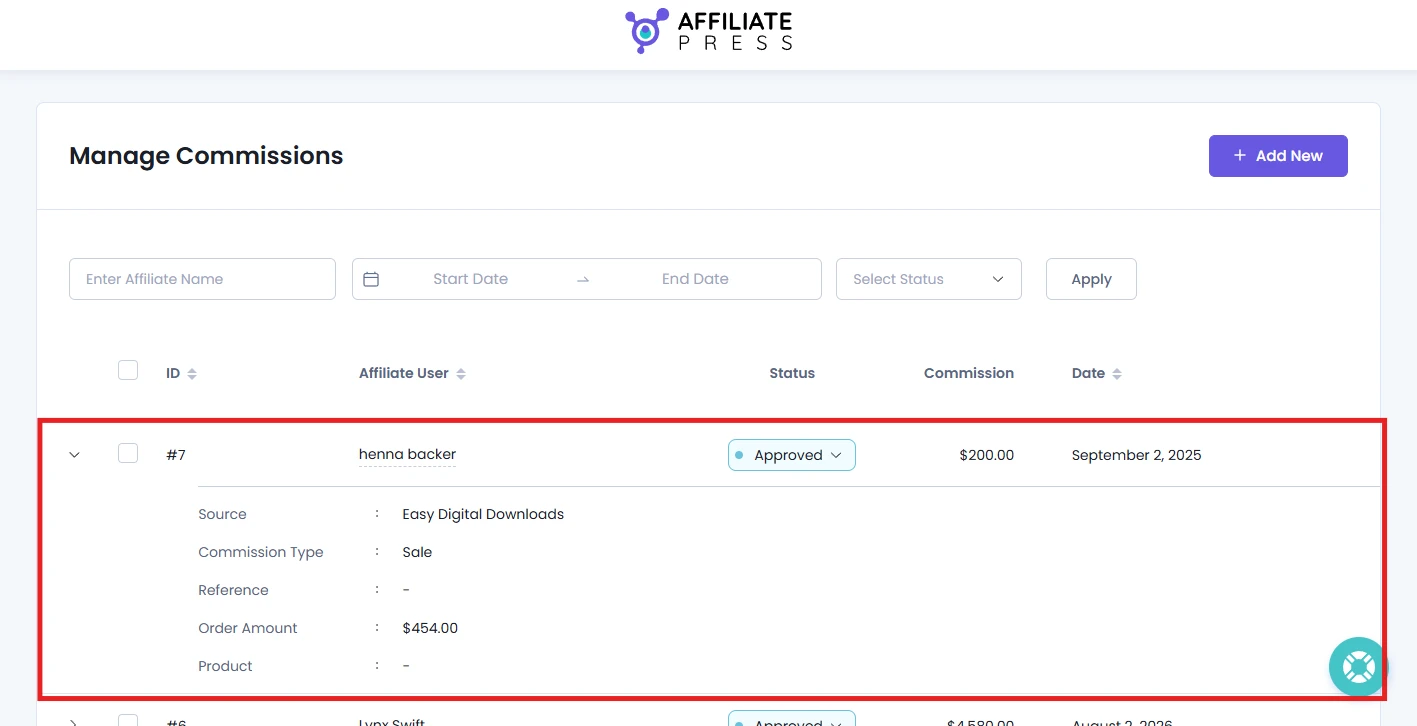
To view commission details at a glance, simply click on the commission record to see its:
- Source
- Commission type
- Reference
- Order amount
- Product name
User Details
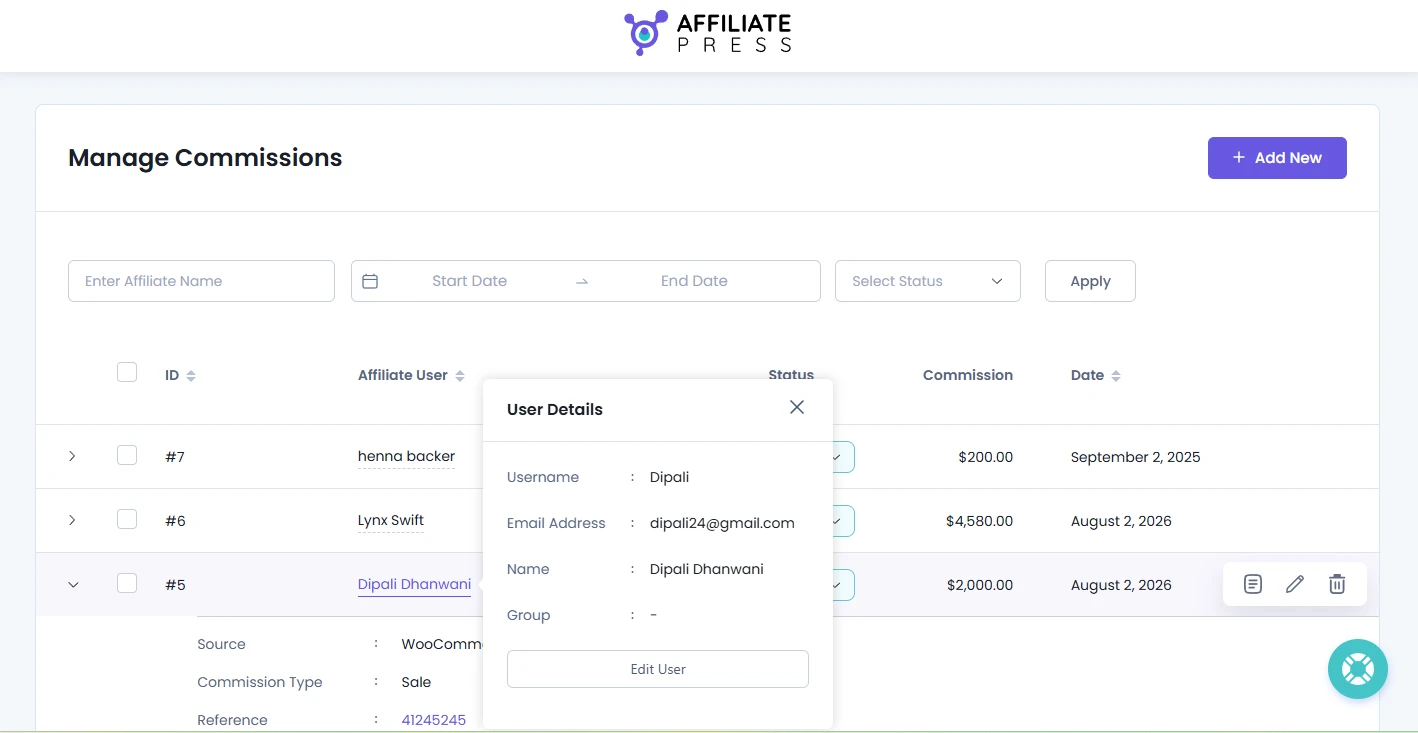
You can see the details of affiliate users at the commission tab itself. For this, click on the affiliate user’s name in the column.
This will open a small popup box that will show that affiliate’s
- Username
- Email Address
- Name
- Group
If you want to edit the affiliate user details, hit the Edit User button inside the same User Details popup box, and you’ll be redirected to the Edit Users Page of WordPress.
From here, you can easily edit its full name, role, contact info, profile picture, passwords and more.
How to Add a Commission Manually
To add a new commission data manually from the AffiliatePress, click the “Add New” button on the top-right corner.
This will open a side panel where you can fill in all the necessary details of the commission.
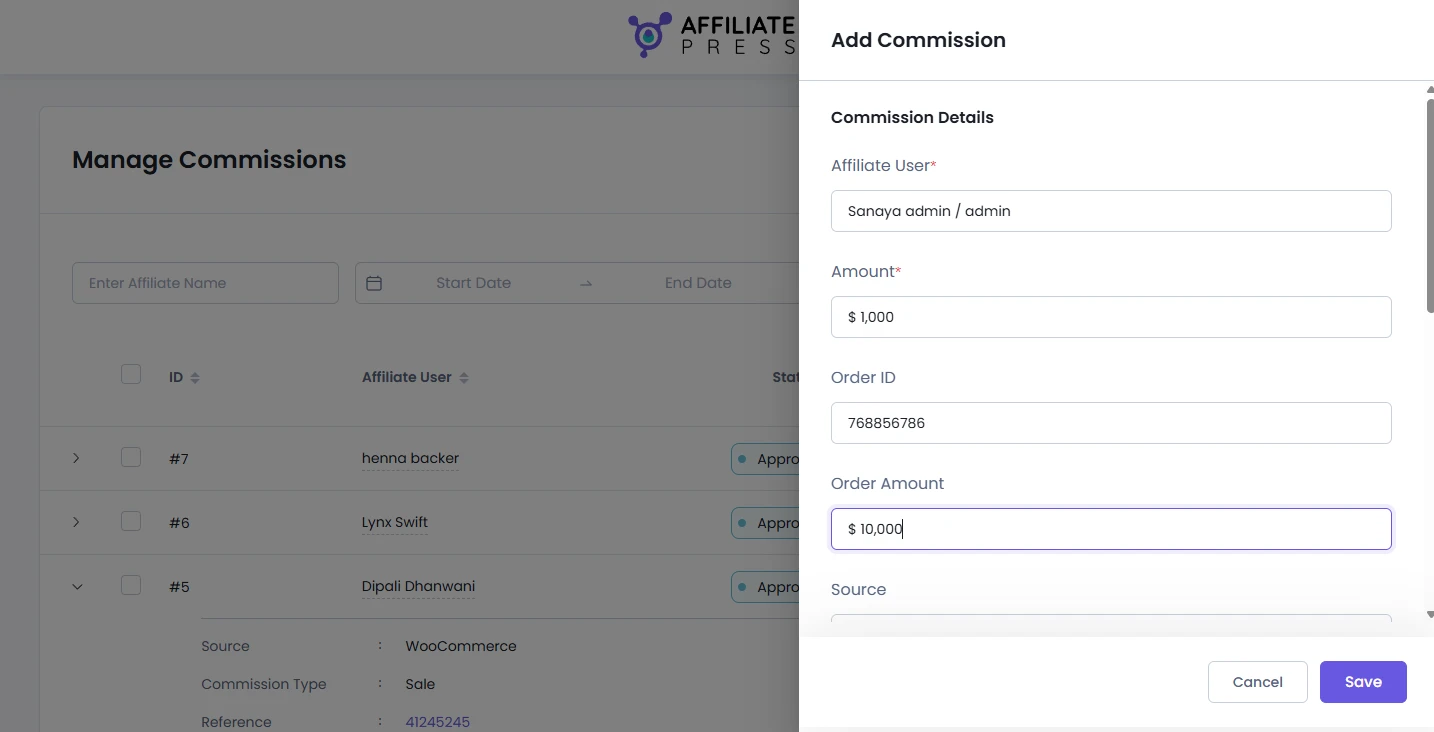
Here are the details you must enter to manually create a commission record:
- Affiliate User: Start typing the name of the affiliate. A list of matching affiliate users will appear so simply select the one you want.
- Amount: Add the amount of commission the affiliate earned.
- Order ID: Although it’s optional, you can still specify the related order ID here if you want to.
- Order Amount: Enter the total order amount associated with the commission. This is optional as well.
- Source: Select the source of commission from the drop down list of the platforms where sale happened (e.g., WooCommerce, Easy Digital Downloads, etc.). And again, this is completely optional; for your own record.
- Reference Product/Plan: Begin typing to search and select the relevant product or membership plan. This field is optional too.
- Reference Detail: Optionally, you can also type any specific detail you want to regarding the product or service the customer bought via the affiliate’s referral.
- Date: Select the date of commission.
- Status: Decide and pick the status of commission. There are 4 status to which you can change:
- Approved – The commission amount is approved from your side(Admin’s side).
- Pending – The commission amount is still pending, yet not approved.
- Rejected – The commission amount is rejected and will not be paid.
- Paid – The commission amount is paid already. You can set this status only while creating a new commission data, or editing one.
- Note: You can add your commission notes here. This is not necessary at all; just a place for your internal notes.
Once all form fields are filled, click the “Save” button to create the new commission record.
Available Commission Actions
The Commission page lets you manage individual commission records using action icons.
Hover over any commission record in the list to see the available action icons. These actions allow you to view, edit/update or delete an commission record:
- View Details
- Edit
- Delete
View Details
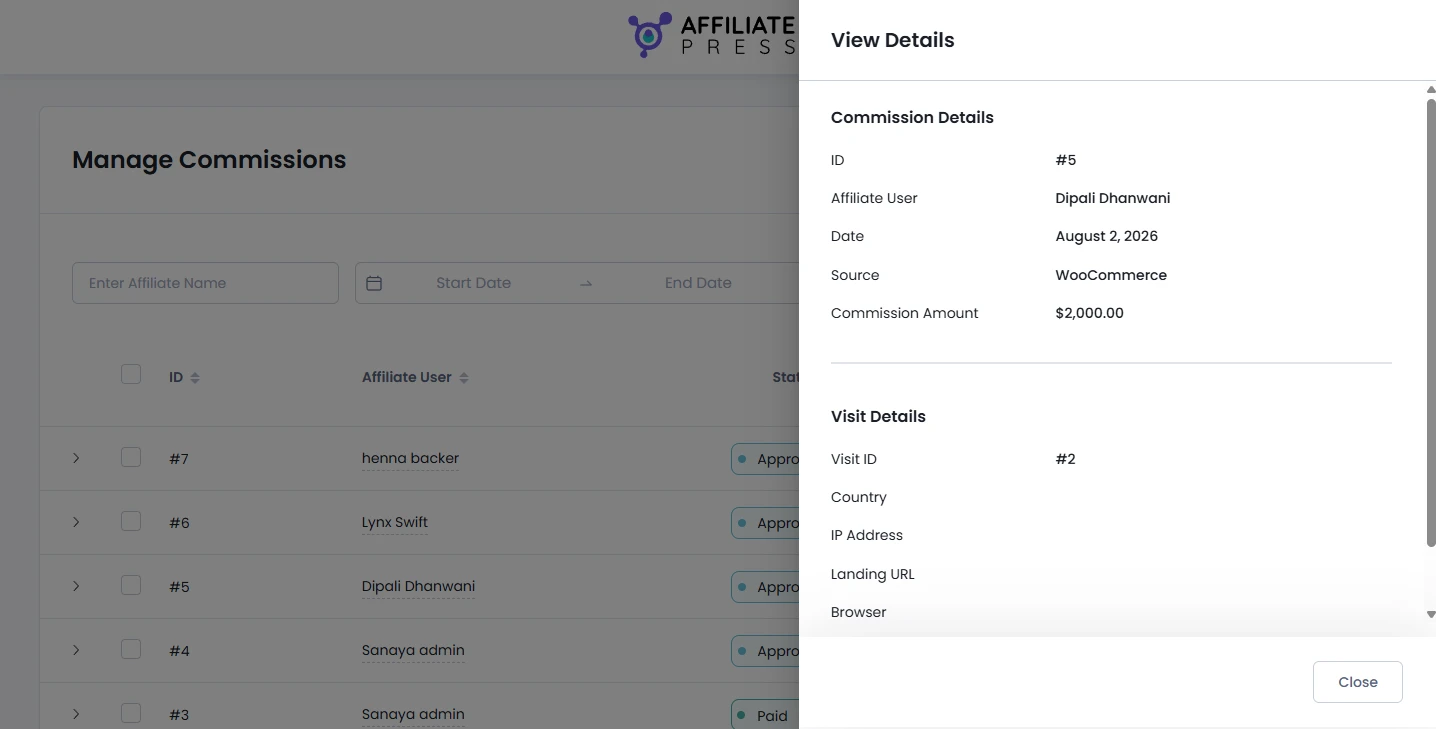
This View Details panel has all the additional information about the selected commission. Click the View Details icon to open a side panel.
From here you can see both the commission record and the associated referral visit. The panel is divided into two sections:
Commission Details
Here you’ll find information such as:
- Commission ID
- Affiliate User
- Commission Date
- Source
- Commission Amount
Visit Details
Here you’ll find information such as:
- Visit ID
- Country
- IP Address
- Landing URL
- Browser
- Referrer URL
Reviewing these details allows you to verify commission records, investigate referral activity and troubleshoot affiliate tracking when needed.
Edit
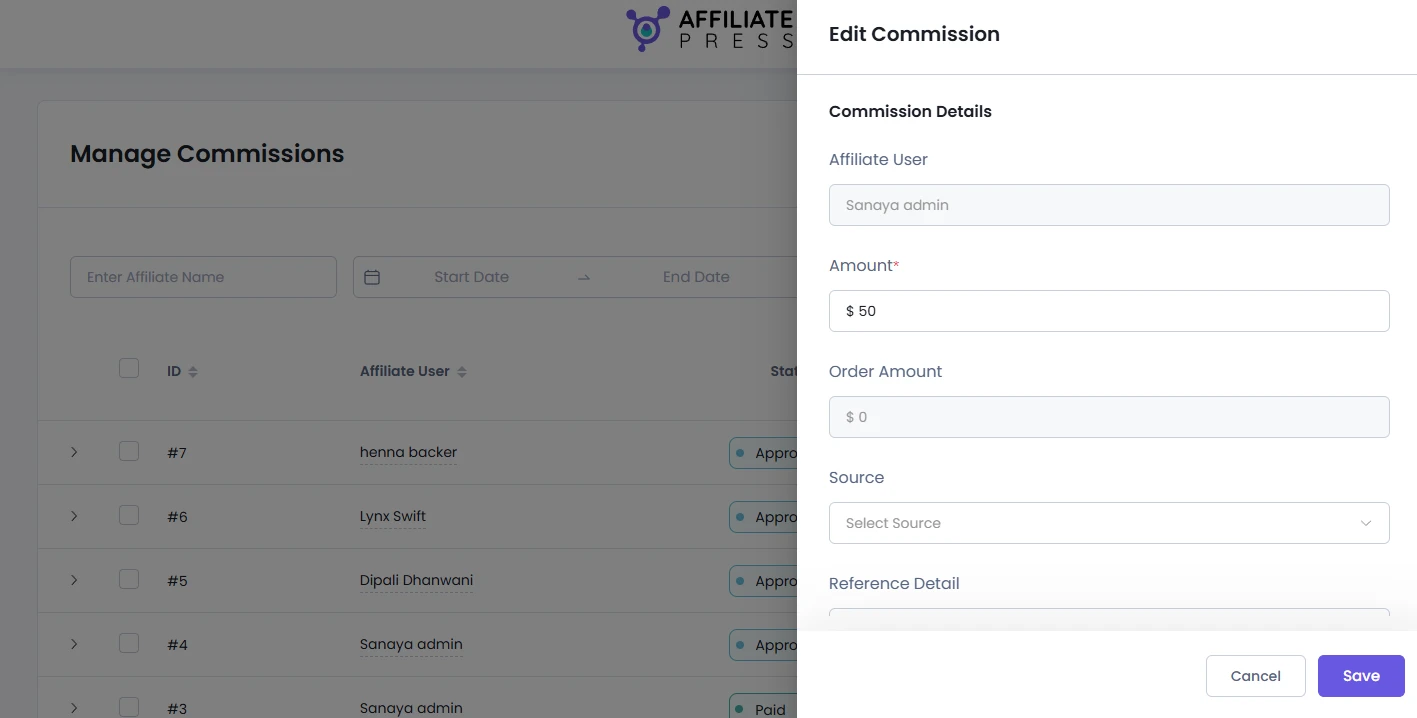
Here you can change the commission details such as the affiliate user, commission amount, status, reference information and notes. Click the Edit icon to update an existing commission record.
After making your changes, click Save to update the commission.
Delete
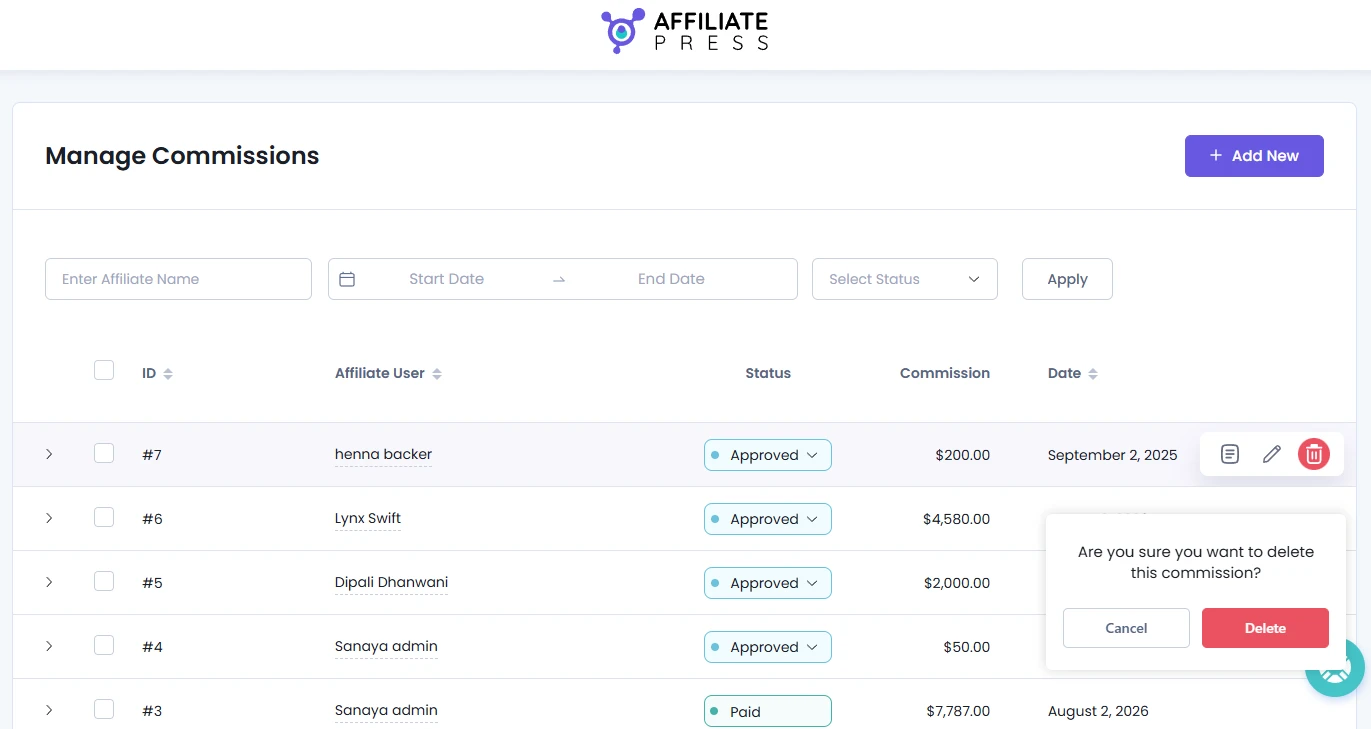
To delete a specific commission record, simply click the Delete icon.
After clicking on the Delete icon, a confirmation popup will appear to help you prevent accidental removal, asking, “Are you Sure you want to delete this commission?”.
If yes, then hit the Delete button to permanently remove the selected commission record.
Note: Deleting a commission only removes the commission record from AffiliatePress. It does not delete the associated order, customer or affiliate account.
How to Manage Commission Bulk Actions?
Inside the Manage Commissions, you can easily approve, reject, or delete multiple commissions at once.
Follow the steps below to manage multiple commissions in bulk:
- Inside the Manage Commissions page, you’ll see a checkbox next to each commission entry.
- Tick the checkboxes to select the desired commission entries, or you can also select all at once by clicking on the first checkbox next to the ID label.
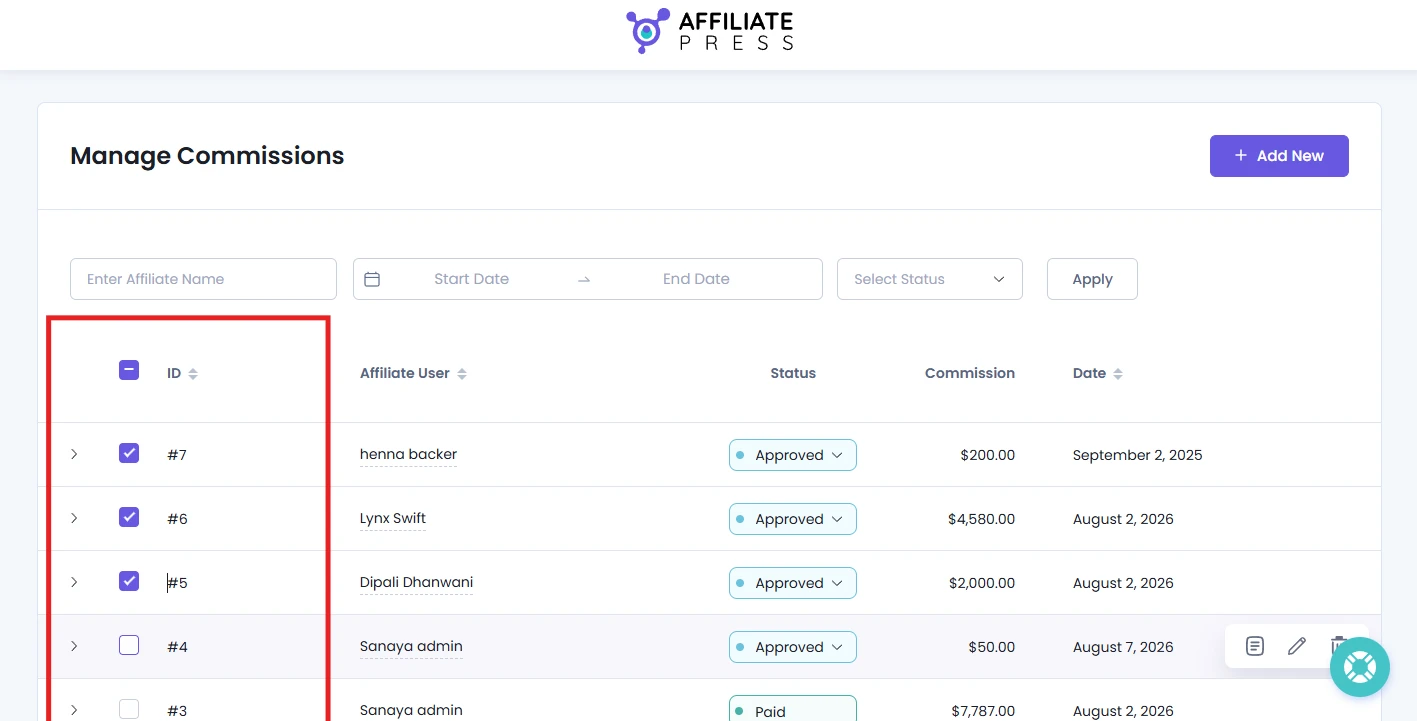
- Now scroll down till you see the bulk action toolbar at the bottom of the list.
- Next, select your bulk action: Approve, Reject, Pending or Delete.
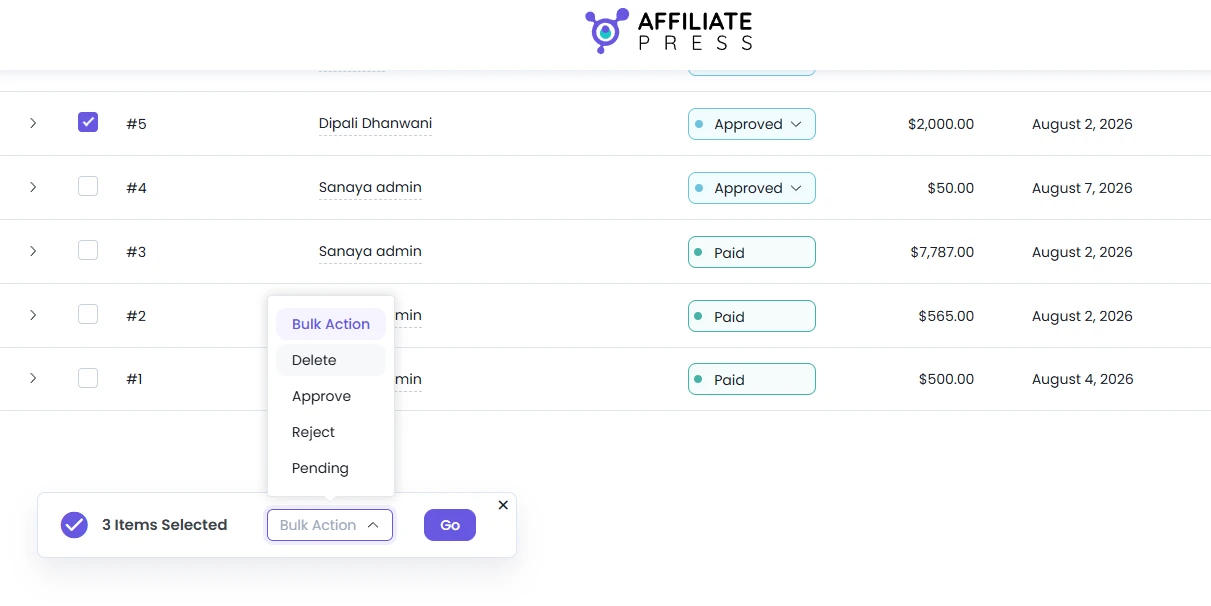
- Lastly, click “Go” to apply the changes to all selected items.
If you click the “Go” button without selecting any action, it’ll show an popup error letting you know to select any action.
Want To Change How Commissions Are Calculated?
AffiliatePress allows you to create multiple commission structures, from flat rate, percentage-based to advanced multi-level affiliate commission.
Go to the AffiliatePress → Settings → Commission tab, and set your commission rates and structure. For more details, check our beginner friendly guide on AffiliatePress Commissions Settings by clicking here.