



How to Set Up Mass Payout With PayPal And Stripe In AffiliatePress

When a company pays hundreds of affiliates monthly, it makes no sense to do it all by hand. With AffiliatePress, you can use PayPal and Stripe to automate mass payouts.
PayPal is built into AffiliatePress for free, while Stripe is an optional extension, which you can enable through add-ons (for Professional and Enterprise plans only). Both methods can be used for mass payouts to your affiliates.
How does it work? We’re explaining in this article.
TL;DR: AffiliatePress lets you automate affiliate mass payouts using both PayPal and Stripe. PayPal payouts are built-in, while Stripe works through Stripe Connect. This allows you to process bulk commission payments, track payout status, and automate affiliate management directly from your WordPress dashboard.
How To Set Up Stripe Mass Payouts In AffiliatePress
With Stripe, “mass payouts” are usually handled through Stripe Connect. Stripe Connect allows you to:
- collect payments from customers,
- split money between multiple parties,
- automatically send payouts to sellers/service providers,
- automate affiliate commissions.
Stripe supports bank transfers, debit card payouts, international payouts in some countries and scheduled or instant payouts.
A bird’s-eye view of the process with AffiliatePress:
- You enable Stripe for payouts through AffiliatePress payment settings.
- Affiliates connect their Stripe accounts in the profiles.
- AffiliatePress registers a valid affiliate commission (view it via the Commissions tab).
- When you are ready to perform a mass payout, you do that through the Payouts menu in AffiliatePress, sending money to different receivers with a few clicks.
Let’s now go through it step by step.
Step 1. Enable Stripe For Payouts In AffiliatePress
Before affiliates can receive payouts, you must connect your Stripe account to AffiliatePress.
- Activate the Stripe Payout addon via AffiliatePress → Addons → Enable the Stripe Payout add-on.
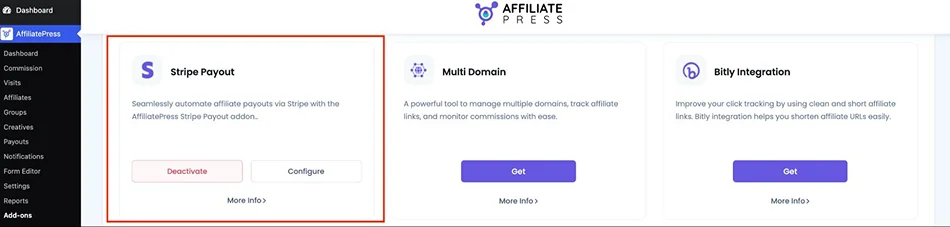
- Open the Payment Settings via AffiliatePress → Settings → Payment → Add your Stripe account credentials to associate with AffiliatePress.
Add Your Stripe API Keys
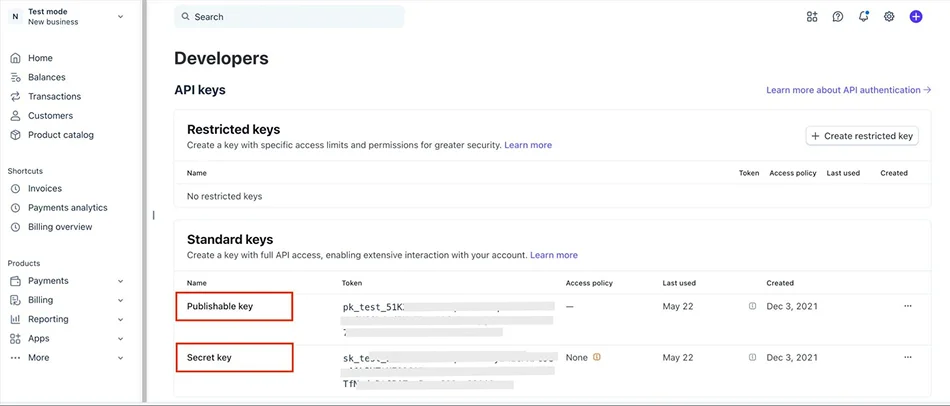
- Log in to your Stripe Dashboard and go to Developers → API Keys
- Copy Publishable Key and Secret Key
- Paste both keys into the AffiliatePress payment settings.
Configure Stripe Connect Client ID
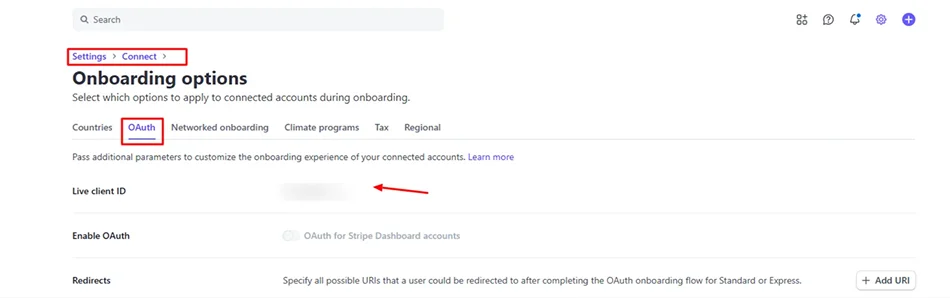
- In Stripe, go to Settings → Connect → Onboarding Options → OAuth
- Copy your Client ID
- Paste it into AffiliatePress.
Add the Redirect URL
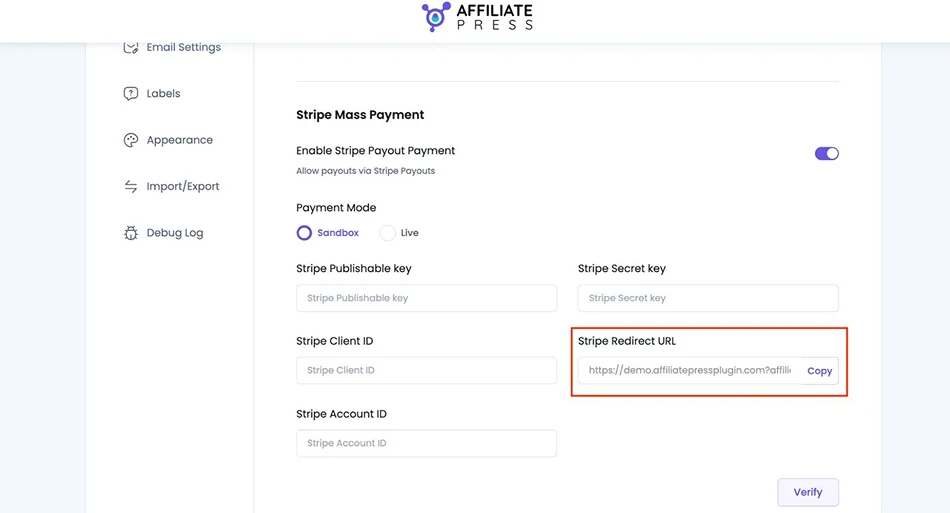
- AffiliatePress provides a Redirect URL inside AffiliatePress → Settings → Payment
- Copy this URL
- Go to Stripe → Settings → Connect → Onboarding Options → OAuth → Redirects
- Add the copied Redirect URL there.
Add Your Stripe Account ID
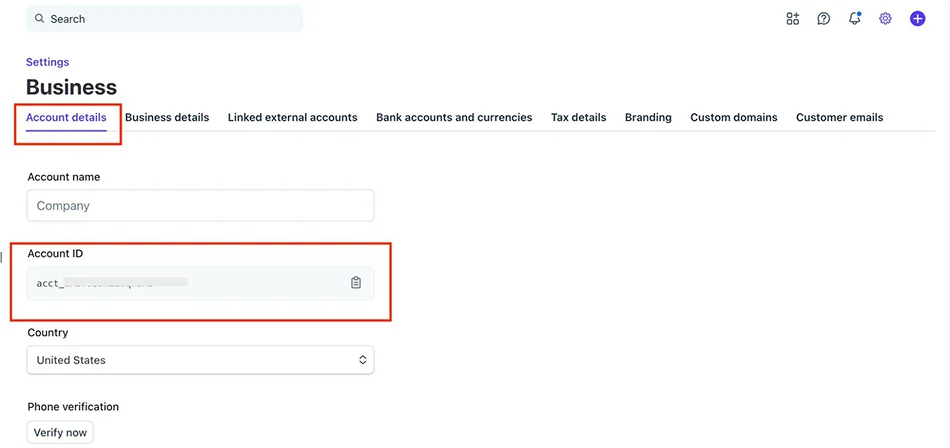
- In Stripe, go to Settings → Business → Account Details
- Copy your Stripe Account ID
- Paste it into AffiliatePress payment settings
- Save the Settings.
Your Stripe payout system is now connected to AffiliatePress! We also recommend using a Sandbox mode to test payouts!
Step 2. Affiliates Connect Their Stripe Accounts
Once Stripe is enabled, affiliates must connect their own Stripe accounts before receiving payouts.
The affiliate needs to log into your website and open their Affiliate Dashboard. Inside their panel, they need to click ‘Edit Profile’. Inside the profile settings, there is a Payment Detail section.
- The affiliate clicks ‘Connect with Stripe’.
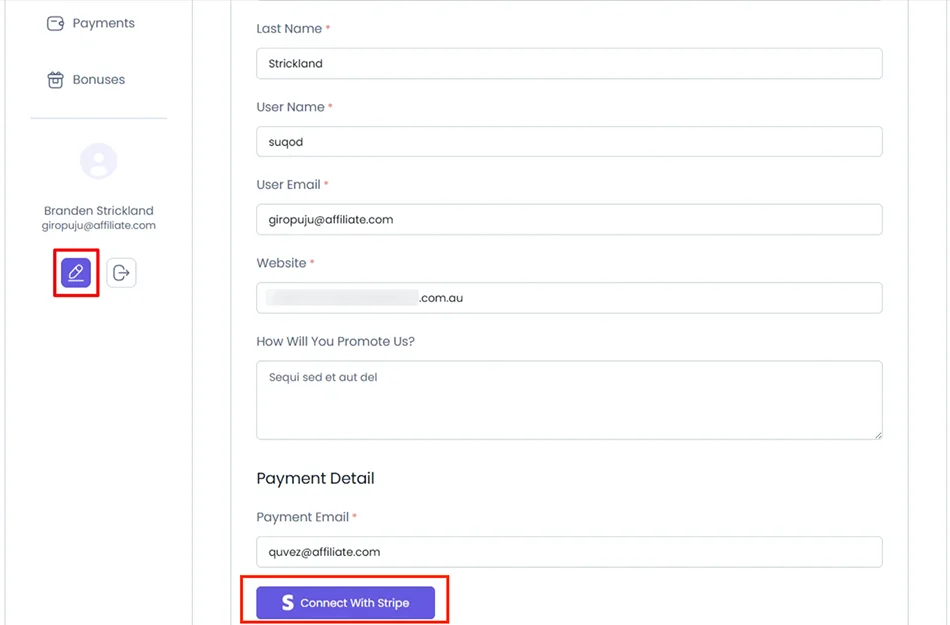
- Stripe will open a secure onboarding page where the affiliate logs into Stripe or creates a Stripe account, and finally connects their bank account.
After authorization, the Stripe account becomes linked to AffiliatePress.
Step 3. Generate Affiliate Commissions
Before you can send payouts, affiliates must earn commissions. AffiliatePress automatically records commissions when configured referral actions take place, such as WooCommerce purchases, membership signups, or other tracked conversions.
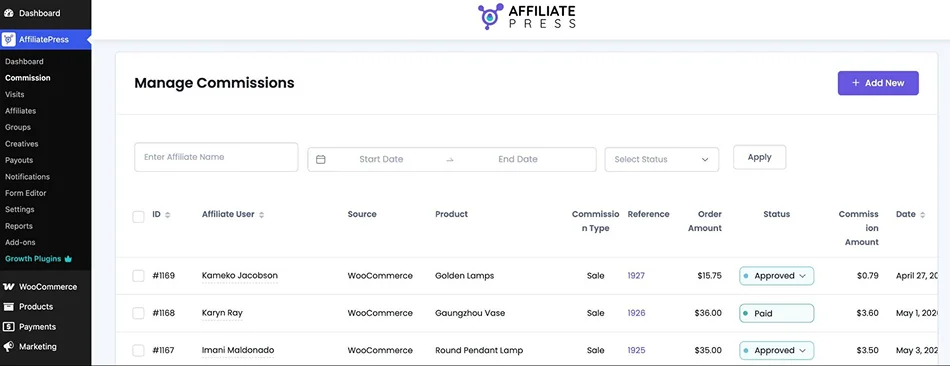
You can review commissions under AffiliatePress → Commissions, where you have a detailed overview of commissions and can perform various actions:
- view earned commissions,
- verify affiliate earnings,
- check commission status,
- confirm unpaid balances.
Note that only valid unpaid commissions can be included in Stripe mass payouts. Before processing payouts, verify:
- the affiliate connected Stripe successfully,
- commissions are approved,
- commissions remain unpaid.
Step 4. Perform Stripe Mass Payouts
Once commissions are ready, you can send payouts to multiple affiliates simultaneously with Stripe mass payouts.
- Go to AffiliatePress → Payouts
- Generate the Mass Payout:
- Select unpaid commissions.
- Choose the affiliates you want to pay.
- Click the payout action/button.
- AffiliatePress sends payouts through Stripe Connect.
- Stripe then transfers the funds directly to each affiliate’s connected bank account.
After a successful payout, payout records are stored in AffiliatePress, commissions are marked as paid, and affiliates receive funds through Stripe. Depending on the country and payout schedule, Stripe payouts may take a few minutes (instant payouts) or several business days for standard bank transfers.
How To Set Up PayPal Mass Payouts In AffiliatePress
Just like Stripe, PayPal Mass Payouts in AffiliatePress allow you to send affiliate commissions to multiple affiliates at once using PayPal.
Unlike Stripe mass payouts for affiliates we’ve just reviewed, PayPal payouts are based on affiliates’ PayPal email addresses, making setup faster and simpler for many affiliate programs.
Also, PayPal payouts are built directly into AffiliatePress, so no additional addon is required – and you can use it straight away with any premium plan.
Let’s walk you through the complete PayPal payout workflow in AffiliatePress.
Step 1. Enable PayPal Payouts In AffiliatePress
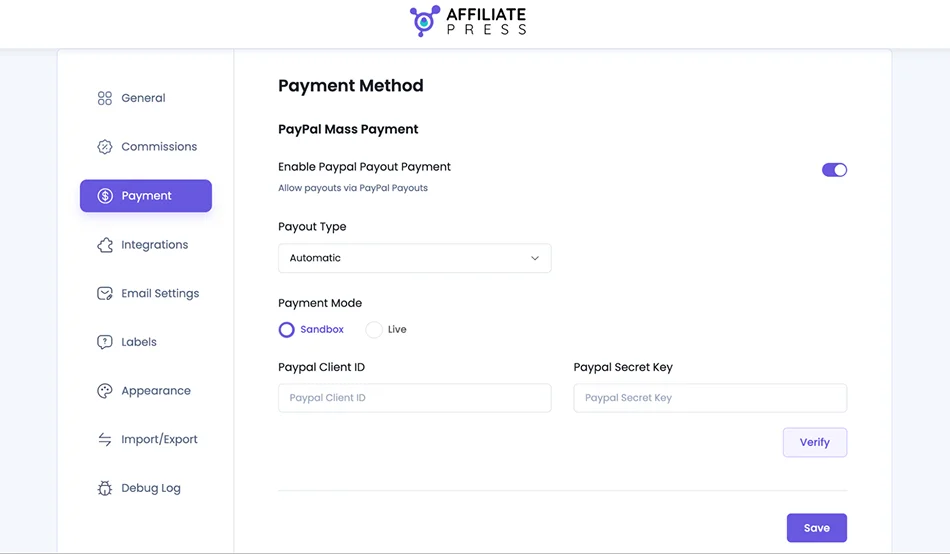
- Go to WordPress → AffiliatePress → Settings → Payment
- Enable PayPal Payout Payment (this activates PayPal Mass Payout support).
- Choose the payout type:
1. Automatic Payouts (AffiliatePress sends payouts automatically through PayPal using API credentials).
2. Manual Payouts (you manually handle payouts outside AffiliatePress and simply mark them as paid afterward).
For PayPal Mass Payout automation, select ‘Automatic’.
Create a PayPal Business Account
To use PayPal payouts, you need a PayPal Business account (so create or upgrade your account if needed).
Create a PayPal API App
- Log into the PayPal Developer Dashboard
- Go to My Apps & Credentials
- Create a new REST API app.
Copy Your API Credentials
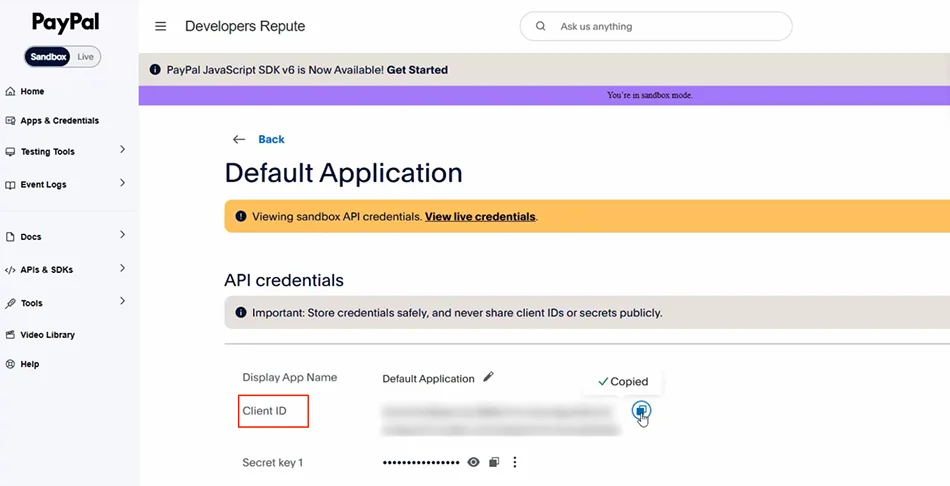
After creating the app, PayPal provides Client ID and Secret Key. Copy both credentials.
Add PayPal Credentials to AffiliatePress
Return to AffiliatePress → Settings → Payment and paste your PayPal Client ID and PayPal Secret Key. Then save your settings.
Step 2. Ensure Affiliates Added Their PayPal Email Addresses
Unlike Stripe Connect, affiliates do not need to connect bank accounts or complete Stripe onboarding.
They only need to provide the PayPal email address where they want to receive payouts (they actually also do it on the account registration step).
The most obvious way to do this is to add the PayPal payment address via the ‘Edit Profile’ section in their personal dashboards. This email becomes the payout destination for PayPal Mass payouts.
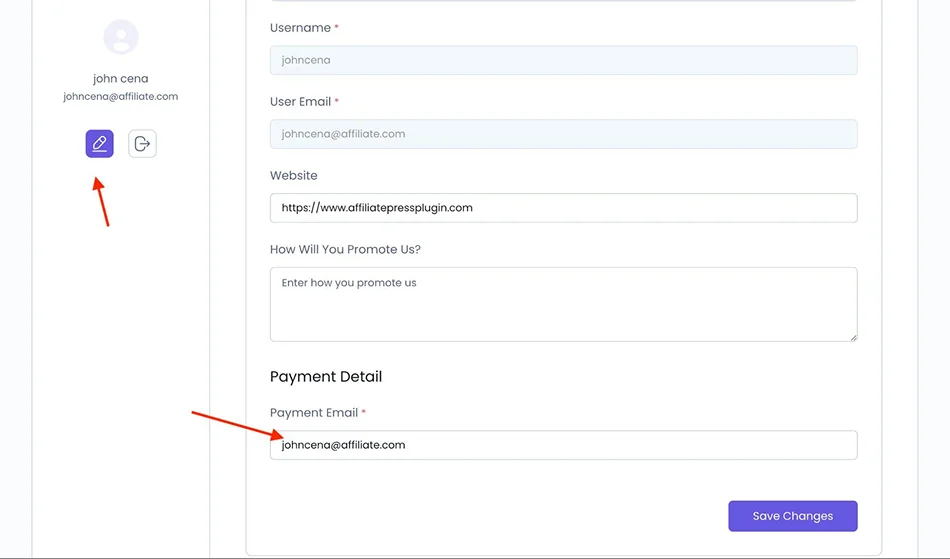
When payouts are processed, PayPal sends funds directly to this email-associated PayPal account.
Your affiliates should use a valid PayPal account email. Otherwise, PayPal may invite the user to create an account or the payout may fail or remain unclaimed.
Step 3. Drive Affiliate Commissions
Before payouts can be sent, AffiliatePress must register affiliate commissions.
AffiliatePress automatically tracks commissions from all supported integrations that you’ve configured. Via the Commissions menu, you can view affiliate earnings, verify unpaid commissions, approve commissions, and review payout eligibility.
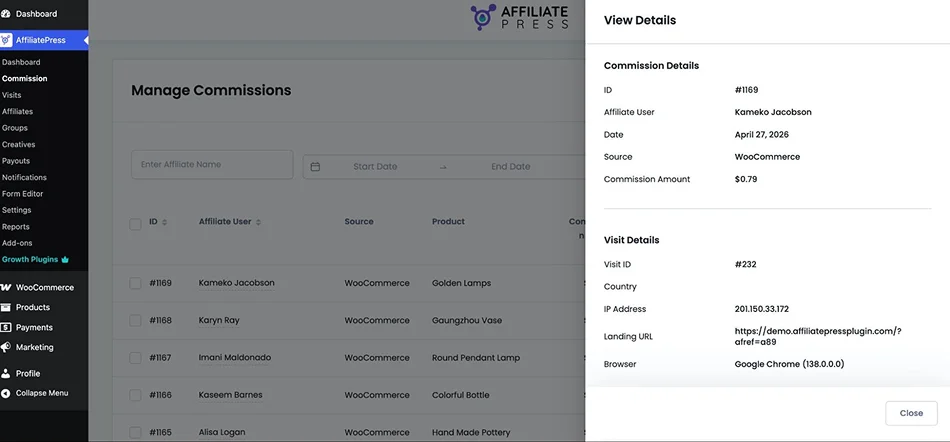
Remember that AffiliatePress also allows you to define minimum payout amounts, minimum order counts, and payout billing cycles. For example, you can only pay affiliates after they reach $100 in commissions.
Step 4. Make PayPal Mass Payouts Payment
Once commissions are approved, you can send PayPal payouts to multiple affiliates simultaneously. The process is pretty similar:
- Open the Payouts Page in AffiliatePress → Payouts.
- Generate the Mass Payout:
- Select eligible unpaid commissions.
- Choose the affiliates to pay.
- Start the payout process.
- AffiliatePress sends the payouts through PayPal.
PayPal then distributes the funds to each affiliate’s PayPal email address. So, here is a sum-up for a PayPal workflow:
- Affiliate earns commissions.
- Affiliate adds PayPal email.
- Admin reviews unpaid commissions.
- Admin generates mass payout.
- PayPal sends payments to affiliate PayPal accounts.
- Affiliate receives PayPal funds.
Unlike Stripe, affiliates do not connect bank accounts or create connected payout accounts.
You can also later edit a payout and mark individual affiliate payments as Paid or Unpaid.
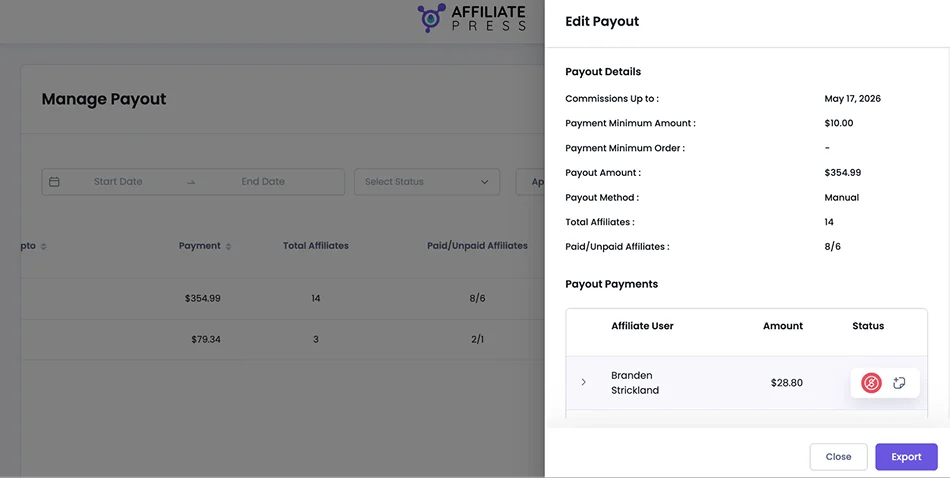
If a payout fails, you can check it out via AffiliatePress → Settings → Debug Log. You can enable payout logs and review the error details. Common causes for failed payments may be:
- invalid PayPal credentials,
- incorrect affiliate PayPal emails,
- insufficient PayPal balance,
- unverified PayPal accounts.
Conclusion: Use Affiliate Mass Payouts with AffiliatePress on WordPress
Mass payout systems let you send money to many affiliate recipients at once, without creating individual payments manually. They’re commonly used by affiliate programs – and AffiliatePress makes it easy, too, for WordPress sites.
PayPal payouts are built-in and can be used for manual or automatic mass payouts. Stripe payouts work through Stripe Connect. AffiliatePress does not send money to email addresses like PayPal Mass Payments. When Stripe is used, affiliates connect verified Stripe accounts that receive payouts directly to their bank accounts.
Either scenario requires connecting your API keys to be able to send money to multiple recipients at a time. Overall, you can save a huge amount of time by automating your affiliate payouts with AffiliatePress!
Related articles: