




I’ve seen websites crash at the worst possible time.
A plugin update breaks the layout, hosting goes down, or someone deletes the wrong folder, and suddenly the whole WordPress site is gone. And when that happens, there’s only one thing that matters: a backup that actually works.
Over the years, I’ve used almost every popular (and unpopular) WordPress backup plugin you can think of. Some saved me in seconds. Others failed when I needed them most.
That’s why this guide isn’t just a theory.
Here, I’ll share with you the 10 best WordPress backup plugins we actually tested on a staging WordPress site, so you can see what really works beyond the marketing claims.
TL;DR: UpdraftPlus, BlogVault and JetPack VaultPress are some of the best WordPress backup plugins for almost all WordPress users, including beginners and advanced users both.
The Best WordPress Backup Plugins At A Glance
Don’t have time to scroll? No worries! Take a snapshot of the best backup plugins for WordPress in 2026 and beyond.
| Plugin | Best For | Free Version | Starting Price | Cloud Storage Support |
| BlogVault | Real time backups, staging and migration | ✅ Yes | $49.50/year (Renews at $99/Year) | ✅ Yes(Inbuilt Cloud Storage ) |
| UpdraftPlus | Most WordPress websites. | ✅ Yes | $70/year | ✅ Yes |
| Jetpack VaultPress Backup | WooCommerce stores & real time backups. | ✅ Yes | $4.95/month | ✅ Yes |
| WPvivid | Beginners & simple backups. | ✅ Yes | $49/year | ✅ Yes |
| All-in-One WP Migration and Backup | Site migration + backups. | ✅ Yes | $99/year | ✅ Yes |
| BackWPup | Everyday WordPress users. | ✅ Yes | $49/year | ✅ Yes |
| WP STAGING | Staging & safe testing. | ✅ Yes | $104/year | ✅ Yes |
| Database Backup for WordPress | Database only backups. | ✅ Yes | Free | ⚠️ Limited |
| WP Umbrella | Managing multiple websites. | ✅ Yes | $2.19/site/month | ✅ Yes |
| Backuply | Budget friendly automated backups. | ✅ Yes | $18/year | ✅ Yes |
| WP Database Backup | Small WordPress sites. | ✅ Yes | $1/month | ✅ Yes |
Quick Answer — What Is The Best WordPress Backup Plugin Of All Time?
BlogVault is the best overall WordPress backup plugin of all time. With over 4.5/5 Stars in WordPress plugin directory and trusted by over 400,000 websites, this is clearly the top pick for both beginners and high-traffic eCommerce businesses.
Next, with over 3+ million active installations and top-tier ratings, UpdraftPlus is definitely the go-to backup tool for beginners as well as professionals. You can schedule automated backups and send them directly to your Google Drive, Dropbox or Amazon S3, making it best for most people.
And if you are running an eCommerce or high traffic site, JetPack vaultPress Backup is a good option. This WordPress backup plugin gives you real time, incremental backups so you never have to worry about losing a single transaction or order.
For complete beginners looking for a simple “all-in-one” tool to backup, restore and migrate, WPvivid is worth considering. Due to its simple and clean user interface, every non-techie will easily be able to backup their WordPress website with ease of mind.
Still undecided? Scroll down for reading our detailed review of all the top WordPress backup plugins including UpdraftPlus, JetPack vaultPress Backup, All-in-One WP Migration and Backup, BackWPup, and more.
How We Tested & Reviewed These Backup Plugins For WordPress
To make sure this comparison is fair and practical, we didn’t rely on screenshots, demos or plugin descriptions. Instead, we installed each and every WordPress backup plugin we could find on the market, and tested them on the same clean WordPress staging setup with the same conditions.
This helped us understand how they behave in real use.
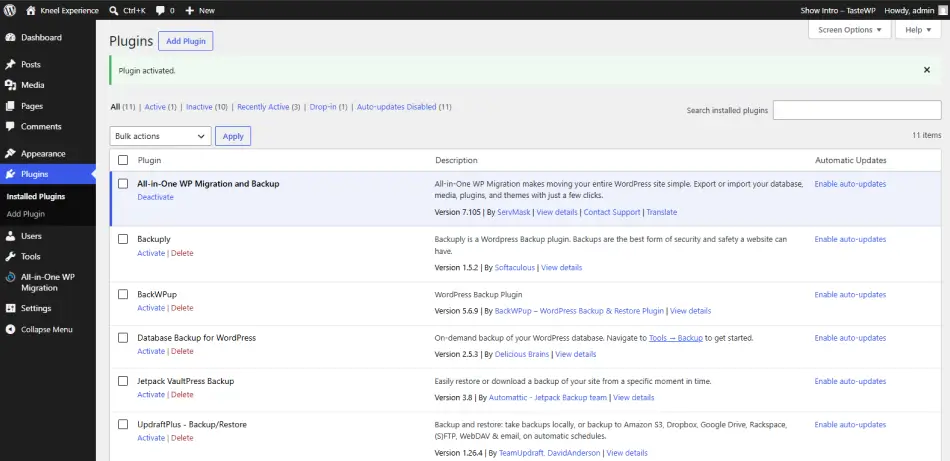
Over 25+ WordPress backup plugins were tested in a controlled staging environment. Each one was checked for real world performance, ease of setup, reliability and how smoothly they handle backups and restores when things actually go wrong. And only the top 10 were able to make it into this list of: 10 best WordPress backup plugins.
Here are the things we put into consideration when shortlisting for the best backup plugins for WordPress:
- Ease of Use: Some backup plugins I’ve come across looked powerful but became confusing during setup. Thus, I’ve prioritized plugins that are simple to install and easy to understand, even for beginners.
- Backup & Restore Reliability: A backup is only useful if it actually works when needed. Thus our team of experts tested full backup creation and restoration to make sure nothing breaks during recovery.
- Automation & Scheduling: How well each wp backup plugin handles automatic backups, scheduling and background processes without manual effort also is a matter taking into consideration when shortlisting.
- Storage Options: I made sure to check where backups can be stored such as cloud services like Google Drive, Dropbox, Amazon S3 or local server storage.
- Performance Impact: Some of you may not know but installing poor coded WordPress plugins slows down websites. Thus we tested how each plugin affects site speed during backup processes.
- Compatibility: Our team also checked compatibility with all popular themes, page builders and WordPress versions to make sure you get a smooth experience.
Now that you understand how we tested these WordPress backup plugins, let’s go through each plugin one by one. So you can quickly find the right WordPress backup plugin for your business needs.
1. BlogVault — Best Real-Time Backup Plugin For Business Websites
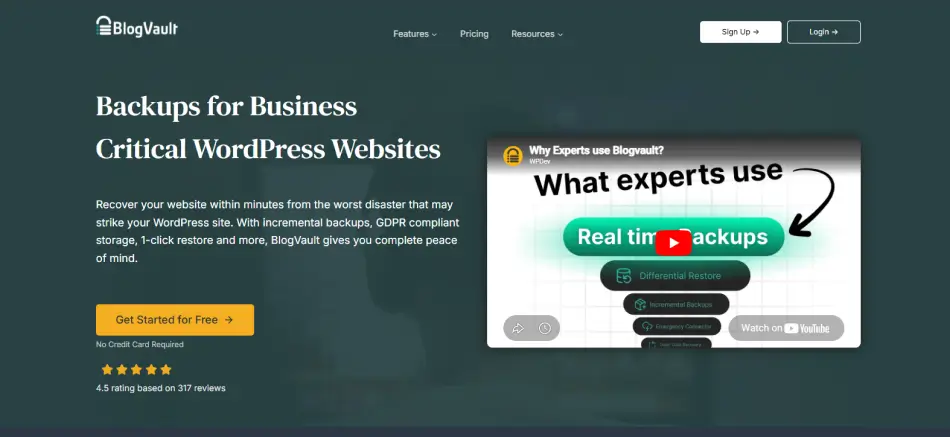
If there’s one backup plugin that genuinely feels built for serious WordPress websites, it’s BlogVault.
During testing, what instantly caught my attention was how little impact it had on website performance, even while running backups in the background. That matters more than you think because backups are supposed to protect your website, never slow it down.
Another thing I noticed is how polished the complete backup experience feels. From setting up backups to restoring a crashed website, everything is designed to be simple and stress free. Even if you’ve never restored a WordPress site before, BlogVault walks you through the complete process without ever making it feel technical.
What really separates BlogVault from many other WordPress backup plugins, however, is its real time backup feature for WooCommerce websites. You will never have to wait for the next scheduled backup. All important changes such as new orders or customer data can be captured almost instantly.
Apart from this, BlogVault is a premium back up solution. Of course, it has a free version available and the features are excellent. But for budget conscious users running personal blogs, it may be a little costly.
Key Features:
- Automatic incremental backups.
- One-click recovery and migration.
- Fast staging environment.
- Centralized dashboard for backup management.
- Multi-cloud data storage for maximum redundancy.
- Inbuilt cloud storage.
Pros & Cons:
| Pros | Cons |
| Excellent backup reliability. | Higher pricing than some competitors. |
| Minimal impact on website performance. | Advanced features come at a higher cost. |
| Real time WooCommerce backups. | May be more features than small sites need. |
| Built-in staging and migration tools. | Premium focused solution. |
| Beginner friendly restore process. |
Cost:
- Free version is available
- The premium plan starts from $49.50/Year. (Renewal plan starts from $99/Year)
My Verdict: BlogVault is the most complete WordPress backup plugin I tested. It goes far beyond basic backups by combining real time backup protection, staging, migration and recovery tools, all in one place. Thus if you’re running a business website, WooCommerce store, membership site, or any project where downtime can cost money, BlogVault is easily one of the best backup plugins available today.
2. UpdraftPlus — Most Reliable Backup Plugin For Most WordPress
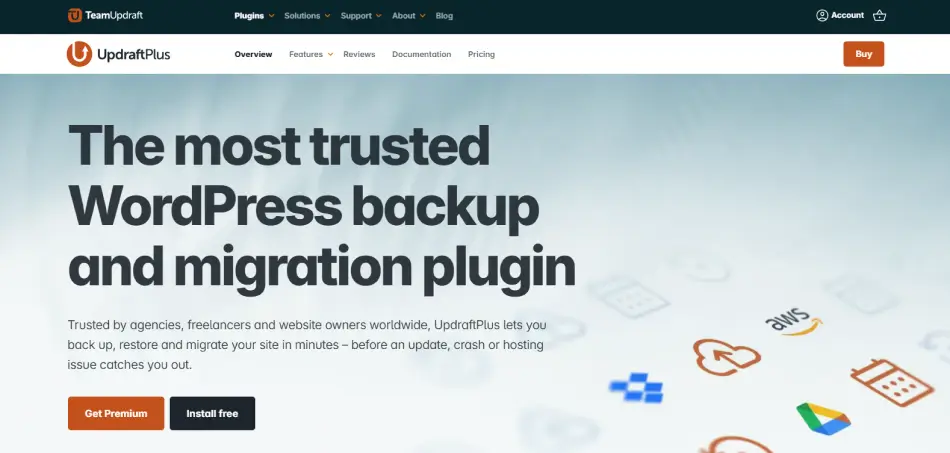
When I first started working with WordPress backups, UpdraftPlus was one of those plugins I kept coming back to again and again. It’s not trying to be overly fancy, but it always does the one job that really matters: keeping your website safe and restorable when things go wrong.
In real use, what stood out most is how quickly you can set it up and forget about it. Once configured, it quietly and simply runs backups in the background and sends them to your chosen storage with no need of constant attention.
Even during restoration, it feels straightforward. You’re not digging through complex settings or worrying about breaking anything. It just rolls your site back cleanly when needed.
Key Features:
- Manual and automated scheduled backups to run every custom interval.
- Cloud storage integrations such as Google Drive, Dropbox, Amazon S3, FTP, or Rackspace.
- 1-click restoration for core files, plugins, themes and database.
- Easy site migration.
- Incremental backups.
- pre-update backups.
Pros & Cons:
| Pros | Cons |
| Very easy to set up and use. | Advanced features need a premium version. |
| Reliable backup and restore process. | Interface feels basic compared to newer plugins. |
| Wide cloud storage support. | Large sites may need optimization for performance. |
| Works well for beginners and pros. |
Cost:
- Free version is available
- The premium plan starts from $70.00/Year.
My Verdict: UpdraftPlus is one of those best backup plugins for WordPress that just quietly does its job without creating problems. Thus, if you want a backup solution that you don’t need to babysit, this is still one of the safest choices. Plus, it’s especially good for beginners and small to medium WordPress sites where reliability matters more than advanced customization.
3. Jetpack VaultPress Backup — A Smart Choice For WooCommerce Store Backups
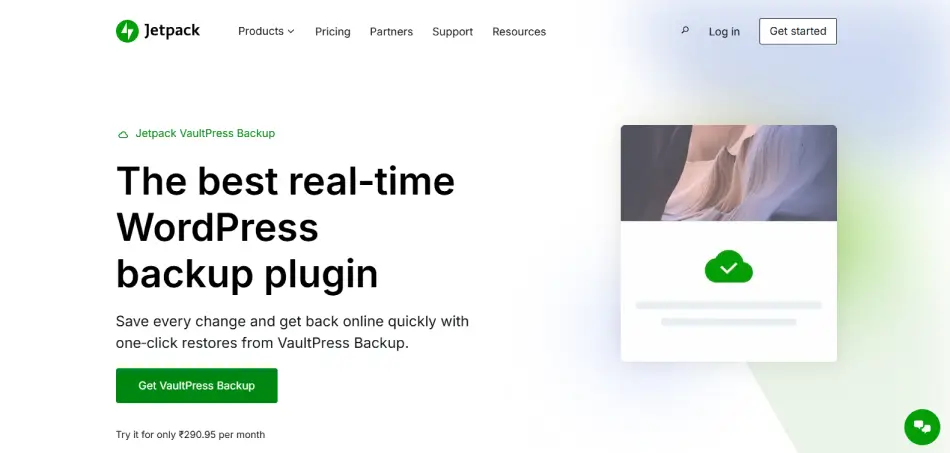
If you run a WooCommerce store, backups become a completely different game.
A normal blog can survive losing a few edits. But an online store? Losing even a single order, customer detail or payment record can turn things upside down.
That’s exactly where Jetpack VaultPress Backup feels different from traditional WordPress backup plugins.
During testing, what stood out most was its real time backup system. And, another thing I noticed is how beginner friendly the entire experience feels. Most backup plugins still expect users to understand databases, restore points or manual downloads. Jetpack removes most of that complexity.
I also liked the built-in activity log. If a plugin update breaks something, you can actually see what changed and when it happened, which makes troubleshooting far easier than blindly restoring old backups.
And while many WooCommerce users genuinely trust VaultPress for recovery and rollback situations, some users still feel the broader Jetpack ecosystem can feel slightly heavy depending on your setup.
Key Features:
- Real time incremental backups.
- WooCommerce aware restores.
- One click automated restores.
- Jetpack mobile app integration.
- 30 day activity log.
- off site cloud storage.
Pros & Cons:
| Pros | Cons |
| Excellent for WooCommerce stores. | More expensive than many alternatives. |
| Real time backup protection. | Limited cloud storage flexibility. |
| Beginner friendly restore process. | Some users find Jetpack ecosystem heavy. |
| Strong activity log tracking. | No WordPress multisite support. |
| Reliable off site cloud backups. | Advanced control is limited. |
Cost:
- Free version available
- The paid plan starts from $4.95/month (billed annually).
My Verdict: Jetpack VaultPress Backup is one of the safest choices for WooCommerce websites where losing live orders is simply not an option.
4. WPvivid — A Beginner-Friendly Plugin For Simple WordPress Backups
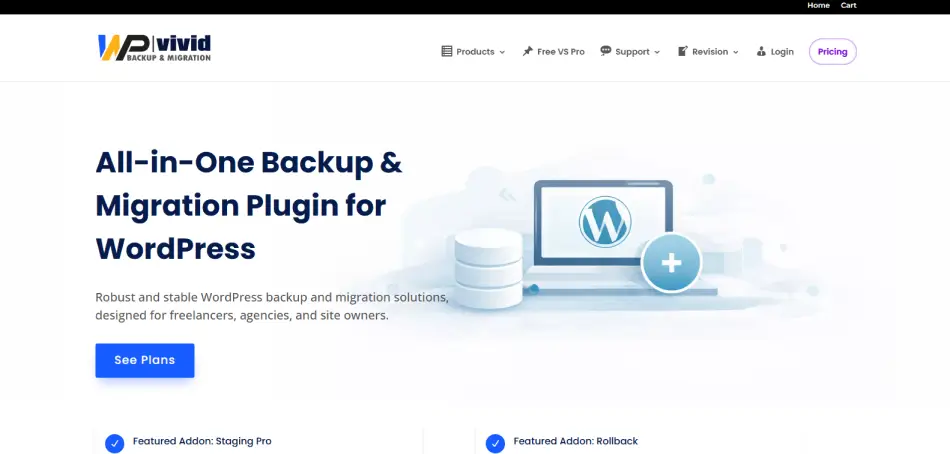
Some WordPress backup plugins feel like they were built only for developers. WPvivid felt completely opposite during testing.
Right from the setup process, everything was clean, simple and easy to understand. There were no complicated settings, confusing menus or technical jargon thrown everywhere. Even if you’ve never created a WordPress backup before, this plugin makes the complete backup process a piece of cake.
What I liked most is that WPvivid combines backup, restore, staging, and migration features into one plugin without making the interface feel smooth.
That said, advanced users managing very large websites or complex server environments may still prefer to look for more developer friendly backup solutions with deeper controls.
Key Features
- Easy backups in just one click
- Auto-migration.
- Scheduled backups.
- Remote storage providers like Google Drive, Dropbox, Microsoft OneDrive, Amazon S3, and DigitalOcean Spaces, or via FTP/SFTP.
- One-click restore
- Incremental backups
- Whitelabel available
Pros & Cons:
| Pros | Cons |
| Extremely beginner friendly. | Advanced features need premium. |
| Clean and simple interface. | Fewer developer level controls. |
| Backup, migration, and staging in one plugin. | Large sites may require optimization. |
| Easy cloud storage integration. | Some features feel limited in the free version. |
Cost:
- Free version available
- The paid plan starts from $49/year.
My Verdict: WPvivid is one of the easiest WordPress backup plugins for beginners who want something simple that just works. So, if your goal is to create backups, restore your site and occasionally migrate WordPress without dealing with technical complexity, WPvivid does that job really well.
5. All-in-One WP Migration And Backup— Great For Site Migration And Backups Together

All-in-One WP Migration and Backup is one of those plugins that became popular because it made WordPress migrations feel far less intimidating.
During testing, backing up and moving a WordPress site felt surprisingly straightforward even for beginners.
What stood out most is how beginner friendly the export and import process feels. That said, the free version comes with import size limitations which can become restrictive for larger websites.
Key Features:
- Zero configure setup.
- Automated URL replacement.
- One click expert and import.
- Automatic URL/Path Replacement.
- Advanced find and replace.
- Cross database compatibility.
- No size limits (with extension)
- Supports cloud storage integrations like Google Drive, Dropbox, OneDrive, and Amazon S3.
- Automated Scheduled Backups.
- Multisite migration support.
Pros & Cons:
| Pros | Cons |
| Extremely easy to use. | Free version has import limits. |
| Great for migrations and cloning. | Many extensions are paid. |
| Clean drag and drop workflow. | Less advanced backup customization. |
| Beginner friendly setup. | Large sites need premium tools. |
Cost:
- Free version available
- The pro version starts from $99/year.
My Verdict: If your main goal is simple WordPress backups combined with easy site migration, All-in-One WP Migration and Backup is still one of the easiest tools to work with.
6. BackWPup — An Easy Backup Plugin For Everyday WordPress Users

BackWPup has been around in the WordPress market for years, and after testing it again, it still feels like a dependable backup plugin.
What I liked most is that this wp backup plugin loves to keep things practical without overcomplicating the experience. Yet…..it may not have the most modern interface, but it handles everyday WordPress backups reliably. The restore process, however, feels slightly less beginner friendly compared to newer backup plugins.
Key Features:
- Automated backup jobs.
- Selective backups.
- Database maintenance.
- Restore app.
- Custom file formats.
- Multiple cloud storage options with smooth migration.
Pros & Cons:
| Pros | Cons |
| Reliable for regular backups. | Interface feels slightly outdated. |
| Easy scheduling options. | Restore process is less beginner friendly. |
| Supports multiple storage .services | Advanced features require premium. |
| Good for small and medium sites. | Setup can feel technical at times. |
Cost:
- Free version available
- The paid version starts from $49 /year.
My Verdict: BackWPup is a solid choice for everyday WordPress users who want dependable backups. But still, it is not as modern as other plugins we discussed earlier.
7. WP STAGING — A Safe Option For Staging And Backup Testing
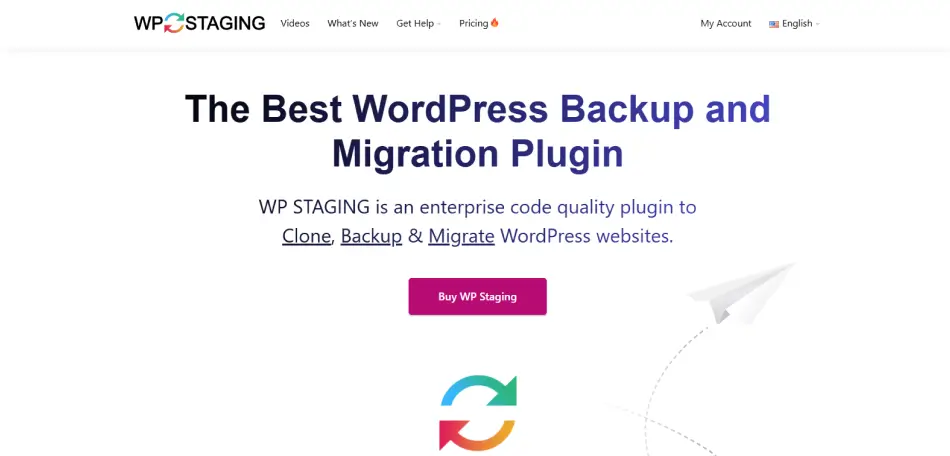
WP STAGING feels a little different from traditional WordPress backup plugins because its main strength is creating safe staging copies of your website.
During testing, it was useful for plugin updates, theme changes and testing risky modifications without touching the live site. It also includes a backup and restore feature so you can combine staging + protection tools if you regularly test changes.
What stood out most is the peace of mind it gives during updates. Using this, you never have to gamble with your live website. Test everything safely first then backup.
Key Features:
- High performance backup and cloning.
- Automatic daily backups.
- No server timeouts (Or at least we didn’t faced any during testing)
- Backup for WordPress multisites.
- Backup to Google Drive, Amazon S3, (S)FTP, Dropbox, etc.
- One-click staging site creation.
- Backup and restore support.
- Safe testing environment for updates.
Pros & Cons:
| Pros | Cons |
| Excellent for staging and testing. | Backup features are not as advanced. |
| Very beginner friendly. | Some important features require Pro. |
| Fast cloning process. | Less focused on cloud backup storage. |
| Lowers risks during updates. | Better for testing than long term backups. |
Cost:
- Free version available
- The premium plan starts from $ 104/year.
My Verdict: WP STAGING is one of the safest tools for WordPress users who regularly test plugins, themes or updates before going live. If protecting your live website during changes matters more than advanced backup automation, this plugin is must have.
8. Database Backup For WordPress By WP Engine — A Handy Tool For Database-Only Backups
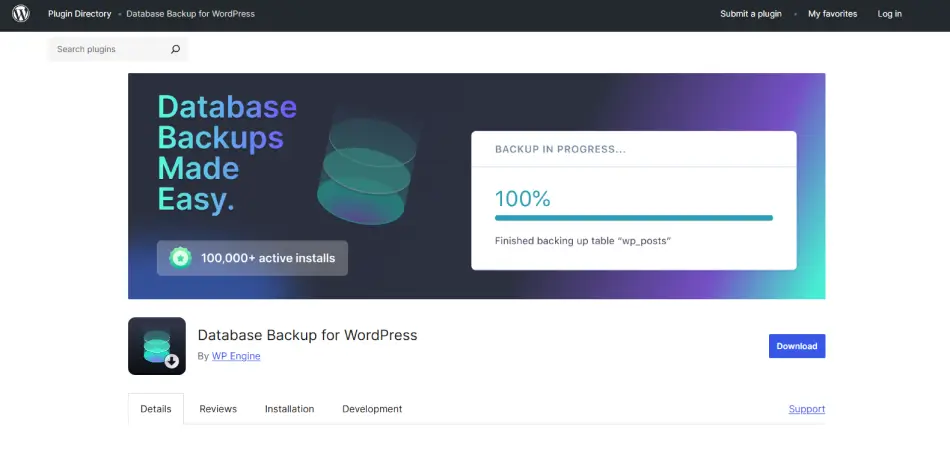
Important Note: This plugin is currently no longer actively maintained, meaning no new features or security updates are being released
Not every website owner needs a full site backup every single time.
Sometimes, all you really want is a quick and lightweight way to protect your WordPress database for posts, pages, comments, settings and user information.
That’s where Database Backup for WordPress by WP Engine feels useful.
During testing, this best wp backup plugin stayed very focused on doing one job well: creating database backups with ease. The interface feels old-school but the setup process is simple enough even for beginners.
It’s practical for smaller websites, blogs or developers who already handle file backups separately and only want reliable database protection. But don’t forget this WordPress website backup plugin naturally lacks full site backup and migration capabilities plus it is no longer maintained by the team.
Key Features
- Database-only backup.
- Gzipped Exports.
- Automated scheduling.
- Flexible Delivery options.
- Selective table backup.
- Space optimization.
- Simple restoration.
Pros & Cons:
| Pros | Cons |
| Lightweight and simple. | No full site backup support. |
| Good for database only backups. | Interface feels outdated. |
| Easy scheduling options. | Limited modern features. |
| Beginner friendly setup. | No advanced cloud integrations. |
Cost: This plugin is free to download and use from the WordPress plugin directory
My Verdict: If you mainly want a lightweight plugin for protecting your WordPress database, this tool still does the job well.
9. WP Umbrella — A Solid Backup Solution For Managing Multiple Websites
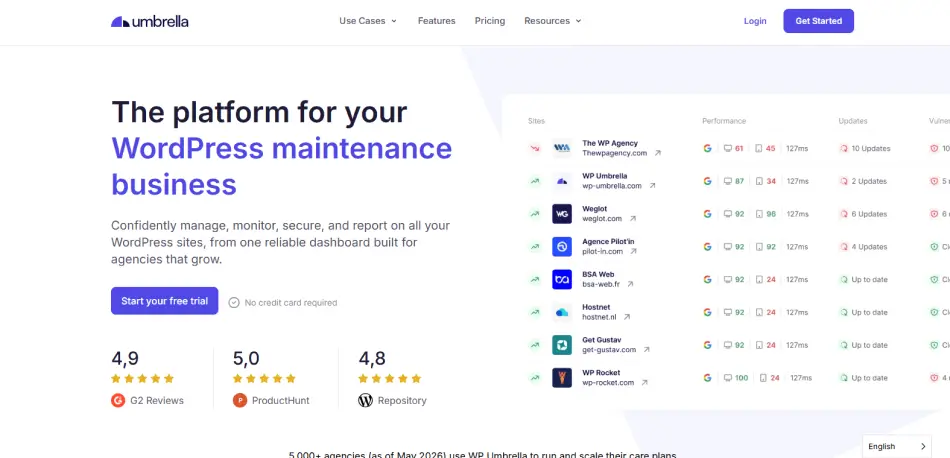
WP Umbrella is another best backup plugin for WordPress around here.
The backup system itself felt reliable and automated. Creating backups, restoring websites and monitoring errors all happen quietly in the background which makes it useful for agencies, freelancers and developers handling multiple client sites.
What stood out most is how modern the interface feels compared to many older WordPress backup plugins. Yet that said, if you only manage a single small website, WP Umbrella may feel like more than you actually need.
Key Features:
- Automated increment backups.
- File and database restoration.
- Reliable cloud storage.
- Configurable frequencies.
- 50-day retention.
Pros & Cons:
| Pros | Cons |
| Excellent for managing multiple sites. | Overkill for single websites. |
| Modern and clean dashboard. | Pricing increases with more sites. |
| Combines monitoring + backups. | Less beginner focused. |
| Reliable automated backups. | Needs external dashboard setup. |
Cost:
- Free version available
- The premium starts from $2.19 per site / month but for Hourly Backups and Site Protect you have to pay $2.49/site/month and $2/site/month.
My Verdict: WP Umbrella is a good option to consider for agencies, freelancers or anyone managing multiple WordPress websites regularly. In the end, if you want backups, monitoring and maintenance combined into one system, this plugin saves a lot of time.
10. Backuply By Softaculous — A Budget Friendly Plugin For Automated Backups
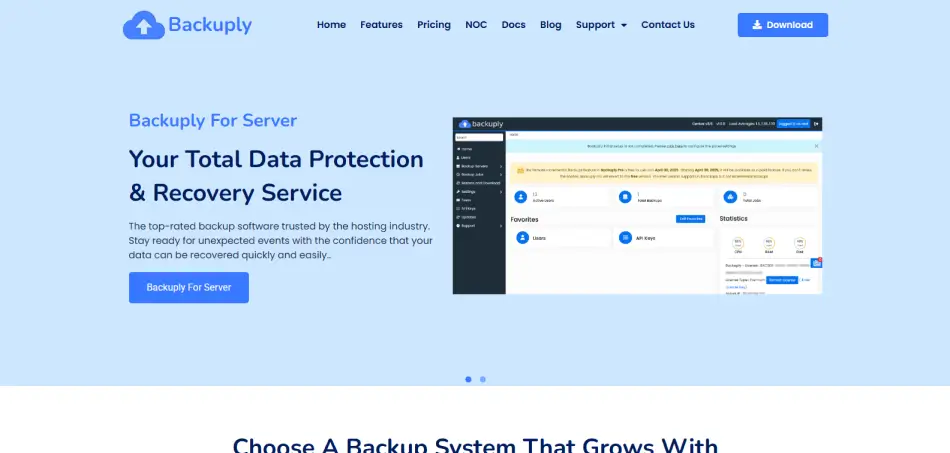
Backuply surprised me during testing because it keeps things very simple while still offering most of the features regular WordPress users actually need.
The interface feels beginner friendly from the start and setting up automated backups takes only a few minutes. Plus, you can back up your full website, schedule automatic backups and send copies to remote storage services without dealing with complicated settings.
What I liked most is that the plugin doesn’t try to overwhelm people with too many advanced controls. But still….advanced users who look for deep backup customization or enterprise level features will find it slightly limited.
key Features:
- Automated and scheduled backups.
- Backup rotation (Pro)
- Multiple storage targets.
- One click restorations.
- Incremental backups.
- Selective backups.
- Easy migration and cloning.
Pros & Cons:
| Pros | Cons |
| Affordable pricing. | Fewer advanced features. |
| Very beginner friendly. | Limited developer level controls. |
| Easy backup scheduling. | Smaller ecosystem compared to competitors. |
| Lightweight and simple. | Advanced storage features need premium. |
Cost:
- Free version available
- The paid plan starts from $18/Year.
My Verdict: Backuply is a solid budget friendly WordPress website backup plugin for those who want simple automated backups without spending too much. I would say it’s a good option for bloggers, portfolio sites and smaller business websites only.
11. WP Database Backup By Backup For WP — A Simple Backup Tool For Small WordPress Sites
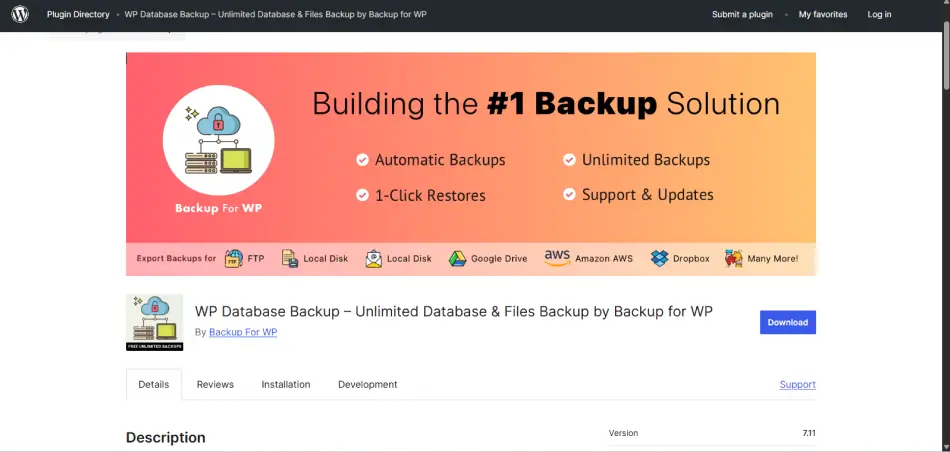
WP Database Backup keeps things extremely simple.
During testing, the plugin felt lightweight and easy to use even for beginners running smaller WordPress websites. And the best part is it took barely a few minutes to configure it. Creating manual database backups only takes a few clicks and scheduled backups work well for basic protection needs.
But remember this WordPress site backup plugin is not ideal for users looking for full site backup and restoration features.
Key Features:
- Database backup.
- Automatic backup on repeating schedule.
- Save backup to Dropbox, Google drive, Amazon s3, FTP, sFTP, Backblaze, Email.
- Database backup list pagination.
- Simple to set.
Pros & Cons:
| Pros | Cons |
| Extremely simple to use. | No full site backup support. |
| Lightweight plugin. | Limited modern features. |
| Good for small websites. | Basic interface. |
| Beginner friendly setup. | No advanced cloud integrations. |
Cost:
- Free version available
- The paid plan starts from only $1 per 50GB of storage per website per month.
My Verdict: If you simply want a lightweight database backup plugin for a small WordPress website, this plugin does the basics well.
Conclusion & Next Steps
In a nutshell, these are all the best WordPress backup plugins worth considering in 2026 based on real world testing, usability, reliability and overall backup experience.
At the end of the day, the biggest mistake is not choosing the “wrong” backup plugin: It’s running a WordPress website without a working backup at all.
Because when something eventually breaks, and at some point, it usually does, a reliable backup becomes the difference between a quick recovery and losing your website completely.
So pick the plugin that fits your workflow, set up automatic backups, test your restore process once, and give yourself the peace of mind your website deserves.
Related articles: