How To Manage Multi-Currency Affiliate Commissions In WordPress

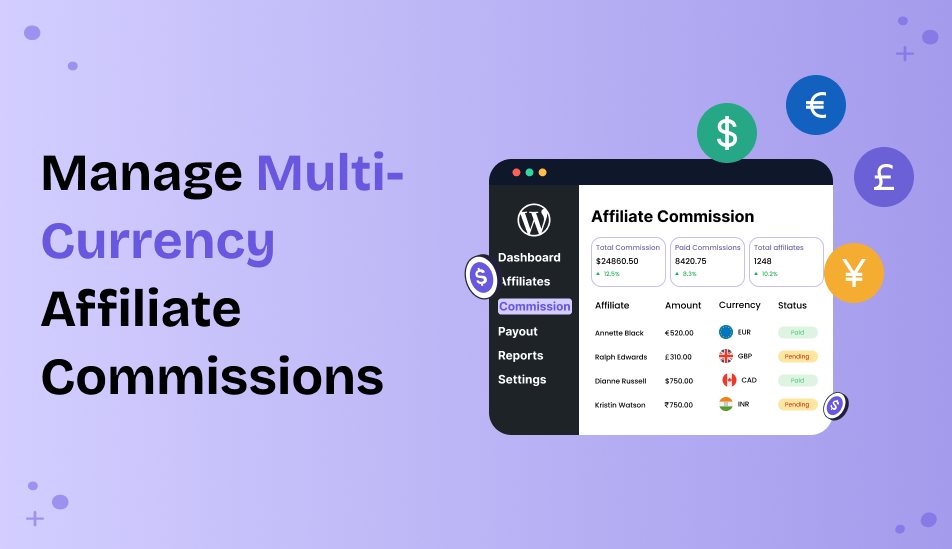
Want to pay affiliates in their local money, like Euros or Dollars?
Selling products or services to customers around the world sounds great…until you have to manage affiliate commissions in different currencies.
A customer pays in EUR, another one pays in USD, and your affiliate program uses GBP as its default currency. Now you have to calculate, convert and track every commission correctly.
Sounds like a bit of a slog, no?
This is where multi currency affiliate commissions can make things much easier.
In this guide, we’ll show you how to manage multi-currency affiliate commissions in WordPress using AffiliatePress and automatically convert commissions into your default currency.
TL;DR: Managing multi-currency affiliate commissions in WordPress becomes easier when commissions from different currencies are automatically converted into one default currency. AffiliatePress’s Multi-Currency Addon handles currency conversion, exchange-rate updates and commission tracking for international sales.
How Multi-Currency Affiliate Commissions Work In WordPress

Before we now jump into the setup, let’s understand how multi-currency affiliate commissions actually work.
The idea is pretty simple to be honest. Your customer can purchase in their preferred currency, and AffiliatePress converts the affiliate commission into your configured default currency.
For instance your AffiliatePress default currency is USD, but a customer places a €100 order through an affiliate.
If the affiliate commission rate is 10%, the commission is:
€100 × 10% = €10
Now if the current exchange rate is €1 = $1.14, AffiliatePress converts that €10 commission into $11.40.
Thus the basic flow is…
Customer pays → Affiliate commission is calculated → Currency is converted → Commission is recorded in your default currency
Why Manage Multi-Currency Affiliate Commissions?

If you’re running an affiliate program for customers across different countries, multi-currency support can save you from a lot of legwork and hassle.
Make International Affiliate Programs Easier to Manage
When your customers and affiliates come from different countries, you don’t want to convert every commission yourself manually, do you?
That’s exactly why multi-currency support is helpful. Customers can buy in different currencies and you get to keep your affiliate commission management consistent.
Keep Affiliate Commission Tracking Accurate
Currency differences can make affiliate sales tracking a little tricky.
If one affiliate generates a sale in EUR and another generates one in INR, then you need a proper way to calculate and record their commissions.
What’s more is converting commissions into your default currency makes it easier to track affiliate performance and keep your commission records organized.
Give Affiliates Clearer Earnings Information
Affiliates want to know exactly how much they’ve earned.
Showing a converted commission amount in your program’s default currency makes affiliate earnings easier to understand, especially when affiliates are checking their commission records.
Simplify International Affiliate Payouts
Paying affiliates from different countries can just get complicated when every commission is recorded in a different currency.
Thus by keeping your affiliate commissions in one default currency, you can make your payout process much easier to manage.
Lower Manual Currency Calculations
Let’s be honest. Nobody wants to sit around calculating exchange rates for every affiliate sale.
Automatic currency conversion takes care of those calculations for you. So this way you can spend less time checking exchange rates and more time growing your affiliate program.
What Should You Decide Before Setting Up Multi-Currency Affiliate Commissions?

Now, let’s see what you need to be sure about before you start configuring everything.
- Your default currency.
- The currencies your customers use.
- Your exchange rate provider.
- How often exchange rates should update.
After these things are sorted, you can move on to the actual setup with AffiliatePress.
Managing Multi-Currency Affiliate Commissions In WordPress With AffiliatePress
Now that you know why multi-currency affiliate commissions matter, let’s see how you can actually set them up.
With the AffiliatePress Multi-Currency Addon, you can automatically convert affiliate commission amounts from different currencies into your configured default currency.
The setup is pretty easy. Thus let’s go through it step by step.
1. Install The Multi-Currency Addon

First things first, make sure you have AffiliatePress installed and activated on your WordPress site. Plus, your AffiliatePress license is verified so you can install and activate the Multi-Currency Addon.
AffiliatePress Integrates smoothly with WooCommerce and 26+ other WordPress plugins. Yet as of now, the Multi-Currency Addon supports 20 integrations including WooCommerce, SureCart, Easy Digital Downloads, ARMember, MemberPress, LearnDash, BookingPress, ARForms, WPForms and more.
2. Enable Multi-Currency
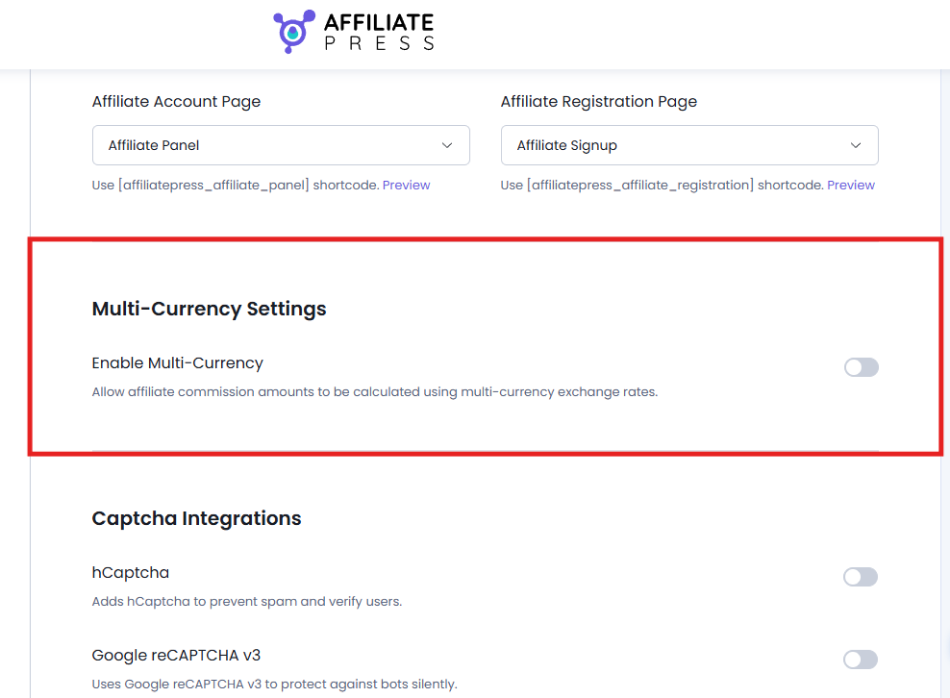
After activating the addon, go to AffiliatePress → Settings → General
Scroll down to the Multi-Currency Settings section and enable Enable Multi-Currency.
After you toggle it on, AffiliatePress can convert commissions from the order currency into your configured default currency before storing them.
For instance your default currency is USD and a customer bought a €100 product. In this scenario, with a 10% affiliate commission, the calculated commission is:
€100 × 10% = €10
Now if the exchange rate is €1 = $1.14, AffiliatePress converts the €10 commission into $11.40. Thus the commission is then recorded as $11.40 in your AffiliatePress Commissions page.
3. Choose an Exchange Rate Provider
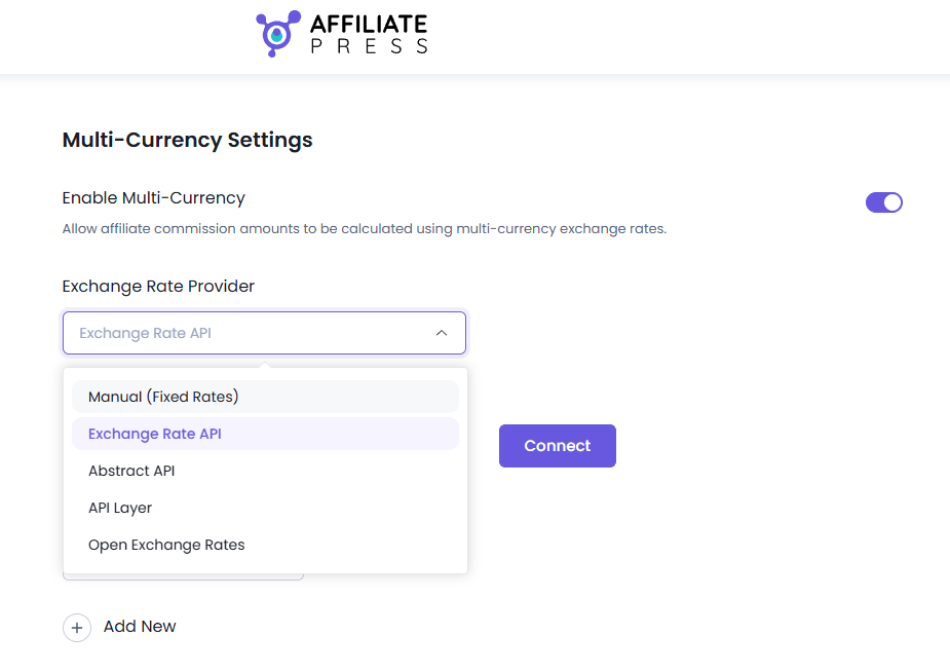
Next you need to decide where AffiliatePress should get its exchange rates from.
You can choose from:
- Manual (Fixed Rates) – Set your own exchange rates.
- ExchangeRate-API
- AbstractAPI
- API Layer
- OpenExchangeRates
If you pick an API-based provider, you’ll need to fill in a valid API key and connect it to AffiliatePress. And at last so, AffiliatePress can fetch the latest exchange rates automatically.
Note: The Manual option doesn’t need an API key. If your API key is missing or invalid, AffiliatePress won’t be able to automatically update exchange rates from that provider.
4. Set The Exchange Rate Update Time
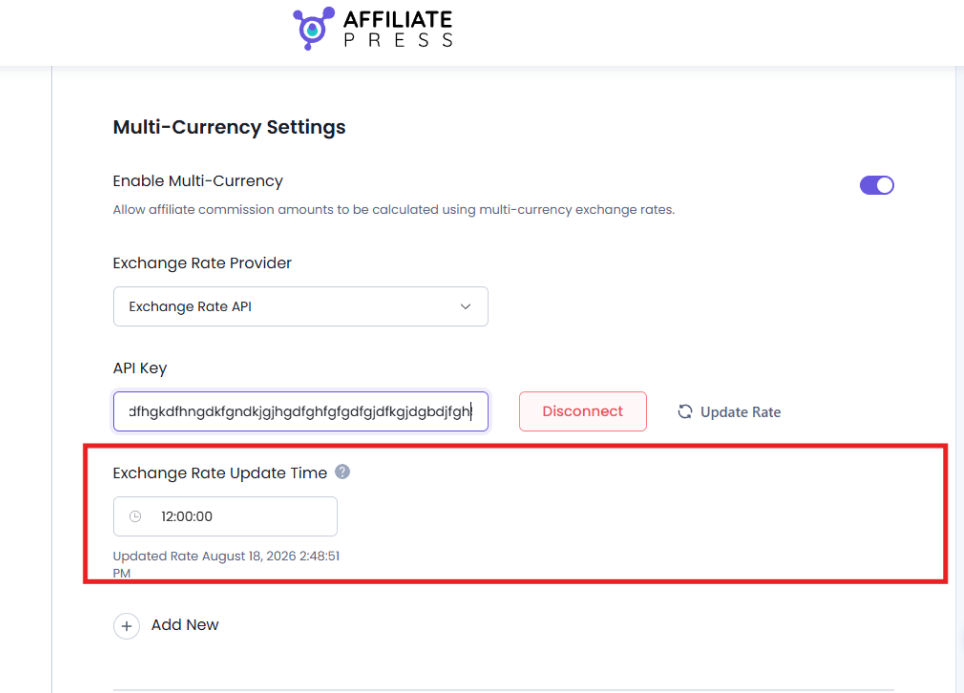
Exchange rates don’t stay the same forever.
That’s exactly why AffiliatePress allows you to schedule when they should be updated.
In the Multi Currency Settings, you can set the time for the exchange rate update. The rates are automatically updated every 24 hours at the selected time.
Want to update them right away instead? Simply just hit the “Update Rate” for fetching the latest rates from your exchange rate provider.
5. Configure Exchange Rates
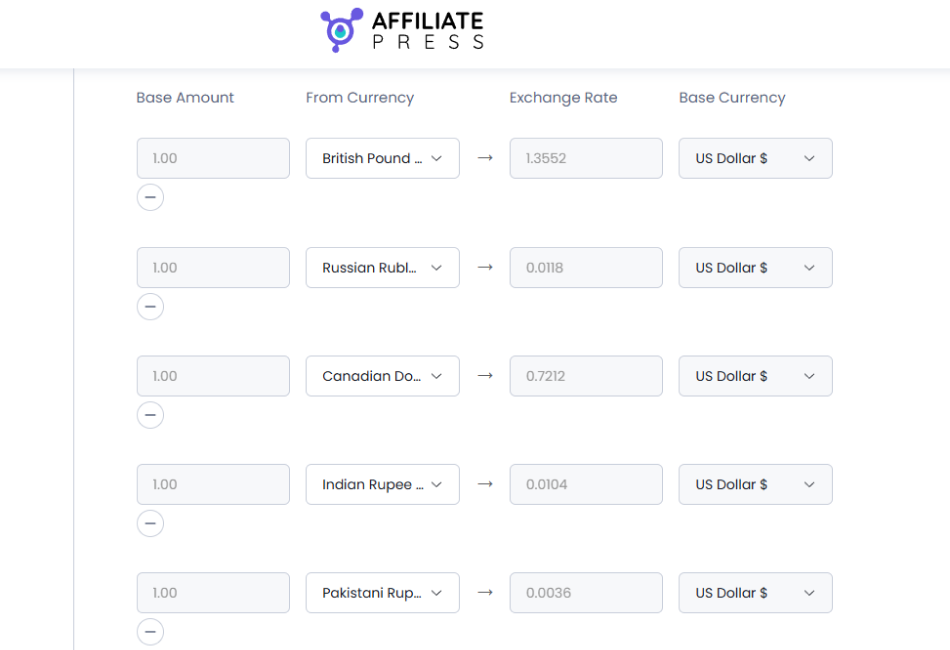
Time to check your actual currency conversion rates now. And for that, the Exchange Rates table shows the available conversion rates based on your AffiliatePress default currency. Moreover, here you can easily manage….
- Base Amount: The amount used for the exchange rate.
- Exchange Rate: The current conversion rate.
- Base Currency: Your AffiliatePress default currency.
- From Currency: The currency you want to convert from.
Need to add another currency? Click the + icon.
Want to remove one? Click the – icon.
It’s as simple as that.
AffiliatePress uses these rates whenever it needs to convert an affiliate commission into your default currency.
After everything looks good, don’t forget to Save your settings.
6. View Converted Affiliate Commissions
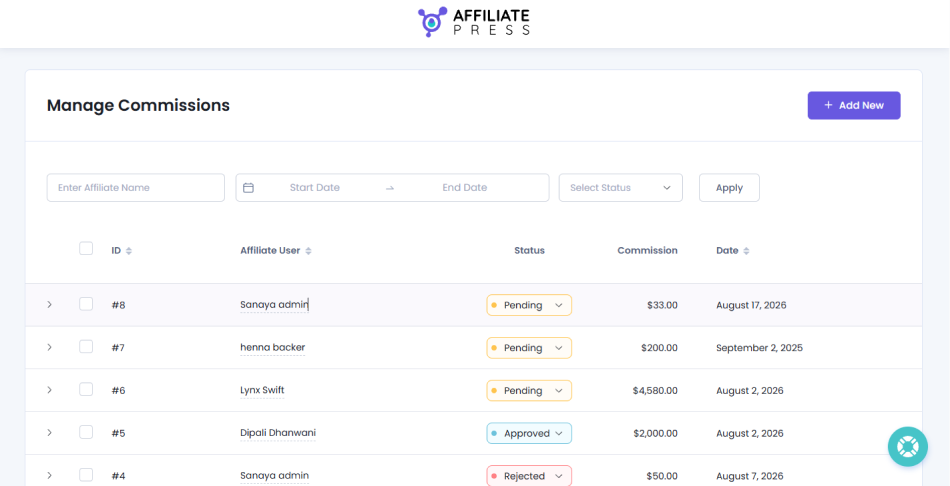
Finally, you can check how your multi-currency commissions are recorded from the AffiliatePress Commissions page. Just click on any commission record to open its details.
Further into this, you’ll be able to see information such as:
- Order Amount: ¥163146.00
- Display Order Amount: $1000
- Commission: $50.00
This makes it easy to verify the original order amount, the converted amount and the commission recorded in your default currency.
So you can quickly check whether the commission was converted correctly and also see the source and order details behind it.
In Conclusion: How To Manage Multi-Currency Affiliate Commissions In WordPress?
Managing affiliate commissions can be pretty simple when all your customers pay in the same currency. But once you start selling internationally, things can get a little more tricky.
Customers may purchase in EUR, USD, GBP, JPY or another currency, and your affiliate program may use just one default currency. If you try to calculate and convert every commission manually, it can quickly become a time consuming task. And honestly, that’s not how you want to spend your time when you’re trying to grow your affiliate program.
The good news is that you don’t have to do all those calculations yourself.
The AffiliatePress Multi-Currency Addons lets you automatically convert affiliate commission from different currencies into your default currency.
Best of all, the complete process is pretty simple:
Install the Multi-Currency Addon → Enable Multi-Currency → Choose an exchange rate provider → Set the update time → Configure exchange rates → View converted commissions
Ready to make your international affiliate program easier to manage? Install AffiliatePress and set up the Multi-Currency Addon to start managing multi currency affiliate commissions with less manual work.
Related Articles: