How To Set Product-Wise Commission In WooCommerce For Affiliate Marketing


Product-wise affiliate commissions in WooCommerce aren’t an easy thing by default. However, with dedicated plugins like AffiliatePress, you can customize per-product commissions for your store the easy way, either as percentage or a monetary value. So, how do you achieve the per-product commission flexibility for your program?
TL;DR: If you want different affiliate commission rates for different WooCommerce products, then AffiliatePress makes it easy by letting you assign percentage-based or fixed commissions on a per-product basis instead of using one global commission rate.
When Different Per-product Commissions Make Sense For Your Affiliate Program
A single affiliate commission rate rarely makes sense if your WooCommerce store catalog includes products with very different prices and profitability.
That’s why setting commissions that make sense for every product rather than the same for all your store items is a smart way to save money. Moreover, it brings a lot of other perks to your entire business:
- Motivate affiliates to promote products you need at a specific time.
- Adjust commissions to match each product.
- Increase commissions for your current focus – seasonal items or products you want to sell faster.
- Find the best pricing model for your program per product – use a percentage for products with varying prices or a fixed amount when you want predictable revenue.
Let’s now move on with the exact settings and help you set up the product-wise commissions!
How To Set Product-Wise Affiliate Commissions In AffiliatePress
Using this guide requires having a Pro version of AffiliatePress installed and activated (any plan tier is good).
Also, it’s best to get started with per-product settings when you already have your products added through the third-party plugin and the respective AffiliatePress integration activated though the plugin settings (in our case, WooCommerce).
More on the detailed step-by-step guide below.
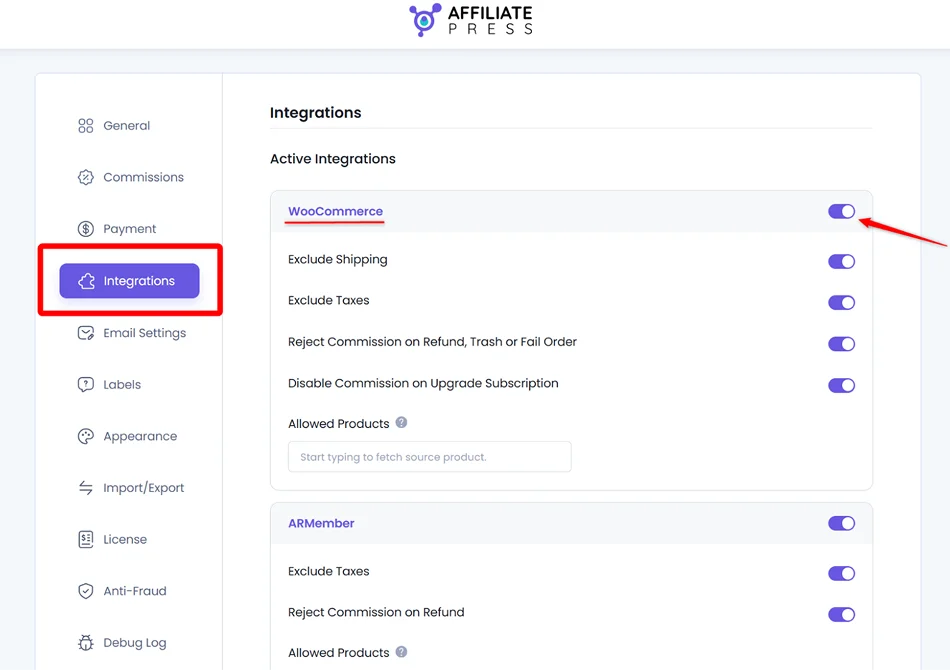
- Go to AffiliatePress > Settings > Integrations tab and make sure that the needed e-commerce integration is activated.
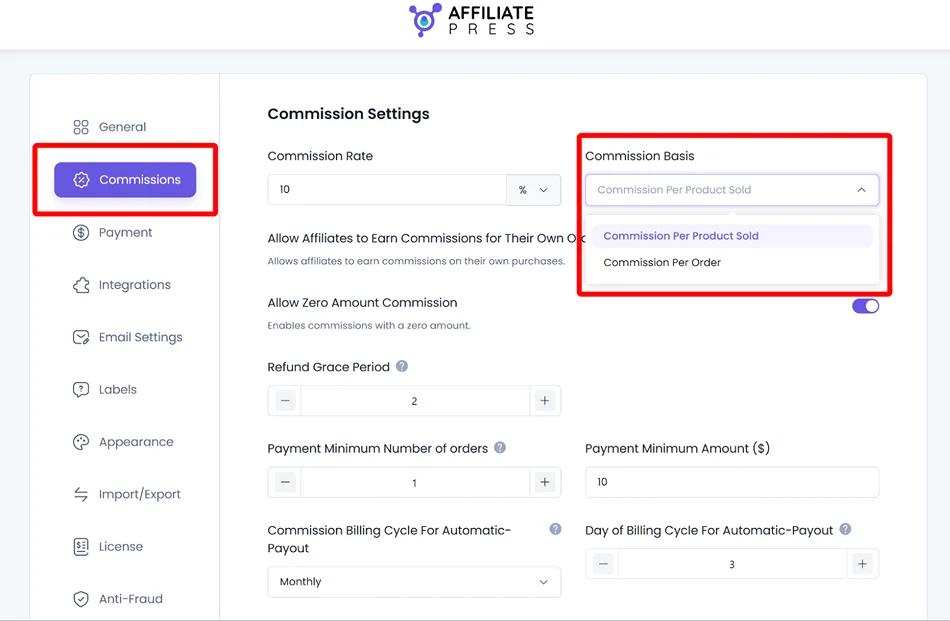
- Go to > AffiliatePress > Settings > Commission tab > choose “Commission Per Product Sold” and Save the settings.
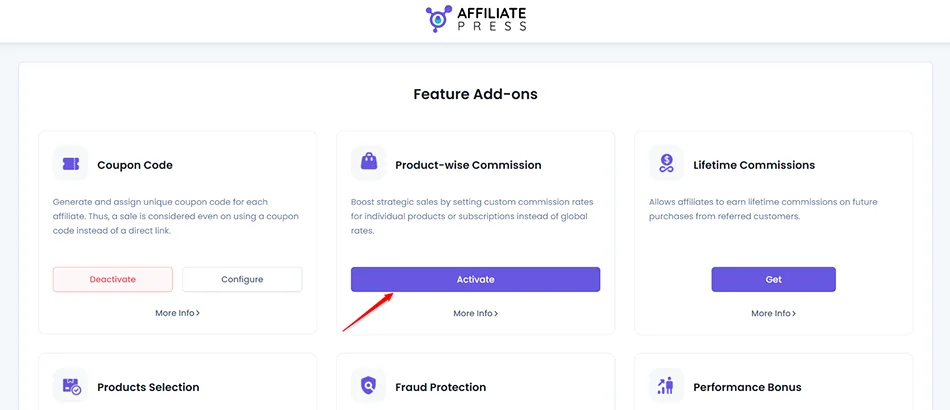
- Activate the Product-Wise Commission Rate add-on from AffiliatePress > Addons page. You may need to download this extension from your AffiliatePress account first if it’s not there yet.
- To customize affiliate rate types per product, open the needed product (e.g. a specific Product in WooCommerce) and find AffiliatePress settings.
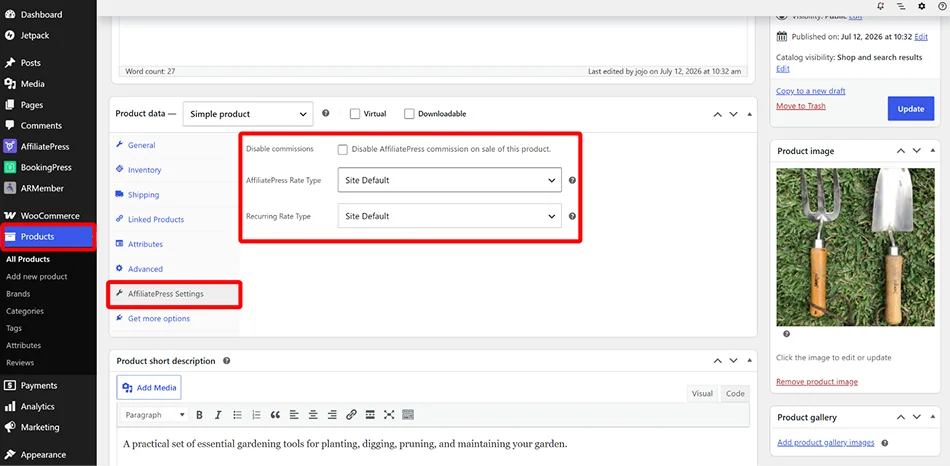
To understand how to set up this commission, we’ve added the next chapter (read further).
Understanding Per-product Commission Settings
As you see, with the add-on enabled, each product/service/lesson can use its own commission settings or inherit the global AffiliatePress commission rate.
When you set up the rate type, you also need to add a rate value associated with it. Rate Type is basically “How should the commission be calculated?”, and its value is “What is the commission amount or percentage?”.
Naturally, the Rate Value depends on the Rate Type you choose.
If you select Percentage, you enter a percentage. If you select Fixed Amount, you enter a currency amount. When you turn on the Site Default, the value comes from your global AffiliatePress settings via Commissions, so you don’t need to enter anything.
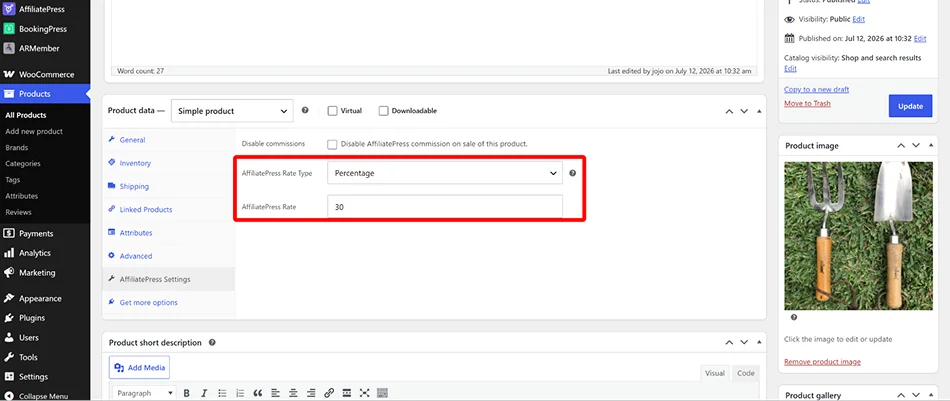
Choose The Right Rate type
In this menu, you choose how the commission is calculated:
- Site default (uses the global commission rate you set via AffiliatePress).
- Percentage (the commission is calculated as a percentage of the product price).
- Fixed amount (pays a fixed commission for every sale, no matter the actual product price in WooCommerce).
Set The Commission Rate value
It’s most important for your commissions – set the commission based on the rate type you find suitable for a specific thing you sell:
- For Percentage, enter a number such as 10 for a 10% commission.
- For Fixed Amount, enter a monetary value such as 30 for a $30 commission.
- For Site Default, no value is required because the global AffiliatePress commission rate is used.
Product-wise Commission Examples
Example: for a case like – “If a product sells for $100, the affiliate earns $30”, set the following:
- Rate Type: Percentage
- Rate Value: 30
Another example: for a case like “The affiliate earns $30 for each sale, whether the product costs $50 or $200”, use a $30 fixed commission value:
- Rate Type: Fixed Amount
- Rate Value: 30
For the affiliate global settings, if yours is, for example, 20%, a $100 sale generates a $20 commission.
Additional Product Commission Options
It’s worth mentioning, if you use the Recurring Commissions add-on that enables recurring commissions for your affiliates, you will also see their settings for it in the product settings for affiliate price commissions. In addition to standard settings, you can also set the recurring rate limit. You may also customize that via the AffiliatePress settings inside a WooCommerce product.
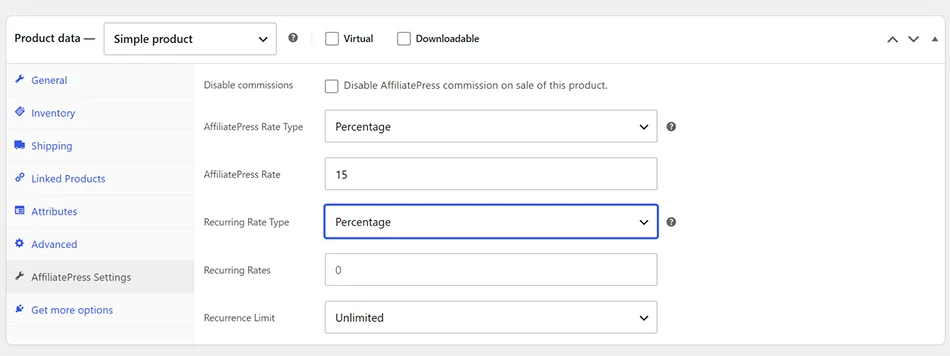
Moreover, note that you can also disable affiliate commissions for specific products to exclude them from the program – but don’t forget to notify your partners about it!
If you use the Products Selection add-on from AffiliatePress, you can also specify eligible products for commissions from the plugin settings.
Concluding: Setting Product-Wise Commission In WooCommerce
AffiliatePress allows you to have a different affiliate commission set for individual products in WooCommerce.
To set this up, you only need to complete a few simple steps. Connecting WooCommerce to AffiliatePress (by enabling the WooCommerce integration) goes first.
The crucial part is then the Product-wise Commission add-on, which is available with any premium plan of AffiliatePress.
This extension allows you to instantly set a custom affiliate commission for every WooCommerce product you add with either a percentage or a fixed sum of money.
This will give you the flexibility to assign different commission rates to different products across your entire WooCommerce store! For the entire setup, you only need a quick AffiliatePress configuration and a simple WooCommerce integration (with a click, basically).
With product-specific commissions, your affiliate program becomes much more flexible, rewards more motivating, and the bottom line stronger!
Related articles: