



Beginner’s Guide to AffiliatePress Commission Settings

The commission structure you choose for affiliates, in many ways, defines how attractive your affiliate program is to prospective partners.
AffiliatePress, the all-purpose affiliate plugin for WooCommerce and many other plugins, is designed to cover any commission flexibility.
In the past, we’ve broken down all possible types of commissions available in AffiliatePress that you could easily enable with or without an add-on. A few really flexible types include per-product commissions, tiered rates to motivate better affiliate performance, recurring commissions, and rule-based bonuses. So many!
Today, however, we’re focusing on the starter commission settings in AffiliatePress, which apply globally, as a baseline for your affiliate program, even without extra add-ons or configurations.
So, let’s head to your WordPress site > AffiliatePress > Settings > Commission tab to see what you get.
AffiliatePress – Basic Affiliate Commission Settings
If you are new here, our explanation below will help you avoid extra thinking, hopefully, getting your commissions set up quickly and easily.
1. Commission rate
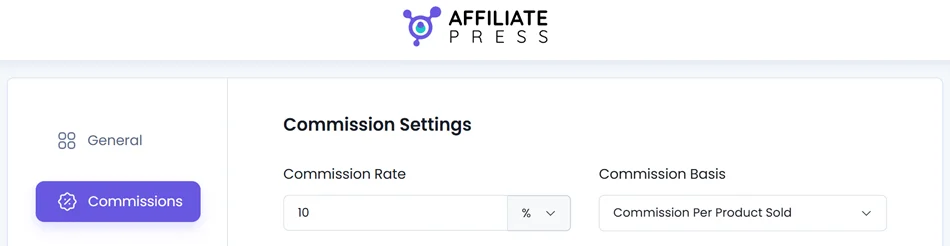
You can set affiliate commissions as either a percentage or a fixed amount.
- Choose % if you want affiliates to earn a share of each sale (this works best when prices vary).
- Choose a currency sign if you want to pay a flat fee per booking or sale (better when prices are consistent).
2. Commission Basis
This is basically a commission type that lets you choose how affiliates earn commissions:
- Per Product – Affiliates earn a commission for each product sold. You can turn commissions on or off for individual products. To check it out, go to individual products on your integrated plugin used for sales (WooCommerce, EDD, etc.) and find AffiliatePress product settings. You’ll see at least the ‘Disable AffiliatePress commission’ checkbox to exclude the product.
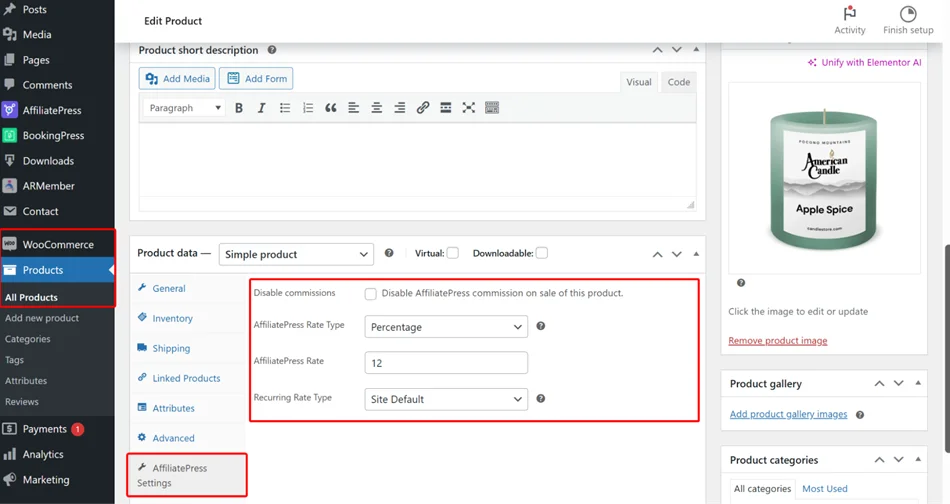
- Per Order – Affiliates earn a commission based on the total order value. This applies to the entire order, and commissions can’t be disabled for individual products.
3. Affiliate Commission Rules

Scroll down to see settings that control when commissions are allowed and how special cases are handled.
- Allow Affiliates to Earn on Their Own Orders – By default, affiliates don’t earn commissions on their own purchases to prevent misuse of referral links.
If you enable this option, affiliates can earn a commission when they buy using their own referral link. This is useful if affiliates are also partners or customers you want to reward for personal purchases.
- Allow Zero Amount Commissions – This option lets the affiliate WordPress plugin record a referral even when no commission is paid.
Important: Use this for tracking purposes, such as promotions, free products, or test orders, where you want to see referral activity without paying a commission.
4. Commission Payout Rules
These AffiliatePress basic commission settings define when commissions become payable, when affiliates can request payouts, and how automatic payouts are scheduled.
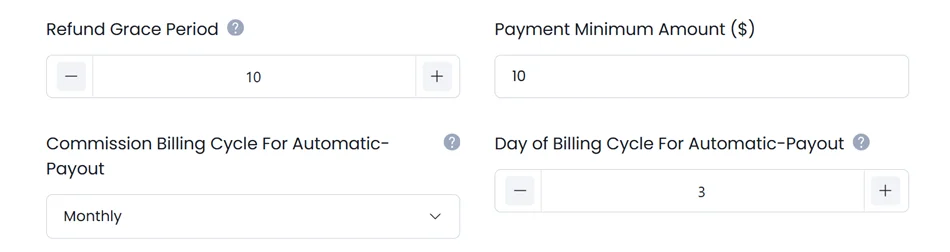
Jump to the following settings:
- Refund Grace Period – It sets how long the AffiliatePress plugin waits before a commission can be paid (basically, to prevent paying affiliate commissions for refunded purchases).
For instance, if the grace period is set to 10 days, commissions are only paid after those 10 days pass. Any orders refunded during that time won’t count toward payouts.
We recommend setting this to match your store’s refund or cancellation policy.
- Minimum Payout Amount – Set a minimum amount that an affiliate needs to earn before they can get paid. For example, if the minimum payout is $100, affiliates won’t be paid until their earnings reach that amount.
- Auto-Payout Billing Cycle – Affiliate auto payouts that are available in AffiliatePress are disabled by default.
When you enable them, you need to specify how often payouts are created automatically:
- Monthly (payouts are generated on the selected day each month, based on the previous month’s earnings).
- Weekly (payouts are created on the selected weekday, covering commissions from the previous week).
- Yearly (payouts are set once a full year of commissions has accumulated).
Payment gateways for payouts are specified via the Payments menu in the General settings of AffiliatePress.
Together, these affiliate commission settings simplify automated payments in a way that fits your program and business!
5. Commission Approval and Attribution
The next set of basic affiliate settings is about how commissions are approved and which affiliate gets credited for a sale.

- Default Commission Status – You can choose the logic of how new commissions are initially marked:
Based on Source Plugin Payment Status: This allows you to synchronize payment statuses of AffiliatePress with the external plugin used for ecommerce. For example, completed orders in WooCommerce generate approved commissions, while failed orders are rejected.
Pending: All new commissions start as pending, even if the order is complete. They won’t be approved automatically until you decide. When you choose this option, there is an extra field where you need to set the number of days to automatically approve pending commissions after a set number of days.

For example, setting it to 5 days will automatically approve commissions older than 5 days. Set it to 0 to turn off auto-approval and approve them manually.
- Credit Last Referrer – Enable this in settings to determine the affiliate who gets credit if a customer clicks multiple links before buying (with this option enabled, the affiliate who influenced the final purchase gets rewarded).
For example, if a customer clicks Affiliate A first and Affiliate B later, Affiliate B receives the commission. So much flexibility, and it’s just basic configuration! When you install more add-ons or go to other menus, you can get even more commission settings and adjustments, for example:
- Product-wise commission add-on
- Recurring commissions add-on
- Tiered Affiliate Rates add-on
- Performance Bonus add-on.
- Enable Individual Commission rates for affiliates from the Affiliates menu.
To make sure that your affiliates can register and see commission types available, don’t forget to enable affiliate registration on your site via the General settings.
- Allow affiliate registration – Turn on this toggle to make the affiliate self-registration on your WordPress site possible.

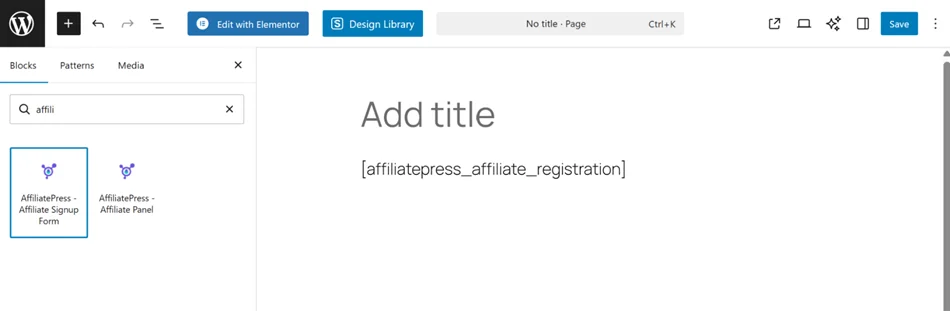
Where will they log in? Firstly, configure the AffiliatePress plugin settings, then customize your login areas via AffiliatePress > Affiliate Form Editor menu > go to WordPress page where you want to put a login area > find AffiliatePress Affiliate Signup form > add to the page.
Summing Up: What Can You Control with Basic AffiliatePress Commission Settings?
Even general settings for affiliate commissions provided by AffiliatePress allow you to achieve an efficient and accurate workflow for your program. Particularly, it makes it easy to:
- Define the basis for commission calculations.
- Keep payouts efficient and avoid frequent small payments.
- Test tracking without actual payments.
- Control payout timing.
- Prevent refunds from affecting paid commissions.
- Control over approval timing and fair commission attribution.
Start managing your affiliate commission like a pro with AffiliatePress! Make your program the best for your affiliates and yourself.
Related blogs: